



Table of Contents Show
You can see an overview of InstaLOD’s complete feature set in DP 03:19. In this issue, we take a closer look at the new features and functionalities that have been added in the latest update to completely revolutionise enterprise workflows.
by Calvin Bacon
In December 2019, InstaLOD released a huge update in which over 500 improvements and new features were added to their standalone software InstaLOD Studio XL. Among other things, these features speed up work within the software and make many steps of data preparation more intuitive than before. In addition to these many quality of life improvements, InstaLOD has launched several brand new products that are set to completely change the way 3D CAD and polygon data is processed in the enterprise market.

AMD ProRender
Let’s start with a feature that is a welcome addition for any 3D hobbyist, freelancer or enterprise customer: easy to set up final shot rendering. To prepare PBR models for product renderings by default, you have to be prepared to convert all materials to be compatible with the respective renderers, which in short means: every material has to be set up from scratch.
Render engines such as Arnold, Redshift or V-Ray have their own proprietary shaders, so you can’t simply use a Lambert shader to imitate complex materials such as clearcoat, subsurface scattering or sheen. InstaLOD automates what typically has to be converted manually with the integration of AMD ProRender. The PBR material is automatically converted into a ProRender shader.
This means that you remain flexible in the PBR model and can simply run ProRender at render time and sit back – without having to manually re-map textures. The Material Editor has also been improved; shading balls have been added for quick previews of materials. Adding and filtering materials is also quick to do, and the editor is easy to understand at first glance, with value sliders and texture input options per material parameter for easy editing.
In addition to the standard PBR parameters (Colour, Roughness and Metalness), the Material Editor contains many new parameters that can be used for raytrace rendering in Radeon ProRender. These include, for example, refraction, sheen, clearcoat and SSS. This means that high-end renderings can be set up with just a few mouse clicks, as shown above.
The integrated post-processing stack allows users to edit rendered images quickly and easily. Optional image processing functions such as colour correction, exposure, depth-of-field or AI denoising can thus be carried out locally within InstaLOD without having to open external image processing programs.
InstaLOD Grid
In companies, it often happens that employees cannot fully utilise certain applications. Application-specific training then has to be provided or, alternatively, colleagues from other departments have to take over the tasks.
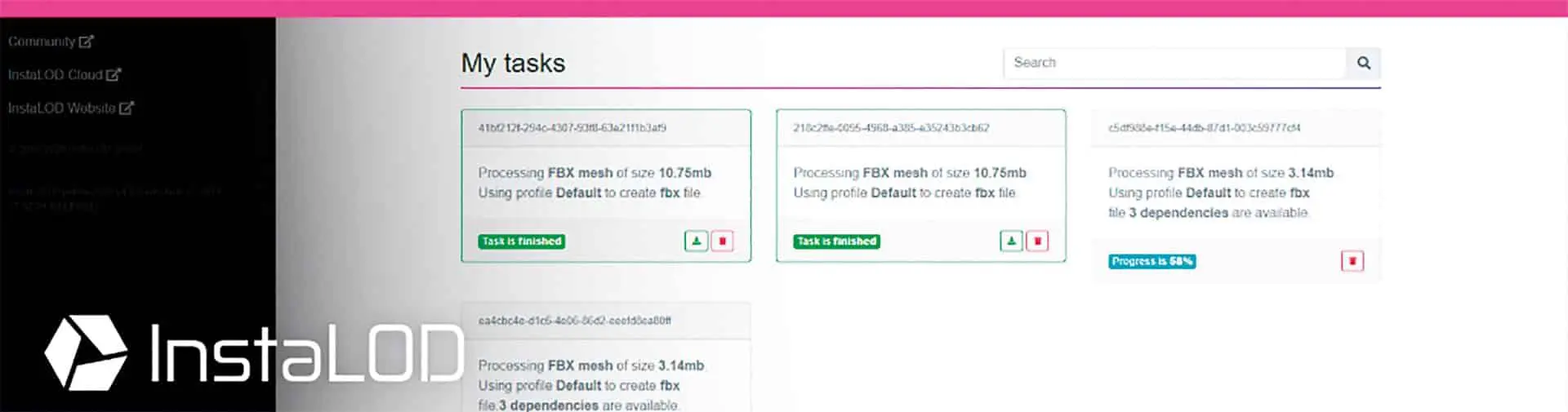
InstaLOD now wants to change this with its new product InstaLOD Grid. InstaLOD Grid makes it easy to set up a local InstaLOD computing cluster within an organisation. This enables employees to access InstaLOD Grid via an InstaLOD Grid web application. Within the web application, users have the option of uploading their data and editing it using ready-made profiles.
Profiles are added by InstaLOD experts within the company when the master server is set up, which is quick and easy to do. Profiles are saved as JSON files by default, which can easily become confusing for beginners in their text form. Therefore, this was simplified for the web application so that the user does not need to know the individual operation settings, but only a title and a description are visible in the UI, so that everyone knows that profile XYZ, for example, creates an LOD chain without having to understand any settings within InstaLOD. This means that employees do not have to attend application-specific training courses in order to fully utilise InstaLOD functionalities and settings throughout the company.
When a user creates a task, it is received by the InstaLOD grid server and sent to an available processing slave for further processing. Once the data has been processed, it is automatically sent to the server where users can download the data. To summarise, you upload data, specify a profile preset to be used for processing, let InstaLOD perform the operations and download the finished data at the end.

For comprehensive system integrations, InstaLOD Grid can be accessed via an integrated web service that can be connected to other web services, PLM systems and conventional data pipelines. This would make it possible, for example, to load the models of 3D shops directly into their libraries after processing.
InstaLOD WatchDog
Compared to VFX or game studios, large companies often have to process tens or hundreds of thousands of data for visualisations and other purposes. Due to their PLM (Product Lifecycle Management) systems, the data often changes weekly, if not daily. As a result, it quickly becomes confusing which data is new or has already been prepared, and processing such masses of data manually is almost impossible.
The process of data preparation is therefore not scalable in the traditional way, which is why InstaLOD has entered the market with a new solution. InstaLOD WatchDog is a powerful tool that can process and correctly mirror complex folder structures. After the initial processing of data, it remembers which files have already been processed so that data is only processed if it has been changed or newly added. This prevents problem areas where thousands of data would otherwise have to be completely reprocessed in the event of the smallest changes.
By combining InstaLOD WatchDog with InstaLOD Grid, you can create a fully automated ecosystem that makes it easy to scale data processing.

Changed data is automatically recognised, sent to InstaLOD Grid, processed and then stored in the correct folder structure. To simplify the system even further and avoid having to trigger InstaLOD WatchDog manually when the data changes, the InstaLOD Scheduler can be used to specify a specific schedule using cron expressions, specifying the intervals at which InstaLOD should check and process the data for changes or new data. This allows the data preparation system to run completely automatically without the need for manual steps.
Scene Rules
We took a look at InstaLOD’s Scene Rules in the article in issue 07:19. The issue explained how this set of rules can be used to perform complex actions when importing data with a simple set-up.
This includes actions such as adding materials, deleting objects or selectively tessellating certain CAD parts. These scene rules have also been revised in the 2020 update and expanded with many new predicates and possible attributes so that users now have even more flexibility when processing. Actions such as “Delete all screws that are smaller than 10 cm” or “Close all holes on objects that have more than 3 boundary vertices” are now a simple task.
A new Record option has been added to the Scene Rules, allowing users to automatically record rules without having to set them up manually.
You simply press the record button and set up the scene. Every change is automatically saved in a rule. The recorded profile can be saved and recalled at a later time so that the same steps can be carried out fully automatically.

Mesh Match Rules
The above mentioned Scene Rules are now also available within the Mesh Match Rules since the December update. This means that you can control which objects are processed by which mesh operations. This option was already available before, but the assignment of objects to operations was limited to the names of the objects. This has now been extended with the complete arrangement of attributes, which means that the size, position and materials of the objects can now be used to trigger operations.
Final Words
As you can see, InstaLOD has taken an already powerful tool and turned it into a real high performer that knows when to process which data and where it belongs – a fully automated ecosystem for data preparation that can be completed with product renderings for visualisations.
You can find more information about InstaLOD on the InstaLOD.com website or on InstaLOD’s YouTube channel. On the website you will also soon find a freely available evaluation version of InstaLOD as well as a new webshop to make it even easier to get started with InstaLOD.
