Table of Contents Show
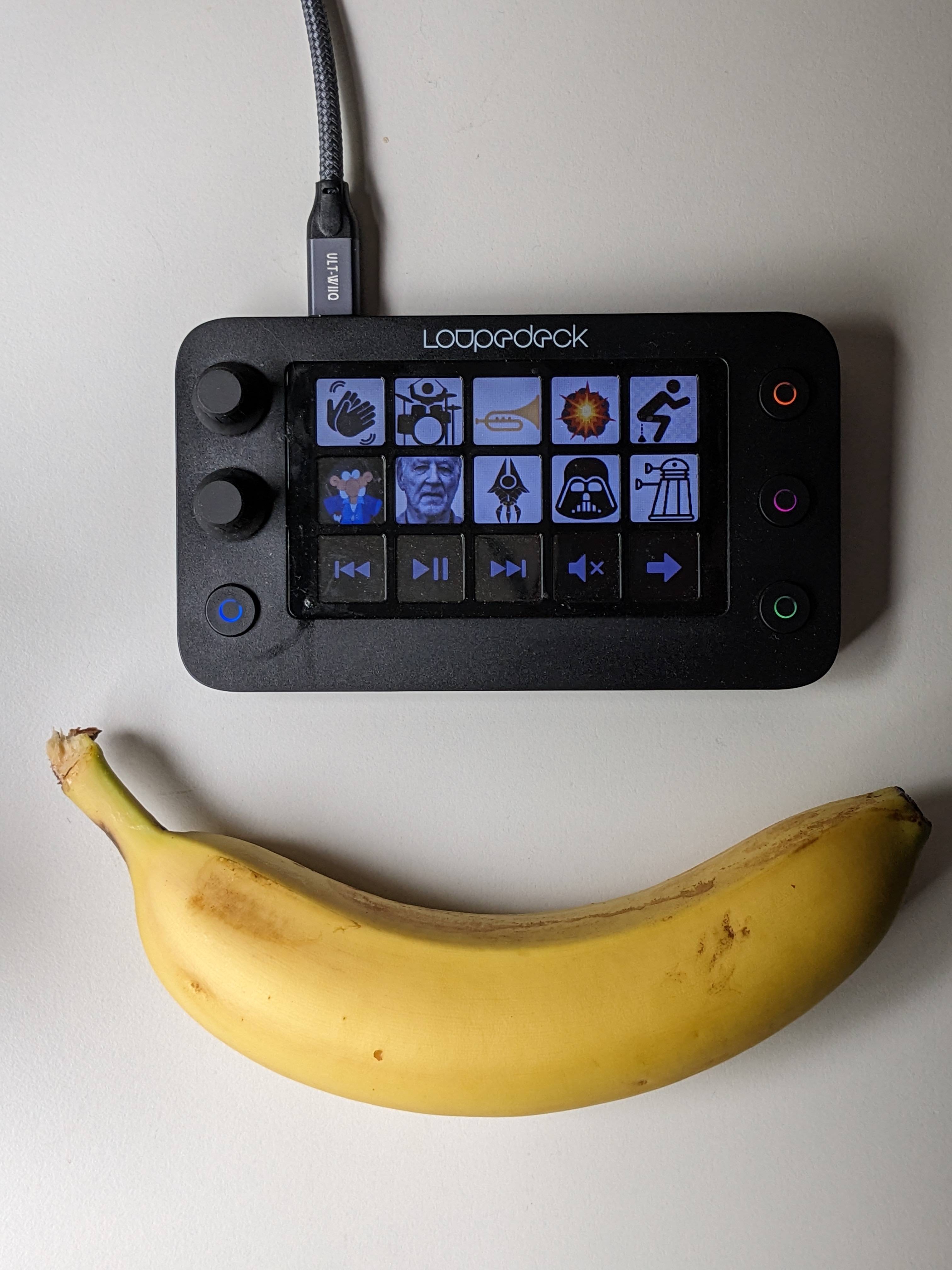
The Loupedeck Live S is very similar to the Streamdeck from Elgato – fifteen small displays, four “menu” buttons and three rotary encoders are housed in a handy device. The box is about 15 x 11 centimetres in size, 3 centimetres high (with rotary encoders) and weighs about half a pound with the stand. The stand raises the device to an angle of 45 degrees so that it is easily accessible behind the keyboard. It’s available for Windows and Mac, although some plugins and presets only apply to one of the two systems – of course FCP presets don’t make sense under Windows. Oh yes, and if you want to place the device “upright” next to the keyboard, you can of course simply rotate everything by 90° – this should be standard, but it is not the case with all competitors.
Marketplace
There is a marketplace for the Loupedeck, where free and paid extensions for the software are available. On the one hand, there are “presets” that contain (of course always customisable) command sets for various software packages – at the time of going to press, one or more sets for the following tools were included (with their own layouts and presets for the LiveS – other tools from the Loupedeck forge have others): Ableton Live, Affinity Designer, Affinity Photo, Audacity, Blender, Cinema 4D, Clip Studio Paint, Cubase, Darktable, DaVinci Resolve, DaVinci Resolve Colour Panel, Excel, Filmora, FreeCommander, Gimp, InDesign, Krita, Luminar, Media Composer, Notion, Nuke, Outlook, Photo Mechanic, Photoshop, PixInsight, Power Director, Powerpoint, Premiere Pro, PTZoptics, Reaper, Slack, StudioOne, Substance 3D Painter, Vegas Pro, ZBush. There are also “plugins” that add various functionalities, e.g. Control and interaction with BirdDogCamControl, ChromeCast, Elgato Control (Lights), GoXLR, IFTTT Webhooks, Libre Hardware Monitor, Microsoft Teams, Nanoleaf Control, OBS Studio, Philips Hue (Bridge), Pixera, Power Toys, Razer Key Light Chroma, Spotify, Streamlabs, Teamspeak3, Twitch, Twitch Studio, VLC media player, VMix, Volume Control, WeatherWidget, WinAudio, Windows Store Applications, WorldClock, Youtube Music Desktop. But: Here the installation is usually a bit more complex – presets are installed with one click. And the Marketplace requires an account..
Software
15 keys doesn’t sound like a lot – but with the software you can extend this as much as you like – because each key can be assigned in two dependencies – once in a “profile” and once in a “workspace”. Profiles are software-specific, workspaces are “complete collections”. And within each version, you can create practically any number of “subpages” – i.e. 15 (or 14 or 9, depending on how you want it) actions and commands each. But going any deeper here would be boring for everyone except those who want to, because every workflow and every key combination can be assigned to every “place” here. The better you know your workflow and the more “muscle memory” you have here, the easier it is to reduce annoying and boring click orgies to one e-button. But you don’t have to do without the previous auto actions – as all keys and all files can be called, you can also call Python / Autohotkey commands or write quick *.bat files for the various tasks. And since the export (click on the three dots and Export next to the application) also works perfectly, nothing stands in the way of a “simplified” team-wide pipeline. And yes, a “Supervisor looking over your shoulder” button or “Video meeting, mute and minimise everything” is trivially simple.
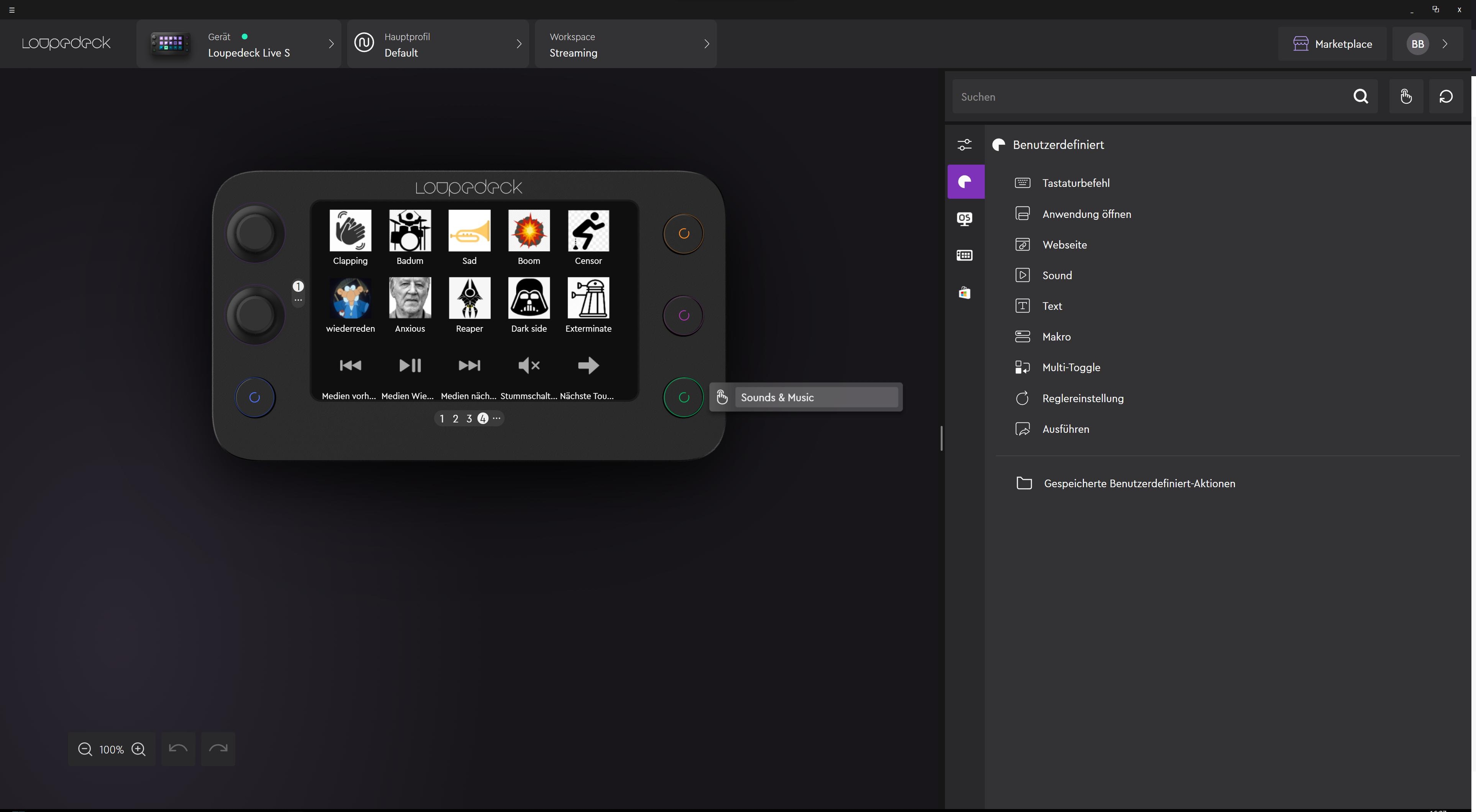
In the centre is the graphically presented Loupedeck, on the right the commands and at the top of the list the selection of the device (yes, you can combine this, if a Live S is not enough for you, you can easily add a Loupedeck CT and control it from a software. “Main profile” refers to the selected area – for example the operating system, the general summary or the various configured software packages. For example, you do not start C4D to change shortcuts there. Instead, there are “workspaces” with which you can create and manage different “overall configurations” – for example, one for modelling, one for animation, one for streaming and so on. Once configured, everything is controlled directly via LiveS – if everything fits, you no longer need to touch the software.
Practice
So much for the possibilities – here is the result of two months of testing and “playing around”: I quickly put together the “default” controls as central tools – the handful of programmes that you need all the time (not just at work), as well as the controls for the music player and the various audio inputs and outputs (microphone and loudspeaker/headphone tests are running in parallel). I used the rotary controls in the system for the volume and in the various software packages for finer inputs – for example in InDesign to move images on the x or y axis by one pixel at a time. For most of the toolsets I use in everyday life, I have loaded available presets and then simply customised them.

This works well for the most part, even if there is a small learning curve at the beginning. And after the test period, it’s just a “workspace” with many sub-profiles – operating system and sub-applications, I haven’t configured the complete suites, at some point there are too many options and you lose the overview. Apropos; a recommendation from me would be to add the commands one by one – otherwise you configure yourself stupidly and forget exactly what it does the next day and don’t use it. I have defined the three coloured buttons (colours can of course be customised in the software) as “areas” – the main profile has the tools, the CG tools at the top right, the various scripts for everyday use in the middle and the “soundboard” at the bottom right for meetings and messing around. Speaking of getting started: setting up is completely painless – simply connect via USB (no power cable required), install the software and off you go. Icon packs and software presets are quickly installed and then you can let off steam.
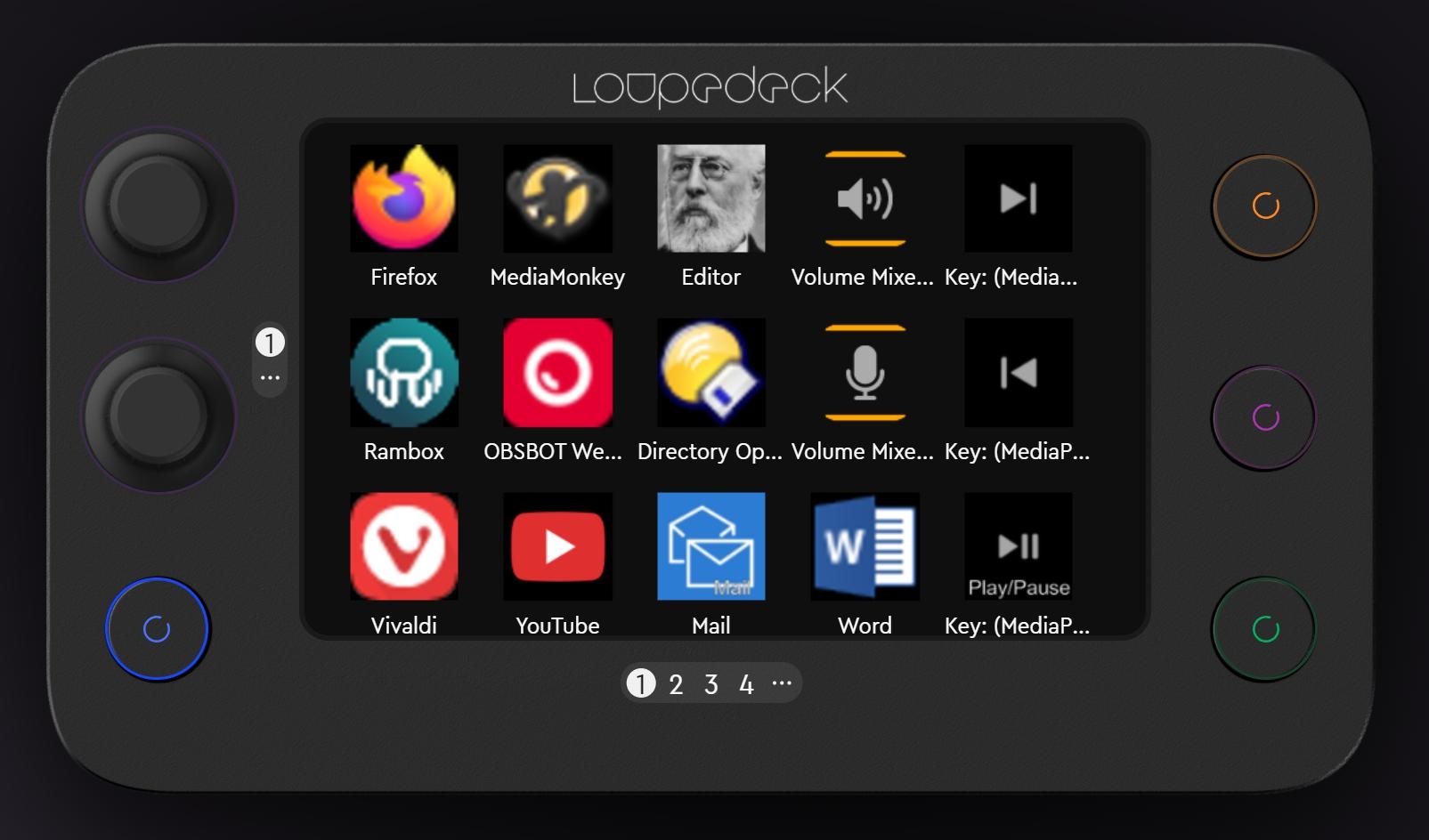
After an orgy of gifs and icons, everything looks terribly confusing, flashes and flickers and you reset everything and start again from the beginning. After talking to other users, this seems to be the standard – the first attempt at a good layout goes down the drain until you get used to the device.
Pro
Now that we’ve revealed our setup, what’s the cool thing about the Loupedeck? Once you get used to it, you realise how many repetitive tasks you do day after day – and how poorly available many default settings are on our computer and in our tools. These brakes of menus, clicks, commands and inputs are completely eliminated – and even if you like to make everything worse in play child mode at the beginning (never spend 3 seconds on a task if you can automate it in 3 hours!), the time saving is clearly noticeable after the learning phase. The presets from the Marketplace help, especially with non-exotic software packages such as Blender, Premiere, Nuke and Resolve, to have all commands at hand, and if you (like me) are always looking for this one window with this one button because you’re not in a toolset all day, you’ll quickly learn to love the shortcut. Once you have the “basic configuration” up and running, which is very individual for everyone, you will quickly move on to further automation steps – in combination with Autohotkey it is unbeatable. Rotary controls are very practical – in everyday use, e.g. for moving elements, solidly built and unrivalled in “everyday use” for audio control of the system – in the software you can also use the same command several times – e.g. have the music control on each subpage (tip for all those who like to listen to music while working: Just have a few buttons in the Everyone profile to control the player / Spotify / Youtube Music).
Cons
No light without shadow – some features in the software (especially Scopes / Meters) would be very practical in different packages and should actually be relatively easy to retrofit – we hope for the future, because the software has certainly developed further – even during the test period. It is also to be hoped that the calls in different parts of the operating system / a programming environment will be easier to realise. The way via AutoHotkey works, but … it could be more convenient. Mouse movements via the macro editor are not really possible yet, and detailed actions with several dozen steps and commands are quickly very time-consuming and tend to become a bit cluttered in the normally convenient software. But hopefully something will be done about this in the future. AND programmes with system-wide overlays – or predefined global shortcuts – often ignore the Loupedeck commands – which is probably not Loupedeck’s fault. But we just wanted to say it.

The device itself is solidly built, and the screens are bright and clear to see – but due to the design, various human residues accumulate quickly, and either you accept this darkening of the corners (can be cool – otherwise more artists would keep their workplaces clean), or you fumble around with compressed air and cleaning agents.
Soundboard
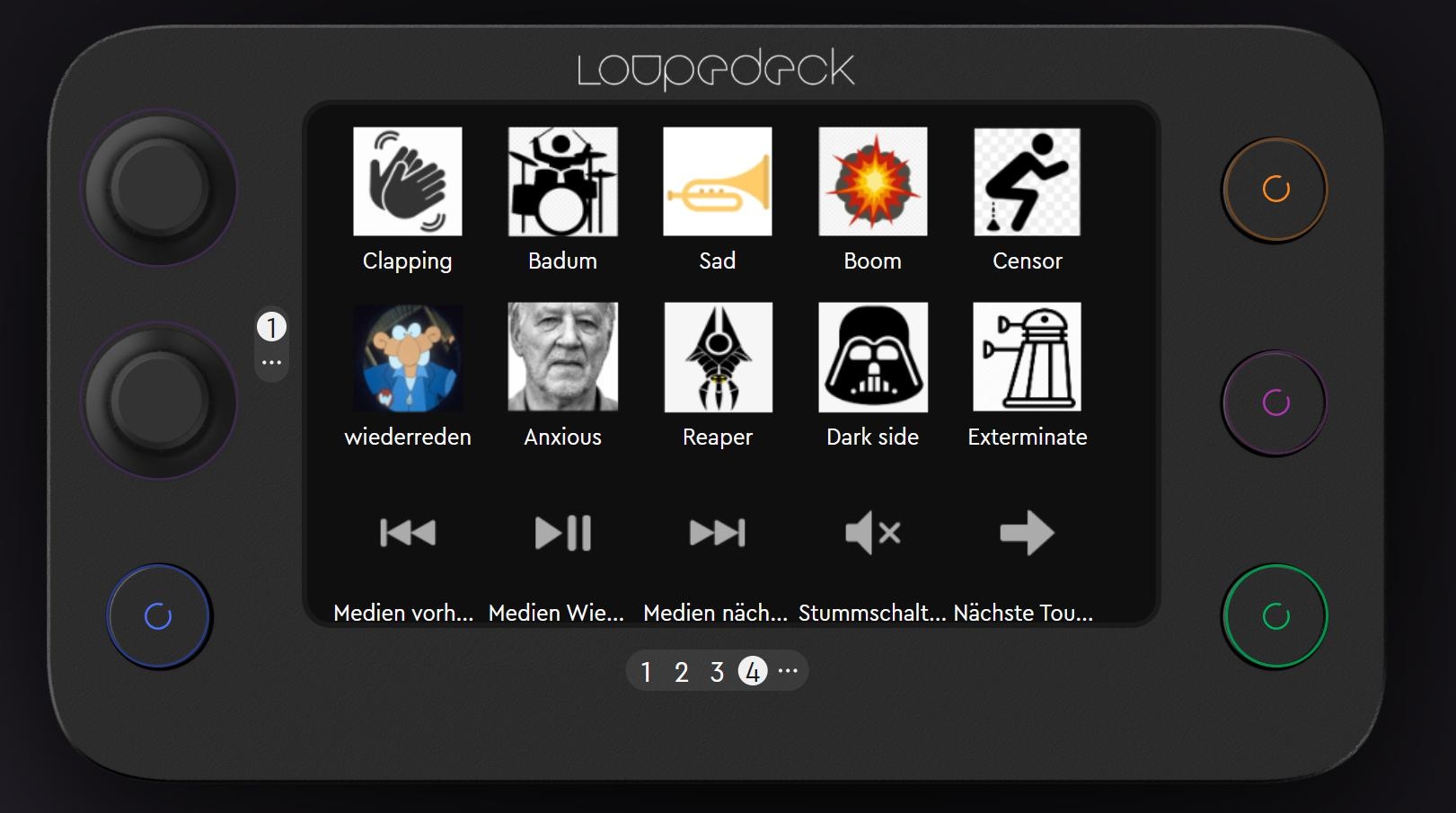
The Loupedeck definitely doesn’t deny its “streamer origins” – and using it as a soundboard with various clips and overlays is almost foolproof (that wasn’t a challenge) for everyday use. If you always say the same thing in a meeting, you can record it here and/or blast Vader, a Dalek or a Mass Effect sound at 100% volume. Depending on the situation, this can liven up a meeting.
Conclusion
Is the Loupedeck Live S worth it at a purchase price of 170 to 200 euros? If you jump through the various menus a lot and have repetitive tasks, you should definitely take a look at it – especially if you’re not constantly travelling in exotic software, but concentrate on two or three packages – Adobe Suite, for example. Then it can really save a lot of time, especially as even complex actions and processes (e.g. ingest / pipeline / backups) can be simplified with relatively little effort. Or, as three of our readers told us, in a studio with “dedicated workstations” for certain tasks, and labelled buttons are easier after all. However, anyone who works a lot with “exotic” software and constantly makes precise inputs will only benefit from this to a limited extent, apart from the media control mentioned above. But it does look cool when all the gifs and images flash! But if you want to use the tool as an animator, forget all that and read Can’s article on the big Loupedeck! Here as a free download: bit.ly/can_loupedeck