



(Nobbi, your request for a test of such a keyboard on the FMX has not been forgotten! Here it is!) For exactly this case, there are so-called “Alice layouts” – yes, exactly, those split keyboards that you’ve probably seen before and wondered: “How long will it take to get used to it?” That’s exactly the question we’re answering today – DP is jumping in at the deep end.
Of course, such keyboards are available from various manufacturers – from Logitech and Microsoft to specialised “one-off” manufacturers, almost all of them have something in their range. After extensive research and consultation with experts, we are focusing today on the Keychron Q8 (Alice, Brown Gateron, Iso_de – here is the link to the exact product: https://is.gd/q8_Alice_De). Why this one in particular? Because it was recommended to us by several ergonomics and keyboard nerds. Keychron has made a well-deserved name for itself in the “good keyboards that aren’t absurdly expensive” segment. However, we’ll split our review into two parts – first we’ll take a look at the layout and then at the keyboard itself. Because, let’s be honest, the Alice layout is a bit special.
The layout.
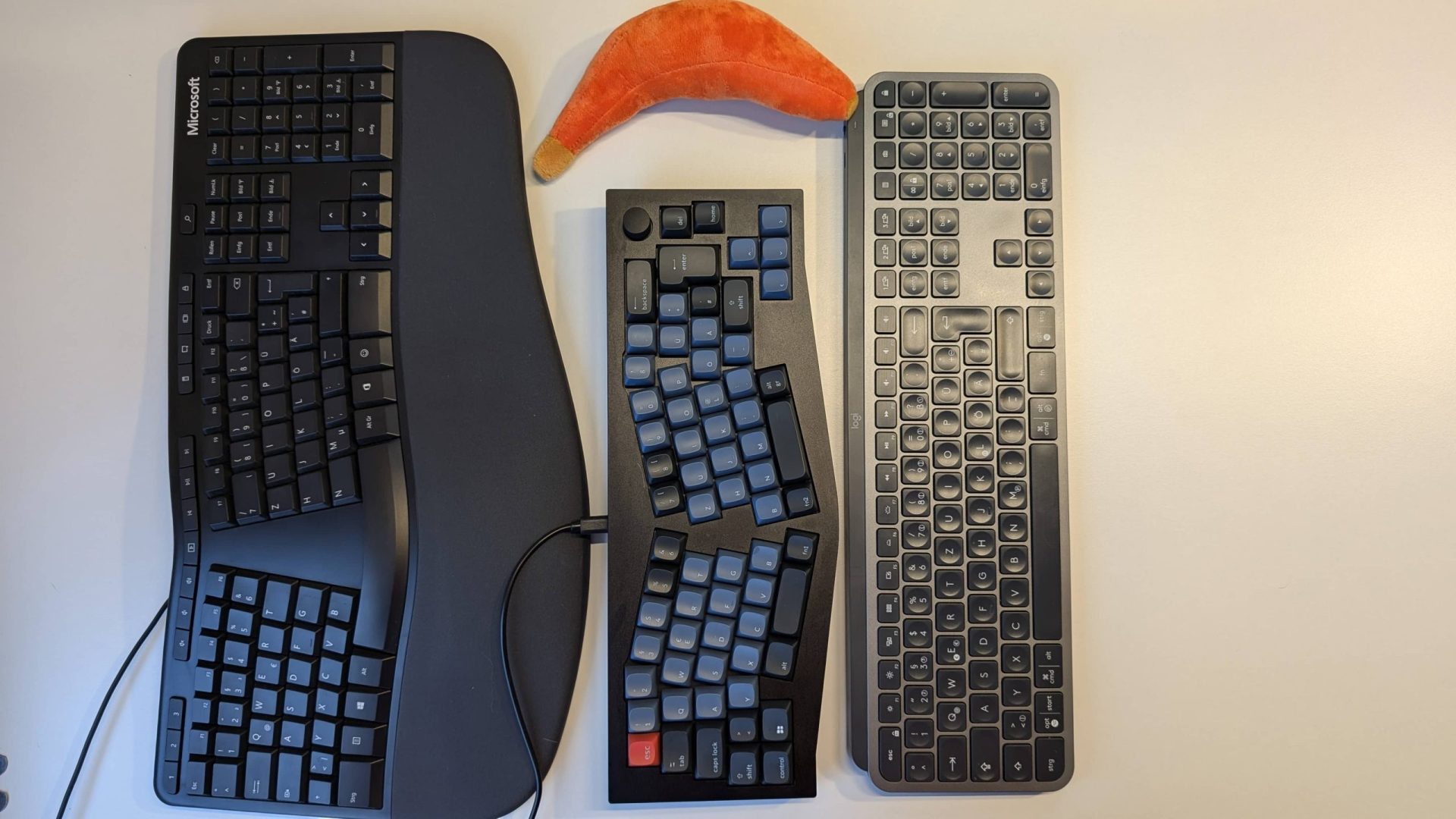
The Alice layout is a keyboard layout that was developed to make typing healthier. It has a split key arrangement (see pictures) and a slightly angled orientation that supports a natural hand position. The keys are arranged in two blocks that are slightly tilted outwards so that the hands can be positioned at a more relaxed angle. Compared to a normal keyboard, this improves ergonomics: the split arrangement and the angle of the keys put less strain on the wrists. This reduces the risk of overuse injuries such as carpal tunnel syndrome. In addition, there is a “natural hand position”, as the arrangement of the keys allows users to hold their hands in a more natural position, which reduces muscle tension and fatigue. Although it takes some getting used to at first, users who have become accustomed to the Alice layout can type more smoothly and quickly as their hands work in a more optimal position. Or so they say.

The keyboard itself.
That’s all “keyboard layout” stuff so far – but we’ll leave that out until the conclusion and just focus on the keyboard itself. We tested the keyboard because it has an Alice layout and it’s the most “rudimentary” version, with nothing to stop you from typing. This means: a large keyboard without NumPad and F-keys, with mechanical switches, a volume control and a few special keys. It has two FN keys that can be programmed using the web app (more on this in a moment). The control for volume and mute (at least in the standard setting at the top right), and that’s it – the F buttons, which are available on other models including macro buttons from Keychron, are missing. There is also a Win/Mac switch on the back next to the cable – this also works well, but was an initial stumbling block in our setup. If you look and don’t just click away, it’s easier… But before anyone says “Nah, I want more keys, different layout”: there are many variants – for example, the same layout with the keypad on the left or right, with programmable keys, a full row of F-keys and so on. Or in a normal orientation, with different switches, low profiles and more.

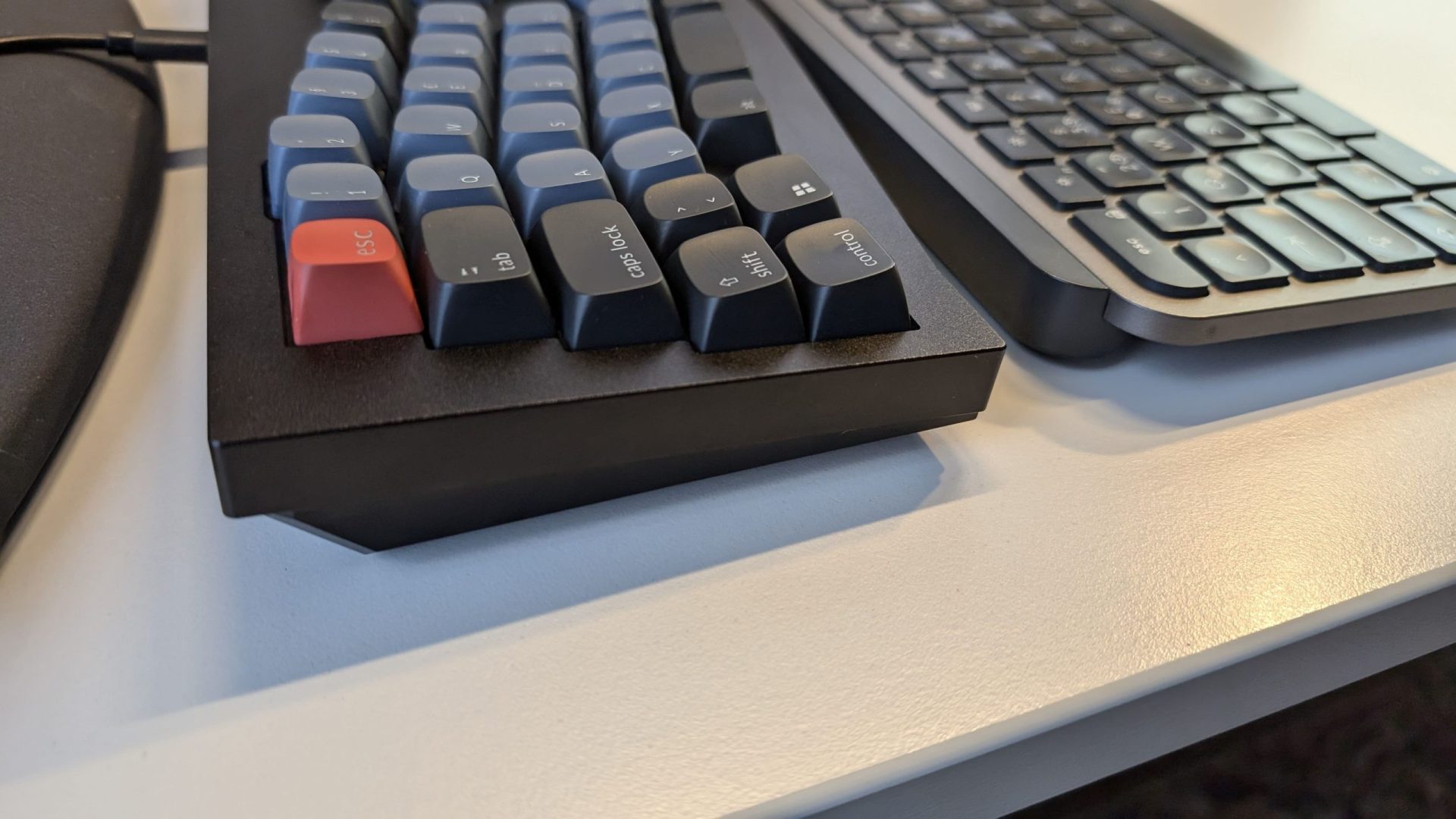

Speaking of interchangeable: Keycaps are included for the Mac version, and the keys also have normal attachments – so if you want to go nuts with “Artisanal Keycaps” or specially produced control keys for various software packages: go for it! In our version, we had the Gateron Brown switches, which offer a pleasant, even resistance and have a tactile pressure point – without being loud. In other words, they are perfectly suitable for the multi-person office, but not “completely silent” either.
Practice: Is that possible?
So off we go to the practical test! Unpack, switch on, set up – that’s what you know from other keyboards. But getting used to typing takes some time – it can take a good two weeks to get up to speed if you use it every day.
Acclimatisation time: not as long as you might think – once everything is adjusted, it takes one to two weeks. Now, a test like this is personal, and you may not be as stuck as I am, but: on the first day you were still typing “on sight” – at the speed of a boomer. The biggest obstacle was getting out of the habit of “Oh, I always type that key with the other hand” – in other words, adjusting the size of your hand to the standard layout. But by the second day, notes and emails were being typed at around three-quarters of the usual speed – but it was noticeable that as soon as you “stop thinking about it”, the typo density is quite high. But it works, and the pleasure of the keys helps during the familiarisation period. Anyone who believes that there are no “keys that feel good” has never typed on real switches. After around two weeks, we hardly notice any difference – of course, there are occasional bumps, but this is mainly due to the “minimal” equipment. If it were the Q10 model with F-keys and programmable keys, there would be no problem.
Speaking of programmable keys: The settings are saved on the board and therefore also work on another computer – so anyone who is connected to different computers via KVM, uses different systems or likes to set up the computer from time to time or simply works in virtual systems will really appreciate this. If you want, you can take a look at the configuration tools in the web app (Chrome-based browser required). These work better than expected, but let’s start with the default setting: The default is that the number row with the FN1 key becomes F-keys – in the web app, F-keys beyond F13 to F24 can also be assigned – which works brilliantly in combination with AutoHotkey.
Macros are supported, as are many special keys, media keys and 5 “layers”, with each of which the entire keyboard is available as a programmable interface. So there are no limits, but… it quickly becomes complex. Okay, two hours were added to the familiarisation time because I once very cleverly placed incredibly helpful features on the keys – without taking notes, and then immediately couldn’t find them. Because, OF COURSE, the “Reload page and clear cache” macro is on layer 3 behind the R key. Of course. What I’m trying to say is: If you’re configuring in a way that ignores reality, make a backup as a JSON file and quickly and conveniently reset the keyboard to factory settings.
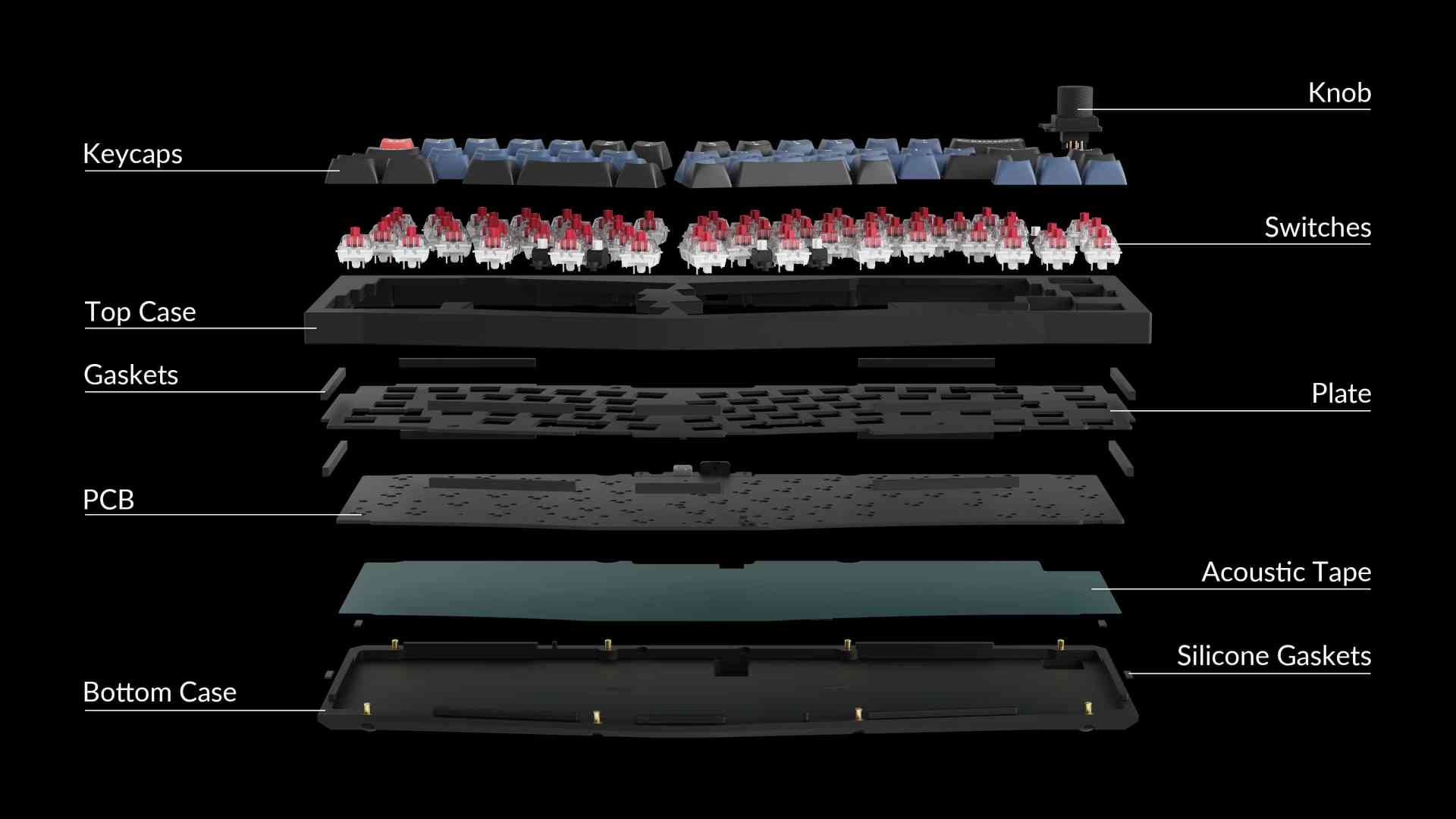
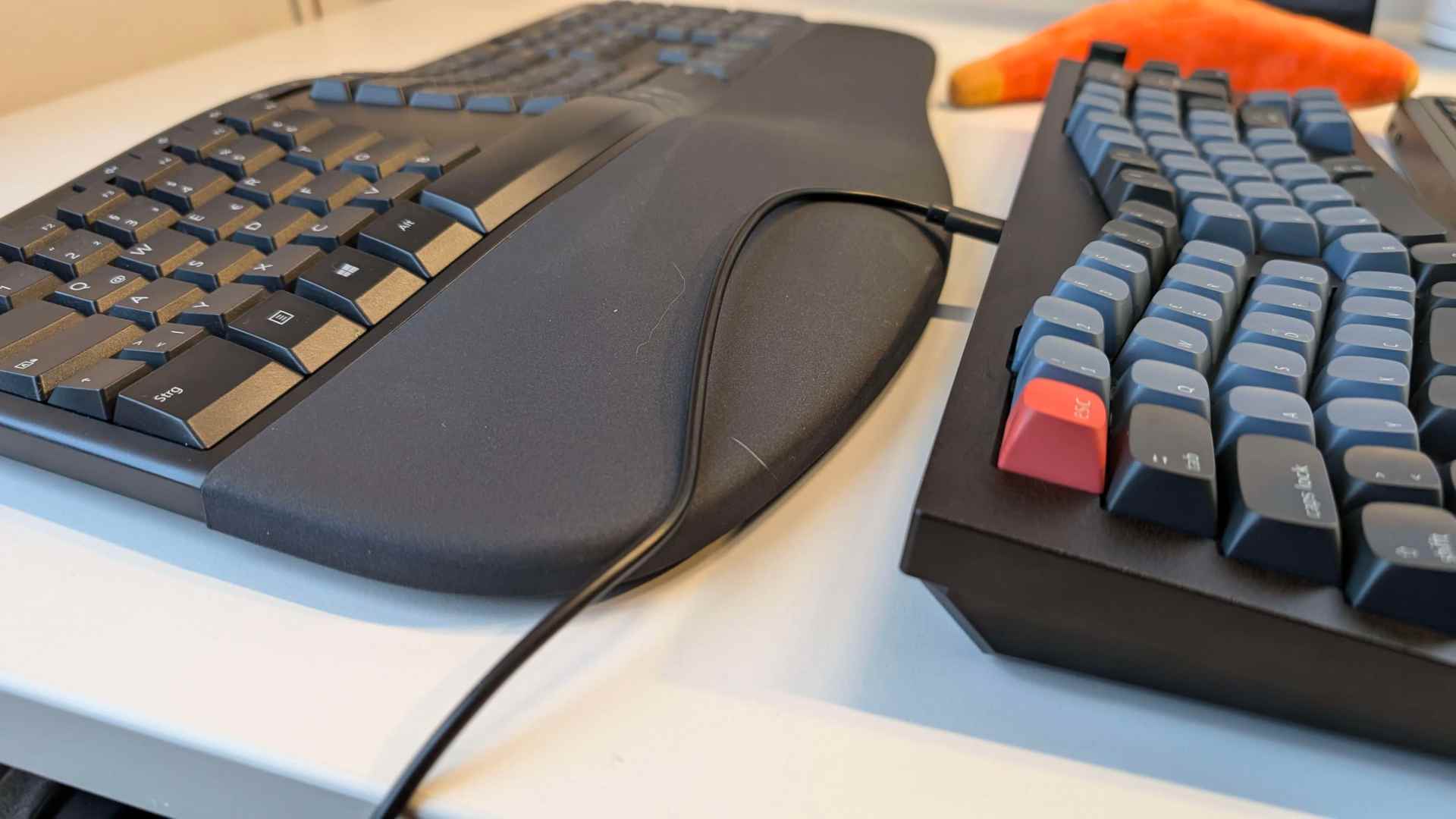
The first noticeable feature is the weight – the keyboard feels like it weighs more than the table. The overall feel is great – nothing wobbles, nothing bends. The chassis is so heavy that nothing moves or slips. This means that it sits firmly on the desk and can withstand anything that happens on the desk (that’s no challenge!), but at the same time it’s not really designed for “mobile working”. Which doesn’t necessarily mean that some hipster is guaranteed to be sitting in a Starbucks with it, rambling on about the novel he’s going to write one day. As for the connection: our version is wired. So anyone who likes to forget to recharge will be happy here. This also means: no battery that runs down over time – you’ll be able to use the board for many years! The cable is a normal USB-C and therefore replaceable.
Conclusion
The keyboard itself? Heavy as a brick, stable as a cast iron pot, and feels so good that you almost want to fall asleep on it. Fits any desk set-up, whether minimalist or pure chaos. Setting it up with the Via app is a bit of an adventure holiday – it takes some getting used to and isn’t quite as easy as with the usual manufacturer apps. But hey, in return you get flexibility, portability and you can also link the thing to Autohotkey and the like. A dream for nerds! Compared to Microsoft’s version (see picture above): heavier, more stable, better and more flexible. The only drawback: there are no feet to change the angle. If you like it steeper, you’ll have to get creative and place a wedge or a couple of DP issues under the rear edge.
The keyboard as we have it costs 205 euros and is available directly from Keychron in the online shop. The barebone version without switches and keys is available for 175 euros. That’s a lot of money, but in view of the prices charged by various other “luxury keyboard manufacturers”, it’s a real bargain. As far as the price is concerned, Keychron rarely offers discounts. On the other hand, spare parts, accessories and model series remain up-to-date for a comparatively long time – that is sustainable.

Furthermore, there are variants with all ISO layouts (i.e. European – English, French, “Nordic”, Spanish and also a variant for our friends, the language-flexible Swiss in the centre, which have all the special characters.
This board really is a specialised device, intended for anyone who types and codes a lot. Not the first choice for Excel shortcut jugglers. And gaming? Yes, it works great. But we’re too old and slow to really test it seriously for reaction times ;) . The key layout is clever: double B, backspace, home and space bar on the right edge. A free edge for the mouse, which should please left-handers in particular. The ergonomics? Top – as long as you don’t plop your hands down on the keyboard like plasticine figures, but rather “hover over the keyboard” as you have learnt. To summarise: if you know that joint problems are just around the corner and take the time to get used to it, you should definitely take a look at the Q8 – or one of its variants! ‘ ei
Have you seen this?
Mistakes happen to all of us – you don’t want to know what “version 0.1” of my articles looks like! And anyone who regularly chats with the editorial team knows the moment when an “Okay, I give up: What did you actually want to say?” pops up in the chat. In my everyday life, speed is more important than perfect spelling. But here’s the ultimate tip: If you want to improve your hit rate and type without looking at all, then take a look at the free online typing trainer “Entertrained”(https://entertrained.app/)! This is a typing trainer that doesn’t train you with meaningless texts, but in a pleasant editor in which you can type out classics of literature – and read them at the same time!

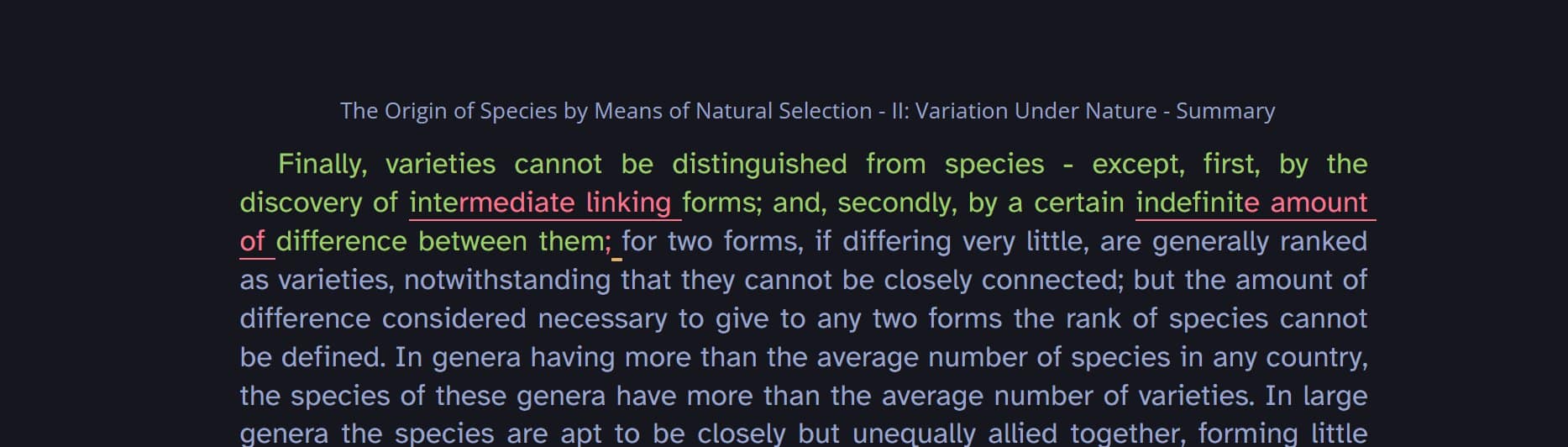

So if you’ve always wanted to improve your typing skills with the original text of “Frankenstein”, really internalise “The Art of War”, or work your way through “The Origin of Species” by Charles Darwin – there are 101 books to choose from here. It costs nothing, and you can customise the interface as you wish. And because you can save your progress, and we should all be reading more classics anyway, this would be a great opportunity to break in the new keyboard – or really get going with the old one!
