Table of Contents Show
Lightweight 16-inch graphics tablet with 4K OLED screen from Xencelabs – is it worth the switch?
The Pen Display 16 is said to be the industry’s first 16-inch 4K OLED pen display with over a billion colours, improved colour reproduction from deep blacks to vivid highlights. The screen resolution is 3840 x 2160, the contrast ratio is 100,000:1 and with a weight of only 1.21 kg and a thickness of 12 mm, it is easy to transport and is suitable for use in the studio as well as on the go.
Xencelabs Pen Display 16 Bundle
The topic of graphics tablets could be discussed at length: Do you even need a tablet? Logical! Which size is best for the individual? No idea! Should it be a “normal” tablet or a pen display? That also has to be decided on an individual basis. Some artists consider a tablet without a monitor to be perfectly adequate. However, one with a monitor almost always seems to be the most convenient. The size of the Xencelabs Pen Display 16 is generally seen as a pleasant compromise between space and money requirements – but above all because of the possible mobility. This is what the Xencelabs Pen Display 16 promises.
If you search for Xencelabs on the internet and social media, you will find a wealth of tests, “unboxing videos” and tutorials. The majority of users are enthusiastic about Xencelabs products. Xencelabs offers graphics tablets, pen displays and corresponding accessories. We tried out the Xencelabs Pen Display 16 Bundle and were curious to see whether the device could fulfil the high expectations raised by so many positive reviews.
Pen Display – why the bundle?
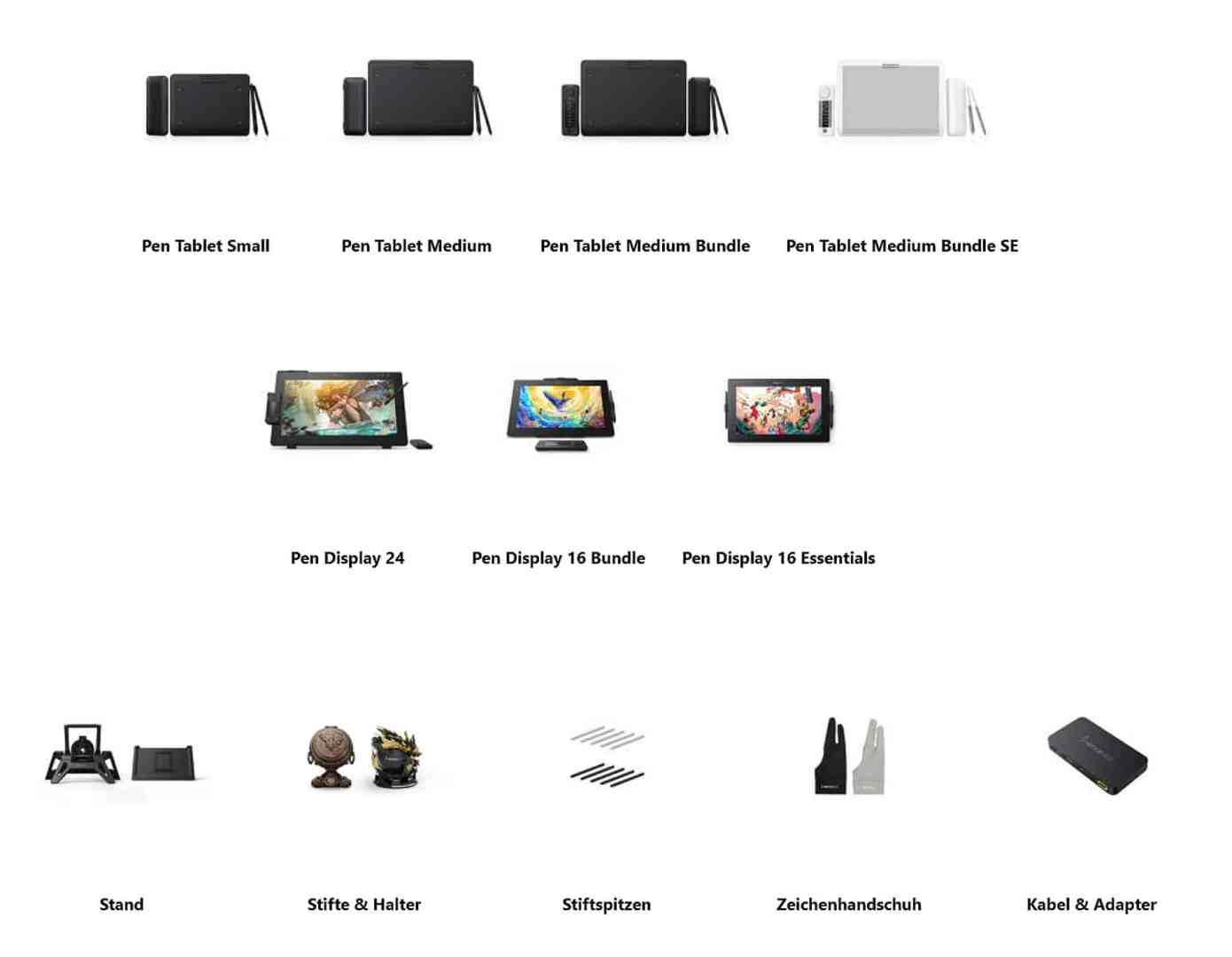
Xencelabs currently offers graphics tablets in various sizes and 3 Pen Displays with built-in monitor – actually only two: namely Xencelabs Pen Display 16 Essentials or the same tablet as a bundle with some useful accessories, as well as a Pen Display 24.


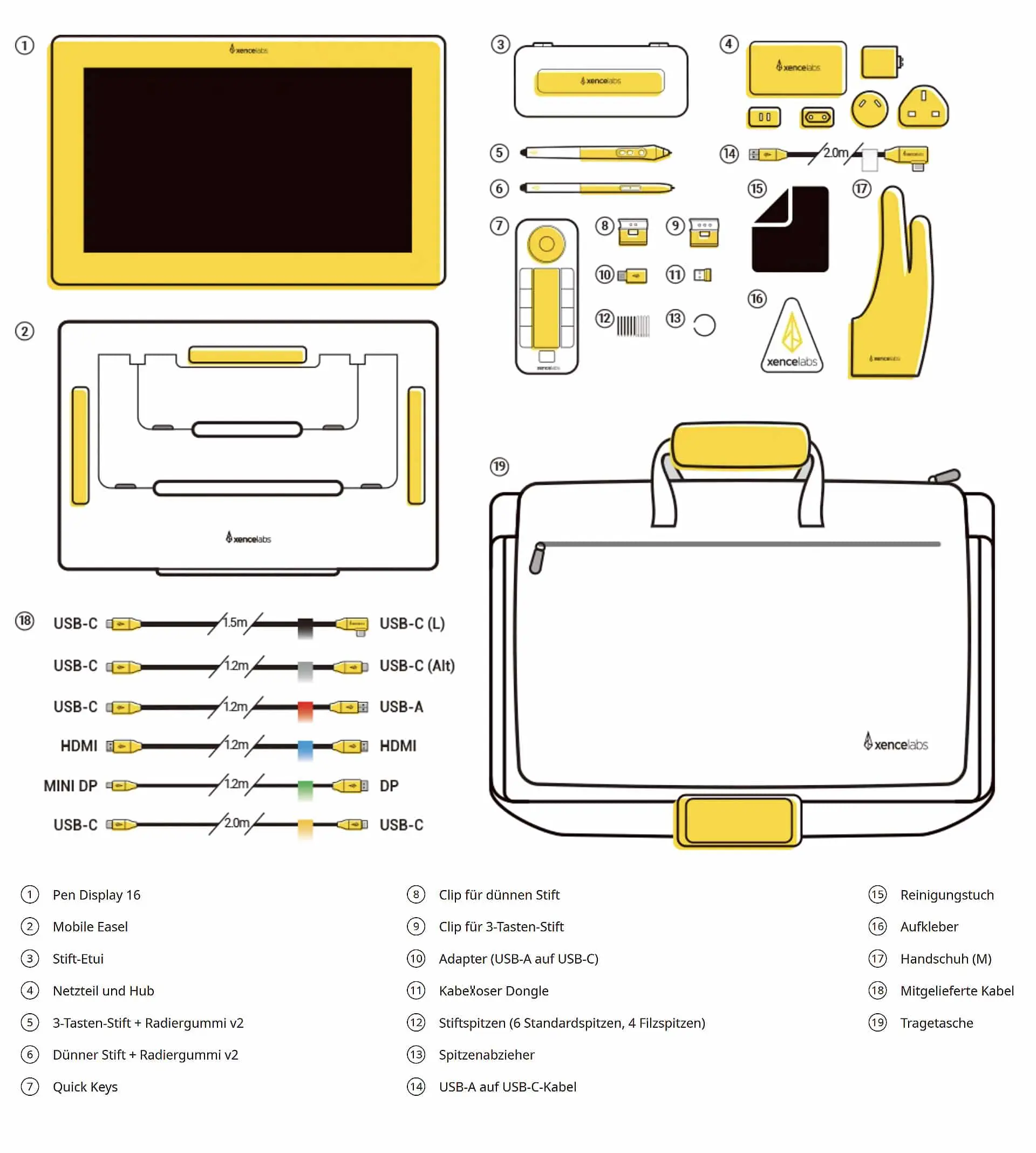
To abbreviate: We found the bundle more recommendable than the Essential version, although the “more” accessories included in the bundle can also be purchased separately (Mobile Easel, Quick Keys and better connection options thanks to more connection cables and a power supply unit).
How are the features of the bundle?
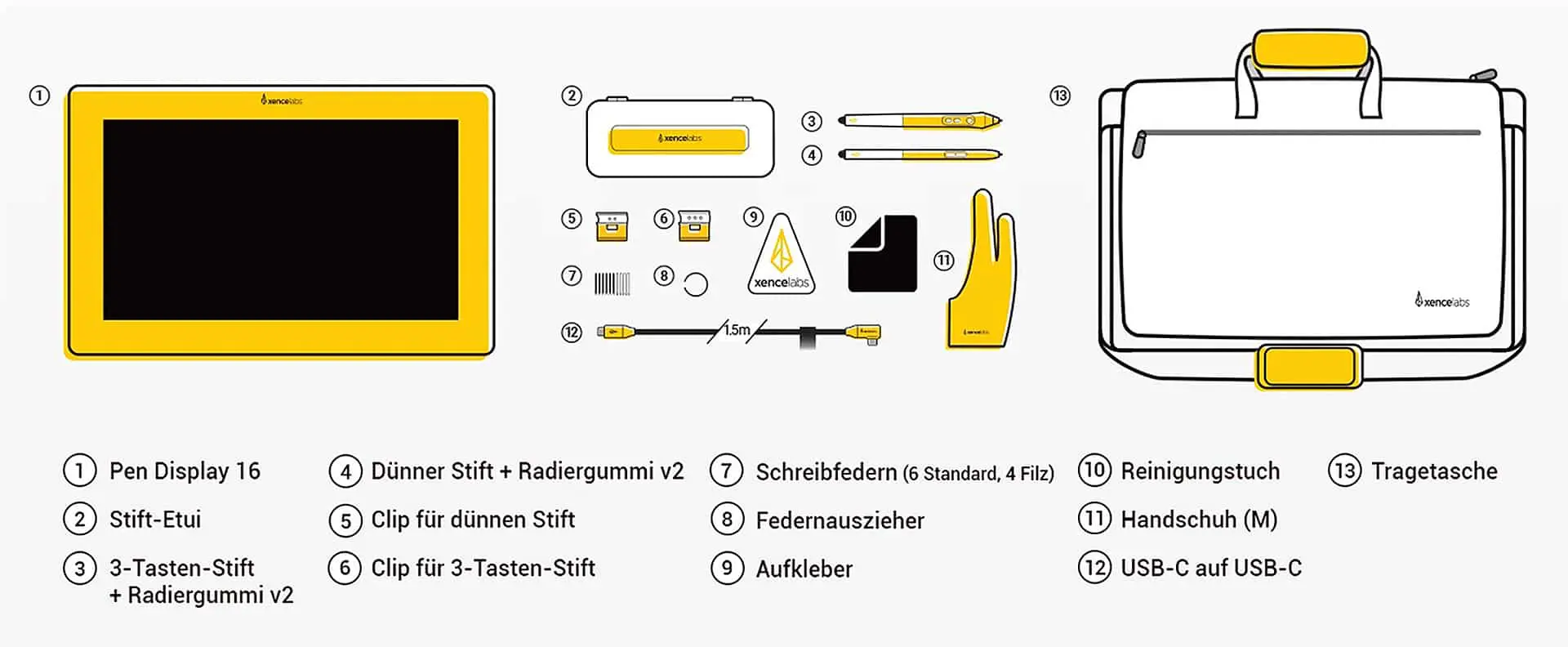
Included in this bundle is
A case – with two drawing pens (a standard pen with 3 buttons and a thin pen with two buttons)
Both have an eraser at the back. The functions for the buttons and eraser can be set in the software. The pens respond to pressure between 3 g and 500 g.
The pressure curves can be customised over a wide range. And yes, we really liked drawing with these pens. Also included are 10 replacement refills (6 standard, 4 felt tips), tip pullers and a wireless dongle.

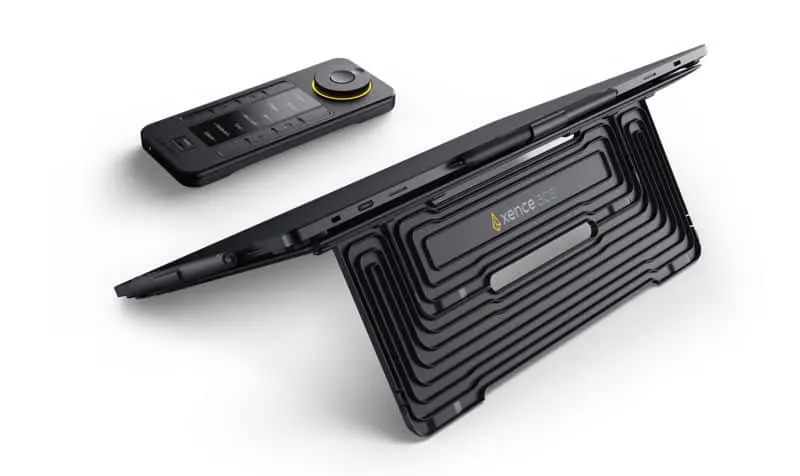
“Mobile Easel” is the name of the lightweight and easy-to-transport stand supplied, with two tilt angles of 18° and 32° that can be adjusted by folding it open. The tablet is simply placed on it – and is stable enough to work on.
The optional Desktop Easel is even more stable and convenient. This promises infinitely variable tilt adjustment and rotation of the tablet and is VESA-compatible.
Two matching plastic clips serve as a pen holder, which can be attached to the sides of the tablet as required – practical when working on the move, the pens and holder are stable on the tablet. However, “real” pen holders would certainly be more convenient on the desk. If you want something like this, you can find stylish pen holders in the accessories section.

There are also adapters (USB-A to USB-C), a power supply unit and hub for the wireless connection to the remote control, various cables and, among other things, a carrying case and a special glove for drawing on the tablet.
Game Changer Quick Keys?

The highlight is the “Quick Keys”, the remote control included in the bundle. In the software, 40 key combinations can be preset for any application (8 customisable key combinations in up to 5 groups, switchable with a “set key”). The mechanical rotary wheel, with which up to four application-specific functions can be used (scrolling, zooming, brush size and, in some applications, rotating), is worthy of praise. A multilingual OLED display should help users to find the relevant buttons more easily. There is also a colour-adjustable LED illumination of the rotary wheel (colour ring to differentiate between the respective modes).

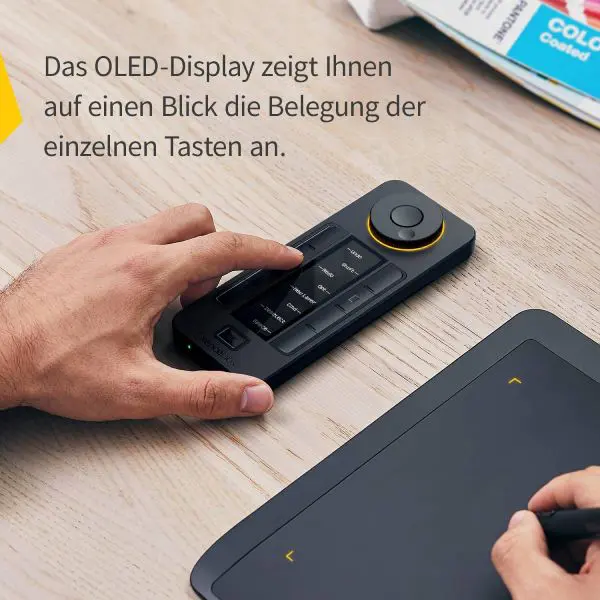
- The remote control is suitable for right or left-handed users and can be set horizontally or vertically.
- However, there are other users who find it a little difficult to feed the remote control with all kinds of shortcuts and then get used to the handy but unfamiliar remote control, so that they always prefer (out of old habit?) to reach for the keyboard while drawing instead of taking advantage of the Quick Keys. Some complain that macros are probably only possible by calling up corresponding batch files and that switching between different modes is said to be somewhat slow.
- In fact, we found this remote control to be a practical tool for calling up many shortcuts in different applications more quickly. Although many typical function sets are already predefined, it still takes a while to set up the possible variations of key combinations for different sets – and to actually be able to utilise them effectively.
The connection to Quick Keys can be made via cable, Bluetooth or wirelessly with the supplied dongle, which worked without any problems in the test. And if you want to know more: we took a look at the Quick Keys in everyday use as a “stand-alone device”. (https://digitalproduction.com/2024/10/31/xencelabs-quick-keys-remote).
Installation
Installing the Xencelab is simple: download the driver from the Xencelabs website, install the software, customise the settings using the Xencelabs software (e.g. pen pressure curves, display settings, remote control, etc.)

The tablet can be connected via a single USB-C cable. Then, however, with reduced maximum brightness of the display (170 cd/m2), when operated via the power supply unit and the supplied hub for USB-C, HDMI or Mini DisplayPort with three incoming cables (power, video, USB) and a single cable to the PC, 300 cd/m2 should be achieved. All cables are sufficiently long.
Who is “Xencelabs” ?
The market for digital drawing tools has developed enormously in recent years. There are now a large number of suppliers of graphics tablets whose quality is extremely high and also meets professional requirements – and some have become significantly more affordable. Xencelabs was founded in 2019 in the USA by Hanvon Ugee Technology Co. Creative professionals with many years of experience in the digital art industry had the ambition to offer digital artists, illustrators and designers even more excellent drawing tools with precise pen technology, high-quality materials and well thought-out accessories. The declared aim is to create tools that increase productivity and offer a natural drawing experience. Made up of “Xence” (pronounced “sens”) and “Labs”, the name “Xencelabs” refers to the support of artists’ artistic senses and creative experimentation. After only a few years on the market, Xencelabs’ products are sold in more than 40 countries, according to the company.
Conclusion
We have already talked about drawing: Drawing – even on a PC – is and remains individual. We liked the quality of the display and the way the pen glides smoothly across the screen. The matt surface provides slight resistance and reduces reflections – and how thin and light the device is.
We noticed typical problems (parallax – hardly noticeable, latency – not annoying, jittering lines – as with other tablets, but in contrast to users who described this as a shortcoming, we were able to live with it).
As the device has no buttons apart from a power button and there is unfortunately no touch function (so it can NOT be used as a touch display), users will have to resort to the PC keyboard or a remote control – in our case Quick Keys. It is a pity that the Xencelabs software does not yet support customisable on-screen menus.

If you want to use such menus, you can rely on the screen customisation and menu functions of some graphics software, such as Clip Studio Paint, Blender or Krita, or you can try free tools, e.g.
AutoHotPie here or Pie-Menus here
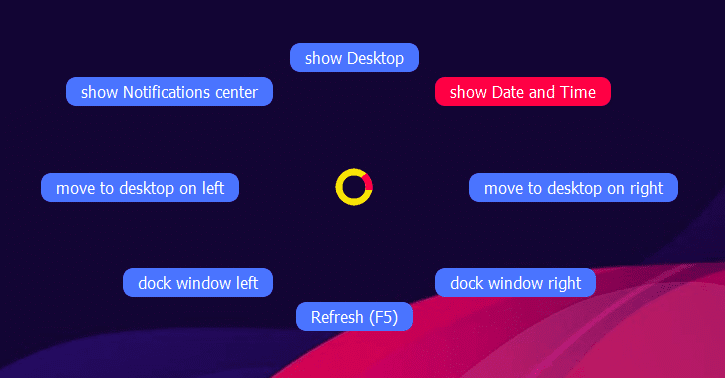
We suspect that such menus only save time for power users who use a lot of specific commands in special applications. “Normal users” should probably first search for and find the necessary commands “at their leisure” (maybe with the Quick Keys after all?).
Overall, the Xencelabs Pen Display 16 Bundle made a very good impression on us. However, it must also be noted that other providers also offer “fine” devices. In many details of technical parameters, e.g. whether 8 or 16 K pressure levels are available, as they are already available on some devices, even experienced artists seem to hardly notice any differences.
The tablet has a very high-quality finish, is simple and well thought out, also very flat and lightweight. A cover and carrying case are included. There are no buttons – but the Quick-Keys (in the bundle version) offer many options, although effective use of these may not be possible without “training”.
The lack of buttons can be seen as a shortcoming, but seems to be due to mobility (thin and light – and cost?) and could also be seen as an opportunity to avoid operating errors while drawing, such as the on/off button, which works with a 3-second delay for the same reason.
Overall, our opinion is similarly positive to that of the many users. We found the drawing experience to be very pleasant. Parallax problems did not bother us – nor did a slight latency with fast strokes. Slowly drawn diagonal lines in particular show a slight jitter, as with most tablets. This is not only due to the artist’s dithering, but is usually caused by the way the cursor position is interpolated. It seems unlikely that the body’s own shaking and the system-induced shaking will cancel each other out when drawing. But modern graphics software can help. Cheers to the effective stabilisation functions in good graphics software. If you are looking for a somewhat exquisite tablet with a super display and are not afraid of the price, the Xencelabs bundle could be an option for you.
Compatible software:
PC: Windows® 7 or higher (latest service pack/build)
Windows ARM
MAC: OS X 10.12 or higher (latest update)
Linux – Ubuntu 14.04 or higher, Debian 9.5, CentOS 7.0 or higher, Redhat 7.0 or higher
compatible hardware:
USB-C port with DisplayPort Alternate mode (UHD),
Or DisplayPort (UHD) and USB-C/USB-A,
Or HDMI 2.1 (UHD) and USB-C/USB-A
Internet access to download the driver.
Prices from Xencelabs
A selection – click here for the shop
Pen Displays
The Xencelabs Pen Display 24 = 2099,00 €
Pen Display 16 Essentials = 1129,00 €
Xencelabs Pen Display 16 Bundle = 1389,00 €
Accessories
Quick Keys = 109,90 €
Mobile Easel for Pen Display 16 = 59,90 €
Desktop Easel for Pen Display 16 = 199,00 €
Xencelabs Dongle = 19,99 €
Xencelabs Limited Edition Dragon Pen Holders = 35,00 €
for those spoilt by luxury: Mountains and Seas Pen Holder 269,00 €
Xencelabs offers free shipping, a 30-day return policy and a 2-year warranty, which can be optionally extended. There are also regular promotions where vouchers are raffled off.
The products at a glance
All the products that Xenselabs sells are shown below.