Topaz Bloom isn’t a plugin, a desktop app, or a GPU hog—it’s a browser-based upscaler that runs entirely in the cloud. You upload a JPG or PNG, pick your settings, and the upscaling happens on Topaz‘s servers. Bloom targets AI-generated and CG artwork specifically, leaving traditional photography to its relatives, Gigapixel and Photo AI.
Diffusion Does the Heavy Lifting
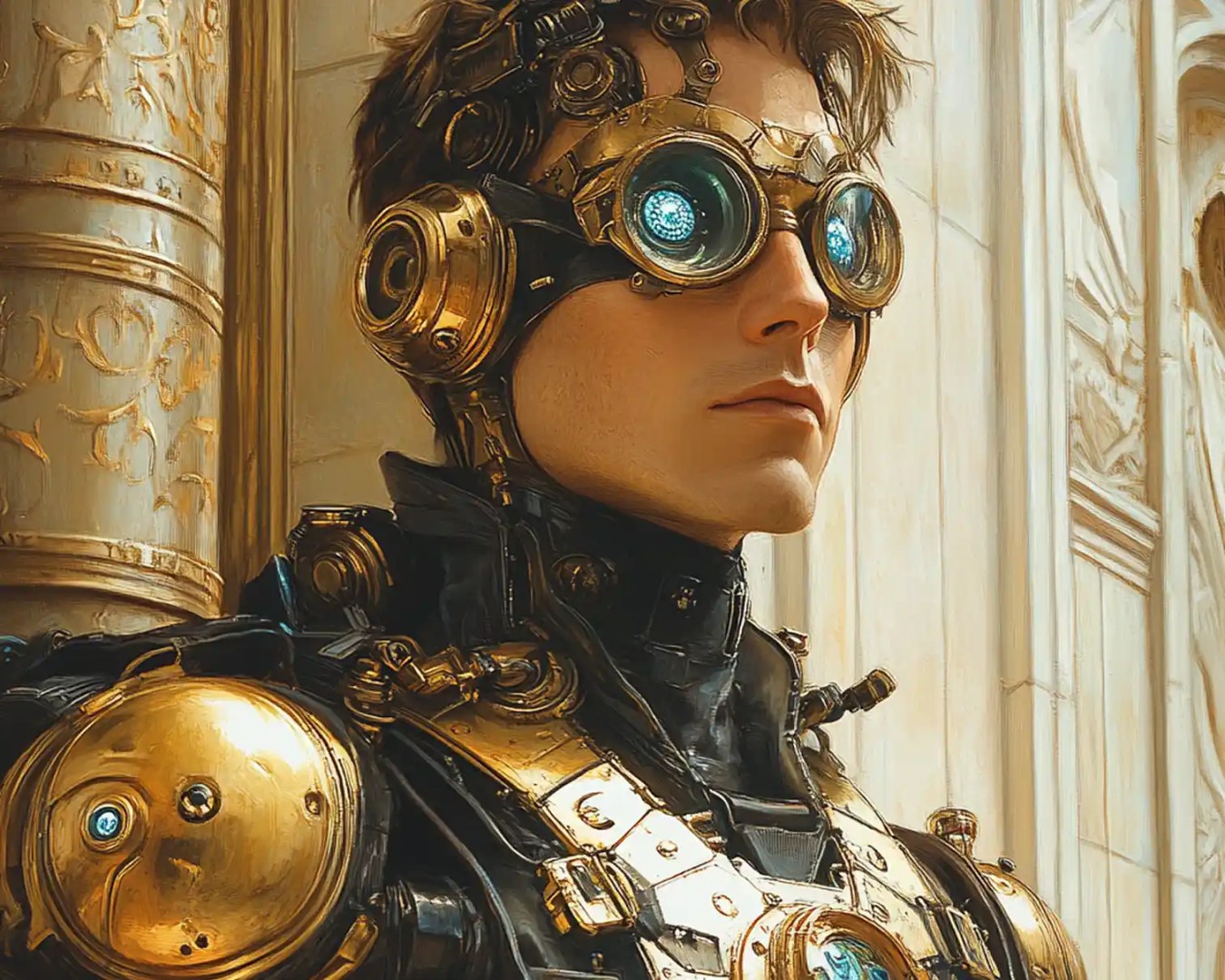
Unlike old-school upscalers that simply inflate images with interpolation, Bloom uses in-house diffusion models to generate new detail. This is what Topaz calls “creative upscaling”—and yes, it’s hopefully more than marketing. Depending on your input, Bloom can hallucinate textures, edges, and forms that weren’t in the original.

Prompt or Don’t
Prompt-guided enhancement is optional. If you’ve got something specific in mind (“cyberpunk ruins at dusk”), type it in. If not, leave it blank and Bloom’s model will work from the image itself. You can always do another pass if the diffusion engine gets too interpretive.
Five Levels of AI Mischief
Bloom’s slider moves through Subtle, Low, Medium, High, and Max. These levels affect how aggressively the model invents new detail. At High and Max, you can enable recursive detail generation—effectively allowing the model to loop back and add even finer features. It’s the kind of setting you test once, then maaaaaaaybe tentatively trust later.
Four Variants? Settle the Debate Before Lunch
Bloom lets you generate and compare up to four image variants at once. This feature’s built for the overworked: art directors, supervisors, storyboard artists and anyone who needs to show options fast without starting from scratch. Think A/B testing but with quadruplets.
Upscale up to 8×
Bloom allows image scaling from 1× to 8×—just type in your desired output or click the preset buttons. The result is a high-res version padded with diffusion-based textures and structure, not blurry smears. This puts it firmly in the realm of concept art upscaling, render patching, and post-fix workflows.
Pricing: Test Before You Trust
The free plan lets you run up to ten upscales per month—handy for testing whether Bloom can handle your style of input or doesn’t panic at fire, fur, or fog. For unlimited processing, paid tiers are available—check the official page for details.
Not for Photos. That’s Gigapixel’s Job
Topaz clearly separates Bloom from its photo-oriented siblings. Bloom is built from the ground up to interpret and upscale AI and CG-generated imagery. For real-world photography or restoration, the company points back to Gigapixel and Photo AI.
Trust Issues? Good.
As with any diffusion-powered tool, production artists should run Bloom through a proper gauntlet before slotting it into the pipeline. Check for artefacts. Stress test edge cases. Use it on background plates before you let it near hero assets. The output may sparkle, but trust is earned—especially when deadlines glare.
Bloom won’t replace your renderer, but it might save your preview. Or your plate. Or your nerves. And it does it all from a browser window—no install, no GPU tantrums, just pixels, prompts, and possibly four different versions of the same cat.