



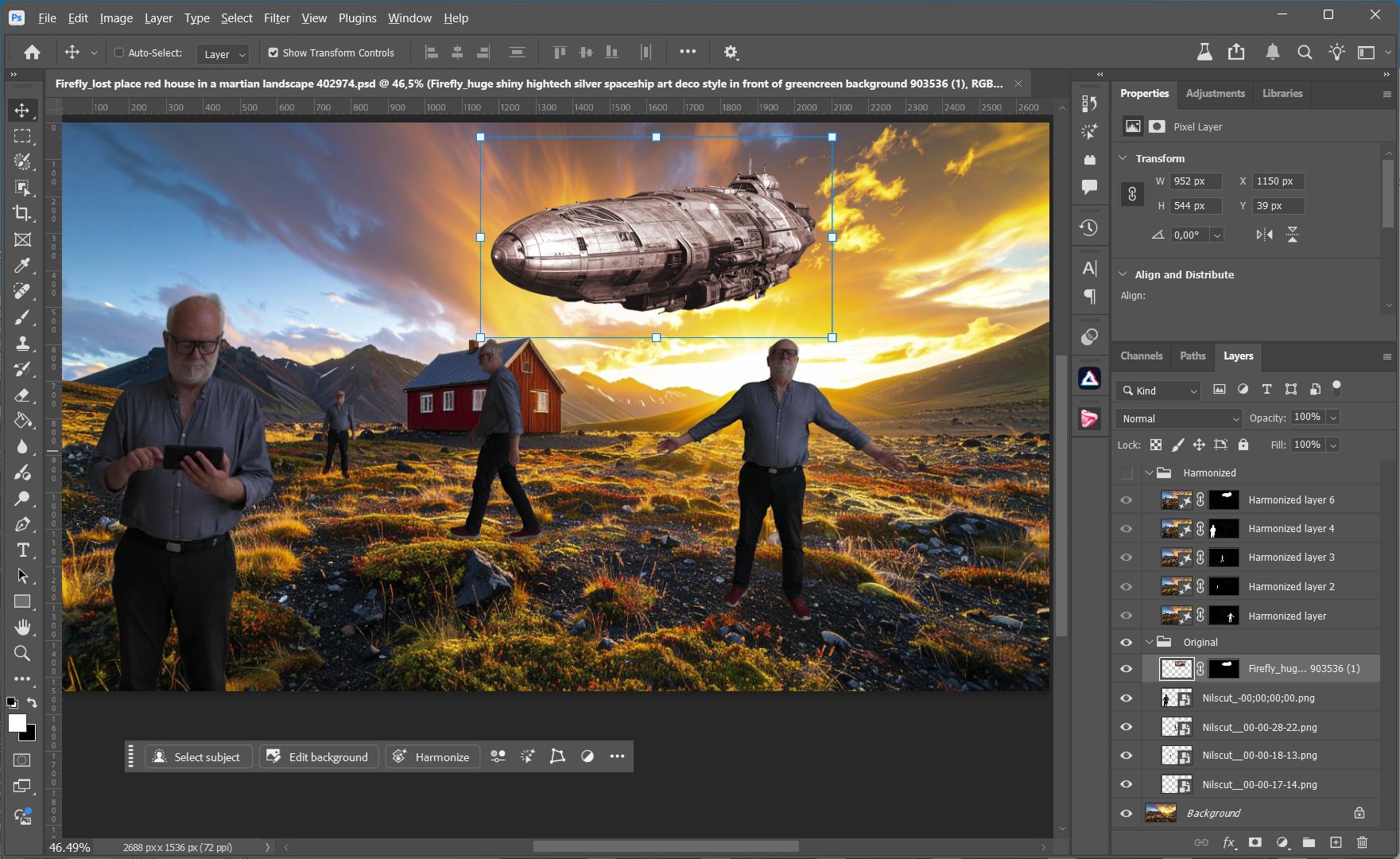

Adobe brings a fresh wave of innovation to Photoshop – powered by AI for faster, more precise, and more intuitive workflows.
The highlights
Harmonize (Only in the Beta Version): Automatically adjusts colors, lighting, and shadows to new objects – creating seamless composites without manual tweaking.
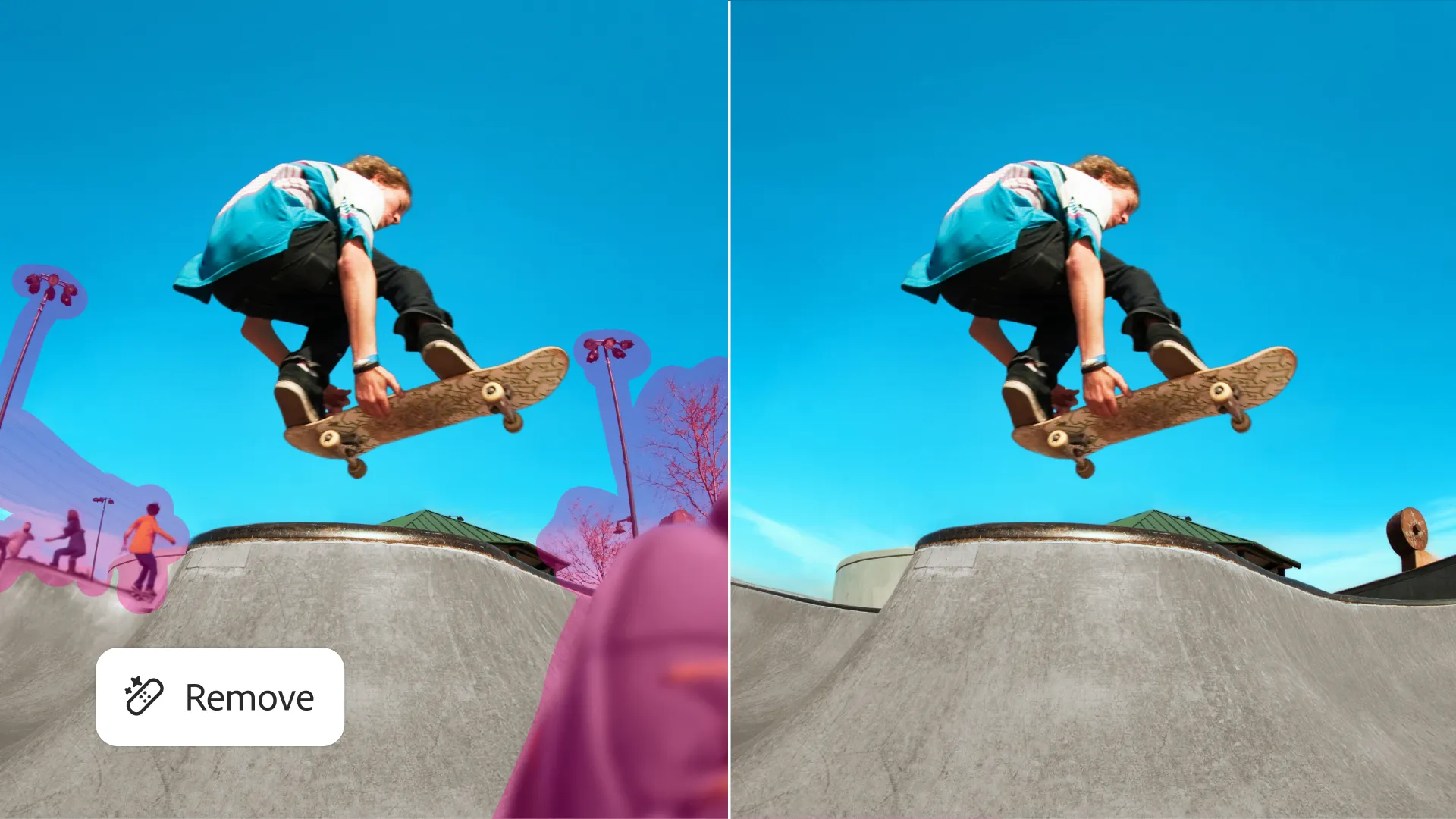
Enhanced Remove Tool: Removes unwanted objects more realistically thanks to the new Firefly model – fewer artifacts and share-ready results. This is already in the release version and does not use credits.
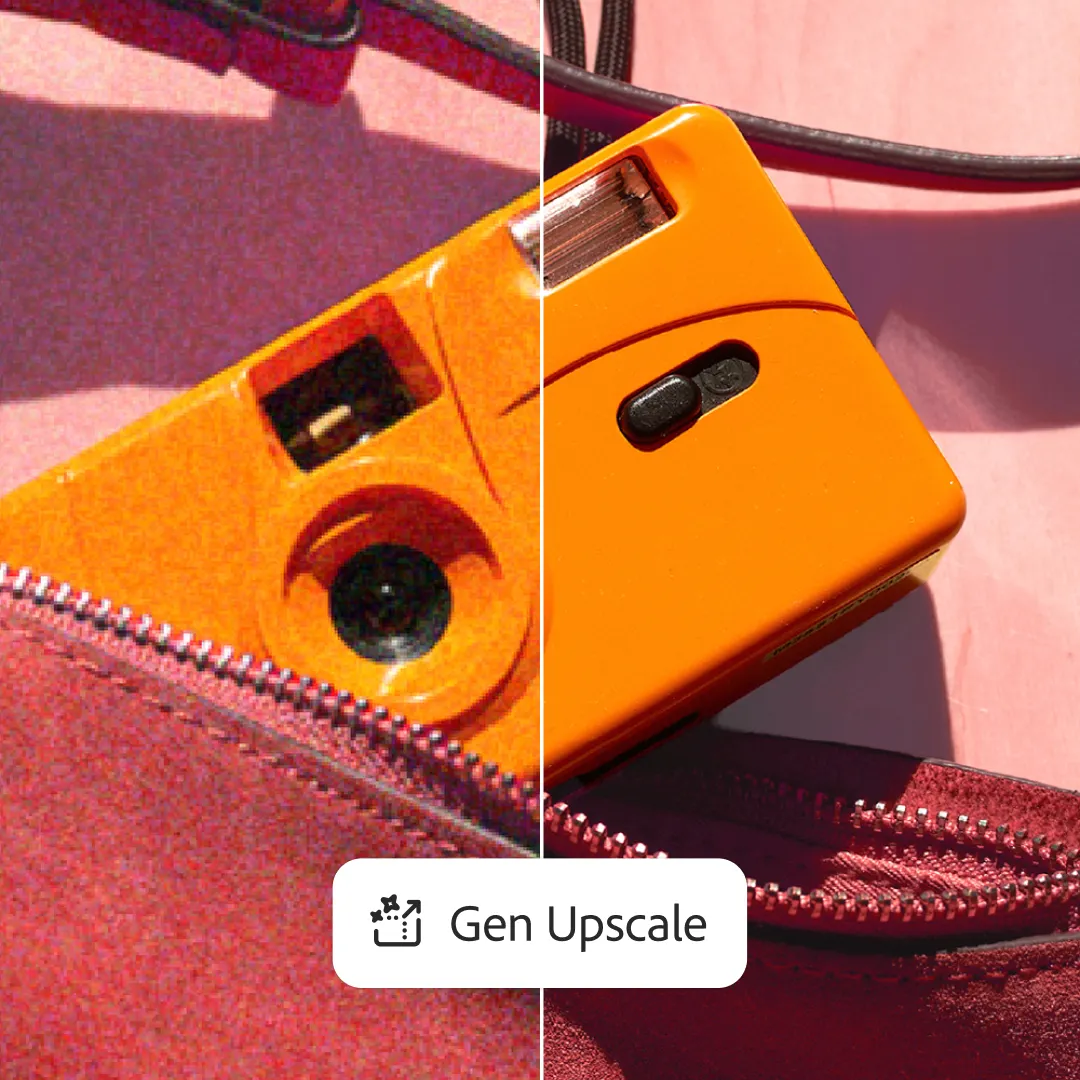
Generative Upscale (Only in the Beta Version): Upscale images to 8 MP with sharp, detailed results – perfect for print, social media, or giving old files new life.
Gen AI Model Picker: Switch between Firefly models directly in Photoshop to better match your personal style and creative vision. In some cases the old firefly version brings more suitable results.
Projects (Only in the Beta Version): Keep all project files in one place and share with your team easily – goodbye version chaos.
Let’s try!
With these updates, Photoshop is more flexible than ever, helping creatives focus on what truly matters: their ideas. We have tested the new features. Here are some real-world use case.
For me, the most interesting feature is Harmonize. It can save a ton of time adjusting the light circumstances.
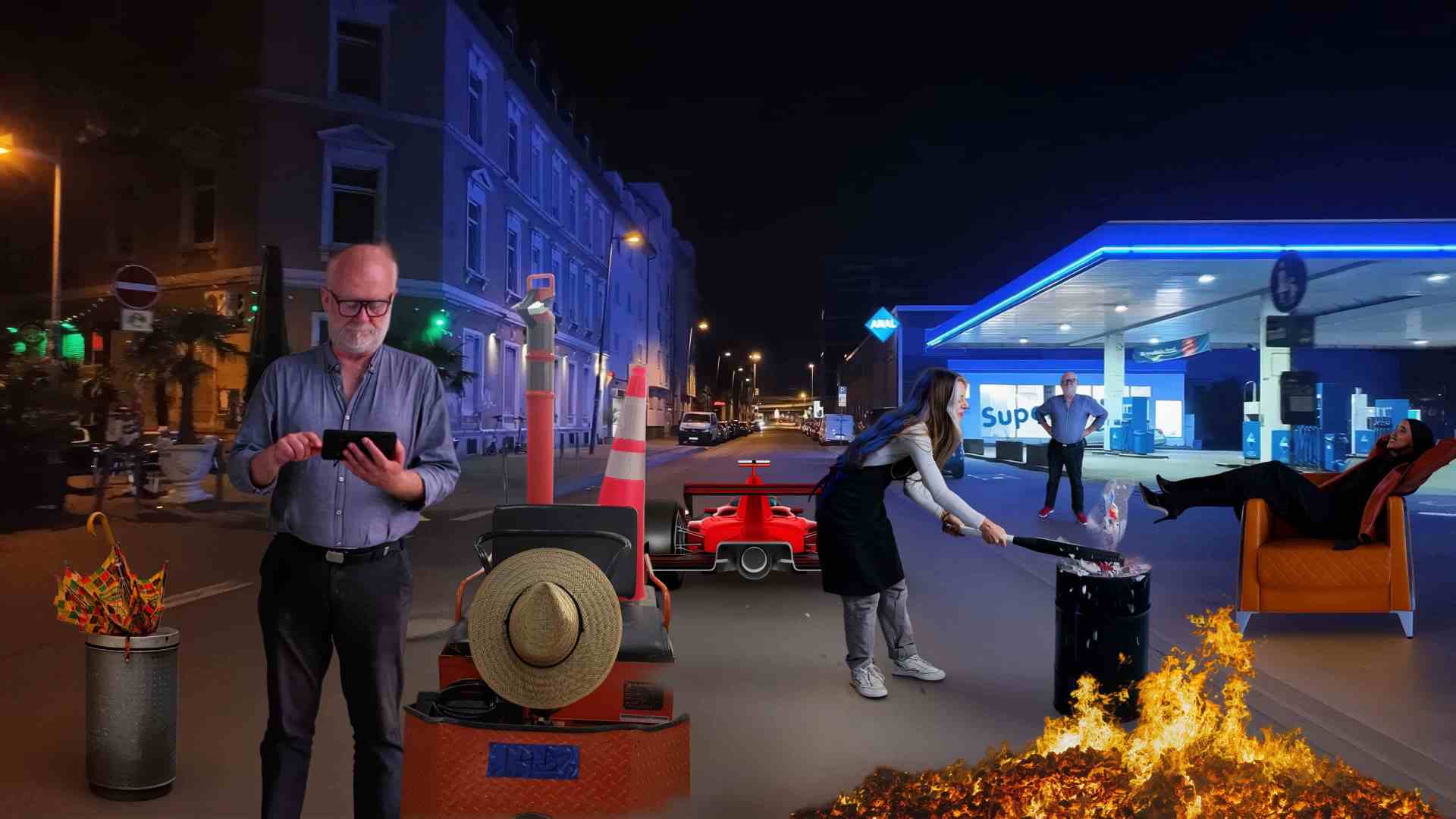
It works fine with objects, but with real people it sometimes looks a bit artificial. That is because there is a complete relighting happening, which also includes shadows on the floor. And as the faces are kind of rebuilt it sometimes looks a bit softer like an AI generated picture. But as it is a generated overlay, it often helps to reduce the transparency a bit or erase some parts in the layer mask. For objects like furniture or shiny robots or spaceships it works really fine.
To test the Harmonize feature, I took an exported picture from a DJI Osmo Pocket 3 4k Video, that I filmed at night in my hood in Mannheim. Then I randomly populated it with very different footage that I did cutout with remove background in Adobe Photoshop. These cutouts consist of exported videoframes (me), stock footage from Envato Elements (umbrella / women with can / women in armchair / fire) photos from my Samsung Note 25 Ultra (cart with hat) and Adobe Firefly generated Footage (red race car). The proportions are not perfect, but you get the idea how it affects lightning and shadows. But it is like always. Those tools do the job, but if you want Hollywood, you have to book a real talented editor, that spends plenty of time to make it really believable. Another thing worth mentioning, is that the maximum resolution for the generated content is 1024 x 1024 pixels. And it alway generates the whole picture with a layer mask. That is one of the reasons, why the generated content might look blurry. A workaround can be using the crop tool to only generate the desired area. How this works and some other tricks will be shown in a future workshop.




The new Enhanced Remove Tool improves the workflow for removing unwanted objects. It is a function that also worked before with the generative fill, leaving the prompt field blank. But that often generated unwanted objects. The new tool focuses more on generating what might have been behind the removed object and is already integrated in the release version of Adobe Photoshop.

The Generative Upscale uses AI to enhance the upscaled pictures. It is comparable to the well known and expensive Topaz Photo AI. The results are pretty good, but there’s is no way to change parameters. You just have the choice of upscaling 2, 3 or 4 times and the resolution is limited to 4096 pixels. But it is great having this tool without spending extra money.

With the Gen AI Model Picker you can switch between the different Adobe Firefly models, what brings more possibilities to generate the desired results.
With Projects Adobe integrated a new way of collaborating – and finally in the Photoshop desktop beta! Adobe introduces Projects, a workspace for organizing creative assets in one place. Projects consolidates files previously scattered across drives, streamlines collaboration, and removes the need to send individual assets manually. Teams can now share entire collections, minimizing version confusion and enabling smoother creative workflows by centralizing assets and collaboration.
Share for review: browser‑based feedback link
Photoshop now offers a Share > Share for review option that creates a web link to your document, whether local or cloud. Reviewers can view the file in a browser and leave general or pinned comments. Comments appear in real time inside Photoshop’s Comments panel, accessed via Window > Comments. Reviewers may reply to feedback and the owner can refresh the link to push the latest version. Access control options include “Anyone with link can comment” or “Invited only can comment.” Pins are anchored to canvas areas. The Share panel also supports Invite to edit (for collaborative editing) and Quick export as PNG.
Send to apps: export control from Share panel
A new Send to apps workflow allows users to export images via native apps like Mail, Notes, Slack, or Adobe Lightroom. A gear icon in the Send to Apps panel enables format selection (JPG, PNG, or PSD) and resolution setting (Original or Small). Slack integration requires selecting the workspace on first use to avoid errors. These exports occur directly from the Share panel alongside other options.
See the documentation HERE and more information in this BLOGPOST
