



Table of Contents Show
In content creation one element stands above the rest: Audio. The old line “Audio is king!” explains why radio in its many forms is still around, and our voice, sound and music are often the main reason why people engage with our content. A stream, podcast or educational video is nothing without good audio and poor audio quality can sometimes be worse than having no audio at all.
As someone who has always been interested in audio and audio quality, I have made YouTube videos, Python masterclasses, organised live events, workshops and podcasts while trying to maintain a consistently high audio quality. Even with a background in audio engineering, it’s not easy!
The Recording situation
When creating content, our focus is divided and the technical recording isn’t always the top priority. We’re fighting an endless battle against small file sizes, heavy compression (Google Meet, Zoom, …) and poor-quality hardware (cheap microphones). I was surprised to find out that my Sony WH-1000XM4 headphones, which are among the best for noise reduction and value for money, deliver a poor microphone quality and are basically unusable for professional work, including live events. The microphone on my Dell laptop isn’t much better, while the best audio is probably from my OBSBOT webcam (see full test), which isn’t saying much.
USB devices make our lives so much easier nowadays. We can just plug in and use the device with power as well as facilitating signal exchange. It’s different with more professional audio equipment, though. Most audio devices, from microphones to guitars, are simple collectors of sound vibrations that transform them into low-energy signals. The amplitude of these signals is so weak that we would barely be able to hear anything if we connected our recording device directly to our computer. For this reason, we use microphone preamps to boost the weak signal and audio interfaces to convert it to a digital signal to be usable with our computers.
It was when I started working on my first Python for Maya masterclass and the 21 Artist Show podcast that I entered the professional audio device market and purchased my Shure SM7B with the Focusrite Scarlett 2i2 Gen2. My goal was to record high-quality audio that is easy to listen to and will stand the test of time. Now, years later, I have decided to upgrade my setup and am considering the new generation of Scarlett devices.
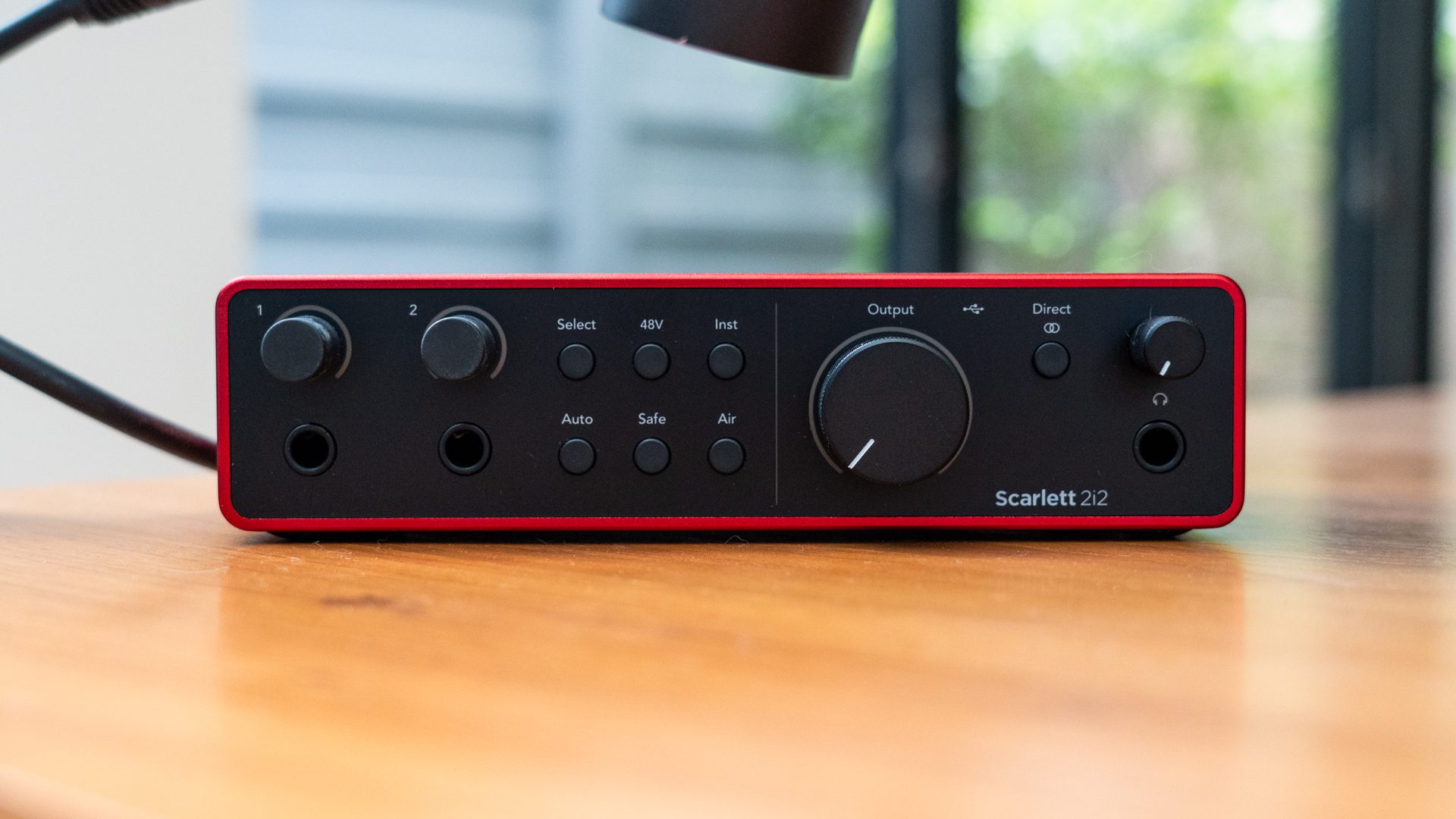
We used the Focusrite Scarlett 2i2 Gen4, which has the perfect number of inputs for single recordings, podcasts or singer-songwriters: two XLR/microphone inputs or two line/instrument inputs. Focusrite provided us with a loan device for this test, supported by our friends at ProPlugin Thailand.
Setup Experience
In my setup, I use the infamous podcast microphone Shure SM7B which has an XLR output. Without an audio interface, it would be impossible to connect it to my computer because of the format and the very weak signal. To bridge the gap and boost the signal, we use an audio interface with a microphone preamp such as the Focusrite Scarlett 2i2 Gen4. The setup is simple: Plug the XML cable from the microphone into one of the two inputs, then connect the Scarlett to your computer with a USB-C cable. Voilà!
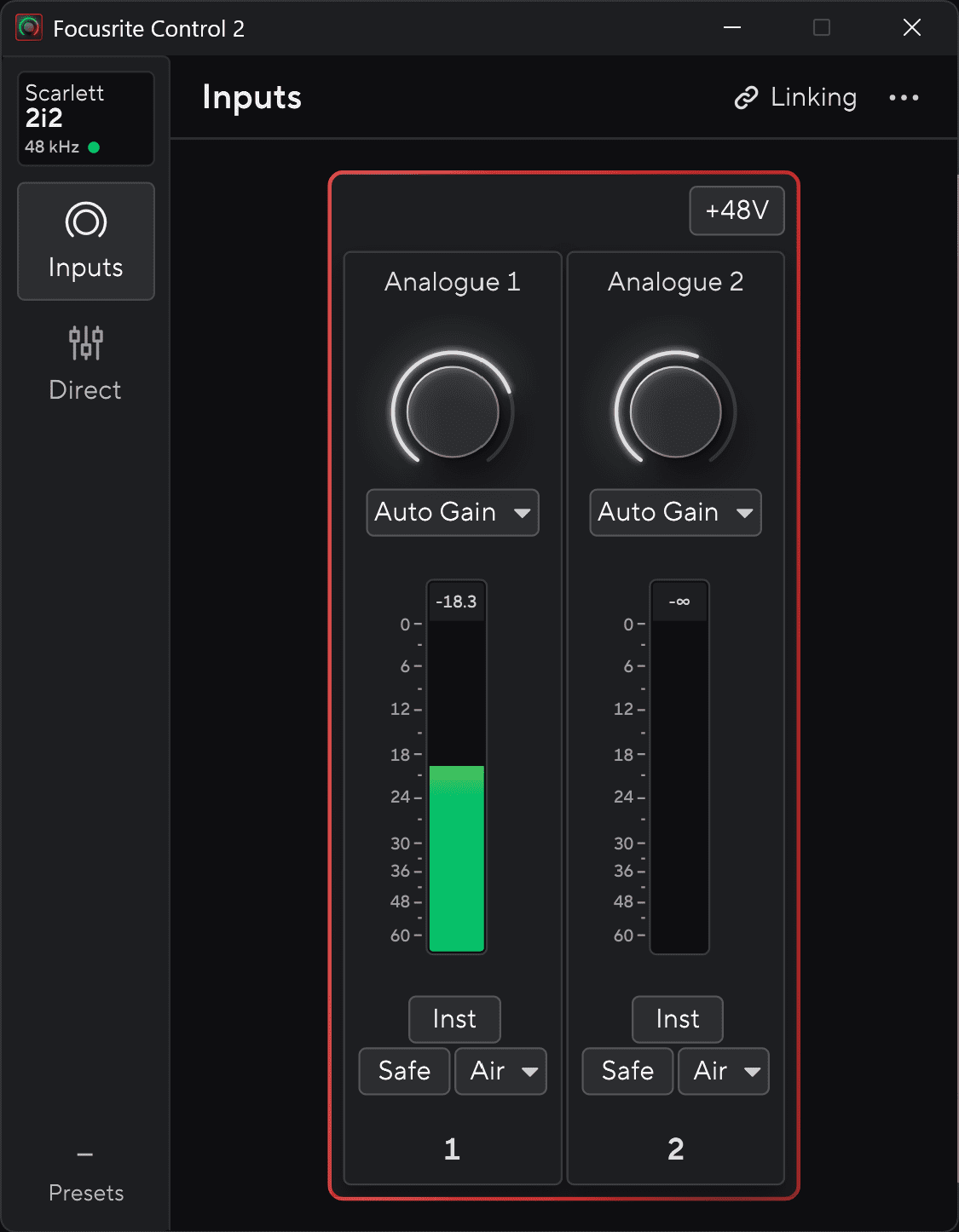
In our test, the Scarlett wasn’t recognised instantly and a faulty USB device appeared in my Device Manager. It is important to install the “Focusrite Audio Drivers” and “Focusrite Control 2” which didn’t fix the issue until I switched the USB-C to the included USB-C cable at which point it suddenly connected. This was strange, as I would have expected for the USB-C cable to make no difference. Luckily, after the firmware update, the Scarlett 2i2 Gen4 was able to recognise any of my USB-C cables and function normally. Overall, the setup process was slightly bumpy, but okay.
Details: Focusrite Scarlett 2i2 Gen4
Let’s take a look at the Scarlett and break down all its features. On the front are two line/instrument inputs, each with an infinite volume dial that can be turned endlessly to control the digital volume. These dials also control the XLR microphone inputs on the back, but only inputs 1 and 2 can be used for either the line or XLR input.
There are then six buttons to control each input:
- Select: Select which input you want to manipulate with the following buttons and features.
- 48V: Phantom power is important for condenser microphones, as they require additional power to function. Do not use it with dynamic microphones, as the extra power can damage them over time.
- Inst: Switch to the instrument input instead of the XLR input.
- Auto Gain: Sets the optimal gain automatically after a short test.
- Safe: Corrects the gain to avoid distortion during dynamic recordings.
- Air: Adds clarity to your recording similar to a high shelf EQ.
Test Recording (Audio Sample)
Here is our test recording, which shows the three effects (Auto, Safe and Air) especially well:
This is a recording with the Shure SM7B microphone directly connected to the Focusrite Scarlett 2i2 GEN4 with an XLR cable and a USB-C cable from the Scarlett directly into my laptop. Auto gain was used for an appropriate gain of 55dB without any additional effects and an average of -11 dB for this recording.
(Loud voice warning)
This is how it sounds without Safe mode when speaking super loud and this is how it sounds with safe mode when getting excited and speaking super loud again.
Finally this is before Air mode and this is after Air mode is activated.
The large knob labelled ‘Output‘ controls the main output volume, which can be used for your studio monitors. The small knob controls the headphone volume, with the headphone jack located directly below. Finally, between the two knobs, there is a ‘Direct’ monitoring button which provides a direct audio signal from the interface, free from latency and distortion. Pressing “Direct” again switches the recording to stereo.
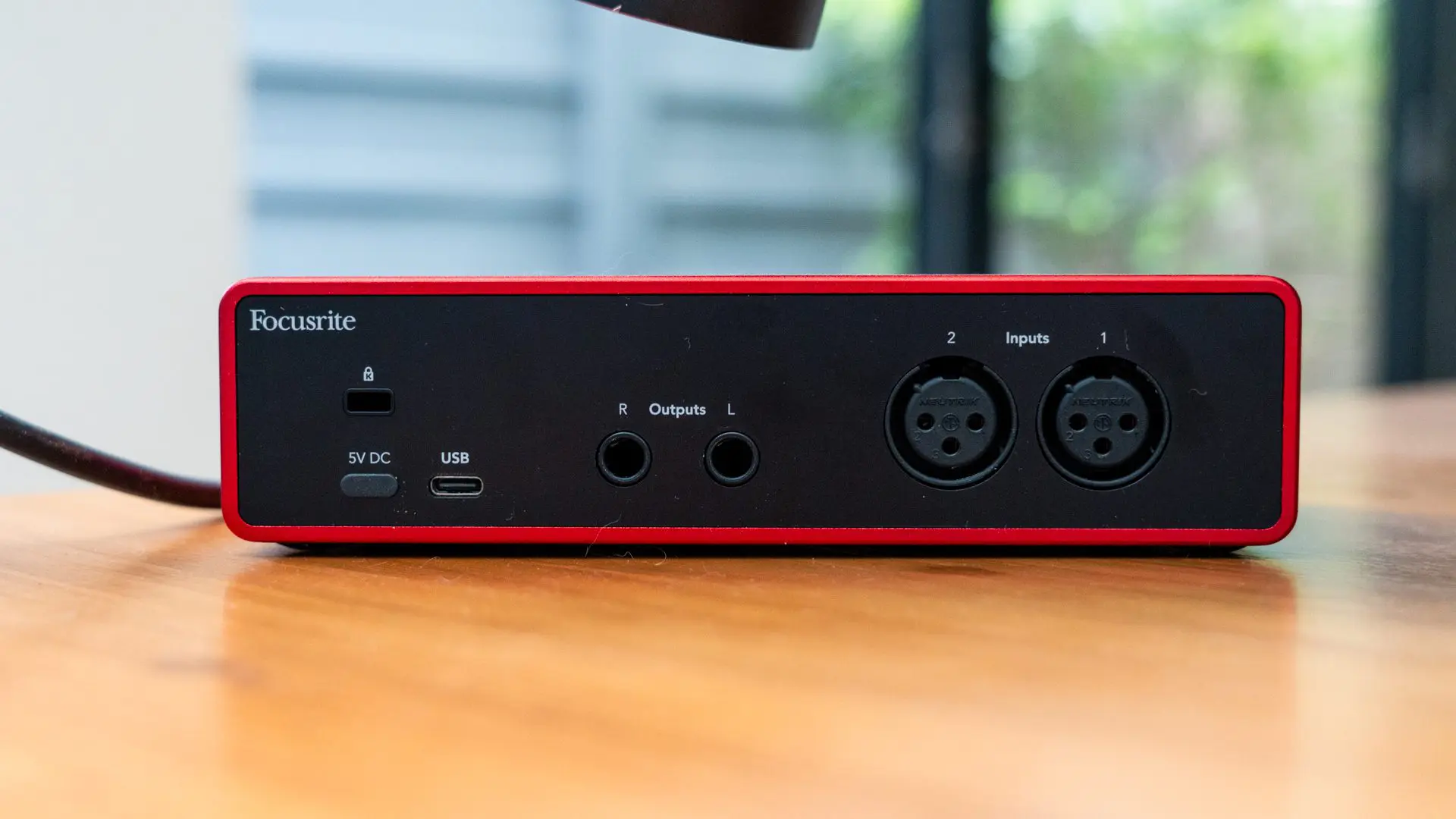
On the back, there are two XLR inputs for microphones and two outputs for monitoring. There are also two USB-C inputs: one regular and one for an additional 5V DC, in case the power flowing through the regular USB input is insufficient to power the Scarlett. Finally, there is a Kensington lock to secure it in place.
The Home Studio Producer provided a fantastic breakdown of the Scarlett’s features:
Content creation
We tested the device at several events, including the Virtual Reality (TD Meetup) and Hugo’s Desk 10th Anniversary and used it to rerecord the Python Advanced masterclass and for various meetings. The Scarlett’s preamp sound quality is good overall and depends more on the microphone, as the Scarlett, besides a slight noise floor and a slight characteristic – that you either like or don’t.
I especially loved the “Auto Gain” feature, as it’s useful for setting up your gain properly without losing sleep over it, especially if you change setups, locations or speakers. This feature is made for creators as it helps them to determine the correct amount of gain, ensuring that the audio is neither too loud nor too quiet. This feature is fantastic, especially for casual audio users who focus more on creating content than on audio engineering, as it simplifies the potential for recording failure. The two most common audio issues are audio that is too quiet, which leads to distortion when boosted, and audio that is too loud, which also leads to distortion.
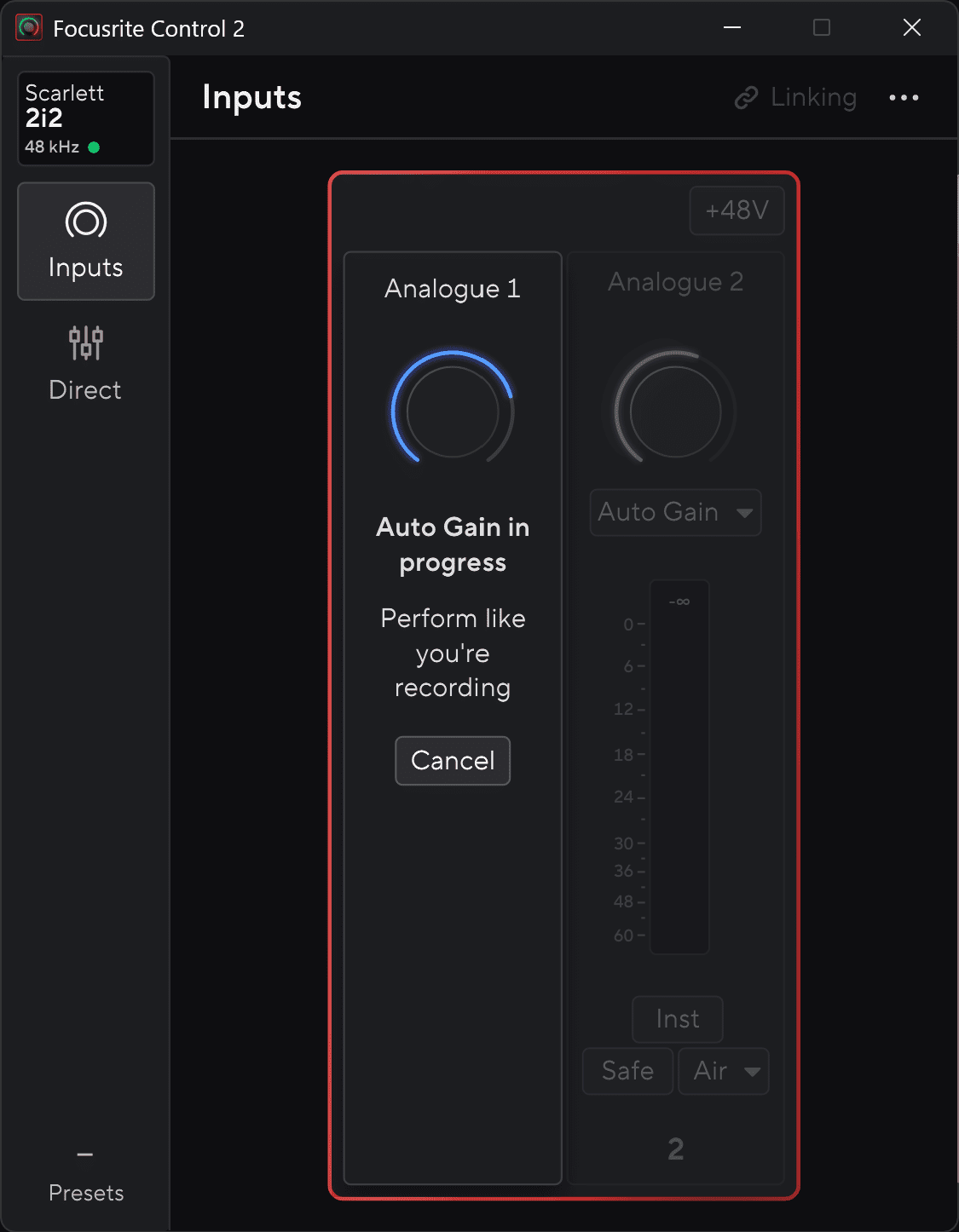
Although “Auto Gain” will set up your gain, it won’t prevent your recording from peaking and distorting. This is where the “Safe” feature comes in and avoids over-gain, which can leave you with a distorted signal. Safe checks your audio levels up to 96,000 times per second and corrects the gain when it detects a signal that is too loud. This feature is especially useful in live situations such as streaming, podcasting and interviews, where excitement could cause the voice to peak and lead to distorted recordings. It is useful for loud streamers and podcast guests and can be left on permanently.
Although I apply my effects mostly in post-production, I love the crystal-clear sound of “Air” and how it enhances your voice. I would use it for live streams or quick edits to give my voice a certain clarity. Finally having the XLR input positioned at the back is a great design feature as it keeps my table free of cables and the use of USB-C means that all my dividers are connected with the same cables.
Lock it down?
The Kensington lock remains a mystery. I can’t imagine anyone on this planet using or needing it. Firstly, the device is still at the lower end of the price range. Secondly, it is so specific that it only works in tandem with other similar devices. Thirdly, I would never take my Scarlett to a public place like a café or library to record audio as it isn’t practical and in a studio there are many other, more valuable and easier-to-pick devices, such as valuable microphones. Maybe they sell a lot of Units to public places, where they are out of sight like shared workspaces or it is just a legacy thing.
Finally I dislike the implication that a secondary power source is needed to power the Scarlett. With the switch from USB 2 to USB 3 and 4 with USB-C, the (double) power increase should be more than enough for the same functionalities and digitalisation.
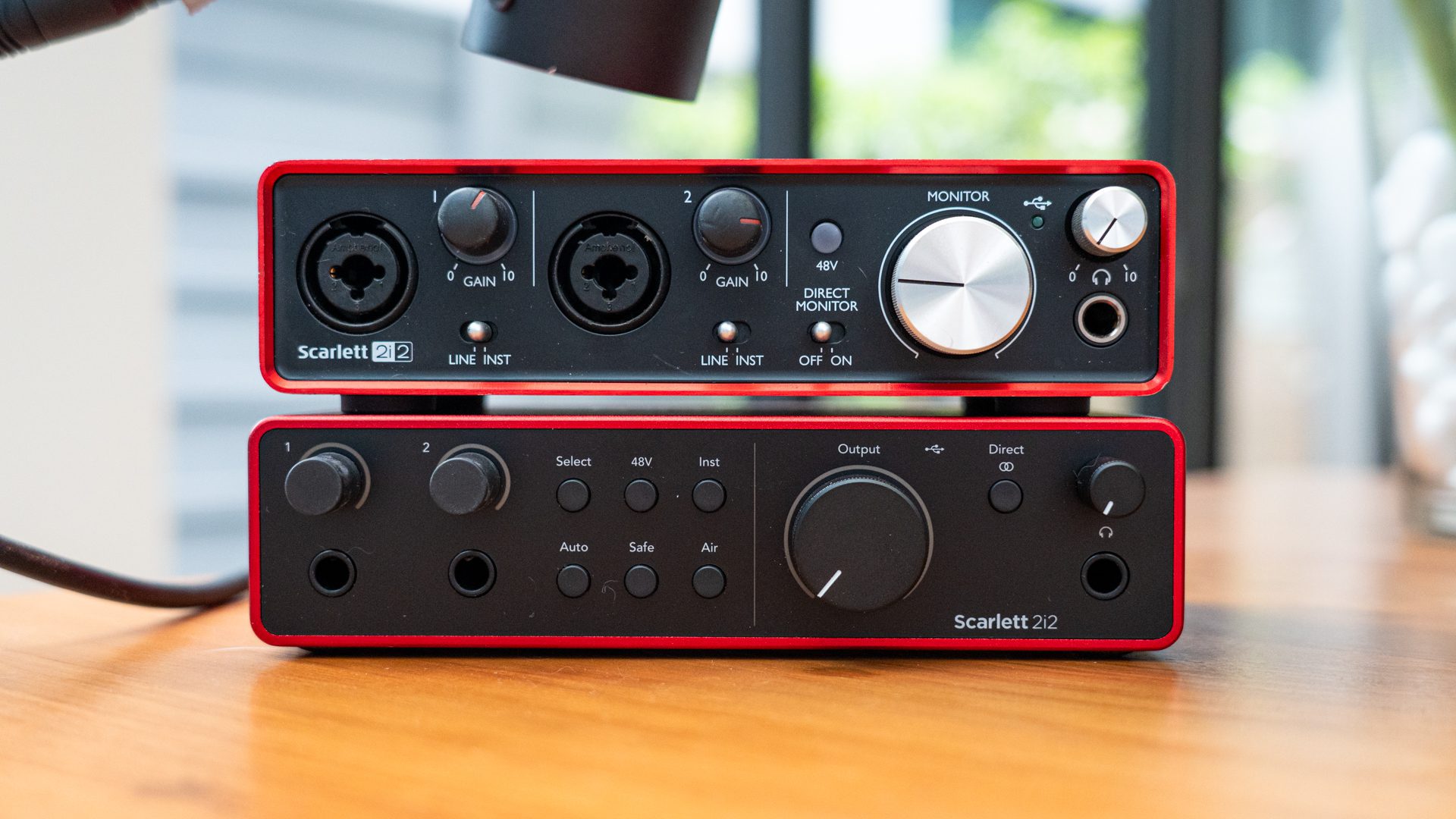
Gen2 vs Gen4
The big question is: Should you buy a cheaper Gen2, Gen3 or go for the newest Gen4 and if an upgrade – like in my case – is worth it?
Let’s look at a price comparison:
- Focusrite Scarlett 2i2 Gen4: $239.99
- Focusrite Scarlett 2i2 Gen3: $179.99
- Focusrite Scarlett 2i2 Gen2: $129.99 (ebay)
Gen2 is out of the question nowadays as it’s mostly only available second hand. Gen3 is closer to Gen2 than Gen4, which, in my case at least, has the enormous benefit of supporting the Shure SM7B thanks to its boosted gain range of 13 dB. This is significant, as it eliminates the need for an additional Cloudlifter and cable, which would ultimately increase the cost of the Gen3 to that of the Gen4.
If you’re thinking of buying the Focusrite Scarlett 2i2, I recommend the Gen4. If you already have Gen2 or Gen3, it depends on why you are considering an upgrade. In my case, upgrading would remove the extra Cloudlifter and XLR cable, add software controls and update the USB from 2 to 3. It would also move the microphone inputs to the back and add “Auto Gain” and “Safe” mode. These features make the switch worthwhile for me. Otherwise, stick with the device that works. Additionally, different versions of the Scarlett are available with different numbers of inputs:
I generally recommend the Scarlett 2i2 as it is the most versatile.
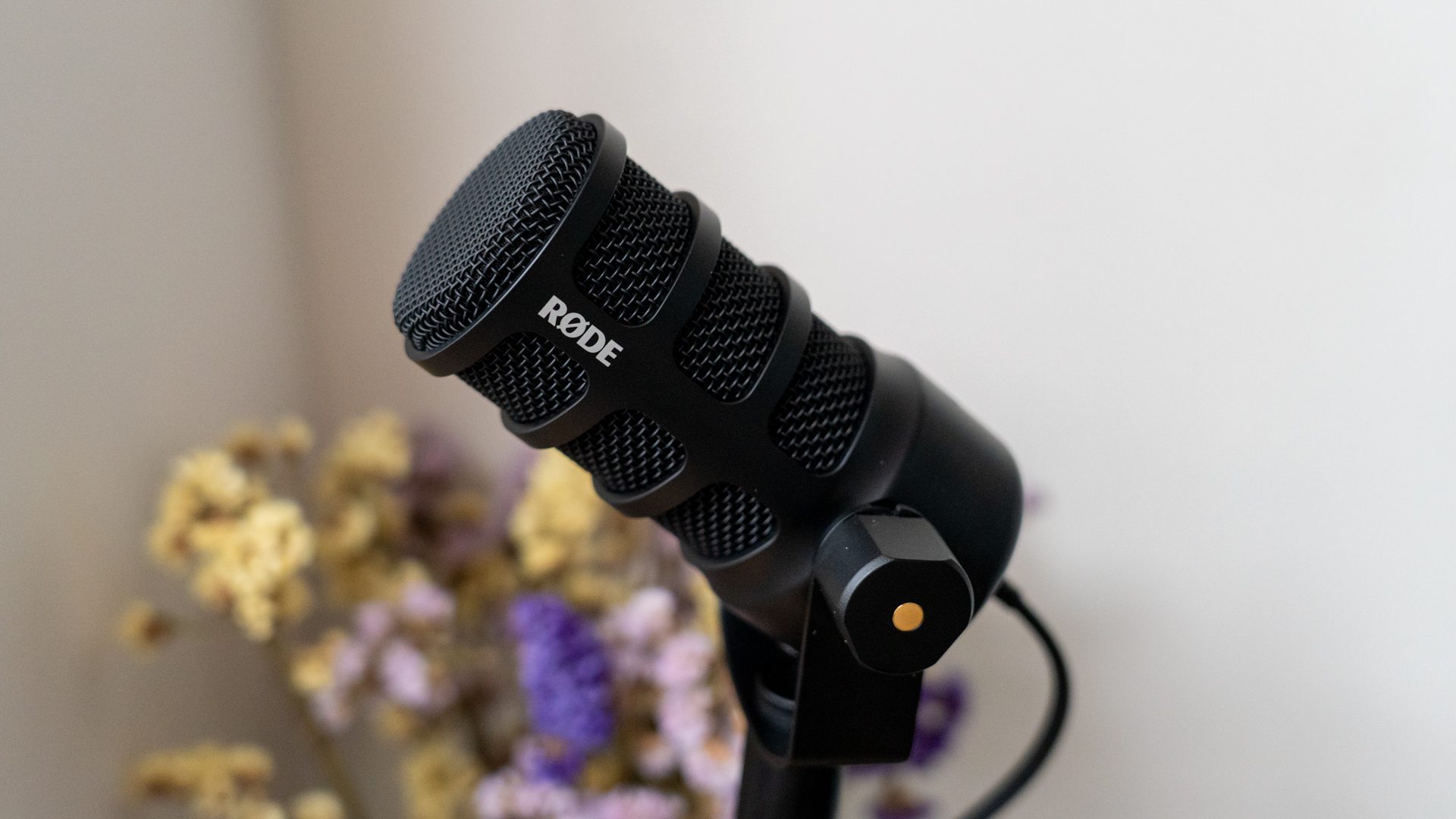
Microphones for Creators
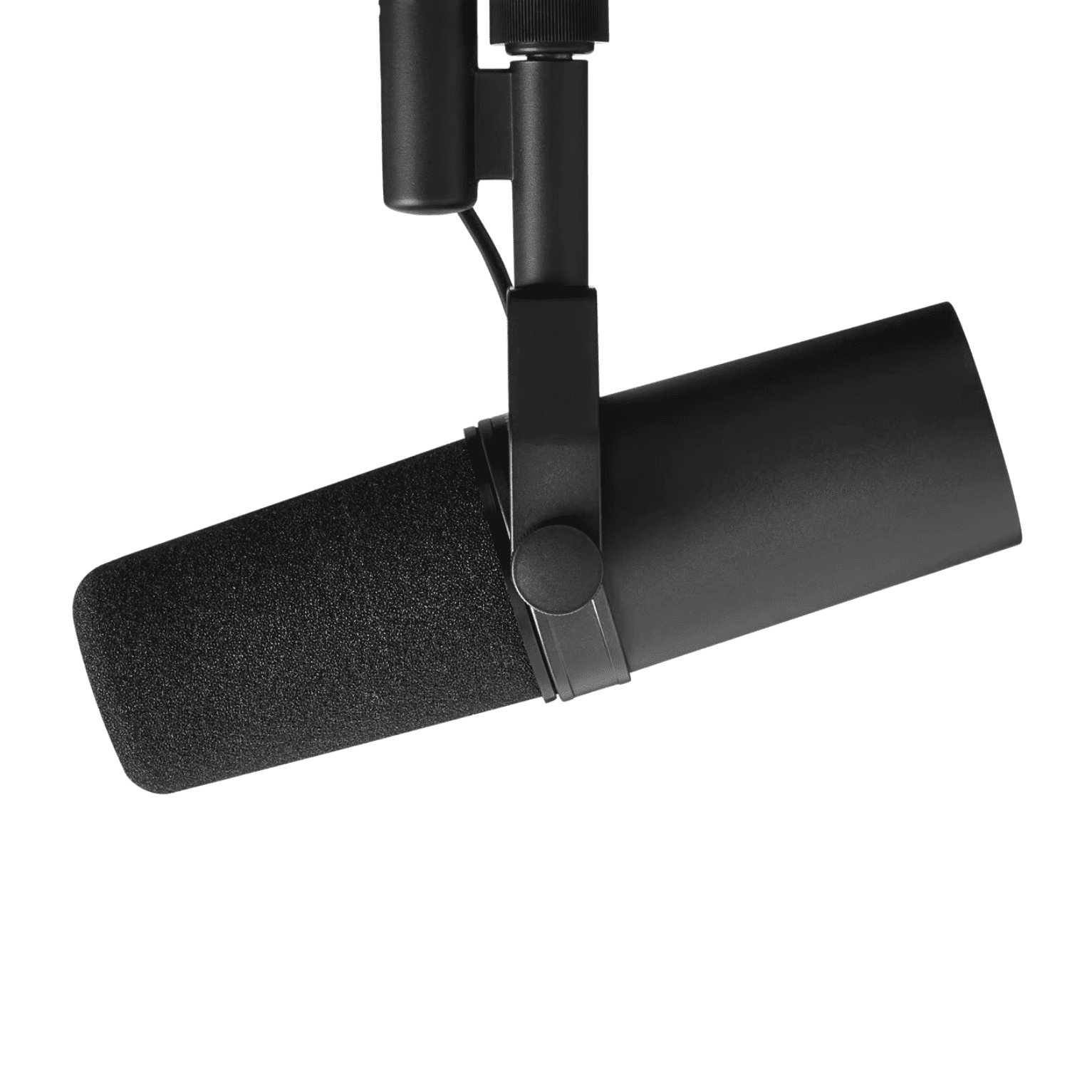
A device like the Scarlett audio interface is nothing without its input. The most common input is a microphone connected with an XLR cable. The Shure SM7B is widely regarded as the best microphone for creators, particularly for voice recordings and podcasts. Having used it for over six years, however, I wouldn’t recommend it. The biggest downsides of the Shure SM7B are that it is very sensitive (easy pops), demands a lot of gain (noisy) and isn’t particularly user-friendly as it is difficult to hold, set up and find the right gain for.
While the Shure SM7B can be great for professionals and those who prioritise audio quality with its deep bass, for creators whose main goal is simply to record good audio, it’s a headache that most underestimate when following online recommendations. Some creators prefer simple systems for reasons of price or convenience. Believe me, travelling with such a setup is inconvenient.
USB microphones are a great alternative as they remove the middle man and can be connected directly to your computer. Nowadays, these devices often come with powerful plug-ins to enhance the audio quality, as using a USB microphone usually results in a slight downgrade, which isn’t always noticeable to the creator. Interestingly, some of the recommended microphones offer both XLR and USB outputs, making them versatile and allowing for future upgrades.
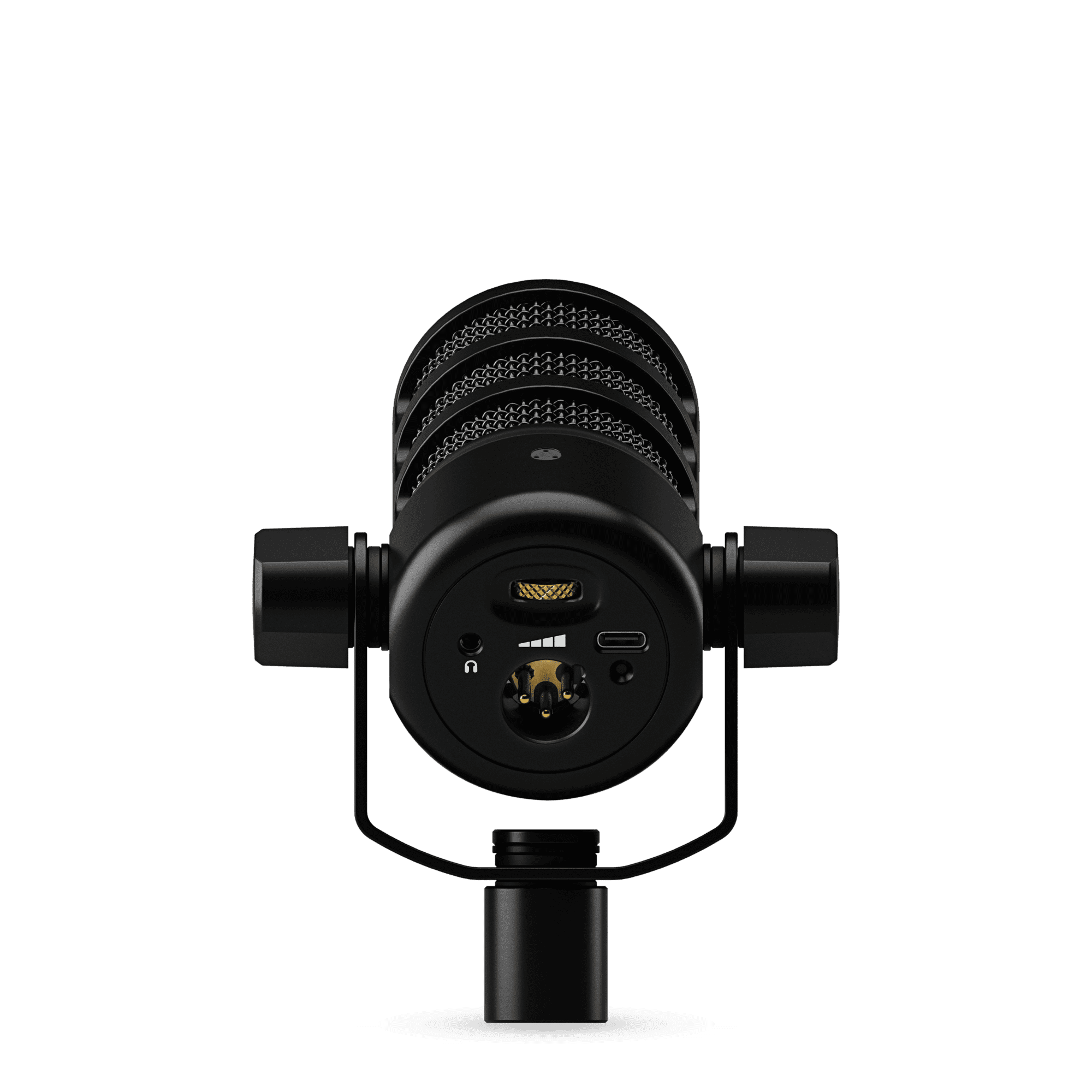
The Shure MV7+ ($299) and the Rode PodMic USB ($209) both have dual XLR and USB outputs, making them a robust choice if you switch from a simpler to a more complex setup, including a mic preamp for 60% of the total price. I personally upgraded recently to the Rode PodMic USB because I preferred its sound quality and pop handling.
Comparison between Rode PodMic USB vs Shure SM7B with and without Focusrite Scarlett 2i2 Gen4. The audio was normalized to have the same average dB for a fair comparison.
Resume
Overall, I’m happy with the Focusrite Scarlett 2i2 Gen4. It is a significant improvement, especially in terms of its design and additional features, such as Auto Gain, Air, Safe and software integration. It also has an XLR port on the back and better performance, with enough gain for the Shure SM7B. Otherwise, it’s mostly what you expect from Focusrite. Just be aware that you’re now entering the semi-professional audio field, which comes with its own technical challenges, but the reward is professional-quality audio for your content – as we learned: Audio is king!
If you’re looking for one of the best value-for-money audio devices on the market to enhance the quality of your content, you can’t go wrong with the Focusrite Scarlett 2i2 Gen4. For a lower budget the Rode PodMic USB is a simpler option that connects directly to your computer and has a great preamp with additional software controls. Thanks to its XLR output, it is possible to upgrade and connect it to the Scarlett in the future and use its audio interface and preamps.
