



Table of Contents Show
Many filmmakers, editors, or archivists have faced the same problems: low-resolution footage that looks blocky on modern displays, noisy shots captured in poor light, or old tapes and compressed files that feel unusable in today’s production standards. Manually fixing these flaws takes hours – time that could be spent on editing and storytelling instead of patching technical problems.
This is where Aiarty Video Enhancer fits in. Built for professionals who need reliable results, Aiarty uses carefully trained AI models to restore detail, upscale resolution, denoise footage, and smooth motion, all while keeping natural textures intact.
Whether you’re trying to unify mixed resolutions, revive digitized VHS or MiniDV archives, prepare client deliverables for 4K playback, or give YouTube content a professional polish, Aiarty helps you achieve more consistent quality with less effort.
What Is Aiarty Video Enhancer
Aiarty Video Enhancer is a desktop-based AI video enhancer and upscaler tool, designed to run safely offline with full support for Nvidia, AMD, and Apple Silicon acceleration. Unlike many cloud-based tools, it processes locally, ensuring privacy for client work and sensitive archives.
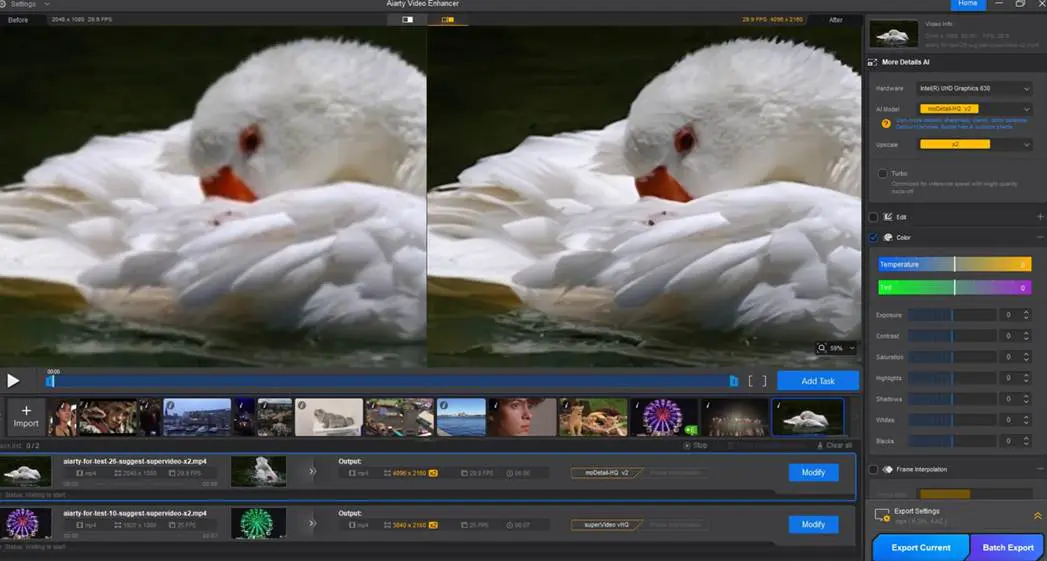
At its core is a hybrid Diffusion-GAN architecture, trained on a large dataset of both images and videos. This combination produces natural results without the “painterly” look or over-sharpen effects often seen in other AI enhancers. The software directly addresses today’s production challenges:
- Mixed sources, inconsistent quality: Footage from old phones, DSLRs, drones, digitized VHS, and screen captures often arrive at different resolutions and compression levels.
- High viewer expectations: For video zoom-in effects or on 4K screens, compression artifacts, noise, and blur are more visible than ever.
- Time pressure: Tight deadlines make manual cleanup workflows impractical. Batch queuing in Aiarty streamlines workflows.
- Privacy concerns: Because Aiarty runs offline, you don’t need to upload sensitive footage to a cloud server.
How Aiarty Video Enhancer Fits Into Your Workflow
Aiarty is designed to slide into your workflow without forcing you to rethink your entire setup. The interface is straightforward: import, select a model and target resolution, preview, and export. Under the hood, though, the software is making deep-learning based decisions about video noise reduction, texture recovery, and frame interpolation that would take hours to attempt manually.
Step 1. Import your footage.
Aiarty supports common formats, including MP4, MOV, MKV, AVI, MXF, TS, M2TS and more. You can drop in anything from HEVC to ProRes codecs. Batch processing is available if you’re working on multiple shots.
Step 2. Choose an AI model.

The strength of Aiarty lies in its specialized models, each tuned for a different type of footage or scenario:
- moDetail-HQ v2 recovers fine detail in skin, fabric, hair, or foliage, and applies decent denosing and deblurring when necessary.
- Smooth-HQ v2 prioritizes faithful restoration with minimal artifacts, ideal for interviews, weddings, or polished commercial work.
- superVideo vHQ tackles low-light and grain-heavy footage, with more dedicated noise reduction algorithms for challenging dark scenes.
More details about these AI models are further explained in the technology section below.
Step 3. Select your output resolution.
You can upscale x2, x4, or target a specific resolution such as 4K UHD. For quality restoration without changing the dimension, you can also select x1.
Step 4. Preview before export.
Aiarty’s real-time preview lets you pause and test different models on a frame before running a full export. This saves enormous time and makes it easy to find the best settings.
Step 5. Export or apply quick editing.
For delivery, Aiarty supports ProRes for editing workflows, high-bitrate H.264, H.265 (HEVC), and AV1 for efficient web publishing.
Beyond video upscaling, Aiarty also includes frame interpolation (for 90fps or 120fps slow-motion playback), AI audio denoise (removing background hiss or hum), and a basic color panel to adjust white balance, saturation, contrast, etc. These aren’t meant to replace a grading suite, but they’re invaluable for prep work and fast corrections.

With this feature set, Aiarty Video Enhancer slots seamlessly into any production pipeline.
- Creators: Clean up noisy vlogs, restore old recordings, or upscale legacy content for social platforms.
- Studios: Batch-process hundreds of hours of raw footage with consistent, high-quality results.
- Marketers and agencies: Deliver sharp, artifact-free videos that meet brand standards without blowing budgets or timelines.
Extra Tip: Enhancing Stills with Aiarty Image Enhancer
For creators who also work with low-resolution images, old photos, or AI-generated art, Aiarty Image Enhancer fits into your workflow. While the video enhancer cleans up footage, the image enhancer can denoise, sharpen, and upscale still images to 8K, 16K, and higher. Ideal for printing, e-commerce assets, 4K wallpapers, or slideshows. This way, both your videos and images maintain a consistent level of polish.
Technical Analysis – Behind the Scenes
The promise of any AI video enhancer rests on how well its models are trained and how intelligently they process footage. Aiarty isn’t just applying filters on top of video or stretching pixels with mathematical bicubic interpolation; it’s built around machine learning models trained on a proprietary dataset of diverse imagery, from low-light live action to high-detail clips featuring organic textures like skin and fabric. This variety gives the system a strong foundation to handle different production scenarios.
At the core, Aiarty relies on Diffusion + GAN-based architectures. Diffusion models excel at generating fine details for a more realistic look, while GANs (Generative Adversarial Networks) enforce realism by comparing outputs against “ground truth” references, without hallucinating harsh artifacts. The combination produces sharp textures that feel natural rather than artificially sharpened.
Each of the three main models reflects a specific training emphasis:
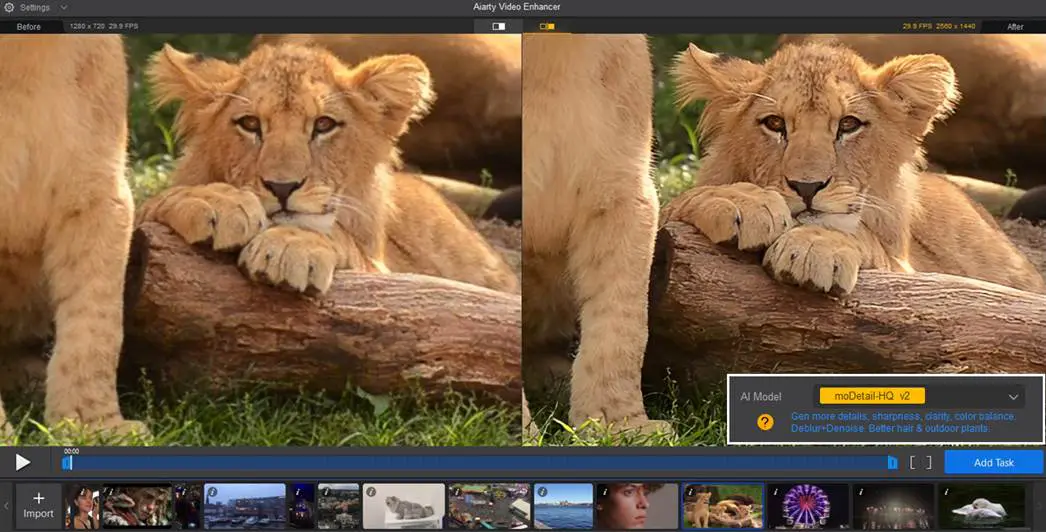
moDetail-HQ v2 (Diffusion+GAN) is trained to restore details and enhance edge definition. It’s especially effective with faces, clothing, outdoor plants, and objects with organic textures.
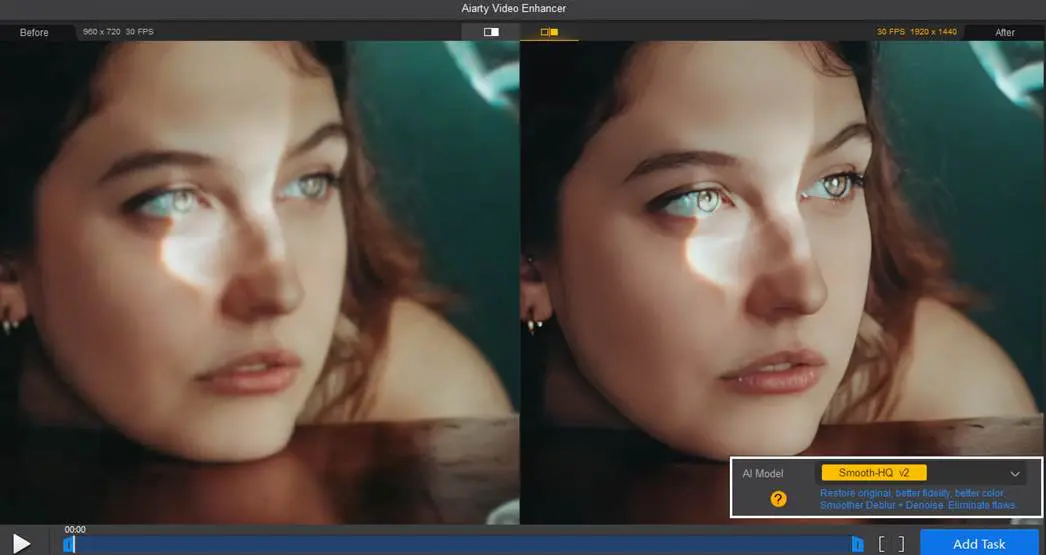
Smooth-HQ v2 (Diffusion) uses a gentler training objective to maintain fidelity and color realism, focusing on smooth denoise and deblur with texture consistency. Editors who prioritize naturalism often find this the safest option.
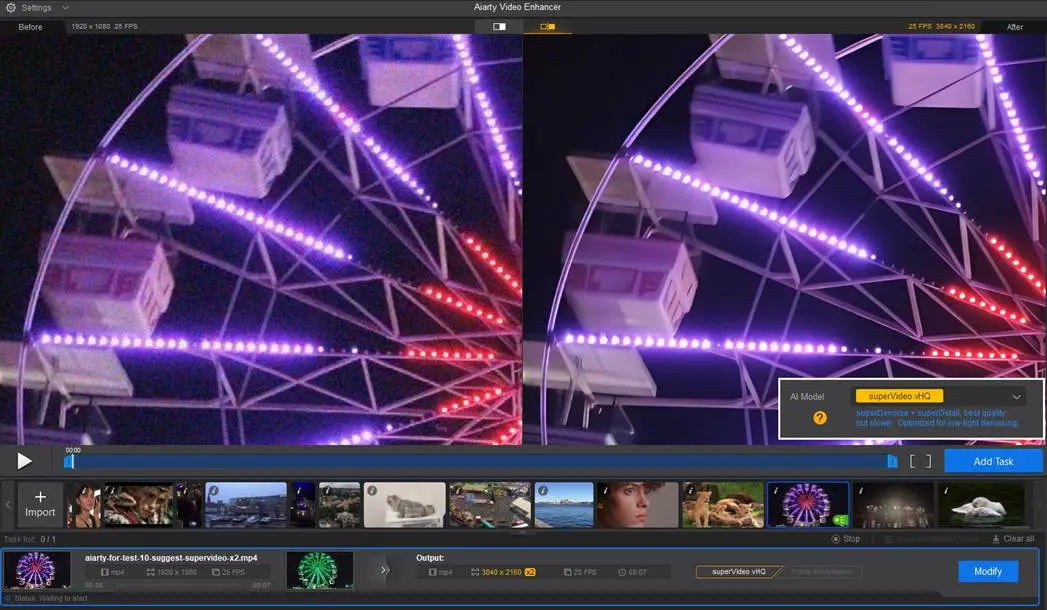
superVideo vHQ (Diffusion+GAN) leans on a hybrid approach with additional noise-heavy datasets, making it suited for restoring flawed dark scenes, high-ISO noise footage, or grainy archives.

Performance is another area where the engineering shows. Aiarty makes full use of GPU acceleration, supporting Nvidia, AMD, Intel, and Apple Silicon natively. In practice, this means real-time or near real-time 4K upscaling on modern systems, with GPU utilization reaching above 95%.
While no AI enhancer is perfect, Aiarty’s technology gives confidence. The system doesn’t “hallucinate” unnatural details or push footage into an “oily” artificial look; instead, it rebuilds clarity in a way that fits naturally into professional post workflows.
Practical Tips: Getting the Most Out of Aiarty
Even with a strong AI backbone, the results you get depend on how you approach the tool. Here are some practices that users and testers have found most effective:
1. Match the model to the footage
Not all footage benefits from the same algorithm. For fine detail like hair or textiles, the moDetail-HQ v2 model is often best. If you do client weddings or interviews where natural skin tones matter more than hyper-sharpness, Smooth-HQ v2 usually gives cleaner, more faithful results. For grainy VHS or low-light archives, superVideo vHQ is worth the extra render time.
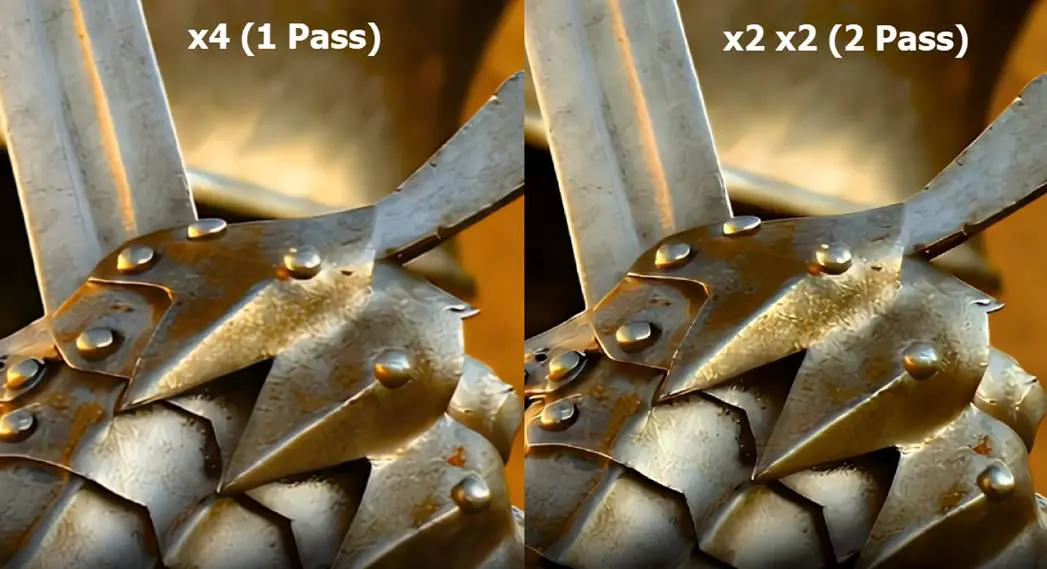
2. Scale step-by-step if needed
Jumping directly from SD to 4K doesn’t always yield the cleanest result. In some cases, scaling in two passes (x2, then x2 again) produces smoother edges and better texture consistency.
3. Zoom in for previews
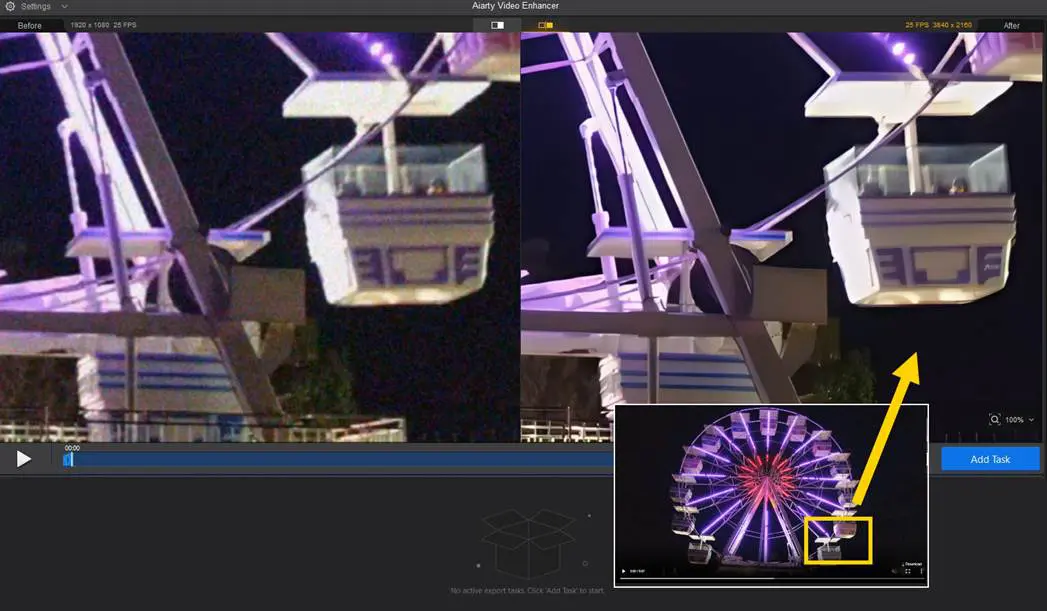
The preview tool isn’t just for quick looks, it’s your best way to compare different models side by side. Testing parts of the clip before committing to a full export can save hours, especially on long projects.
4. Think about export formats early
If you’re planning to color grade or edit in NLEs, exporting to ProRes (MOV) gives you room to push the footage further. For lighter web-ready files, H.264, H.265 (HEVC), or AV1 balances quality and size well.
5. Take advantage of interpolation
Several users mentioned that frame interpolation was the feature that changed their creative process. As graphic designer Nathalie Boucher explained on Product Hunt, being able to generate natural-looking slow-motion with Aiarty opens up “creative flexibility for music videos and experimental projects“.
6. Keep hardware in mind
While Aiarty is optimized for GPUs, older cards may struggle with large batch jobs. Users working with heavy archive restorations have found it helpful to trim down sequences for testing before scaling up to the full workflow.
For professionals, the biggest takeaway is that Aiarty is more about having a reliable AI companion to enhance video quality. As videographer Pascal Gauthier put it, “The ability to upscale to 4K while also cleaning up blurry or noisy clips is a massive time saver. Having everything handled in one tool rather than using multiple plugins makes the workflow so much easier“.
Get Started with Aiarty
Aiarty Video Enhancer doesn’t replace the artistry of editing, but it does reduce the technical roadblocks. From client work to independent projects, creators are finding new efficiency. Freelancers can restore and deliver client archives faster. YouTubers can elevate production quality without expensive gear. Institutions can revive decades-old collections.
And if your workflow also involves stills (whether it’s for 300DPI posters and photo prints, 4K wallpapers, or website banners), Aiarty Image Enhancer extends the same AI-powered restoration to images. It uses AI inference to denoise, sharpen, and upscale images, while restoring details based on deep learning. Grab a Free License of Aiarty Video Enhancer to explore full features, with exclusive support for creators.
For avid users, enjoy the software bundle of Aiarty Image Enhancer and Aiarty Video Enhancer. Both tools come with a lifetime license that never expires, along with unlimited free updates to future versions. No extra upgrade costs are required, so users can always enjoy the latest features.
System Requirements of Aiarty Video Enhancer:
- Windows 10 or higher, Intel/AMD/Nvidia. 8GB RAM or more.
- macOS 13.0 or higher, Intel CPU/Apple Silicon Chips. 8GB RAM or more.
- Optimized for DirectML/TensorRT/CoreML acceleration on supported hardware.
System Requirements of Aiarty Image Enhancer:
- Windows 10 or higher, Intel/AMD/Nvidia. 8GB RAM or more.
- macOS Catalina 10.15 or higher (Intel CPU), macOS Big Sur 11 or higher (Apple Silicon), 8GB or more.
- CoreML hardware acceleration for macOS 12 or higher. DirectML/TensorRT acceleration on supported hardware.
About Aiarty
Aiarty is the AI-focused innovation brand from Digiarty Software, a trusted name in multimedia since 2006. Backed by a team of passionate engineers, Aiarty develops state-of-the-art AI tools that elevate digital experiences worldwide. Learn more about Aiarty at https://www.aiarty.com/
