



Table of Contents Show
You can see an overview of InstaLOD’s complete feature set in DP 03:19. In this issue, we look in particular at how InstaLOD can automate the workflow from CAD data from a PLM system to a real-time-ready VR model.
by Calvin Bacon
Computer Aided Design (CAD) data from engineering consists of nurbs curves and surfaces and cannot be rendered by most renderers. Until now, there were two options for preparing them for real-time rendering. Either a manual retopo, i.e. building the asset from scratch as a 3D mesh, or tessellation.
Manual retopo is a process that can take days or weeks per scene – depending on the complexity of the models. The other option is automatic tessellation. However, since CAD data is parametric (has infinite accuracy), automatic tessellation achieves an extremely high polycount, which is practically useless for real-time rendering, and if a low tessellation is aimed for, details are often missing, curvatures are poorly modelled or get broken normals.
If the CAD object is then tessellated with sufficient accuracy, the polycount must be reduced, again by automatic optimisation or manual retopo. Finally, UVs have to be designed and textures baked so that the model can be viewed in the VR scene with sufficient fps. And even then, there are long-term problems with both manual preparation methods if a different renderer is to be used or if the initial CAD data changes.
Huge material libraries are currently being created, but these are only customised for a single renderer. Whether VRED, Arnold, V-Ray etc., the problem is the same. If you want to switch to a different engine in the future, every material from the library has to be completely rebuilt as a shader.

Another major problem with a product lifecycle management (PLM) system is that CAD data in it is constantly being modified by engineers, which means that all of the above steps often have to be carried out from scratch on a weekly basis. This workflow can be completely automated with InstaLOD’s CAD Live Link and Scene Import Rules.
By the way: Each feature can be executed as a batch process operator. All settings that are set up in a profile, including Scene Import Rules, can be saved externally as a JSON file. These can be used as presets or, if the CAD object changes again next week, the user loads the profile that has already been set up, applies it and achieves the same result again: an object that works for VR without manual intervention.
Loading CAD data with CAD Live Link
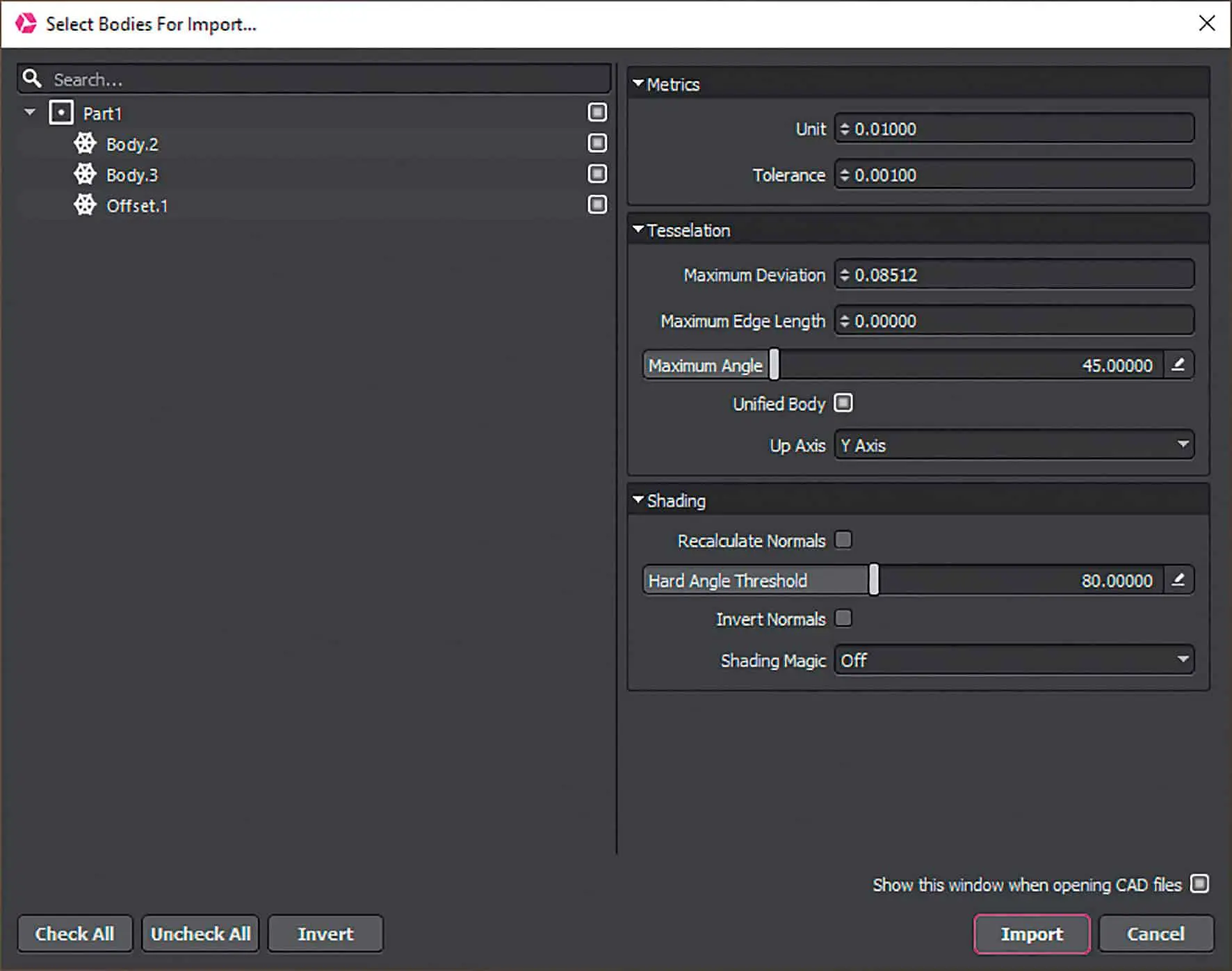
But what is the CAD Live Link and how do you use it? When loading a CAD file, you are first greeted with an import window in which you can select which parts or sub-assemblies are to be imported. InstaLOD supports a variety of CAD formats including Catia, Solidworks, Rhino, JT, NX, STEP and many more. Since the CAD Live Link still maintains the connection to the original CAD parts, we can still selectively retessell the parts.

Tessellation is influenced by three settings:
Maximum Deviation – uses a tolerance specified by the user to determine how much InstaLOD may deviate from the original CAD surface. This feature originally comes from InstaLOD’s optimiser, but was so popular that it was also integrated into CAD Live Link.
Maximum Edge Length – Specifies the maximum length of the edges.
Maximum Angle – Specifies the maximum angle between two polygons. If the angle is exceeded, the area is subdivided again until the specified angle is achieved.
The maximum angle is mainly used in other tessellation programmes, but is often not the ideal solution. The reason for this is that small parts – such as screws – can very quickly become very strongly tessellated within large assemblies. Normally, you don’t want to have a single screw with 50,000 polygons. Maximum deviation is therefore the ideal solution. This tessellates the objects to the quality tolerance that is specified, but does not subdivide the object unnecessarily.


Getting the splits ..
Another problem that often occurs with CAD data is surface inaccuracies, which can lead to shading problems. One such problem is shading splits – as shown in the images on the right. By default, a 3D operator has to manually repair these splits piece by piece, which is a lengthy process. With InstaLOD’s CAD Live Link, these can be repaired quickly and easily using the shading settings. In many cases, recalculating the normals is sufficient. In our case, however, a lot of shading information is stored within the CAD metadata, which would be lost by recalculation.
We therefore use InstaLOD’s Shading Magic, which automatically localises and repairs the problematic areas. After the tessellation has been performed and any shading problems have been repaired, the rim is not really usable yet, as all materials would have to be set up again for a render. There are also no UVs yet, so textures could not be added, and finally we have 80,000 polygons in the current state. If you were to scale these to a complete car, you would quickly have several million polygons, which is not compatible with a VR application.
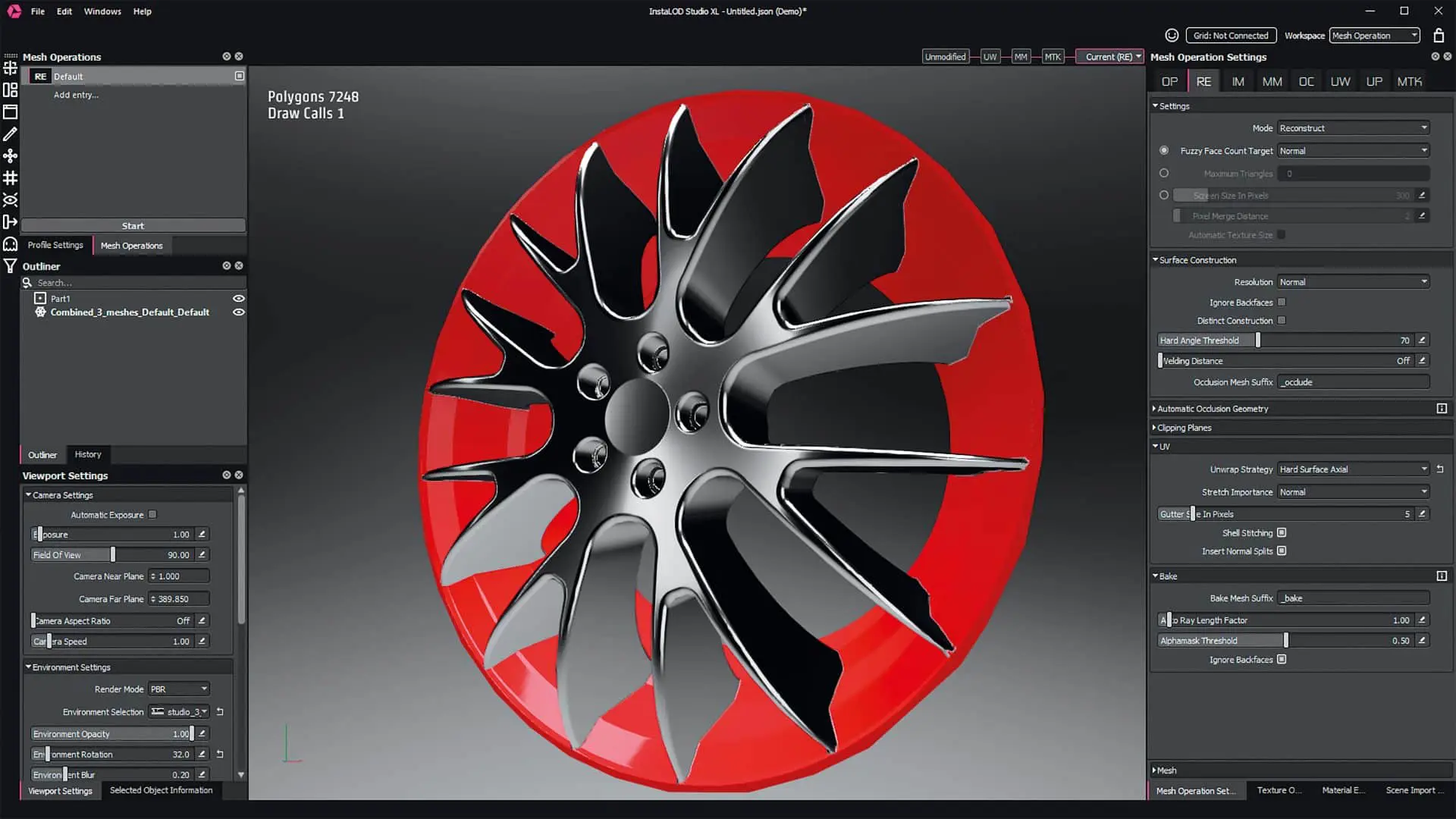
So the next step is to make the rim VR-ready in a few steps. Firstly, we go to the mesh operation settings and start with a UV unwrap. Here we use the Hard Surface Axial algorithm, which creates a clean unwrap for the surfaces facing the axles.

Material Merge
After the UV unwrap, we perform a material merge operation. The reason for this is that we have three objects with three materials in this scene. If we scale this scene to a complete car, we quickly have thousands of objects with thousands of materials. Firstly, this is a lot of work for manually setting up the materials for a render, and secondly, this is also a huge amount of draw calls for a real-time application. We therefore use the material merge, which combines all materials and textures into a single material with a texture atlas.
Here we also merge the material parameters of metalness and roughness into a texture. This saves time later on when setting up the individual materials, but also saves a lot of draw calls and texture memory. To make it even easier to set up the materials, we combine the objects by using “Combine Meshes” in the Mesh Tool Kit (MTK). We now have an object with a material and a draw call. This object can now be exported and imported into any renderer, as we have the UVs and textures to render the materials exactly as initially set up – completely independent of the renderer.

Away with the polygons
Now the number of polygons must be reduced. To do this, we use InstaLOD’s Remesher, which performs a complete reconstruction of the rim within a very short time, simultaneously building UVs and baking textures. The result is an incredible reduction of over 90 %. We had already done all these steps manually, which begs the question: Why didn’t we use Remeshing directly on the original object? The reason for this is the workflow that we want to set up. What we can do now is to take our timeline with all the entries of UVs, Material Merge, Combine Meshes and Remesh – and convert all that into a new profile.
Outlook and application
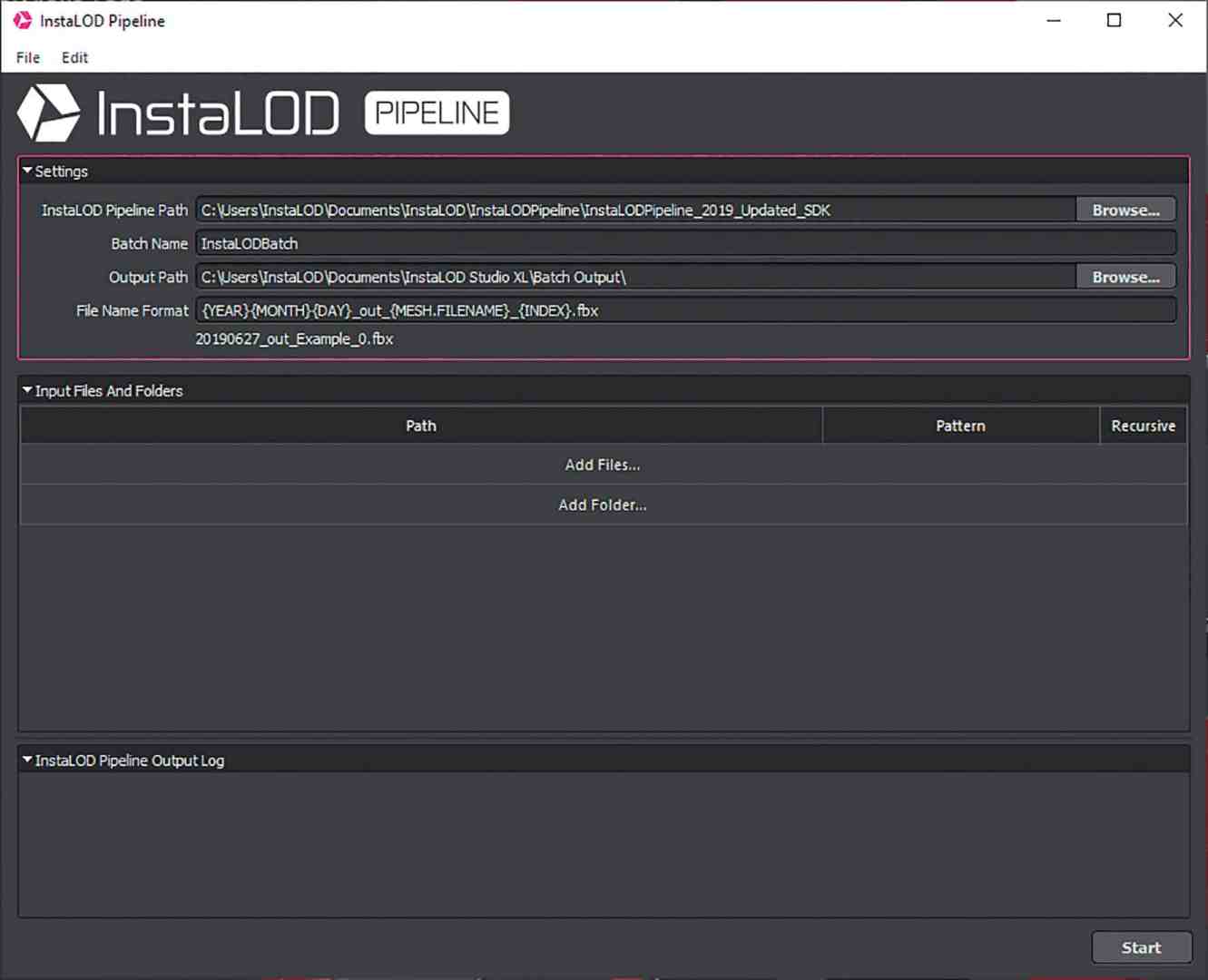
Now you really realise how powerful InstaLOD’s workflows are – we can test multiple mesh operations, and if we’d rather try something else, we can just jump back in the timeline and test other operations until we’re happy. Then we can turn the workflow into a profile and scale it to hundreds or thousands of objects by exporting the profile as a JSON file and running it through the command line as a batch process. Or we can run the profile directly within InstaLOD Studio XL with InstaLOD Pipeline.


Profiles (which contain all settings) can be saved and used again at a later time. This is how presets etc. are set up if this ensures a better workflow. Experience has shown that you should first test the profile on one or two objects to see whether the profile has been set up correctly. Then nothing stands in the way of making your work easier – or of complete automation.

Scene import rules
When batch processing the CAD file, you logically have no manual control over the first steps that we have applied to the rim. This includes changing the tessellation and materials and often also changing the object hierarchies that you want to change or delete, as you don’t need them for the visualisation (see image above left “Organise outside” and “Organise inside”). With the Scene Import Rules, all this is possible with little effort. Simply specify which objects are affected and what should happen to them.
To set up a rule, you need to add a new entry in the “Scene Import Rules” window and give it a name. You then need to specify an attribute. Everything from the object name to the path can be specified here. The nice thing here is that basically any available attribute can be used within the metadata. You can see exactly which ones are available in the “Selected Object Information” window.
If you use “Name” as an attribute, for example, you must enter the name of the object in the “Match RegEx” field below so that it is processed by the rule. In the Predicate, you can specify how important this rule is, which is helpful if there are many rules, so that you can specify which rule is processed earlier or later in the list.
The predicate determines what the rules should perform on the objects. Available options are operations such as “Material Assignment”, “Tessellate”, “Delete” and many more. (top left image “Scene Import Rules”). Customised predicates can also be added using a C plug-in. These plug-ins are automatically compatible with the complete InstaLOD system. With these plug-ins you can customise InstaLOD to what you need for your own pipeline.
Conclusion: Automation rocks!
Now we come back to the PLM system that was briefly mentioned earlier. Once you have set up a set of rules, including the subsequent mesh operations, it is no longer a problem to update the CAD objects on a weekly basis. Simply load the finished profile and run a batch process in which the objects are automatically prepared using the rules (including materials, tessellation, organisation, etc.) and finally reduced by the mesh operations.
At the end, you get the finished, updated scene at the touch of a button, without having to manually intervene in the process. This means that large assemblies can be continuously extracted from a PLM system and made VR-ready within a very short time. By the way: If you want to try this out for yourself, you can get a trial version by filling in the form on our website InstaLOD.com and try out the described workflow and all the other features and processes that InstaLOD makes possible on your own assets.
