



Table of Contents Show
The VFX powerhouse Houdini from SideFX is part of the standard repertoire of renowned VFX houses. A symbolic toolbox that has the right nuts and bolts for the realisation of every effect. The only catch is that newcomers and newcomers in particular struggle with the steep learning curve at the beginning. A good deal of perseverance, discipline and the ability to think outside the box, coupled with knowledge of physics and maths, usually lead to great success in a reasonable amount of time.
Now there is a professional group in computer graphics that receives a kind of speed booster for switching to Houdini. We are talking about the (3D) modelling department. Alexey Vanzhula designed the Direct Modelling Toolkit and is constantly developing it further. This is a special toolbox that combines the best and most efficient features from a wide range of digital content creation within Houdini. There is also another major advantage: unlike other commercial plug-in solutions, the Direct Modelling Toolkit is quite affordable for freelancers. In the following, we will take a closer look at whether Vanzhula’s modelling wonder box makes Houdini suitable for modelling – from the point of view of classic modelling methods.
Obstacles when getting started or switching over
Houdini’s working method is procedural throughout. Every train of thought that leads to a solution is recorded with one or a series of nodes, and countless trains of thought flow into the completed solution paths for the realisation of impressive effects. The result is node graphs of considerable dimensions. Each adjustment to a node transfers the update through the entire node strand, and the result is visible in the viewport. In terms of the basic working method, this means that the workflow is predestined for procedural modelling and parametric modelling; in other words, the creation of objects – regardless of their size – based on sets of rules that can be permanently influenced and always present the current result.
Nodes that supply the set of rules with important parameters must be visible in the graph, as well as their parameters available to the user, which can usually be collected in a specially created menu. Shortcuts are not explicitly required, as programme code or code from a scripting language is usually used. The node structure or the structure of the node strings is important.
The situation is different with classic modelling. This requires the creativity and craftsmanship of a 3D artist. Just as a traditional artist mixes colours on a mixing board from different base tones and brushes the artwork onto the canvas with a variety of brushes, 3D artists have to refine their models bit by bit with a handful of tools. A node that represents a specific work step must therefore be executed several times in succession – similar to the undo list in modern DCC programmes – until the desired effect can be seen on the 3D model.
The logical node structures in procedural modelling are generally structured with a focus on specific functions. For classic modelling, this means that each symbolic brushstroke is represented with its own node in the worst case. If a 3D model now has more than one hundred steps to completion, one hundred nodes are linked one after the other in the graph, between which you have to navigate. Instead of concentrating on the actual work, the artist is busy navigating the node graph and adjusting parameters.
SideFX already took a big step towards 3D artists in Houdini version 16.5 with the so-called Game Development Toolset. This contains geometry tools designed to make work easier. However, the focus of the tools was clearly purely on the creation of game art, and the pure modelling aids were limited.
In addition to this, there is also a thoroughly gruelling fact for newcomers and newcomers: graphs in Houdini are by no means purely one-dimensional, even if the hurdle from OBJ to SOP level has been overcome. In fact, gigantic node networks can be accommodated in individual nodes. On the one hand to organise the building blocks according to logic and on the part of Houdini to define certain areas. For example, there is a level for geometry (OBJ level), the surface level (SOP level) starts directly below it and it is possible to jump even deeper into VOPs. Different areas have their very own contexts. A simplified representation can quickly become an obstacle in the area of modelling, at least when viewed from the perspective of classic modelling. No need to despair, thought Vanzhula, and set to work.
Direct modelling in the spotlight
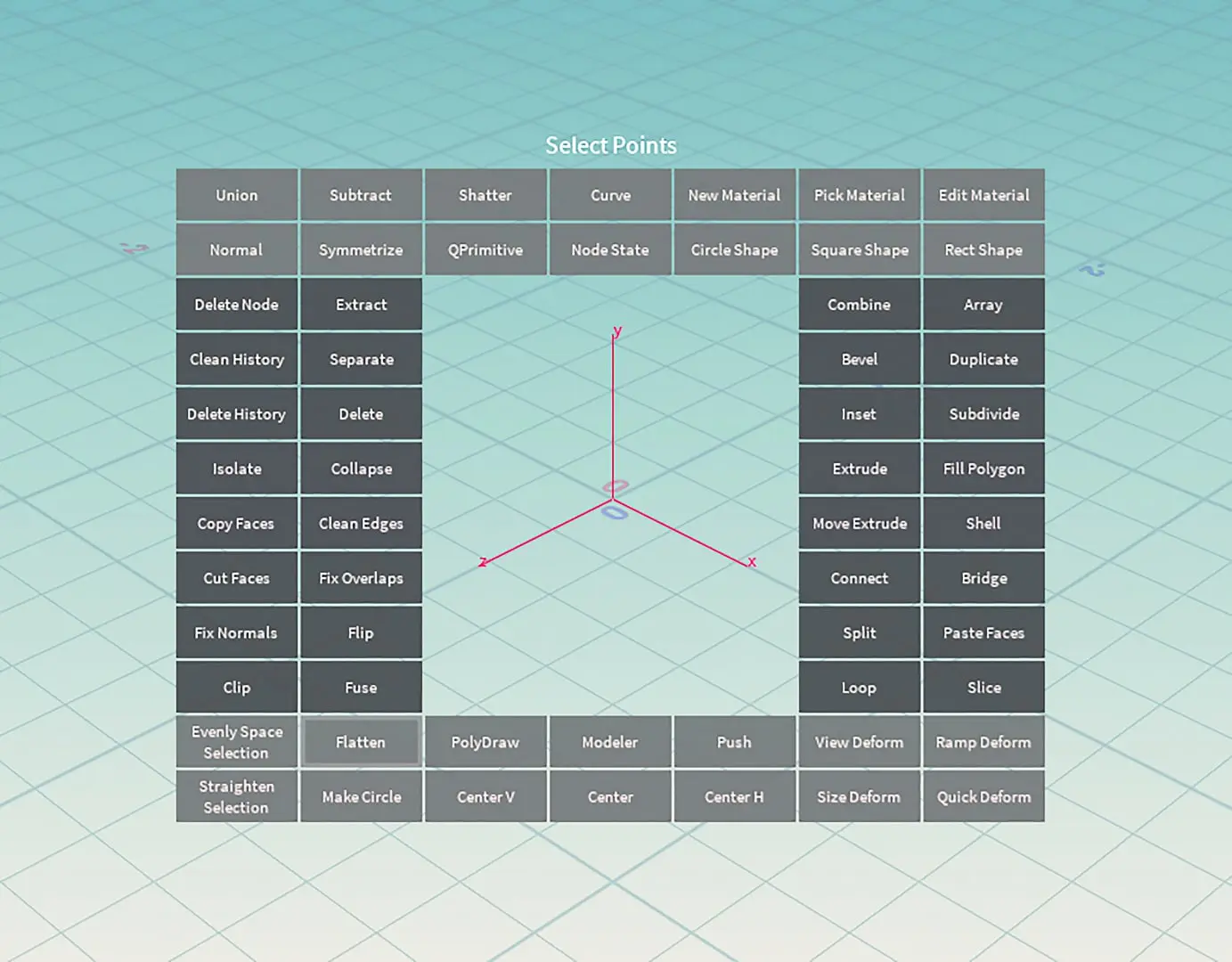
The hard facts: The Direct Modeling Toolkit is available as a Houdini Digital Asset (HDA) and is compatible with the current daily builds of Houdini 17.5. Included in the Direct Modeling Toolkit is a selected collection of advanced tools specifically for modelling. Optionally, it is possible to open a small overlay menu in the active viewport at the touch of a button and quickly access the desired tool.
Libraries!
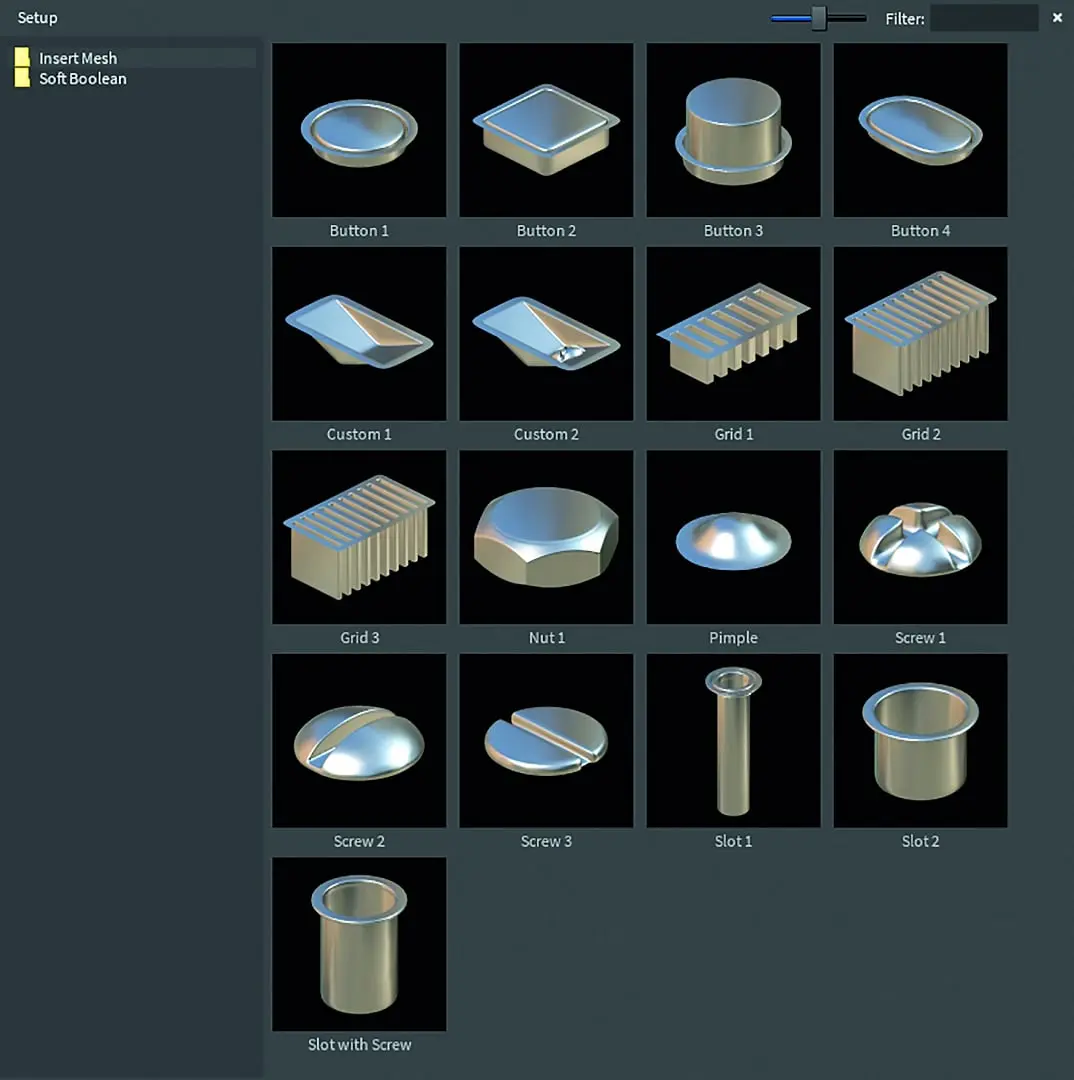
By default, the library already contains a number of objects that are optimised for subdivision surface modelling. The library can be ideally combined with the DM tool “Insert Mesh”. Areas on the source geometry can be selected to serve as an anchor for an object in the library. In short: objects from your own database are positioned at the desired locations and replace the source area in whole or in part in order to make refinements. An example of this is hard surface modelling, which is populated with additional geometry based on subdivision surface modelling principles in order to attach rivets and complex screws to metallic surfaces.
Soft booling
Another tool that harmonises very well with our own object database is called “Soft Boolean”. As the name suggests, it is an advanced tool based on Boolean operations. Advanced basically refers to the processing of the underlying data and the visual result. This can be the connecting lines, for example, to generate efficient quads and optimise the alignment of the associated normals for shading. Both tools also ensure that the UVs are optimally adjusted and that no overlapping or heavily distorted areas are visible.
Unwrap
It is pleasing to read that Vanzhula has also developed a very efficient UV unwrap tool in contrast to the native Houdini tools, based on the UV unwrap functions of 3D-Coat and or Headus UV Layout. 3D artists can use edge loops to mark out areas that are separately subjected to a planar unwrap. After each edge loop, two areas are defined and the respective vertices are grouped. Two UV clods are then created. The principle can be repeated or cancelled as often as required. Furthermore, the padding can be adjusted via a parameter; the optimum positioning after the creation of further UV clods takes place automatically.
As a special treat, it is not even necessary to open Houdini’s UV view screen. The DM tool displays the unfolded UV floes directly next to the actual geometry in the active viewport.
The Direct Modelling Toolkit comes with two shelves filled with tools. One contains all the tools that are often used, including the Boolean operations, all of which are stored with a self-explanatory icon design. The second shelf allows the 3D artist to customise the quick selection menu according to their own wishes. Vanzhula has also disclosed the Python code for such cases. As befits Houdini, all tools in Direct Modelling are equipped with a benevolent number of setting options to produce the best possible result.
The standard tools in the quick selection menu are also called DM Mesh Tools. You could also call them a symbolic Swiss army knife for modelling. They include tools for so-called flattening. A whole series of vertices can be optimally aligned to a desired axis – horizontally or vertically with the starting point. The selected vertices can also be centred horizontally or vertically at the touch of a button.
But that’s not all. There are certain work steps that require a great deal of sensitivity and may take a lot of time. One of these steps is the optimal alignment of edge loops in order to create smooth surfaces. Smooth in the sense of benevolently interpolated normals of the contiguous corners, so that no artefacts (hard edges or shadows) are visible where they should not be.
Vanzhula has developed the “Smooth Edges” tool for this case. Corners that appear hard and cast shadows can be selected. The next step is to activate the tool from the quick selection menu or via a shortcut, and the edge assumes an optimum position determined by the programme, which can be fine-tuned using the parameters provided if the automatic adjustment does not meet the visual requirements.
Mäxchen’s array
3ds Max is equipped with an array tool, which is now also available in Houdini in an improved form. Seasoned Houdini enthusiasts would certainly refer to the Copy Stamp SOP Node at this point, Vanzhula offers a ready-to-use tool for direct use.
Cloning takes place either in line form or as a grid and in circular form. There is great joy when several array functions are used in succession, as this allows you to create structures relatively quickly, which can also be used for modelling or positioning objects. In conjunction with the Boolean operations, it is possible to work efficiently, as is familiar from Modo in conjunction with the Mesh Fusion plug-in – only with Houdini’s procedurality.
In addition to the major innovations, there are also improved tools available in Houdini, such as the Bridge Tool, which allows more scope for intuitive customisation – even if the starting point is selected components.
Another procedure in Houdini that does not always seem trivial for newcomers and those switching to Houdini is the creation and assignment of materials. There is a separate DM tool with the simple name “Material” for this case too. Instead of setting up an SOP network and material builder nodes by hand and assigning the respective materials at SOP level to the respective objects or vertex groups via material SOP nodes, it is sufficient to use the “Material” tool
Vertex groups, it is sufficient to select the desired geometry and select the DM Material Node. The steps mentioned above are then carried out automatically.

DM Mesh Tools
A point that has not yet been mentioned in the DM Mesh Tools: There is virtually a mesh building mode, where the 3D artist creates an object with the DM Tools, and after a successful completion, the entire building process can be finalised. To do this, the DM Bake
Function is selected. In Softimage XSI, the process was called “Freeze Operator Stack” and “Freeze Modelling Relations”. This reduces the number of nodes to an absolute minimum and, in the best case scenario, all work steps are merged into one node. If different materials have been assigned, material SOP nodes are available. Of course, the 3D artist can decide what to do with the entire construction process. In addition to deletion, the OBJ node can also be retained alongside the
Creation of the result – Baked Result.
Important helpers and summary
There are other important helpers among the DM tools. For example, an all-encompassing deformation tool. Like the Deform Modifier in 3ds Max, but on steroids in terms of functionality. Bend, Taper, Twist and Quish are combined in one tool, along with an adjustable range of effects. They allow for a quick application of irregularities. If the underlying geometry does not have the polygonal structure required for unshaping, another DM tool can help. We are talking about component-sensitive connect and weld functions. For 3D artists, this means that no unwanted results can be seen during the connect or weld process that have to be corrected afterwards in a time-consuming process.
If a high-resolution geometry is available as a basis to which adjustments are to be made, then there is the option of using the DM Separate tool. As the name suggests, a selected part of the main geometry is separated and the completed object is restored after successful editing.
Tweak
Another exciting DM tool is called Tweak and is similar in functionality to the ZBrush Move tool. In short, it is a kind of sculpting brush with the option of moving, inflating or smoothing geometry. Either locally or in symmetry with a previously selected axis. It is also possible to set a kind of fading or strength of the effect using a slider, which offers the 3D artist more flexibility for fine-tuning. It’s almost a further development of Houdini’s native Edit SOP Node, as the tool is not limited to selected components, but includes the components that lie within the adjustable radius of effect of the mouse pointer.
Costs and reference
The previously described helpers for getting started and switching are, of course, selected features that were very much focussed on in the test trials. The entire repertoire includes many more helpful tools that, in principle, no Houdini user should be without. Therefore, every Houdini user should take a look at the tools, and if you haven’t already created your own tools and want to save time, then the DM tools are a good investment. If only because Vanzhula is constantly developing the tools further, according to his comments on social networks.
However, Vanzhula did not develop the tools out of good humour and fun alone, which is why he charges a small but substantial fee of 100 US dollars before tax. A price that is quite reasonable for the service and really helps. Not only for beginners and newcomers, but also for experienced users who want to focus more on modelling and avoid redundant work steps in addition to pure FX work.
