



Channel Hotbox
Some of you may remember the W_Hotbox from the last issue. Falk Hofmann’s Channel Hotbox works on a very similar principle. With the default shortcut set to “Alt-q”, a hotbox can be called up in the viewer or in the node tree, which displays all the channels available in the comp. The basic function of the hotbox is that the selected channel is then displayed in the viewer – so far, so good. But the hotbox can do even more.
Firstly, it has a search field, which can be very helpful the more channels our comp has. In addition, you can select several channels by holding down the Shift key and then shuffle them from the stream into the RGBA stream as shuffle nodes. And if you’d prefer to grade the channels directly in the stream without taking the diversions via the shuffle, you can hold down the
Control during selection.

Shuffle Search
Miguel Torija’s Shuffle Search fulfils a very similar purpose to the shuffle function of the Channel Hotbox, but instead of covering the entire screen, it appears discreetly as the properties of a node. At first glance, this looks like the standard Shuffle Node from Nuke, but has an additional tab called “Search”. In this Search tab, you can either display all existing layers or – nomen est omen – search for them. The node has two searches that can be skilfully combined with each other using the “Find” and “Exclude” parameters. The results of this search are then generated as individual shuffle nodes via “Shuffle Out”. Particularly nice and well documented: The artist can decide via a very simple adjustment to menu.py whether this should happen with the old or the new shuffle node.

Rename Channels
Did you use a different renderer or did the CG artist make a typo when setting up the shader? Whatever the reason, especially if you work a lot with presets or toolsets, incorrectly named channels can make life really difficult. The “RenameChannels” node by Andrea Geremia, which is also part of the Nuke Survival Tool Kit, can help here. The first step is to select the existing layer that you want to rename.
The second step is to select the corresponding channels, i.e. RGB, Alpha, UV, Z, etc. The Properties Panel Live will now show you how this renaming would look once completed – because this process does not take place in the node itself. Instead, the appropriate copy and remove nodes are created at the touch of a button. This saves you from inadvertently creating superfluous channels and also ensures that the script can be opened anywhere, as the actual renaming is carried out using Nuke on-board resources.

AutoContactSheet
Ben McEwan is already well known in the Nuke community for his excellent blog at https://benmcewan.com/blog/. And in one of his blog posts, he also took a look at Nuke’s LayerContactSheet and its limitations – and presented an improved version in the process. The blog post (accessible via the link above) is particularly interesting for those who want to get into Python scripting for Nuke themselves, the result should be of interest to anyone who wants to compare more than two passes, channels, clips, layers or similar.
Unlike Nuke’s LayerContactSheet, the AutoContactSheet has any number of inputs, so there is no need to shuffle multiple sources into one stream. In addition, the resolution scales with the number of inputs, which means you can create contact sheets without any loss of quality. However, to prevent the whole thing from getting out of hand, there is a “Resolution Multiplier” in the settings that can be used to scale the whole thing up or down to a tolerable level. If you have installed the Nuke Survival Toolkit, you will already find the node in your repertoire under “ContactSheetAuto”.
LabelFromRead
If there is one thing missing from the AutoContactSheet, it is the labels that the in-house contact sheet provides. The LabelFromRead node provides a remedy here. Somewhere below the Read Node, it reads either just the file name or the entire path or just a partial path and displays it in the top left-hand corner of the image. Text size, colour, border and transparency as well as positioning can of course be individually adjusted. You also have the option of adding a customised description. As the tool was written by Tony Lions, it can of course also be found in the Nuke Survival Toolkit.
MergeConnect
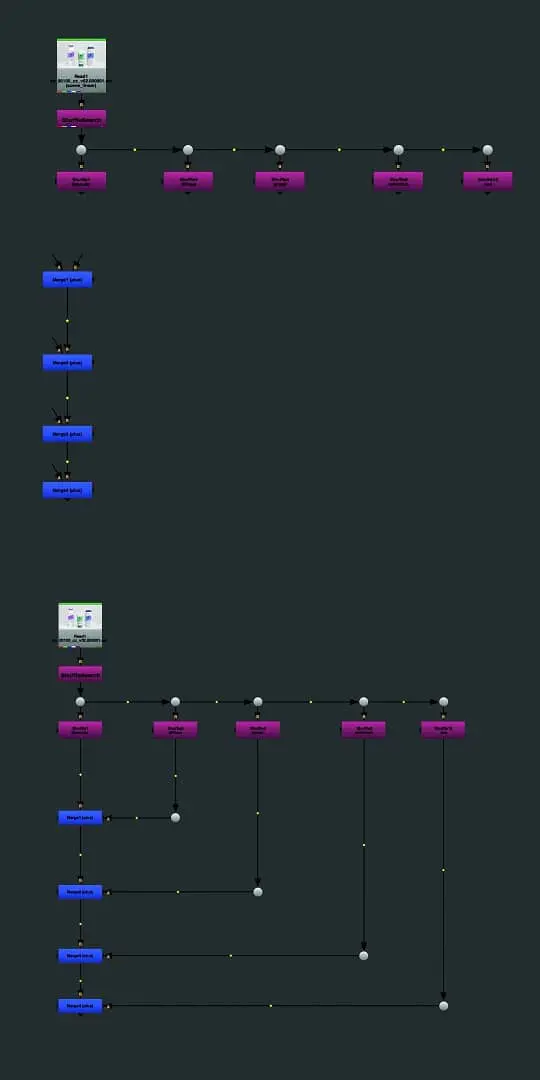
Whether manually or with one of the tools presented here, once you have shuffled all your passes out of the EXR, you want to get them back together again – otherwise it wouldn’t be a shader rebuild. You can do this step by step with the Merge Node… or you can use the Python script from Max van Leeuwen, which automatically creates the connection from several selected nodes to several selected Merge Nodes. But first things first.
Let’s assume that we want to combine five passes with each other. It doesn’t matter whether these are read, shuffle or other types of nodes. We create the corresponding number of merge nodes – ideally already with the correct blend mode. Using Shift-Select, we now first select the “source” nodes to be connected, then the corresponding merge nodes and press the shortcut, which is Shift-Y by default. The script now connects the nodes accordingly, even sets dots and aligns our connections at nice right angles.
The order of the multi-selection is taken into account – in our example, if you drag the selection from left to right over the shuffle nodes and then from top to bottom over the merge nodes while holding down the Shift key, everything will be connected as shown in the screenshot – otherwise there will be a mess of cables. But with a little practice, this little shortcut can be an enormous timesaver.
