



Just like DaVinci Resolve’s Speed Warp (DR for short) and Topaz’ Video AI (TVAI), Twixtor is now using neural networks aka machine learning to generate additional frames for slow motion (slo-mo) in post-production. We have already reviewed the early beta of its version 8 last year (the link includes examples of the results). But now the software is not only final, it is also available as a standalone version for Windows and MacOS. Any big changes?
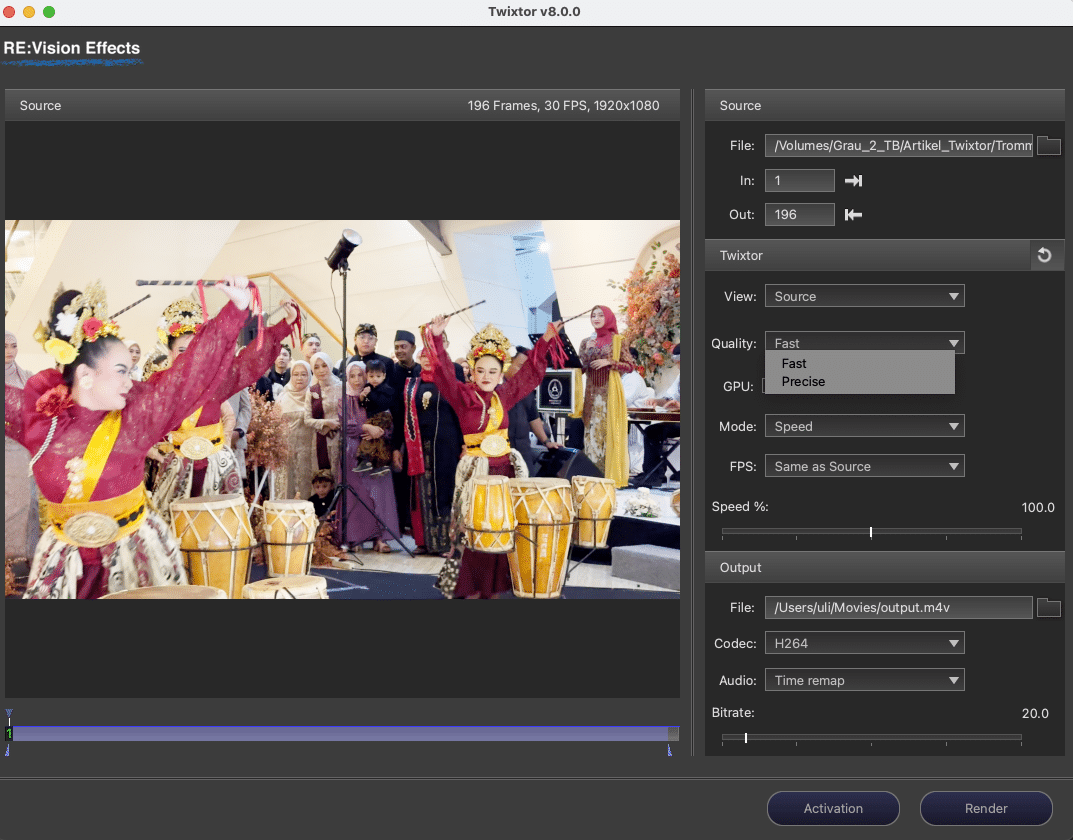
Features of the standalone Version

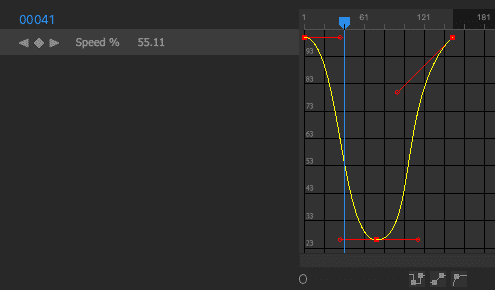
The standalone version of Twixtor is easier to use for beginners than the plug-in, you don’t need any workarounds to extend the clips for slo-mo (see my other article). You can choose a faster or a more precise algorithm and the mode of control between a simple speed change or speed ramping. The latter offers quite intuitive controls you may wish to have in other software, but setting keyframes was not yet completely bug-free. Choices for the treatment of audio are self-explanatory, as is the speed slider. You can define the range of frames to be treated and choose the frame rate for the output independently of the input rate. Slightly confusing is the activation of the GPU (which is normally the right choice), since clicking on the field makes it dark. Now, is that on or off? BTW, the installer is looking very “Windows” on a Mac, but that works flawlessly.
For input, all flavours of AVC, HEVC and ProRes are accepted, but not DNxHR or Cineform, which are also high quality intermediate codecs. They are needed by users of DR under Windows, who can’t export ProRes. Neither is the MXF wrapper accepted, which is an important alternative to MOV. Unfortunately, you don’t even get an explanation when trying to use one of these, the picture just stays black. In the end, the plug-in might be the better choice for professional users, and for log, HDR, or RAW you should also resort to that. But then, RE:Vision FX gives you a license for the standalone together with the plug-in version.
The most serious limitation is in the output codecs you can choose from: there are only HEVC and H264, and both come in 8 bit with 4:2:0 chroma subsampling only. That happens without being mentioned anywhere, you’ll need a tool like MediaInfo (free) to find this out. Not a perfect choice if you want to treat the results further in any NLE with colour grading or filtering. At least you can up the bitrate for that purpose. The fact that they are wrapped as .m4v doesn’t make things better, some NLEs only accepted those after a re-wrap into .mov. And then, they contain no timecode, which can wreak havoc if you have to move files after editing or if you need to send them to collaborators. Definitely add TC while you are re-wrapping for such situations (with a tool like e.g. QTchange).
Setup for the Test
Our earlier tests suggested that higher image quality, more fps and shorter exposure times yield better results with any of these softwares. We didn’t want to make it too easy for the candidates, so this time we have used some smartphone footage. It was shot in HD only, at 30 fps and under available light. Of course, we have chosen a scene with intense activity, in this case dancers and drummers with criss-crossing movements. Get the source file here for your own tests. This is the stuff where trying to get good slo-mo in post usually fails. But, after all, you can shoot good slo-mo in most modern cameras if you have thought of it beforehand.
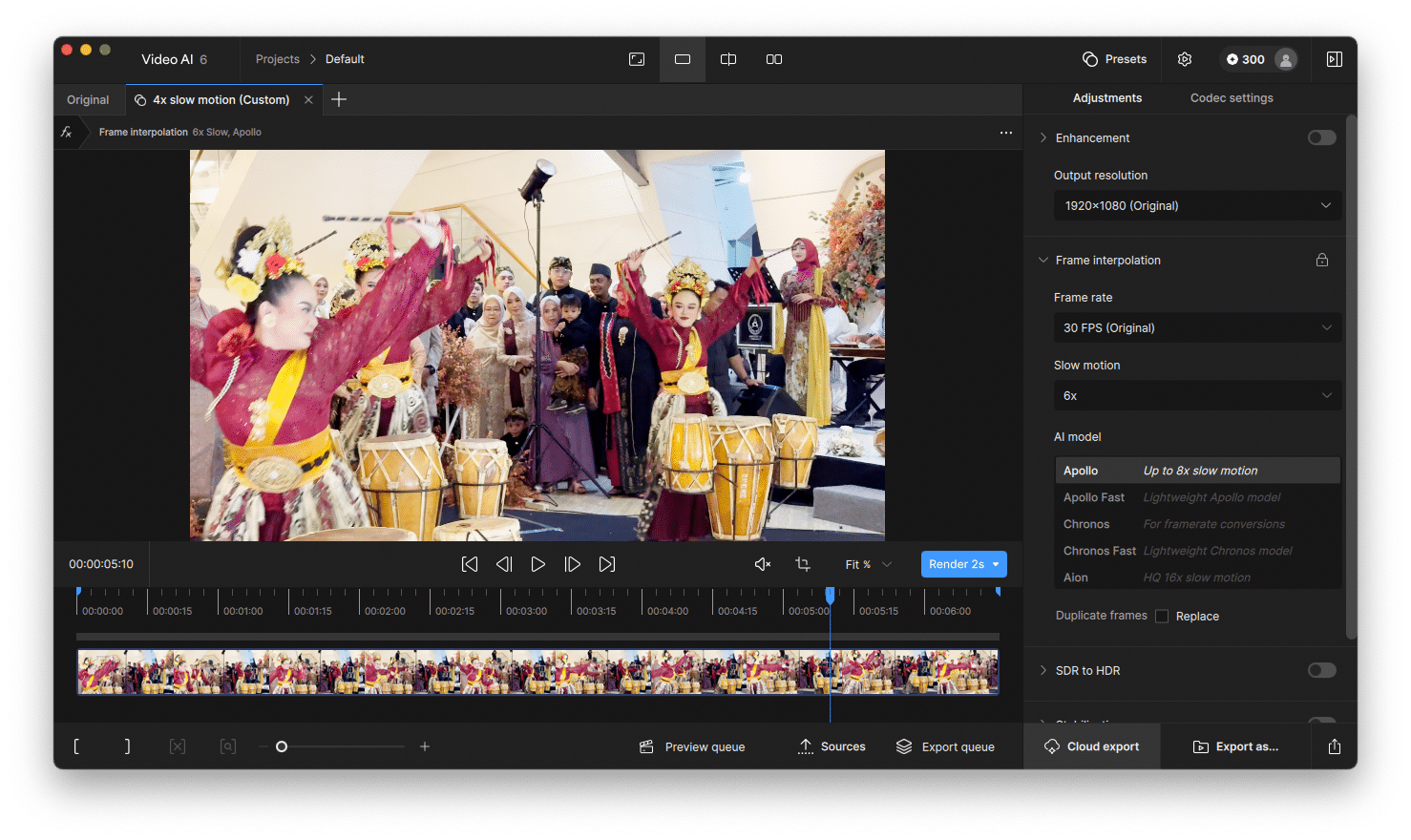
You can help Twixtor Pro as a plug-in to get pretty perfect results with masks and tracking points, but it’s not really easy to use in DaVinci Resolve or other hosts, as explained in my older article. The standalone version is rather simplified and straightforward, which can be very helpful for beginners. So, we also used standard presets for Speed Warp Better and the model offered in TVAI automatically for slo-mo without scaling, which is now Apollo. Fine tuning can result in even better results from both of these. TVAI is offering only 4x, 6x or 8x of slo-mo, so we decided to try 6x, since 8x seems a bit too adventurous for such footage. We ran the tests on a M1 Pro MacBook with 32 GB under Sonoma 14.7.2.
Test Results
Our test results at the highest quality setting were close, you need to do watch carefully to see the differences. All three are struggling with small objects like the drumsticks, which flicker on and off, and all three can show some pushing and pulling of the background or of criss-cross movement, in particular where there is motion blur. For this less than optimal source footage, the results of all three are still impressive. But personally, I’d say TVAI gets the crown here, in particular for the least background distortion. The faster mode in Twixtor reverts to optical flow, which would also be an option in DR. Both are considerably faster than the AI and can suffice for less critical footage. TVAI also offers a faster alternative for the Apollo model.
Of course, speed also matters, and TVAI’s Apollo model needed only 2:19 if nothing else was activated, the time is predicted quite well (the result is here). So, it needs only 3.5 times the playback time of the final sample to render. This applies once the model is downloaded for the first time, which can need quite a while depending on your internet connection and their servers. Its only shortcoming: you can’t do speed ramping, it works with fixed ratios. But it can generate its output in high quality codecs. Blackmagic’s Speed Warp Better is considerably slower at 7:11, a factor of 11, but the visual results are close (see here). Being part of DR, it handles speed ramps, albeit a bit clunky, and a broad choice of codecs. Twixtor was the slowest at 12:15, which is a factor of 18.8 (the result). All of them are predicting the time needed pretty well, and all three got the GPU cores of our humble laptop fully loaded when rendering, so you can expect considerably better speeds with higher numbers of cores on a Mac or with any strong GPU on a PC.
We tested some very high quality footage in UHD at 50 fps too, you can see a frame of those Bougainvilleas in strong wind in the header above. But the results of the best algorithm in either candidate were so close that only speed would matter. Considering quality and speed, TVAI’s Apollo model was the best, their optimisation for speed in particular is truly impressive, when compared to early versions. But it’s also quite costly at 300 US$ initially, being subscription based. The deal is fair: You are only excluded from further updates if you don’t pay any more, but it’ll still work. And then, it can also do excellent de-interlacing and upscaling (see my article here). Speed Warp is a Studio feature in DR, which costs just the same at 300 US$, but also includes dozens of other valuable features, and until today there was never a charge for updates. Like in our earlier test, Twixtor is still the slowest, even after being out of beta. But at the current price just short of 100 US$ for a permanent license, it is also the cheapest, while you pay as much for TVAI every year.
Recommendation
Twixtor standalone is easy to operate and the best bid for synthetic slo-mo if you don’t own DaVinci Resolve Studio anyway. But it has its shortcomings and is the slowest of the bunch. If you own DR Studio, its internal Speed Warp will suffice for the occasional slo-mo, even if it’s not that much faster. But TVAI is winning the crown here, and not only for quality and speed. If you are planning for slo-mo, you can shoot higher speed in most cameras at a lower resolution, and then let TVAI do the additional slo-mo plus upscaling. Even if this approach takes more time than slo-mo alone, it’ll still be faster than the others and can yield excellent results. But it comes at a hefty price tag.
