



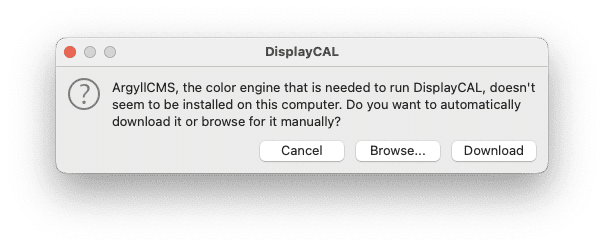
You should have a working connection from DaVinci Resolve (DR in short) via an I/O device by Blackmagic to a monitor or TV of acceptable quality up and running. And then, you need a probe, like a ColorMunki, and should be able to start DisplayCal. Oops, macOS complains that it’s not by a certified developer? Try again, by a right-mouse click on it, and choose to open it against overprotective mum’s advice. If you got it from the link provided in part 2, there’s no reason for concern. You can’t expect a developer of free software to spend time and money on Apple notarisation, as it’s called officially.

Connecting the software
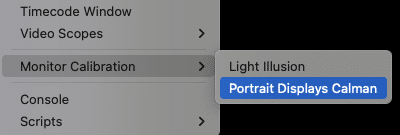
To generate a correction LUT for your monitoring path from DR you need to have both programs running and give DisplayCal access to your screen. To measure the whole signal chain, it’ll need to control the display from the inside of DR. This possibility is already built into DR under “Workspace” for calibration with Calman, a commercial solution. But you’ll find the entry “Monitor Calibration” only when the Color page is open, it’s greyed out on the other pages. Once the lower of the two entries is selected you’ll see a box waiting for an IP address.
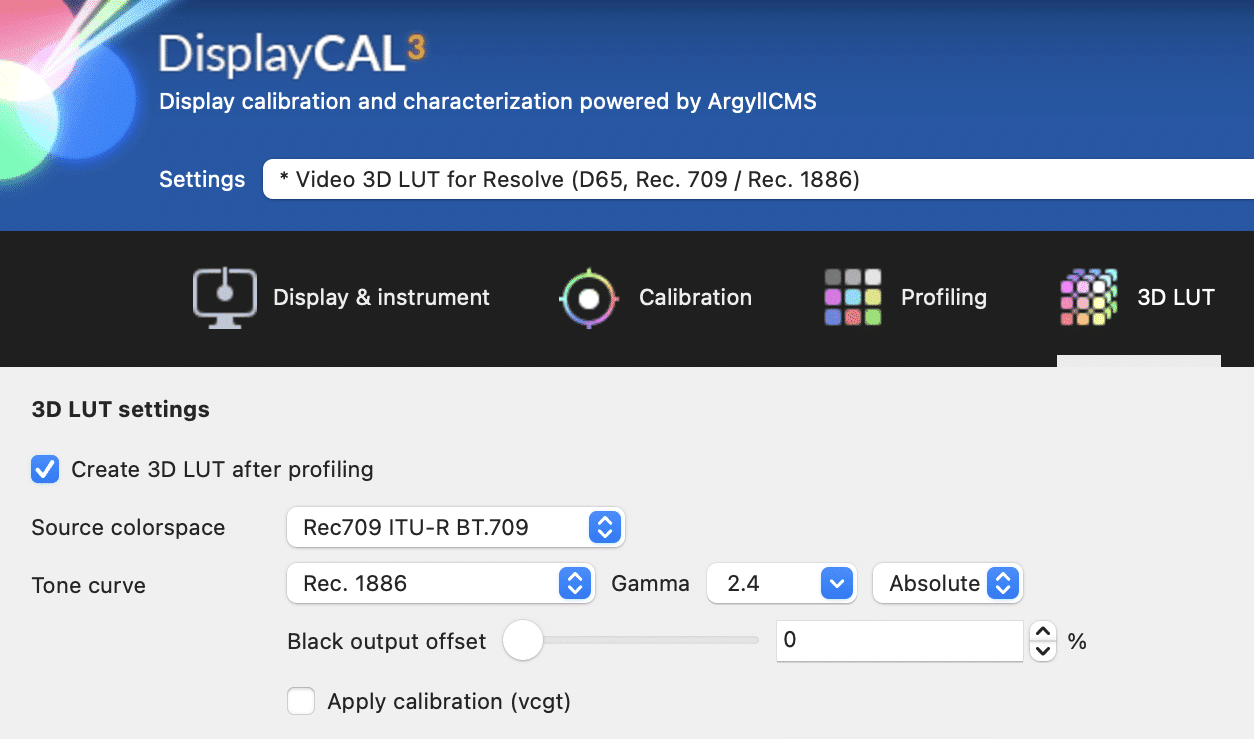
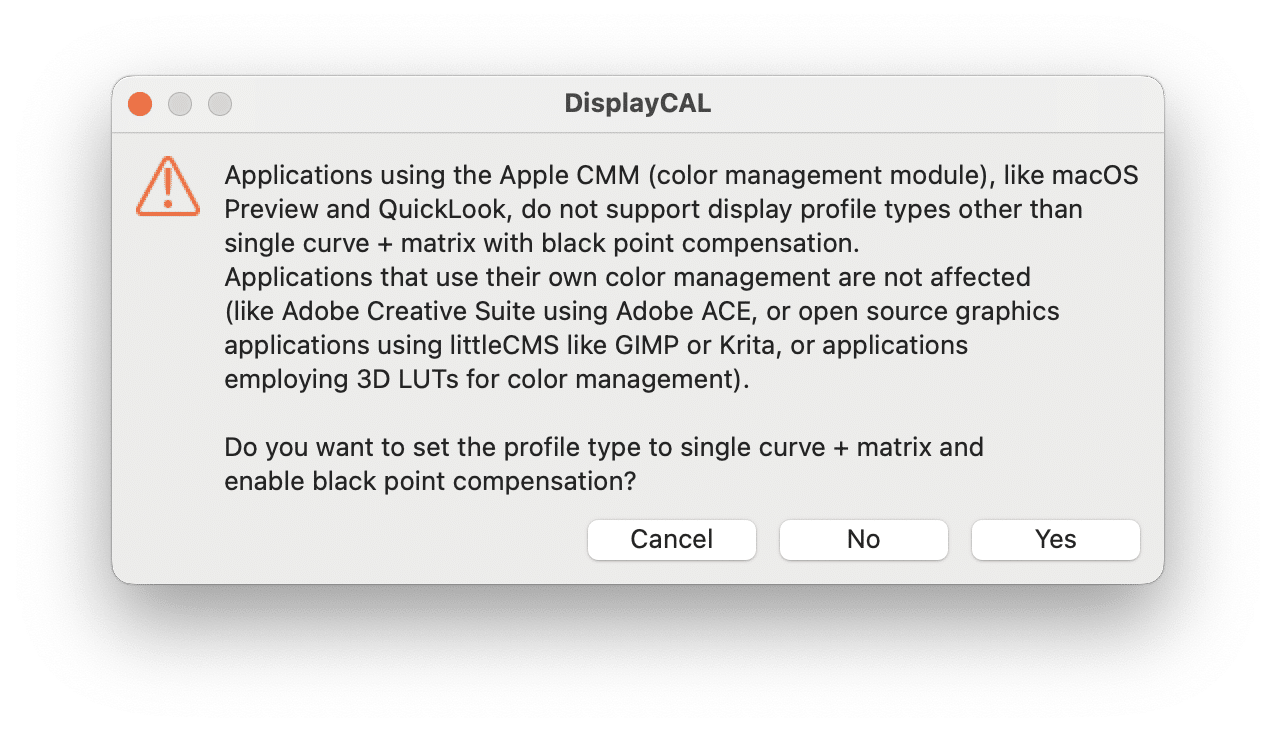
On the side of DisplayCal you need to choose the generation of a 3D LUT for Resolve under “Settings”, and Display needs to be set to Resolve. On the right you should see your connected probe and for “Mode” we use LCD (generic). We have “Correction” left on “Auto”, since we don’t know exactly what our screen is using for backlight, but you can find quite a few popular displays in the list to choose from. If you now go for “Calibrate & Profile” and say “No” to the next choice, the software will tell you it’s waiting for a connection by a specific IP address.
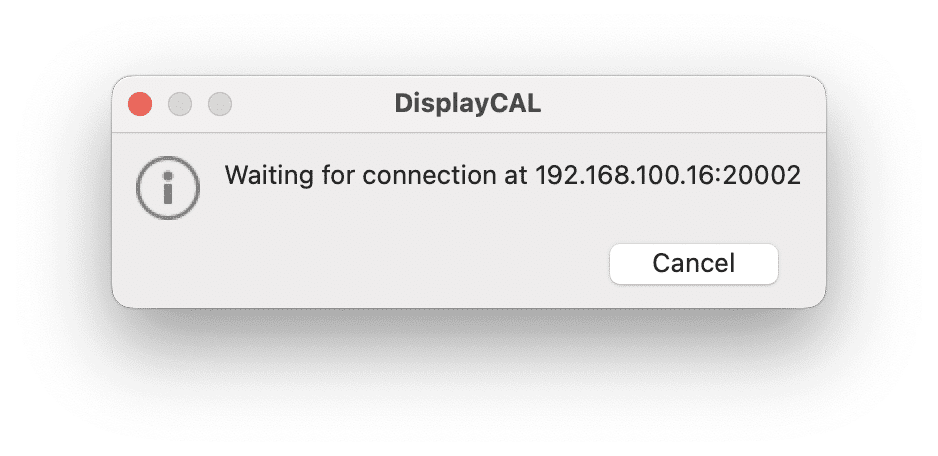
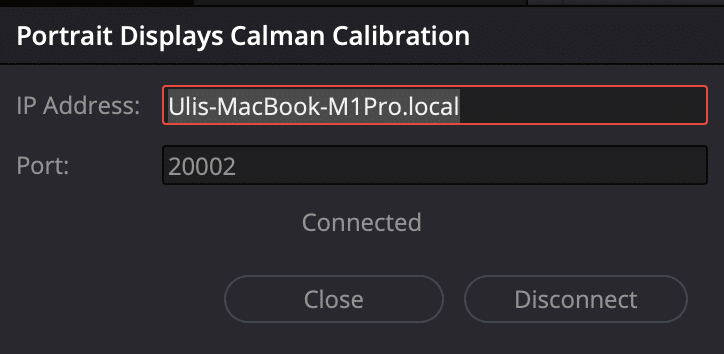
Switch to DR and type that IP address into the box waiting there. Don’t try to enter the whole line, only the first four numbers separated by periods. The last number is the port, which should already be showing up under “Port” in DR. Alternatively you can also enter your local host, since we are connecting on the same machine. That would be written as “Name-OfYour-Computer.local”, while also giving the port below. Clicking on “Connect” should do just that, and you are ready to start. If it doesn’t connect, check if the address is already in use.
Adjusting your screen
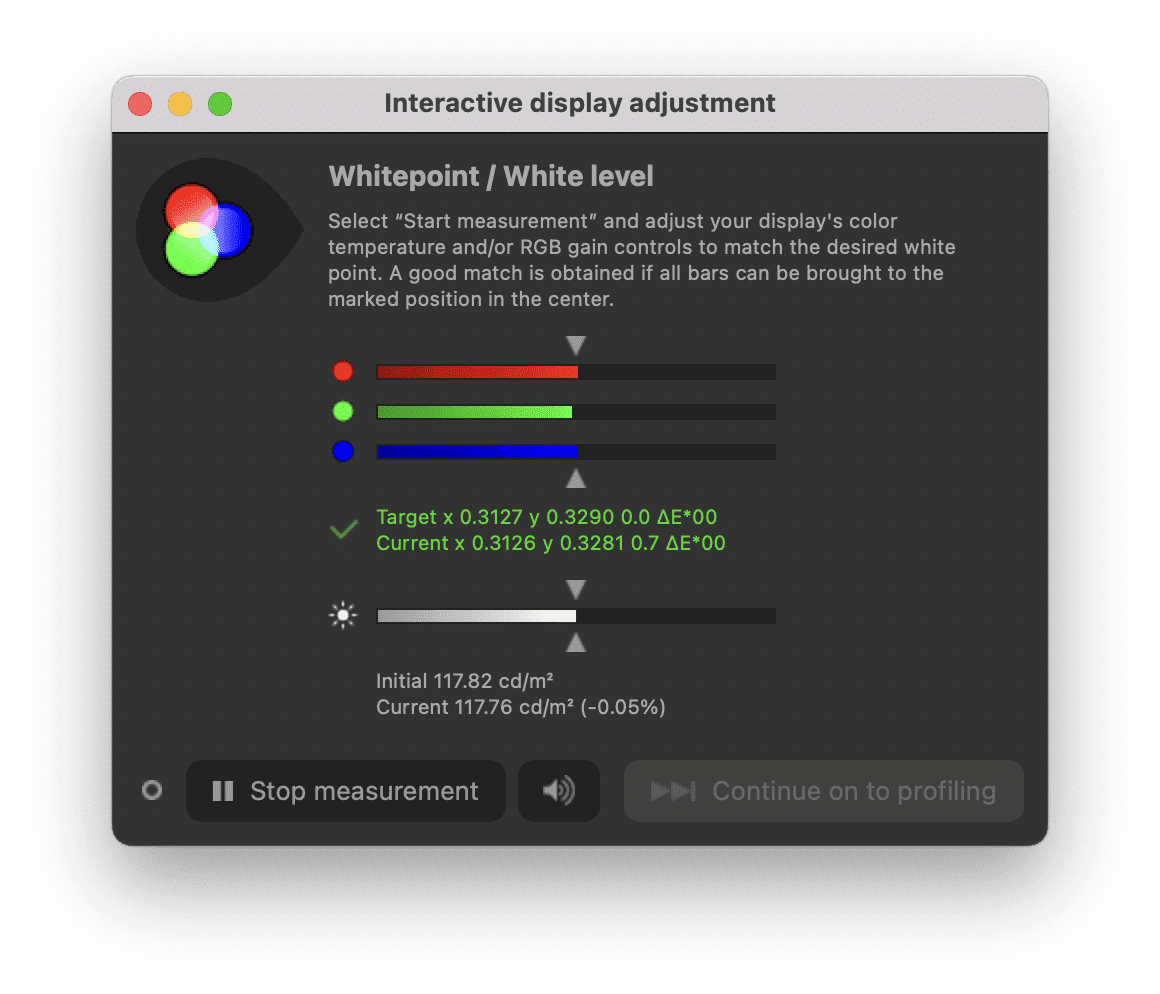
Any display should offer a brightness setting, which would be around 120 nits for Rec. 709 / Rec. 1886, which you’ll see while “Measurement” is running. It would be also desirable to adjust Red, Green, and Blue independently, which our monitor offers under “Custom” for “Color temperature”. We got remarkably close to perfect balance, as indicated by the green values with a checkmark. But don’t worry if that doesn’t show up, just get these as close as possible. Once set, don’t forget to note the custom settings of your screen somewhere, in case anyone may fiddle with those.
Now stop the measurement and start profiling. Depending on your probe, it may ask you to first calibrate itself, like our ColorMunki Photo, which even did this three times throughout the process. The ColorMunki Display doesn’t ask for this, since it should have its own presets. But that’s also the reason why it will not work well with backlight technologies that didn’t even exist when it was made. Neither would we expect the ColorMunki Photo to handle anything with OLED well, since these have such deep black.
Profiling aka calibration
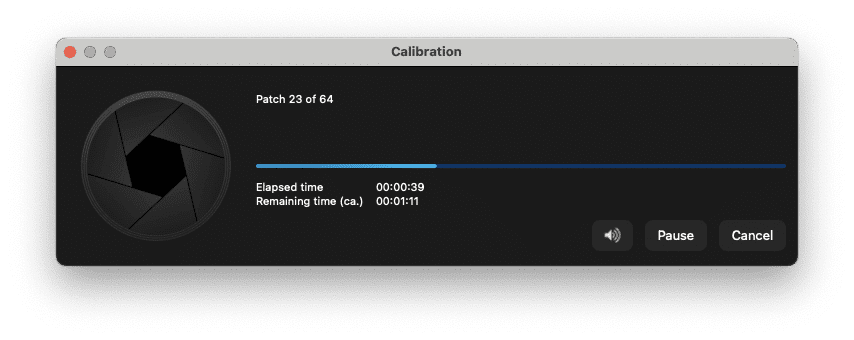
There are some rumours claiming that the relatively cheap ColorMunki Display had the same hardware as the more expensive models and was simply throttled by slower timing. We can’t verify that, since either probe needed 6 to 7 minutes on our MacBook M1 Pro. But as already explained in part 2, the more expensive Spectrometer may get equally slow due to less sensitivity in the deep shadows. Don’t get fooled by the predictions for a single patch, there are many more to wait for. Whatever, the results were impressive for a Xiaomi G34WQi Ultrawide Gaming Monitor for around 300,- €. After all, it came with a quite similar individual factory profile in the box.
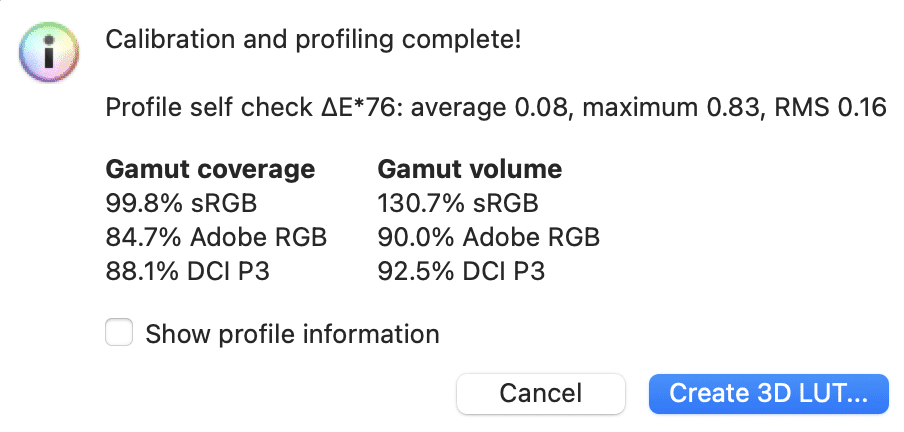
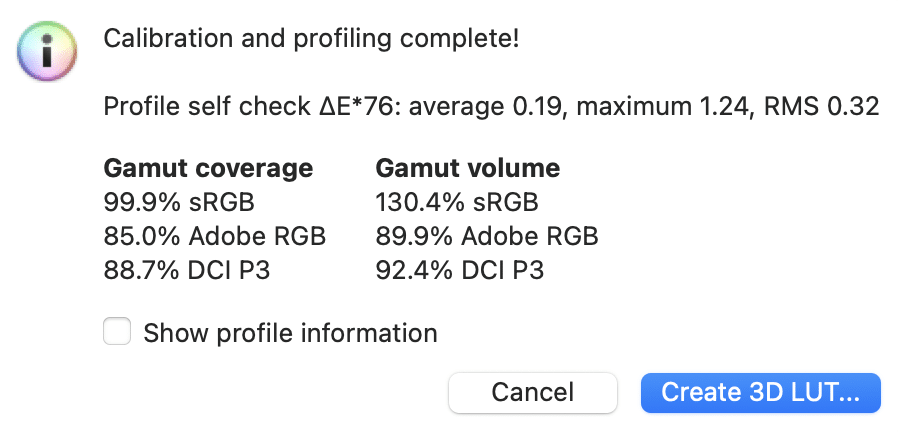
But you can’t rely 100% on one single result, since all cheap probes have a certain level of tolerance and sample variation. There’s a reason why professional probes like a Klein K10-A not only cost as much as a serious motorbike, but also need to be re-certified regularly. If you know somebody with such an instrument, he/she can check yours for deviations. We made another test with the ColorMunki Display. It failed once for unknown reasons, but on second try we got a pretty good result too. The slightly larger, but still perfectly usable values don’t necessarily tell you about a weaker device, but might as well be more realistic.
Update on September 18th, 2025
Please make sure that you use the latest version of DisplayCal, which is 3.9.17 as of this day. There was a bug in earlier ones where the black point correction was applied even if switched off, which would make your blacks muddy.
