



Table of Contents Show
Most of us may have perceived the colorimeters by Datacolor as rather photo and print oriented. Now, that even Digital Production doesn’t come on paper anymore, they have changed directions too. And then, the first few generations didn’t earn themselves the best reputation, due to sample variation and organic color filters, which tend to fade faster.
The recent Spyders, still in their iconic three-pronged shape, should be better. We have been assured that the filter colors are anorganic now (no, we didn’t take one apart). The software got a long expected overhaul and should serve the world of film or video much better now. Of course, we’ll also compare precision with a competitor.

SpyderPro Hardware
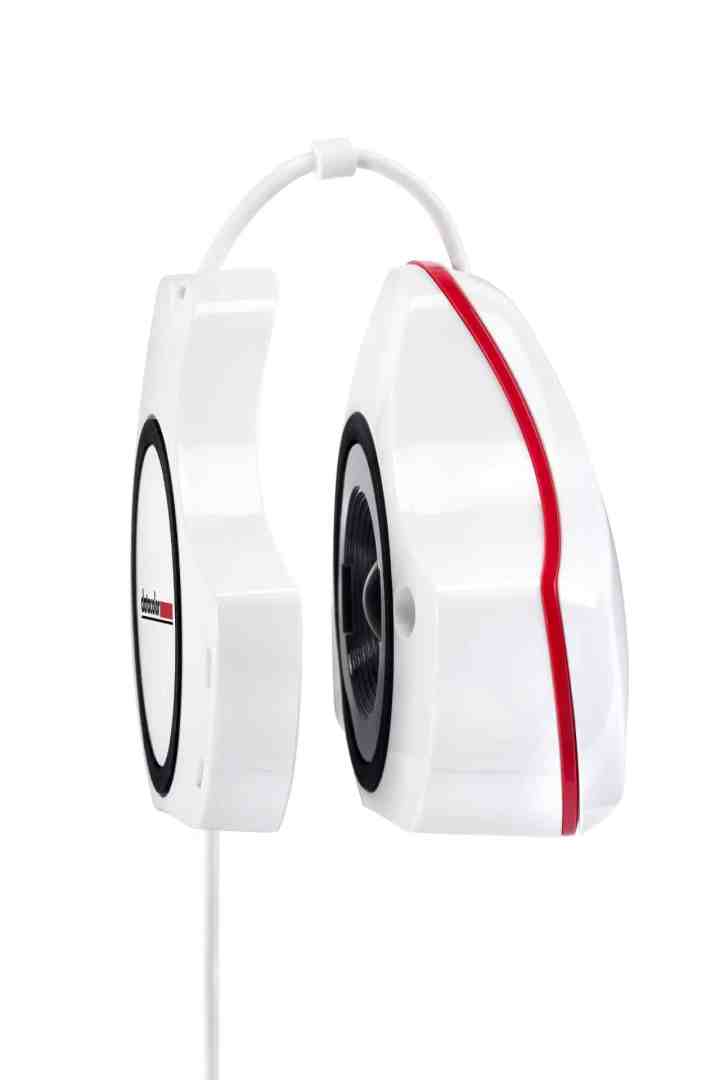
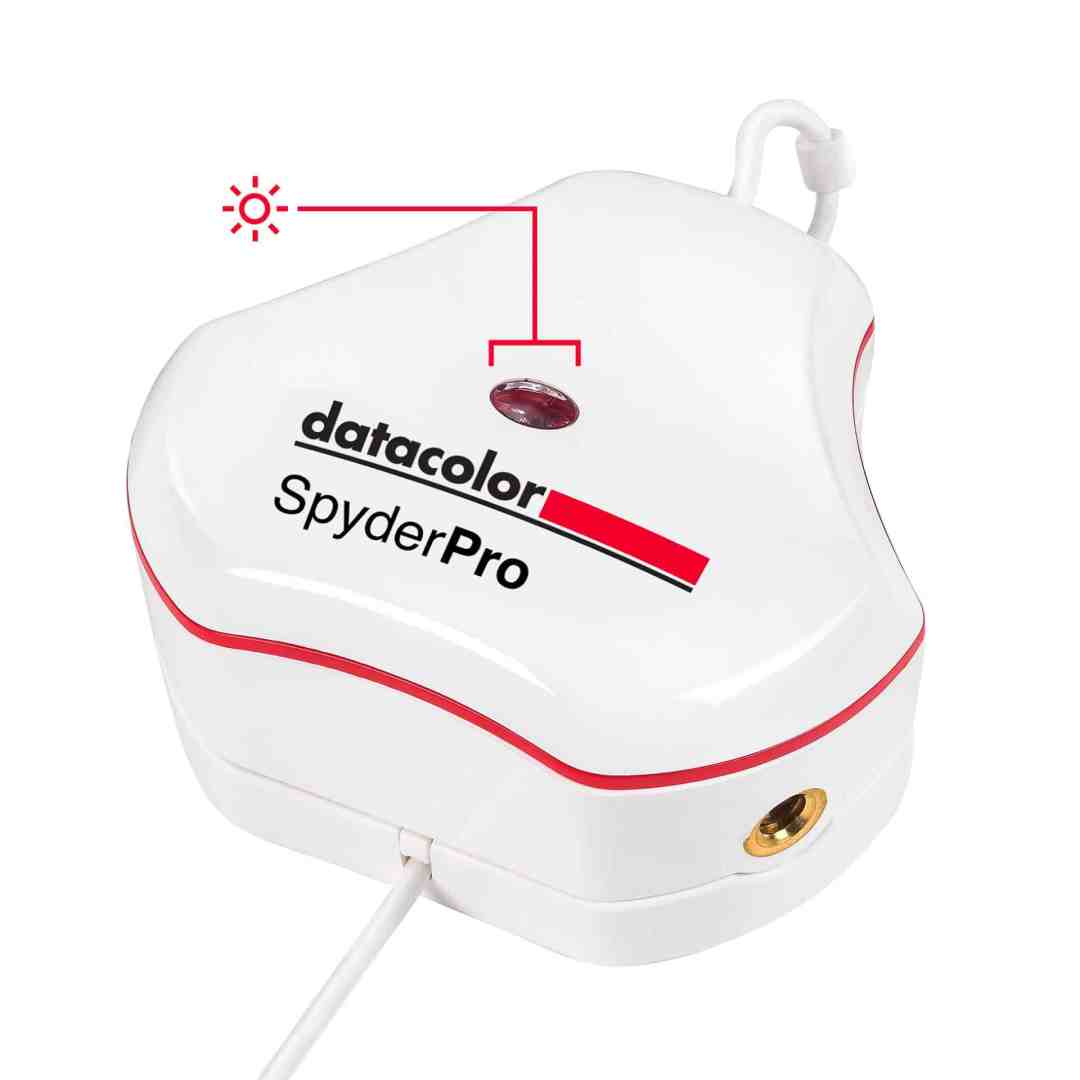
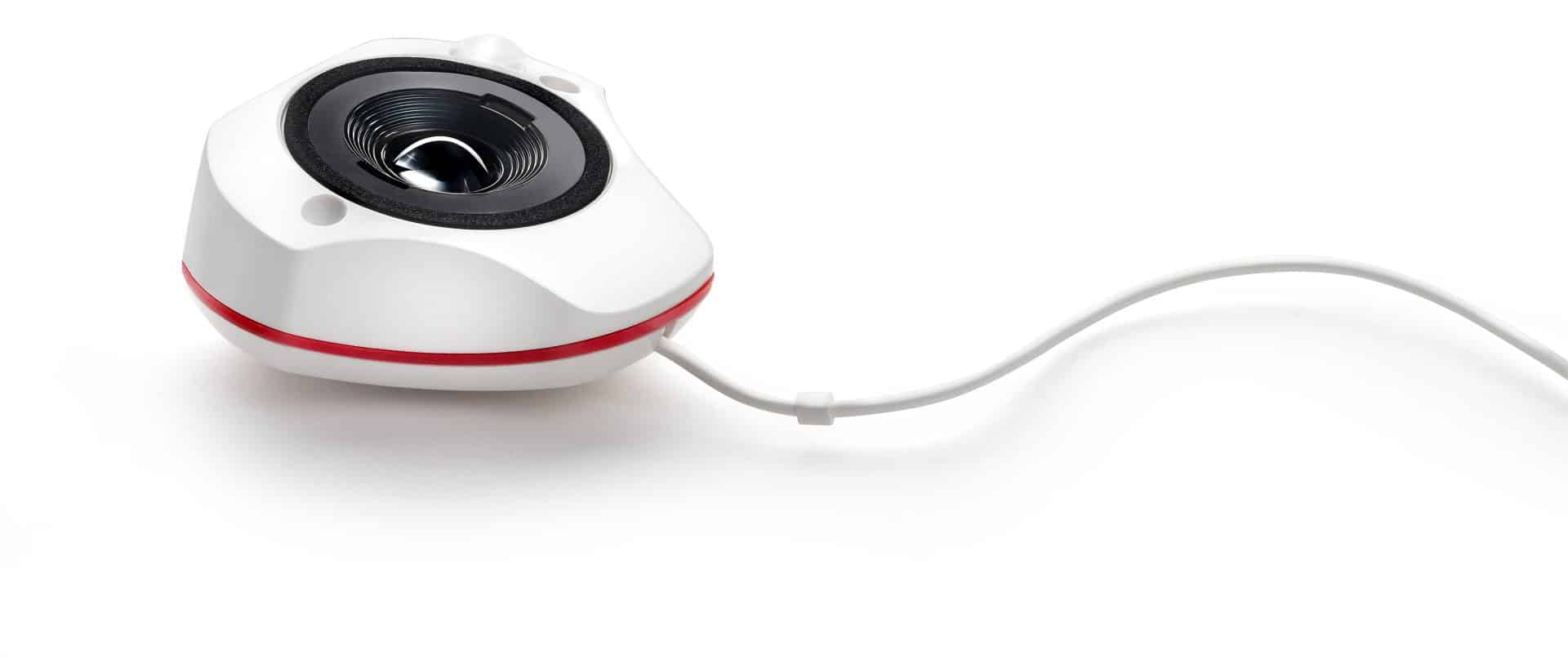
The shell is sturdy, and the lens and sensor assembly is well protected by the counterweight. At first touch it feels like being held magnetically, but at closer inspection there are two small latches hooking into the other side. Whatever, it does its job and doesn’t fall apart in your bag. The connector is USB-C, but the unit comes with an adpter for ‚classic‘ USB-A. That’s no problem at all, the speed of the connection doesn’t matter that much. Datacolor suggests to plug it straight into your computer, though, no hub.
The only reason for some concern is the cable, which is rather thin. It might get damaged if bent in a bag or if you need to slide the counterweight too frequently when adapting to different screen sizes. The main competition by Calibrite isn’t doing any better in this respect, their clamp may even stress the equally thin cable a bit more. Just be gentle with these.

SpyderPro Software
The calibration software is very easy to operate, in simple steps from left to right. You just need to know the backlight technology of your screen and your intended target. The biggest strength is flexibility: you can handle all current technologies, from pretty old CCFL all the way to OLED and QD-OLED. If you are not sure about your screen, check here. Maximum brightness should be no issue either. The top model, the SpyderPro, can measure up to a value we’d rather not like to look at without sunglasses: 12.000 nits.
Datacolor tends to separate models only by software now, but there still are some important differences. The older SpyderX and SpyderX2 need a paid upgrade by software, but will only measure up to 1.200 nits, just like the SpyderExpress. Last years Spyder can handle 3.000, which should suffice for any current screen. Only the SpyderPro goes all the way to those blazing 12.000. Full support of recent display technologies is available for Spyder & SpyderPro, SpyderExpress is limited to Apple Retina XDR.
The software update is free for the SpyderExpress, last year’s Spyder and the current SpyderPro. Under MacOS it’ll run on Big Sur and higher, including Tahoe. Of course, there’s a version for Windows too, but none for Linux. Well, if you know your ways around Linux, you may know how to copy and install an ICC profile, don’t you?
Look Up Tables
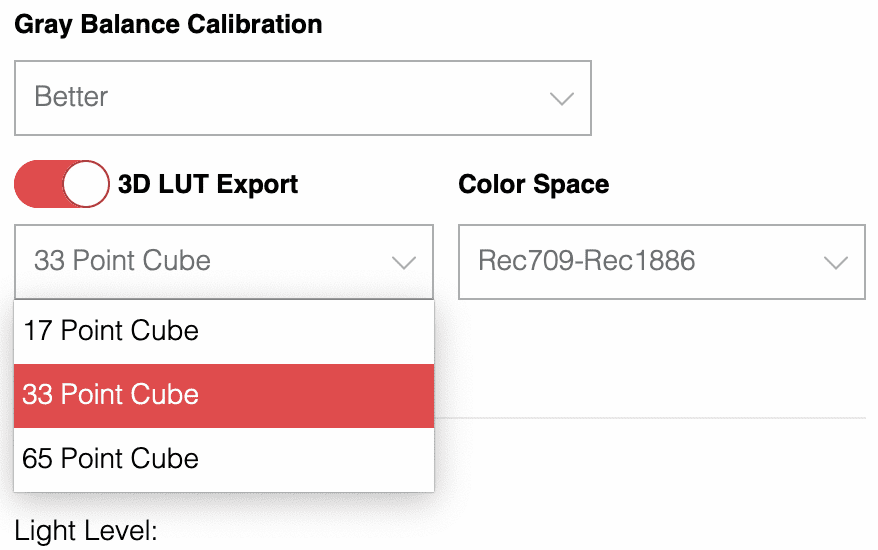
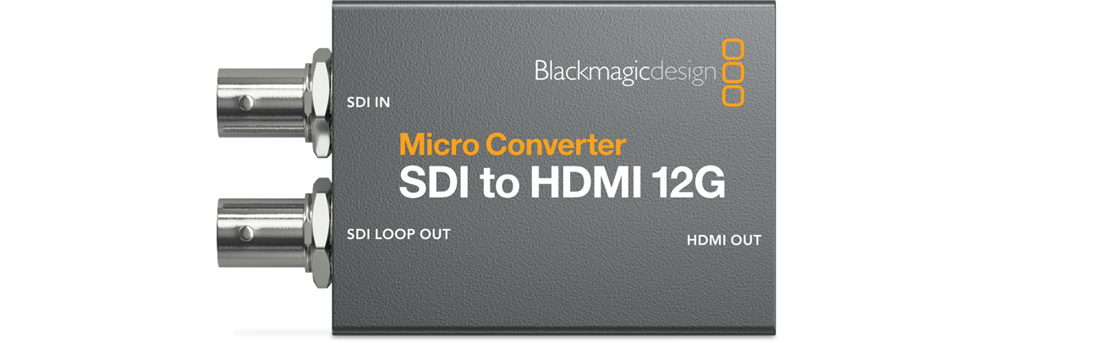
Apart from generating ICC profiles for your computer, you can finally export .cube 3D LUTs in several steps of precision up to 65. Those can be loaded into LUT boxes or any kind of interface supporting the option, like some SDI converters. Please note that the cheapest model by BlackMagic, the 3G SDI to HDMI for 65,- US$, will only load a lattice of 17. The 12G models, from 165,- US$ unidirectional, will support the 33 point version. This is a great option to calibrate TVs or projectors without any internal calibration capabilities and HDMI inputs only, to be used with SDI sources.

SpyderPro can calibrate and match more than one screen connected. But don’t try to move the window to the next one by yourself, the software will take care of it. You can even generate more than one profile for different lighting conditions, which will be switched automatically if the Spyder stays connected. Helpful for those working from their living rooms, but a true professional would care for a grading room with constant lighting and, most of all, no changes of color temperature.

The software can collaborate with the Datacolor LightColor Meter (see our test). But don’t expect too much: you can take up to three measurements in different locations on your desk and just feed them to the software by hand. Only brightness, no white balance, and every other source of the current Lux value will also do. Not something to brag too much about.

A more helpful menu item is installed with SpyderPro, called SpyderUtility. It will monitor the light level of your environment, if a Spyder is connected and check if the date for your next calibration is due, and inform you accordingly. Its detailed profile information and management can be very helpful, since ICC profiles are usually buried deep in your system folders. Any of those can be activated here, and also renamed or deleted if they were made by you (but not by Apple or Adobe). You can even export a 3D LUT from any of these, albeit only in the most frequently used 33 points lattice.
Minor issues
Watch out if you have a MacBook with the infamous camera notch and already too many menu icons, SpyderUtility may be hidden and can’t be accessed by opening it directly from the Datacolor folder. A mildly irritating issue is the measurement of the monitor’s brightness during calibration. While the maximum brightness is asked for by a message in the center of the screen, the next message for getting close to the target brightness is displayed in the lower left, where it may not immediately be noticed. If you have an ultrawide, like one of our test screens, you may wonder why your calibration doesn’t continue!

If you call the Monitor Quality Analysis (Spyder MQA) without first using the calibration software, it will ask for the sensor, even if connected. You need to start SpyderPro first, but may be surprised that there’s no SpyderPro listed in the preferences. No problem, choose Spyder, and MQA is going to work.
Precision
If you want to evaluate your screen, there are several test procedures integrated under Spyder MQA, a separate software also installed by the main installer. But after the first round we were irritated by the results for color accuracy: How could it be that our calibration should be worse than the uncalibrated screen for some patches?

Now, the choice of color patches looks pretty much photo or print oriented, while some tables used by DisplayCal are optimized for video (there are tons of choices). DisplayCal will not work with the Spyder, but isn’t it quite interesting to cross-check with the competition? So, we made one profile with the SpyderPro and its software, and one with DisplayCal and an X-Rite colorimeter. This time we got consistent results from the highly detailed verification in DisplayCal, both calibrations were quite close and perfectly usable.
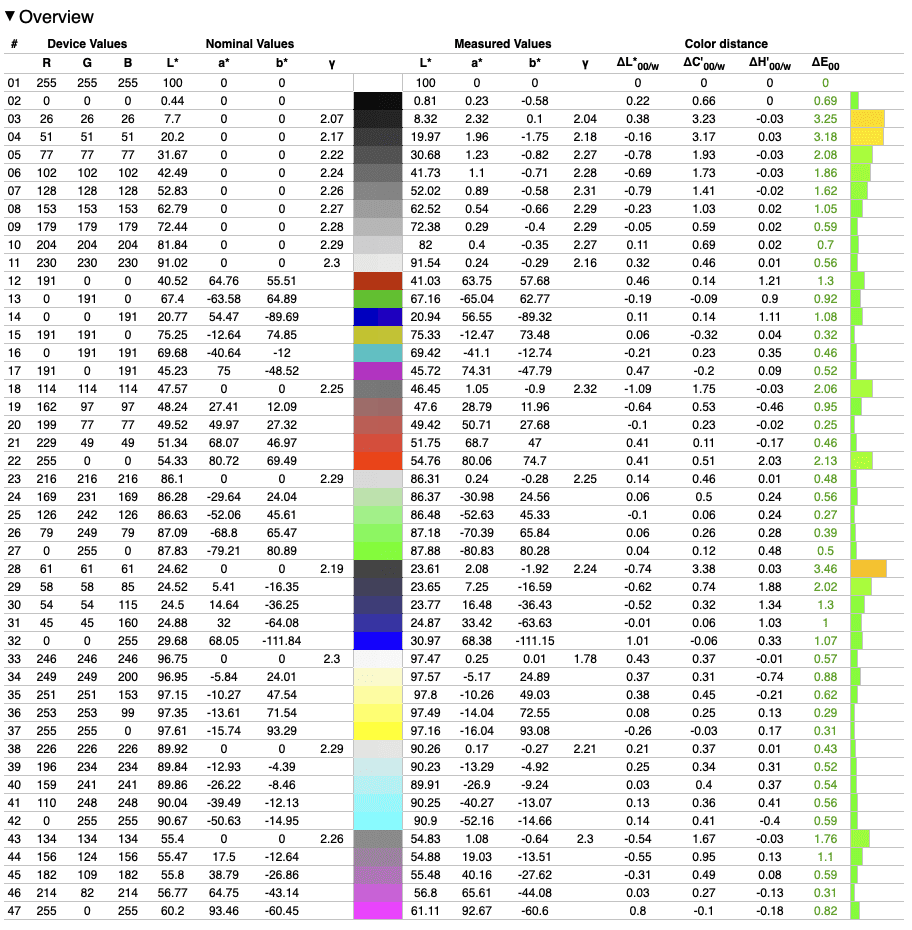
Even our cheapest screen performed surprisingly well, only the darkest values were slightly above a ΔE* of 3, while most lighter values were close to or even under 2. This monitor is advertised for gamers, so video professionals may not even pay attention to the Xiaomi Curved Gaming Monitor G34WQi. Don’t worry, you can deactivate the fancy colored light on the back, so it won’t attract any insects 😉

Some weaknesses in the darkest values are expected behaviour of LCD panels, and nevertheless a pretty impressive result for an ultrawide monitor under 250,- €. Such a screen should suffice for Rec. 709 after calibration. At least, as long as you are not working for extremely demanding clients. Clients should also not be looking over your shoulder – this is a VA screen, which has a limited viewing angle.
Those watching your results on mobile devices under less than ideal lighting won’t notice any deviation of colors in those darkest shades anyway. Of course, you can expect even better results if you need to re-calibrate a screen like this one, which is looking good not only when switched off (not saying the Xiaomi looks bad). Its factory calibration is just as good, but any screen ages and will need re-calibration sooner or later. Being a QD-OLED, this might be sooner after daily use, but you’ll get perfect blacks and dark values.
What about HDR?
The Asus QD-OLED linked above can go to some pretty serious 1.000 nits peak. Can the SpyderPro calibrate for HDR? Well, of course you can find a preset for Rec. 2020 in the software. But measuring the maximum brightness or contrast range is not an easy task. No screen for HDR can show the peak brightness for the whole screen longer than a split second, not even far more expensive ones. Trying to get around this with any hack can kill your screen, however pricey it was.
The problem for any calibration, not only SpyderPro: manufacturers have their own limits for the size of maximum highlights and adapt the brightness dynamically. If you can switch the screen to an uniform brightness mode, which is needed for calibration, that Asus for example has only 250 nits. That’s not more than most other modern screens. For the Xiaomi monitor described we measured precisely 259. Some expensive monitors offer considerably more brightness in a static mode and can be calibrated just fine by SpyderPro.
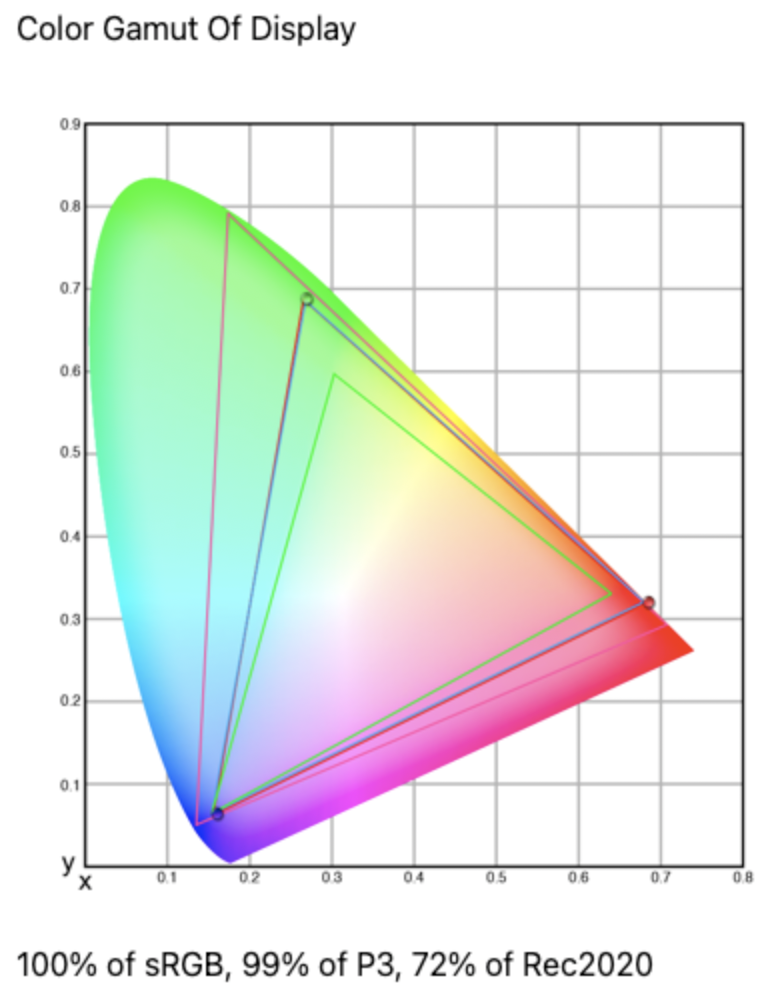
In the end, what really matters are the correct colors for the whole image. Small, but very bright areas may be a bit off, but don’t ruin the overall impression. What matters for HDR is a screen that understands those HDR standards, like Dolby Vision, HDR10, and HLG, and switches accordingly. If SpyderPro tells you that your screen is only covering 68% of Rec. 2020, that’s already a decent value, the best one we found during this review was the MacBook Pro, which covered 72%. For further explanations of Rec. 2020 read here.
And what about BlackMagic I/O devices? In our older three articles, starting here, we have described how important it is to calibrate over the whole chain, with software like DisplayCal (free). This is not yet supported by Datacolor’s software. With the recent changes in handling of profiles and tags in DaVinci Resolve 20.2.3 on MacOS, this may not necessarily be needed any more. We’ll check that very soon.
Conclusion
Both probes and their software performed equally well, so we have a choice now for video production in this price range, including screens with recent technologies and very high brightness. Datacolor is now even ahead of the game by direct export of LUTs, for which a Calibrite probe will need third-party software. Both are measuring much faster than DisplayCal, which is freeware and rather scientific in its approach. Finally, we were impressed how good a cheap monitor can be these days, at least for SDR and those producing for social media.
