



Table of Contents Show
New Folder Rules: Asset Directory System
ZBrush 2026.1 introduces a centralised Asset Directory System on desktop. All user data including custom UIs, hotkeys, brushes, materials, plugins and Lightbox assets now lives outside the installation path.
Each user can assign or change the folder location in Preferences → Asset Directory. Three functions are available: Open Directory, Change Location, and Reset to Default. A restart is required after changing the directory, triggering automatic generation of a clean folder structure. This design supports environments where multiple users share the same ZBrush installation, such as classrooms or studio workstations. It also allows artists to maintain separate configuration sets for different projects or clients by switching between asset directories. Plugin loading has been restructured, user installed plugins load after Maxon’s native plugins and appear under ZPlugin, beneath ZColor, clearly separating custom tools from built ins.
IMM Foldering: Order in the Chaos
Insert Multi Mesh (IMM) brushes can now contain internal folder hierarchies. A large IMM brush can be subdivided into named groups such as Cylinders, Capsules, Clothing, or Accessories, visible in the brush’s M popup menu. To build a foldered IMM, users organise SubTools into SubTool folders, then execute Brush → Create Insert MultiMesh. ZBrush automatically generates IMM folders corresponding to the SubTool folders. This process no longer requires external plugins. Foldered IMMs are especially useful for large production brush libraries, where hundreds of mesh variations were previously stored as flat lists.

Retopo Brush: A Dedicated Topology System
ZBrush 2026.1’s headline feature is the new Retopo Brush, available on both desktop and iPad. It introduces a topology specific mesh type that snaps across all visible SubTools and supports symmetry, full vertex, edge, and polygon editing, and iterative rebuilds.

Core interactions:
Tapping places points. Holding Spacebar previews polygon fill and adjusts draw size. Pressing and holding Alt on an edge extrudes geometry, releasing Alt switches between quads and triangles. Holding Alt on a face deletes a polygon. Control dragging in empty space removes unused points. Control while extruding sets segment counts. Spacebar + drag on an edge adds loops. Alt + drag draws temporary guide lines, drawing two lines in sequence auto fills the space between them with a quad strip.
The brush uses a two size system, a normal Draw Size for editing and a secondary Spacebar Draw Size for temporary polygon previews. In Brush → Retopology, key parameters include Snap Threshold, Move by Brush Size, Smooth Border Behaviour, Adaptive Draw Size and Edge Flow Drawing.
A Smooth Retopo mode is included. It automatically conforms to underlying geometry across all visible SubTools, maintaining surface continuity during smoothing. Holding or releasing Alt determines whether boundary vertices remain fixed or move. Existing meshes can be converted into retopo meshes by tapping them and selecting Convert Mesh instead of Create New. This allows refinement of ZRemesher results or cleanup of extracted geometry without restarting topology work.
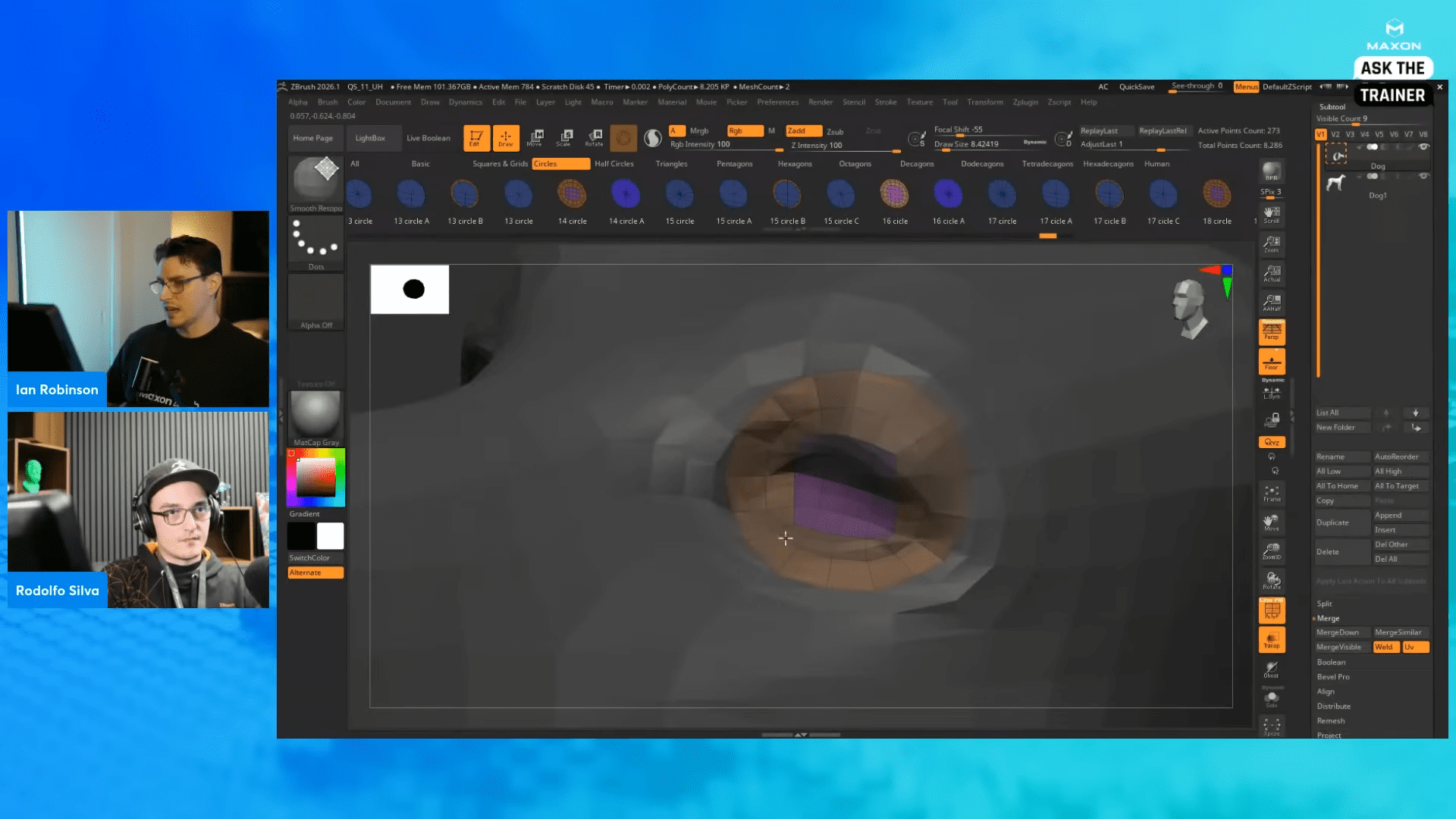
Patch System: Templates for Rapid Topology
The Retopo Brush now includes a Patch System accessible via its IMM folders. The set contains predefined square, circular, and multi resolution patch templates.
To use patches, place a single point, hold Alt and drag to draw a patch, then tap to confirm. The patch automatically snaps to the surface. Additional loops can be inserted and smoothed after placement.
Each patch can switch to Lattice Mode by tapping Alt on its preview gizmo. This mode adds a deformation cage for adjusting form before confirming the patch. Lattice controls are non symmetrical by design, but patches themselves respect symmetry on placement.
ZModeler Integration: Old Meets New
Retopo meshes remain fully compatible with ZModeler, allowing direct access to ZBrush’s polygon editing operations. Supported functions include Slice Mesh (multi cut), Inset, Weld, Bridge, and loop deletion. ZModeler’s Slice tool is particularly relevant for defining seams or redirecting topology flow before final projection. Because Retopo meshes use native topology structures, they can be refined or combined with existing ZModeler workflows without conversion.
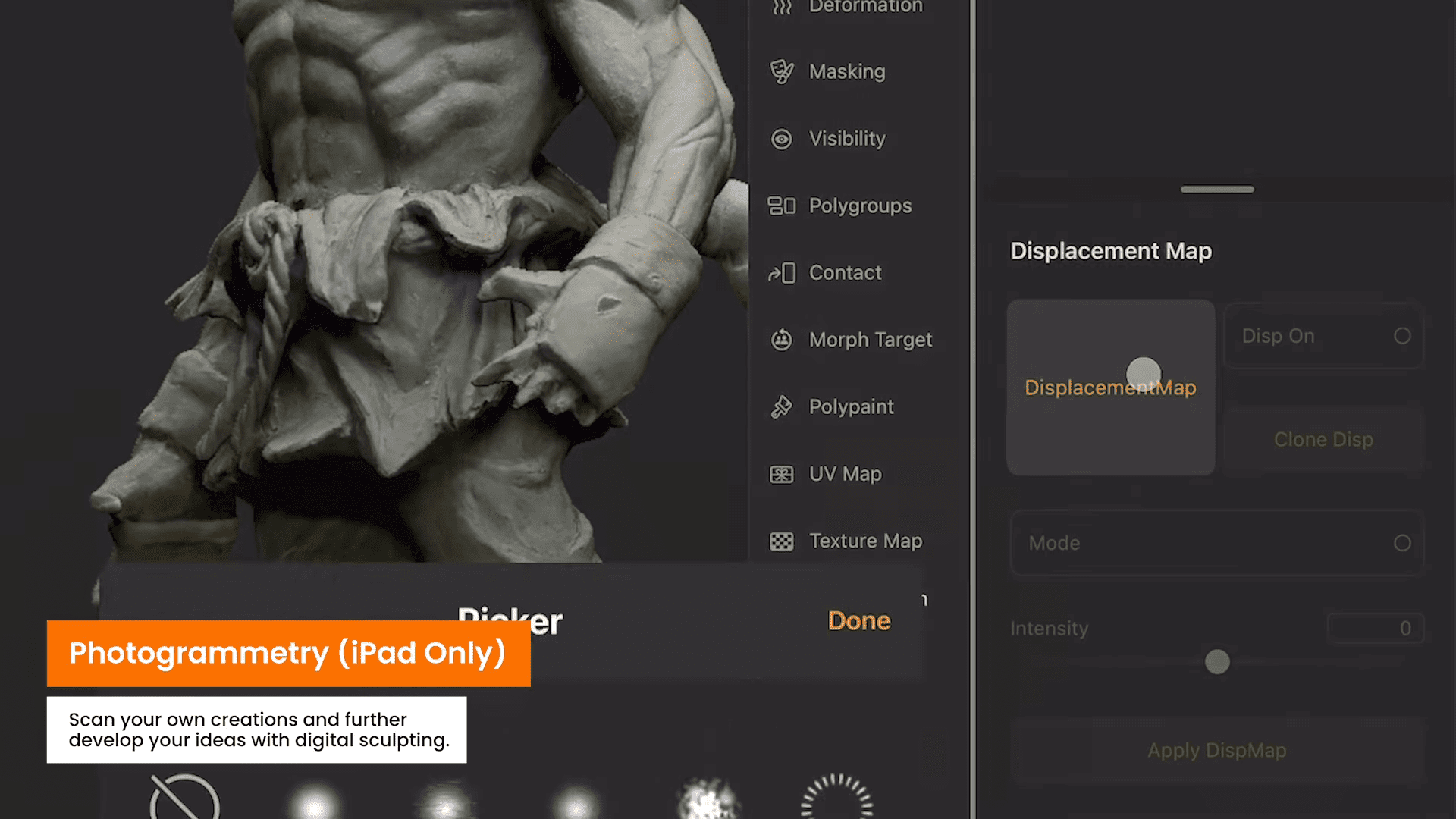
Photogrammetry on iPad: Capture and Sculpt
ZBrush for iPad now supports photogrammetry capture using the device’s LiDAR sensor and camera data. The workflow begins from a new Capture mode on startup. Users frame an object within an on screen bounding box, then perform multiple passes, typically 40 to 100 photos for best results.
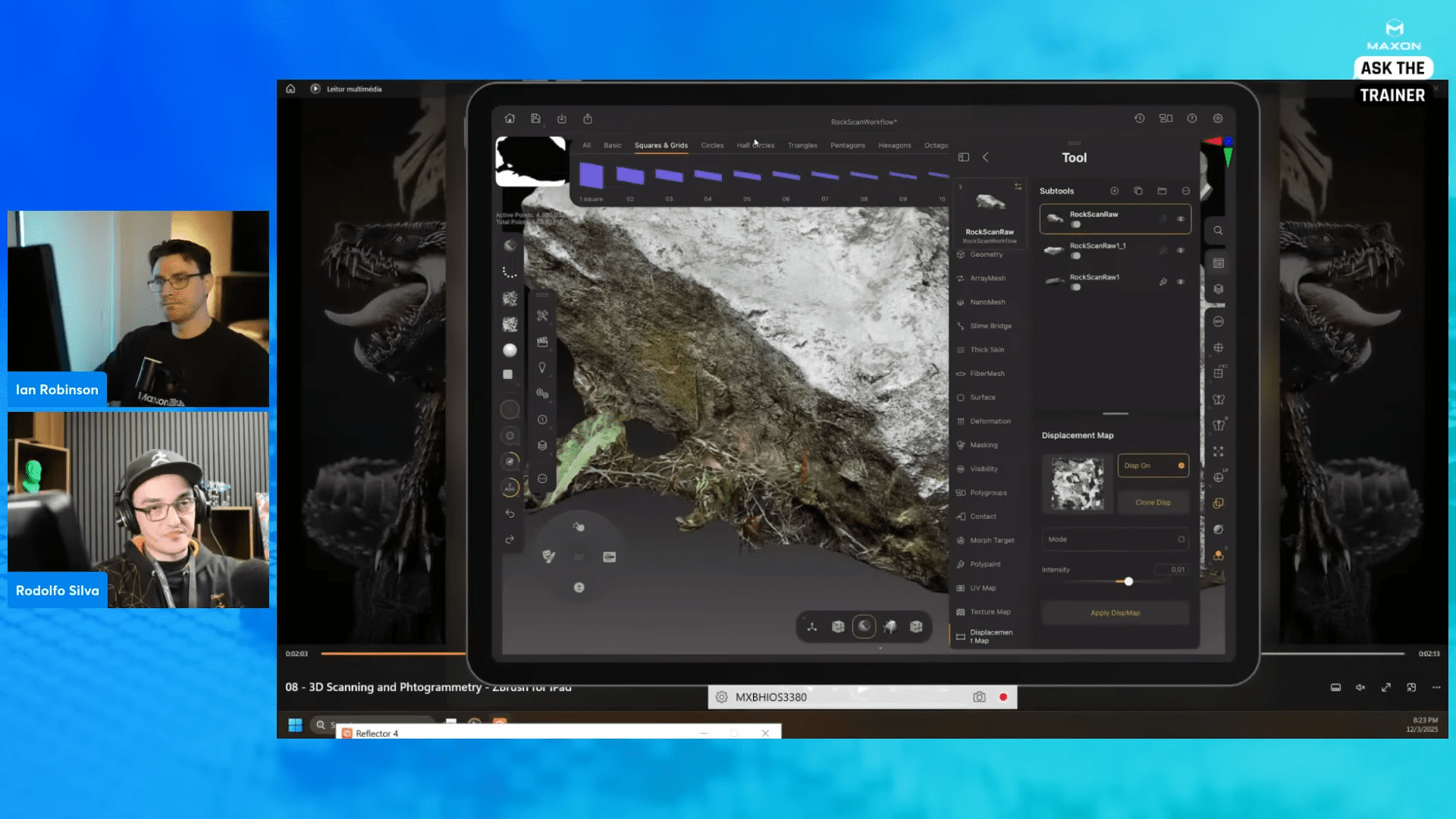
ZBrush generates a dense point cloud and a textured mesh with automatic UVs. The resulting asset includes both geometry and colour data.
A suggested post processing pipeline includes converting the texture to an alpha map (Texture → Make Alpha), extracting displacement detail to a subdivided mesh, cleaning geometry via Dynamesh, and re projecting fine detail through Project History or Extractor. Artists can then unwrap with UV Master and transfer PolyPaint data back to texture. The feature is primarily intended for matte, non reflective subjects such as props, rocks, sculptures, shoes, or vehicle parts.
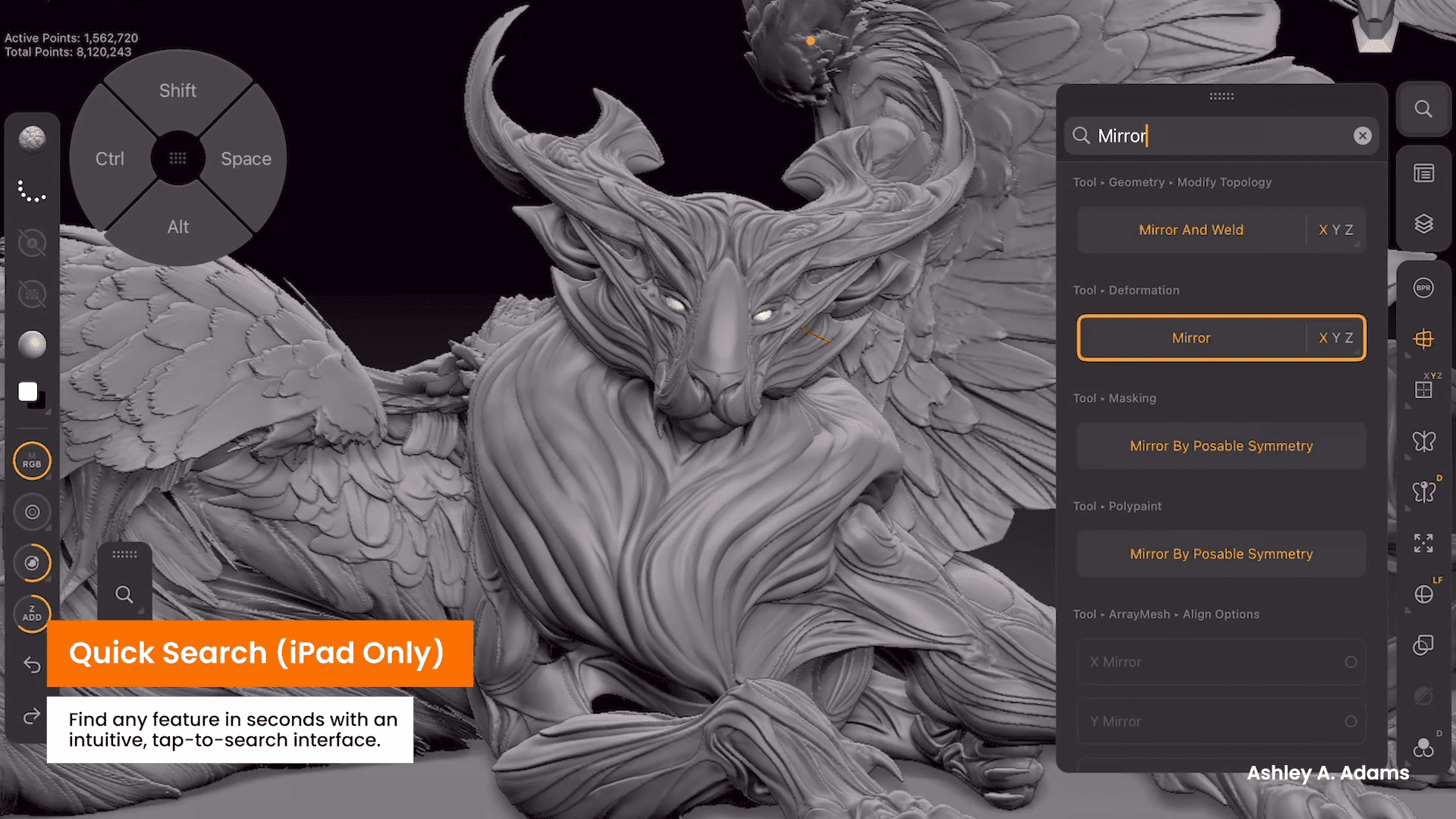
Quick Search: iPad Only Navigation Aid
A new Quick Search system, currently exclusive to iPad, provides a global search interface for palettes, buttons, sliders, brushes, and actions. Keyboard users can navigate results using arrow keys and adjust slider values directly within the search window. Search history is preserved between sessions. This tool can accelerate demonstration setups and help new users locate hidden interface elements without scanning menus manually. The feature is not yet present on the desktop version.
Compatibility and Feature Parity
Both the desktop and iPad editions now share the Retopo Brush and Patch system, providing near identical topology workflows across platforms. IMM folders also behave consistently in both environments. The new search system remains iPad only for now. The previously previewed UV Editor and desktop UI overhaul, shown at the ZBrush Summit, are not part of version 2026.1. Likewise, a Substance Painter bridge is mentioned in roadmap discussions but not included in this release. All features described are part of the verified 2026.1 release build at the time of publication.
Production Reminder
As with any structural update, particularly those affecting topology, file management, and plugin loading, teams should verify stability and compatibility with existing pipelines before deployment in production. Testing should include multi user directory switching, plugin load order, and mesh conversion integrity under the Retopo Brush.
Production Supplement: Pipeline Implications and Testing Advice
In production, the new Asset Directory System should be integrated carefully with version control and profile management. Studios maintaining multiple artists per workstation can now define consistent folder hierarchies on network volumes without touching program directories. For automated deployments, the Change Location option can be configured through startup scripts, although a restart is mandatory. This behaviour simplifies backup and restores but requires new onboarding procedures for workstation images and classroom templates.
For topology artists, the Retopo Brush replaces the need for third party retopology plugins or external hand topology tools. However, it introduces a new data structure that behaves differently from traditional subtools. Retopo meshes do not respond to deformation or subdivision until converted, and certain sculpting features remain unavailable until confirmation. Pipeline TDs should test retopo mesh export behaviour with Alembic and FBX before committing the workflow. The photogrammetry pipeline on iPad is promising, but the mesh density and UV precision require evaluation before using scans for high end texturing or displacement capture.
