



Table of Contents Show
There are now a whole host of 2D animation tools. Cartoon Animator (CTA5), formerly Cazytalk Animator, is something very special (we reported on previous versions). This tool has no drawing tools! Instead, it relies on the connection with well-known graphics tools and the use of ready-made, reusable content, with automated animation functions and allows even beginners to achieve quick results with the right content.


Same principle – existing features extended
The basic concept of Cartoon Animator and its appearance have not changed in the current version (some icons have been added and some have been “reorganised”). Cartoon Animator remains a pure animation software without its own drawing tools. In the new version, Reallusion seems to be focussing even more on the use – and reuse – of content, which can be purchased in large quantities on its own website in various stores (there are: “ContentStore”, “Actorstore” and “Marketplace”, where assets are provided by the community).
After the purchase (there is also some content available as a freebie), the “Smart Content Manager” appears again in Cartoon Animator when the online mode is active to start the download and installation. By the way: The new Smart Content Manager now has a search option for the content library.
Reallusion now promises more customisation options, including the new customisable FFD functions and feather effects (bone chains can be categorised as feather bones, users can apply multiple FFD effects and animations to the same object), imported vector graphics can be changed in colour and style.

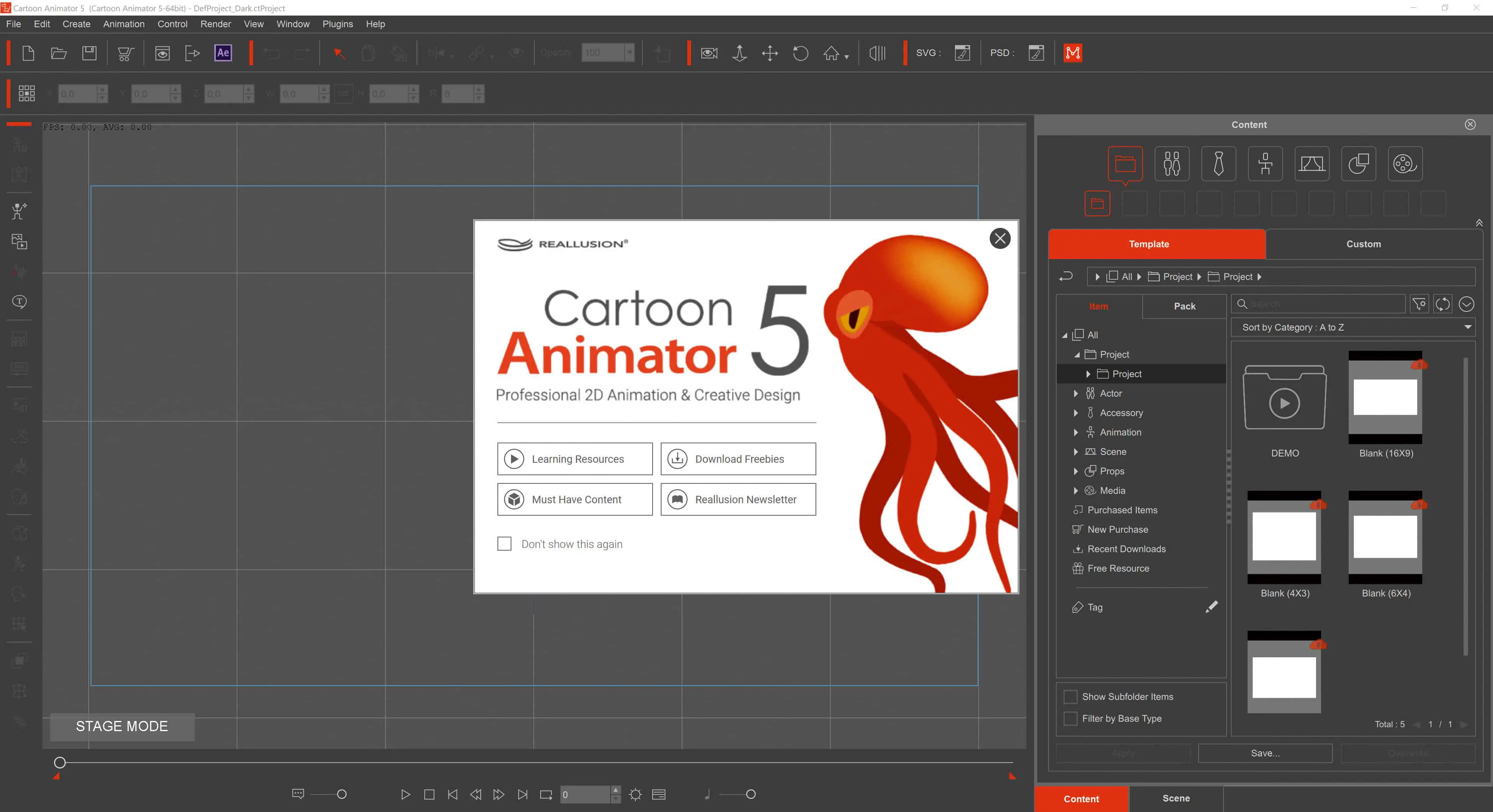
Reallusion has now combined the two existing versions, “Pro” and “Pipeline” into the new Cartoon Animator 5, at a slightly lower price. The (optional) welcome window has been adapted – Cartoon Animator 4 now also offers a preview of CTA5, while the current version links to “Must Have Content”, “Freebies” and the Reallusion newsletter. Reallusion offers the following Cartoon Animator 4 (CTA4) plug-ins for a free updated version for use in Cartoon Animator 5 (info from Reallusion bit.ly/cta5_plugins):
- Face3D profile for Motion LIVE 2D plugin
- iPhone Live Face Mocap profile
- Perception Neuron Body Mocap Profile
- Rokoko mocap profile
- Leap Motion Hand Mocap Profile
All Cartoon Animator 4 (CTA4) users who have purchased and registered the above plug-ins in their Reallusion member account qualify for the free upgraded plug-ins for Cartoon Animator 5. The Motion LIVE 2D plug-in for Cartoon Animator is now fully embedded in Cartoon Animator 5, no upgrade is required.

Basics
CTA was already advertised in the last version with a plethora of functions, some of which we had already presented. Typical for CTA is the insertion and positioning of content and effects, including pre-set animations via drag & drop, which leads to quick results, but which brought some criticism from users of other software, especially in the previous version: it was alleged that the results lacked individuality because the same or similar content was often used and there were too few individual editing options with reasonable effort.

At the time, it actually seemed tempting to us to achieve results with just one click instead of going to the trouble of creating our own content and then painstakingly customising it in CTA5.
And yes, some animations created with CTA5 have “similar attitudes”, e.g. rubbery moving arms and legs of characters whose limbs are simply deformed by bones. CTA5 does not allow the painting of bone weightings as in other programmes, which results in “smooth” deformations that do not necessarily look as if real joints are bending.
Instead of weightings, however, “pins” can be used in the Bone Editor (Composer Mode). Pins can be used to protect static image areas from the forces of bones. Pins that are attached to bones are moved along with them.

Problems with “rubber legs” can be solved with little effort in the Bone Editor if pins are set at the joints. The resolution or alignment of meshes created in the Bone Editor can also be adjusted (can be checked in “Preview Mode”). Then a leg can bend relatively realistically with a realistic bend in the knee instead of bending like a plastic stick.
Quality and quantity
Describing Cartoon Animator in full here would go beyond the scope of this article, especially as there is a lot of information material available for previous versions (also from us). There can hardly be any criticism of the quantity of functions integrated in CTA 5 and the learning media provided by Reallusion. From our point of view, the current version is not only interesting because of a few new features, but actually expands the existing possibilities considerably. Reallusion links to learning resources on the welcome screen and has its own YouTube channel(bit.ly/cta_youtube).
Here are just the most important functions that were already mentioned in version 4 of CTA: Face mocap (via webcam – real-time lip-sync and head-controlled movements), talking 2D heads (also with pseudo 3D movements, 360-degree rotations), intelligent inverse kinematics (easy switching between FK and IK, bone restrictions, quick locking or unlocking of end effectors…), character templates for humans and animals to make your own characters “fit” for automatic animations, dynamic props, Photoshop pipeline… After Effects pipeline (as a plug-in).
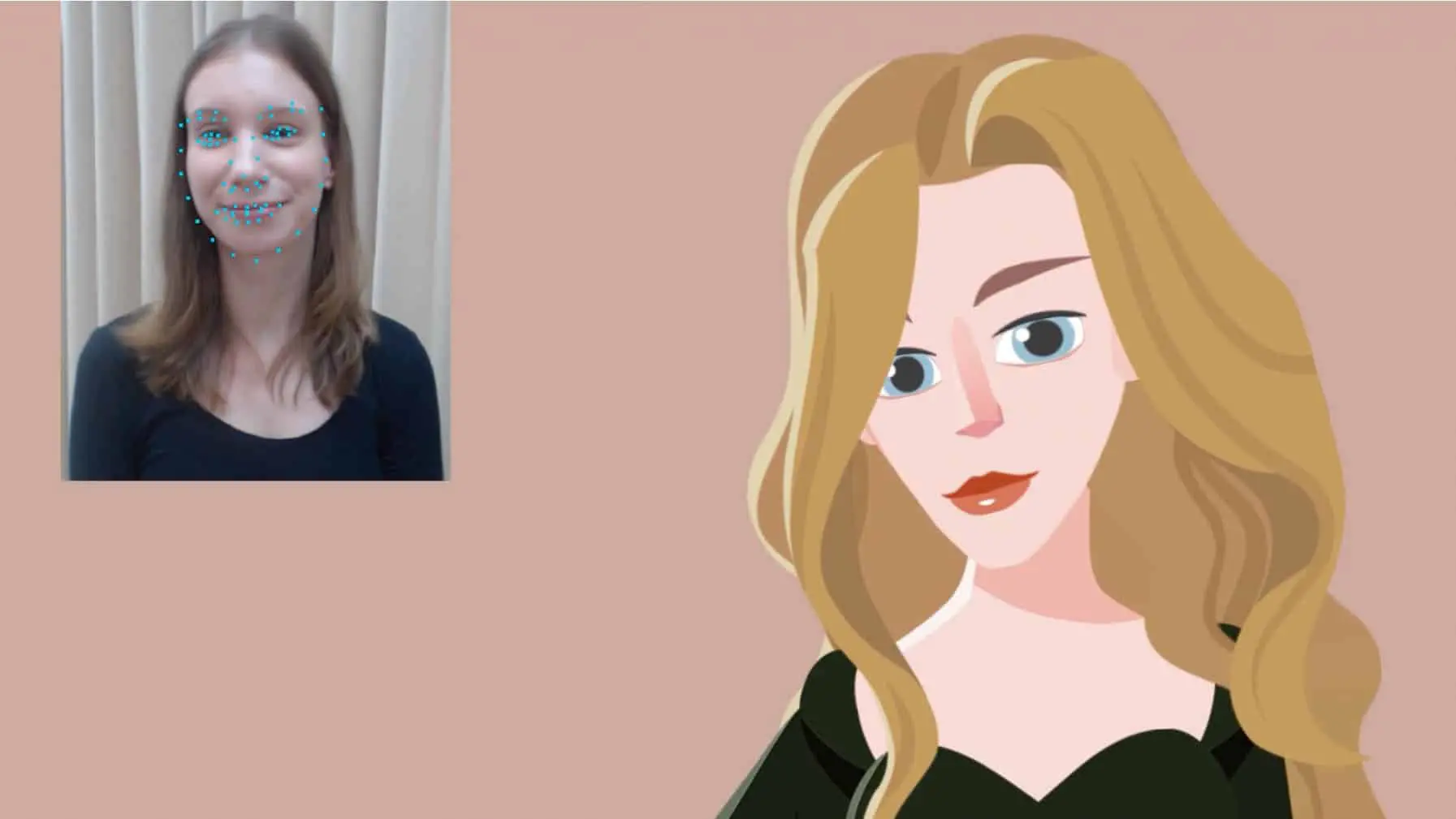

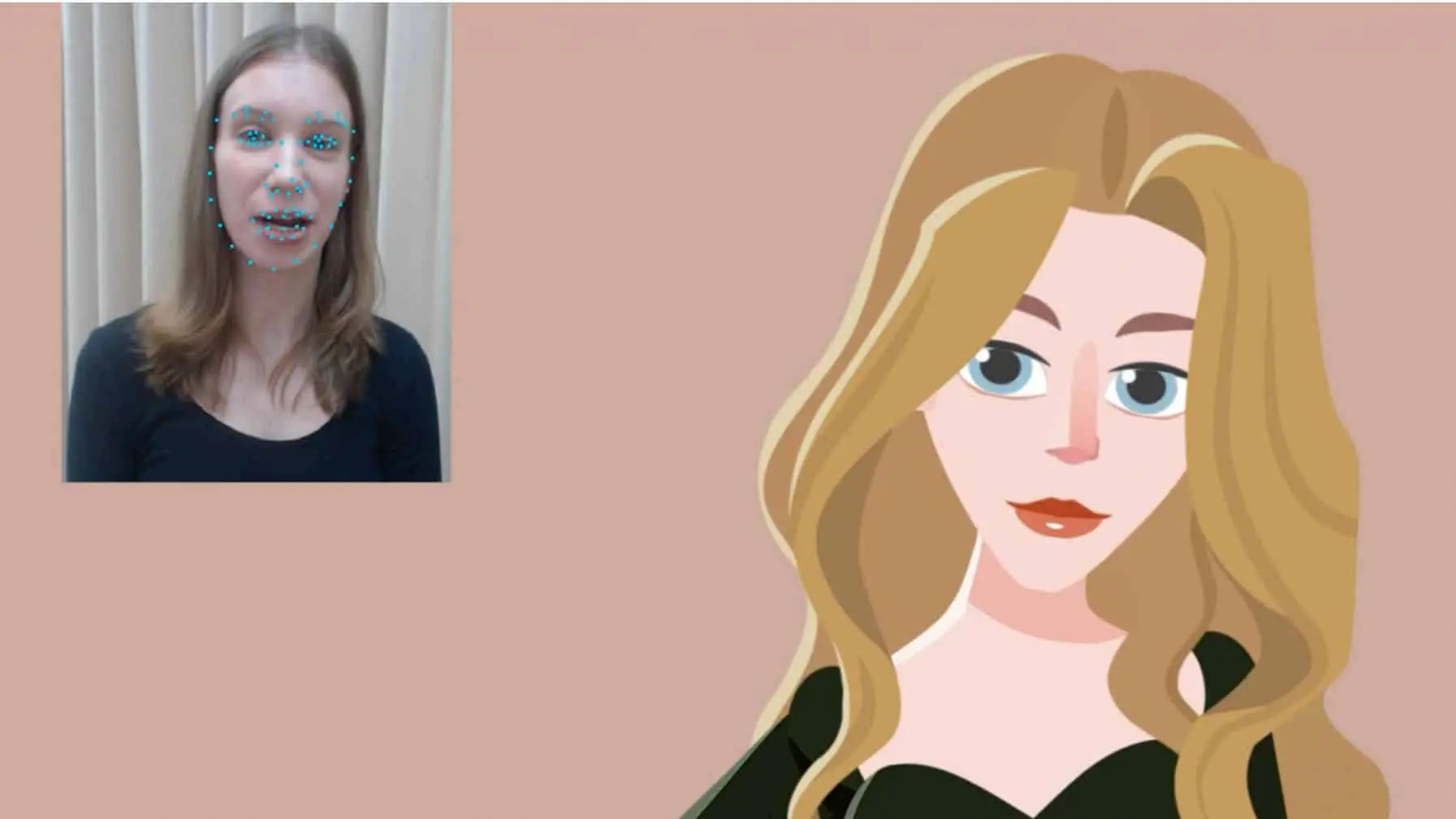

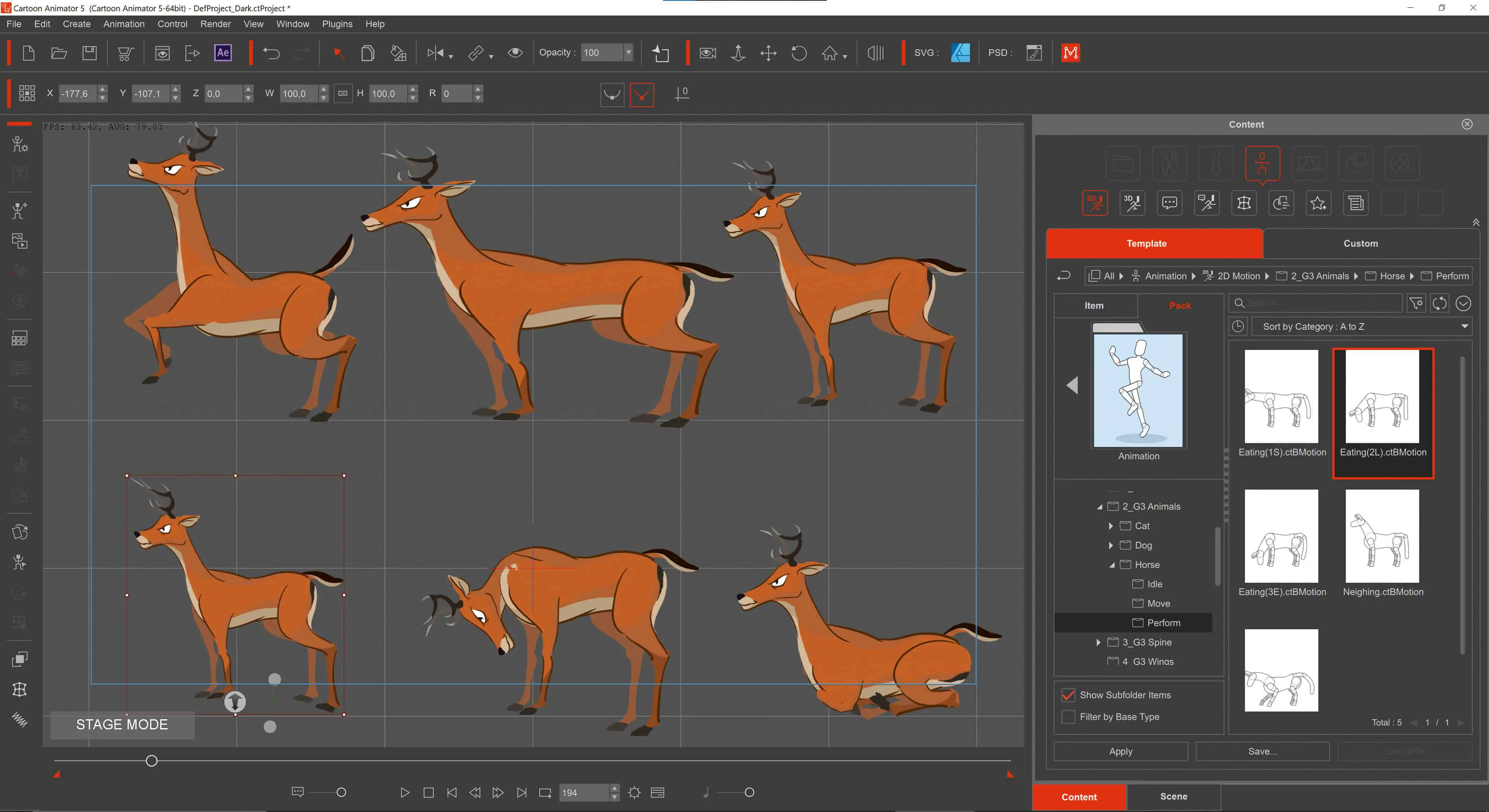
Cartoon Animator has a “Composer Mode”, in which characters or props are “composed”, e.g. provided with bones – and a “Stage Mode”, in which the actions take place on the Cartoon Animator stage.
CTA uses a 3D camera system (the camera, as well as the scene objects, can be arranged 3-dimensionally in space to enable camera movements and parallax effects). However, it is not possible to rotate objects 3-dimensionally, i.e. around their Y-axis. Y-rotation effects or spatial perspectives must be realised with 2D distortions. The new FFD functions now do this quite well.
There is only one camera in CTA. Scenes also have to be created and rendered individually. However, there is a “Camera Record Mode” in which camera movements are possible and abrupt jumps, quasi hard cuts, to new scenes are also possible. For this purpose, content can be positioned outside the actual scene, to which the camera then switches from one frame to the next and plays back the scene content as if it had jumped from scene to scene. As in previous versions, the frame rate is preset to 30 frames per second. This can only be changed in the export settings (render settings). The output size and format can also be set there.

Backgrounds can be imported as a separate category from the Content Manager. They are then automatically adapted to the current stage size. This is practical, but not very flexible, as background images cannot be edited on the stage. There are some setting options in the project settings. Images can also be imported as “props”.
They are then “real” stage elements with all editing options and can also be used as a (flexible) background, e.g. animated. Also worth mentioning are “image layers”, which are placed like windows in front of all stage elements.
New old principle
Cartoon Animator focusses even more than before on the quick and easy use of predefined content and continues to dispense with its own drawing functions. Instead, (suitable!) content can be animated in the programme with extremely little effort, thanks to many ready-made templates for a wide variety of objects, movements and effects.
Photoshop and SVG files can be created via “bridges” to external graphics editors and imported into CTA with a single click. Synchronisation worked perfectly in the test. Every change to a graphic was updated with a click on Save in CTA. The user still does not have the feeling of being able to draw directly into a scene, but this bridge function is convenient. Reallusion also promises more customisation options, a point of criticism that some users have raised, at least in previous versions.
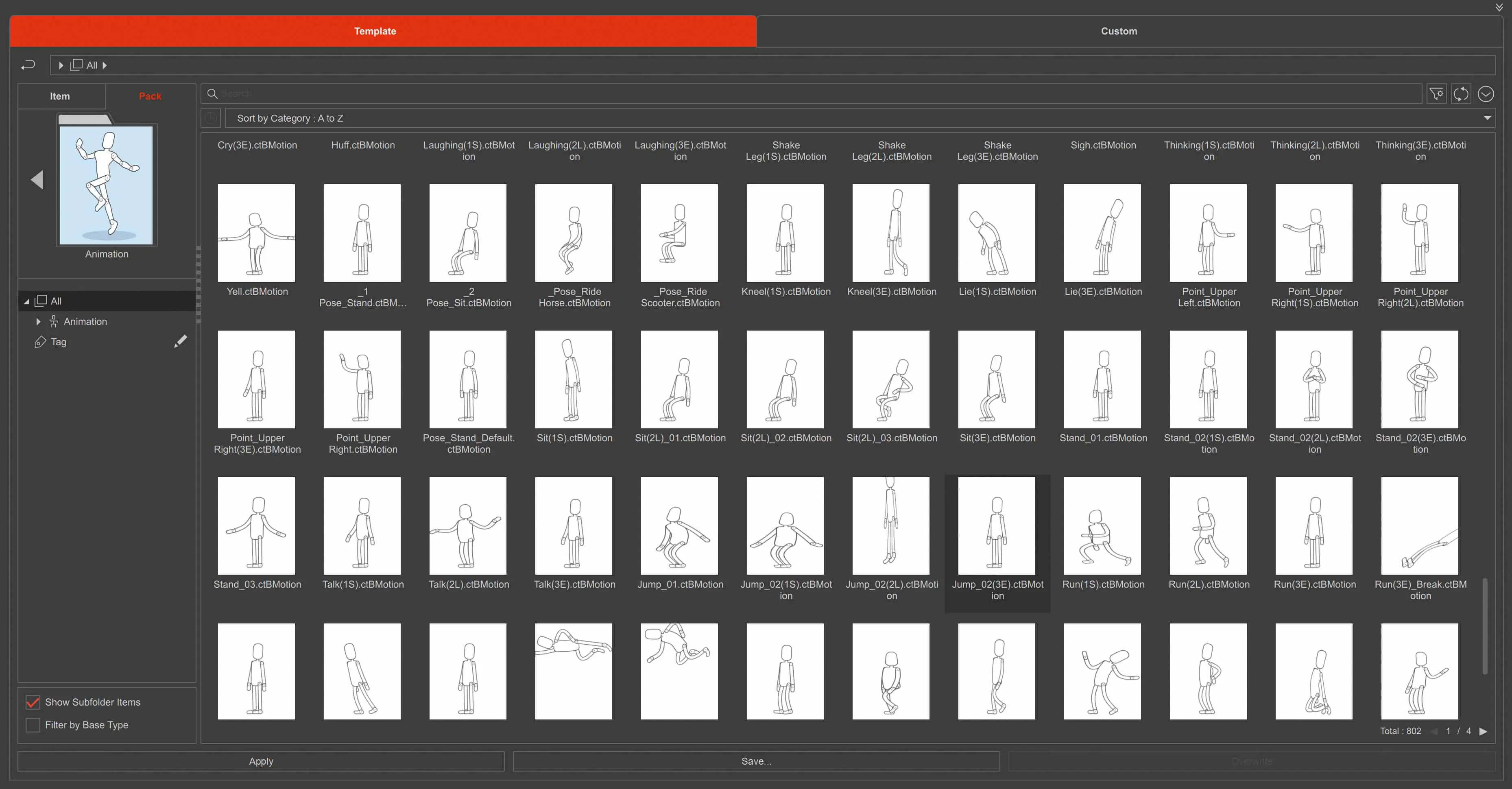
(the previews are animated).
Despite a few corrections, the programme interface looks just as you would expect from Reallusion. The UI appears modern and tidy (there are two GUI themes: light and dark). Some of the programme icons are self-explanatory, e.g. the navigation elements. For others, a newcomer will need a little imagination or a look at the manual or the numerous tutorials provided by Reallusion or available on YouTube.
Tool tips, which are available for each icon, also make it easier to get started. The central element in CTA5 remains the stage, on which actors act and props are positioned. Now there is the Smart Content Manager, which lists all available content (actors, props, backgrounds, scene elements, animations and effects etc.) and can be synchronised online with the user account at Reallusion (online mode of the Smart Content Manager). The Scene Manager shows the elements of the current scene that have been placed on the stage using drag-and-drop.
Reallusion claims that animation is now very easy for everyone, which is true at least for the use of ready-made content and the many animation elements. However, newcomers or users of “standard” animation tools should still expect a corresponding familiarisation period before the many functions can be used safely and their own projects can be implemented.
Anyone who watches a demonstration of the programme, e.g. on YouTube or the numerous tutorials on thewww.reallusion.com website, in which the effective use of the ready-made content (including the animation templates supplied) is shown, will be amazed at the speed with which animations are possible in Cartoon Animator.
There are ready-made templates for almost every animation purpose – in CTA5, or in the Content Store with access via the Content Manager, there are extensive libraries of assets, including demo projects, character assets, accessories, animations, scenes and props, which lead to super-fast results. However, these are not necessarily “customised”.
New, promised!
With new Spring Dynamics, Reallusion promises to make secondary animations very easy. And squash & stretch (compression and extension movements) will be freely definable thanks to an improved FFD deformer. The new version now also supports vector graphics in SVG format. This means zooming and scaling without losses and colour changes in the program (colour adjustments – colour, brightness, contrast, saturation).

As with Photoshop files, there is now an extra button (“SVG”) that calls up a suitable editor. This is preset in the Preferences under Vector. We are all familiar with major announcements for new software products – of course the new version of Cartoon Animator is also revolutionising the industry. Nevertheless, the latest announcement from CTA5 seems somewhat more modest – and more focussed on the essentials. The superlatives are limited, but the new functions announced make us curious.
We were able to take a look at an early version of the current release – and had a fairly positive opinion, even if not all functions seemed to be “fully developed”, which is why we also tried out an English-language version. There was no German language update available yet. The SVG editors offered, with the exception of Illustrator, could already be specified in the preferences, but not all of them were really available yet – upcoming updates should remedy this, as we could also read in some Reallusion forums.
In order to be able to use Affinity Photo as a PSD editor, “Enable saving for overwriting imported PSD files” had to be activated in its settings – there was a warning about possible incompatibilities between the Affinity format and PSD – but this bridge worked in the test. In any case, Cartoon Animator can communicate with other programmes – and the import via drag & drop worked perfectly anyway.
Lots of content – can be animated
Actors, backgrounds and various scene objects can simply be dragged from the content folders into the current scene – ready-made animations and effects are also assigned to the objects using drag & drop. Animations can be strung together in the timeline, stretched or shortened in tempo, looped and mixed. With the new functions, everything really seems to be animatable. CTA5 has really stepped up its game here.
It jumps!
A new feature is the ability to apply spring dynamics to actors and all possible objects in a scene. To do this, bones must be “implanted” into any object (Composer Mode/Bone Editor). Various “Spring Bones” groups can then be created in the Spring Editor (“Assign to Group”). After selecting a preset, you can test what resonates where and how in “Preview” mode.
There are 10 presets for different material and physical properties, which are labelled in a relatively self-explanatory way. Stylised icons indicate the type of movement. A symbolic mini animation is played when the mouse is moved over the icons. The behaviour of the spring dynamics can be influenced with values for: Bounciness, Speed, Gravity, Limit Angle, Translate. Secondary animations such as bouncing hair or swinging body parts can be created with just a few clicks, even by inexperienced users!
Feather bones can react to movement data and live mocap animations, allowing them to swing along with a character’s movements and make movements appear more lively without the need to create complex keyframe animations. You can also save your own presets for spring dynamics.



Free forms
FFD – Free Form Deformer was already available in CTA4 as a prop key editor. This can still be used for deformations and animations (of props), but the possibilities have been significantly improved with the FFD editor. FFD can now be applied to all objects. Brand new: also on vectors (SVG). FFD deformations and animations can be created very quickly by using the FFD Editor at the appropriate points in the timeline. Points on the FFD grid can be manipulated very simply so that the active object is deformed.
The FFD grid surrounds the active object. It consists of 5 x 5 points, the number of which obviously cannot be changed. However, different points can be summarised and scaled, rotated, moved and mirrored. This makes amazing deformations possible. Several deformations can be stacked if “Additive” is activated in the FFD Editor. Useful for adjusting deformations more dramatically.



CTA5 automatically generates keyframes. CTA5 has a number of presets for different deformations, which can be customised in intensity and various values (including scaling, angle…). The FFD editor contains 109! organic FFD presets categorised into 6 main groups: Basic, Sheer, Squash & Stretch, Convex & Concave. This allows certain (identical) deformation effects to be quickly applied to different objects – and of course edited manually.
If FFD animations are mixed with other animations, for example, it can be helpful to make them temporarily “invisible” in order to maintain a clear view. To do this, they can be saved from the timeline as clips that can be activated and deactivated by setting the intensity value to zero (instead of having to remove them from the timeline). Swell muscles or Disney-style exaggeration suddenly seem easy to achieve.

Conclusion
Cartoon Animator 5 is a consistent further development of the previous versions. The programme concept has not been changed – there are still no drawing functions, but the Animator aims to work better with graphics editors. Externally, the new version has hardly changed: a little new UI, new icons..
In our opinion, the new functions that significantly enhance CTA5 are more important. With Free Form Deformations, it is now easy to create complex deformations and customised animations. With just a few clicks, all objects can be freely deformed and animated via keyframe in the timeline – even already animated actors! Vector graphics can also be imported with a click, edited in sync and their colour and style manipulated – regardless of resolution!
The new spring dynamics, with which various secondary animations can be automatically added to corresponding springbones with a click, also make CTA5 a truly exceptional tool that should be worth a second look. And the tool costs only 99 US dollars as an upgrade – a demo is available for download. We would like to see this consistent development continue, perhaps even our own drawing tools?
