Table of Contents Show
Our test device was well equipped, almost the maximum, with an M2 processor, 16 GB RAM and 1 TB of space. The latter is mandatory, as the highly recommended 16 GB are not available with a smaller SSD. Included are 8 CPUs, 10 GPUs and 16 neural engines. A test installation on an older and much weaker iPad was not refused (using iPadOS 16.0 and the A12 Bionic chip). But the installer immediately points out that it only runs in HD and that the memory is too small for some tasks. The bigger handicap for slightly older iPads is probably the question of how to get the videos onto the device. Apple’s “Lightning” connection only provides USB 2 speed and Wi-Fi is also not a serious alternative for video data. Our device, on the other hand, has a USB-C port that also supports Thunderbolt.
Unfortunately, the disc speed test from Blackmagic (BM for short) is not available for the iPad; we measured with Jazz Disk Bench Pro. The internal SSD managed a full 3 Gbps when reading and 1.36 when writing. A fast, external SSD with Thunderbolt achieved 2.4 Gbps read and 1.2 write. But even an inexpensive SSD with USB-C should be completely sufficient, a Samsung T5 read 360 Mbps and wrote 164. Incidentally, the same SSDs on the laptop with the BM test achieved slightly higher values, so the data cannot be fully compared. Unlike with Mac OS or Windows, data carriers do not have to be logged off here, but logically they should not be in use when pulling the plug. Don’t leave them connected all the time either, as SSDs can drain the battery over 1-2 days.

The device’s 12.9-inch Liquid Retina XDR screen is one of the finest Apple currently offers (the smaller iPad is not XDR). With SDR, it manages 600 nits and is perfectly suitable for working outdoors – hey, it’s spring! If you want to work with HDR, you can even get 1,000 nits and locally up to 1,600 (it has mini LEDs for backlighting). Anyone looking at HDR material with this should almost be dazzled. The principle-related disadvantage is slight blooming around strong highlights, which in my view is completely tolerable. Anyone who hates the notch on current MacBooks or iPhones is well served here: the bezel is wide enough to do without it.
An external display is supported by M1 or M2 CPUs up to 6K resolution at 60 Hz. But apart from the inflexible programme (more on this later), its use is also not easy due to the only socket on the device. Despite enormously long runtimes – we still had 80 per cent energy left after rendering an hour of film – you still have to charge from time to time. The best choice is therefore a screen with Thunderbolt that also supplies the iPad with power, such as the 32UL950-W from LG. It doesn’t have to be the much more expensive OLED, but it is recommended for HDR. Of course, a device with a display port also runs natively on USB-C, but where do you get the power from or plug in external discs? For all other solutions, you’ll have to pack a hub again.
The socket remains free with fast and reliable Wi-Fi with AirPlay, which is now supported not only by TVs but also by some monitors. But don’t be fooled by claims such as almost 100 percent P3 coverage: By design, these are not control monitors. You can read about the problems of calibration, especially of OLED devices, in great detail from my colleague Michael Radeck. He regularly conducts tests for DP, most recently in DP 23:02 on page 30. One more thing: I/O devices, such as the UltraStudio Monitor 3G, unfortunately are not supported by BM on the iPad. You can at least set the internal screen to “Reference Mode” so that functions such as “True Tone” or “Night Shift” don’t interfere.

The camera equipment is similar to the iPhones with 2 wide-angle lenses, one of which is for “Centre Stage”, which can automatically keep you in the picture. There is also a LiDAR. Personally, I don’t find it so convincing in terms of artificial “bokeh” (reduced depth of field) due to the lack of resolution. However, it is extremely useful for the photogrammetric capture of objects or rooms in 3D, which is significantly improved. The camera can also optionally record in UHD (from 256 GB internal memory) in ProRes – according to Apple’s advertising. But you won’t find it in the regular camera app, as the codec is currently only supported by FiLMiC Pro. However, this was recently switched to a subscription model and is now quite expensive. Embarrassing, Apple!

DaVinci Resolve
Unlike the version for Mac OS, DaVinci Resolve (DR for short) is only available in the App Store. The free version is offered there, the studio version is not exactly imposed on you. The discreet “Buy Studio” button is in the Library Manager at the top right. The offer also appears when you call up a function of the full version. At around a third of the price, it is quite cheap compared to the version for other operating systems, although BM has clearly put a lot of work into it. The launch went smoothly here. But there are reports that it is better to restart the iPad after installation and then get started.
You are greeted by the cut page, which is currently the place for editing. If you don’t like it, you should stay away for the time being. I presented the operation in detail in DP 21:06 on page 100, including the Speed Editor – download it for free here: is.gd/bmd_speededitor. This would be highly recommended for the iPad, but unfortunately weighs about 100 g more than the iPad itself (685 g). Darren Mostyn also has a very good video on the Cut Page: is.gd/darren_cutpage. At least BM has solved the pen operation quite well. I would even say that it is absolutely essential, even on the larger iPad, because it is one of the device’s strengths. It doesn’t have to be the sinfully expensive Apple Pencil 2 for DR, we found a no-name product for a good third of the price (alright, it’s called “Mils”).

The pen not only looks almost the same as Apple’s, it even has largely the same functions. Even “hover scrubbing” works when previewing effects or LUTs, but with our pen only at a slightly shorter distance than the original, which takes some getting used to. Contactless charging and angle-controlled colour application in painting programs are quite fine things. In DR, the pen helps with precise trimming, connecting nodes and especially when drawing freehand masks. It is also useful in the colour page for the precise adjustment of colour wheels or sliders instead of using fingers, however small they may be. It should be clear that no control panel is supported here – who wants to lug that around?
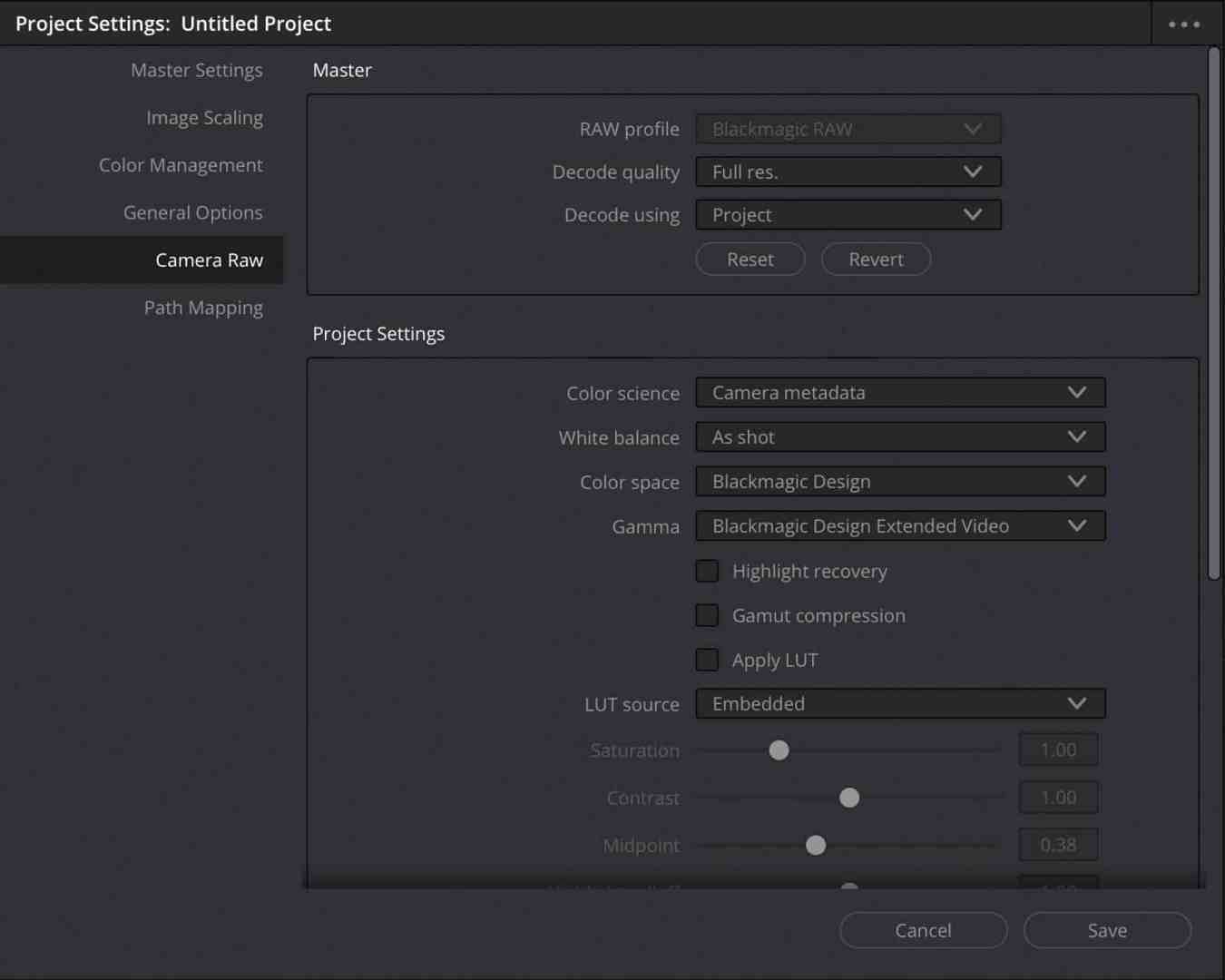
colour management is offered.
Input and output
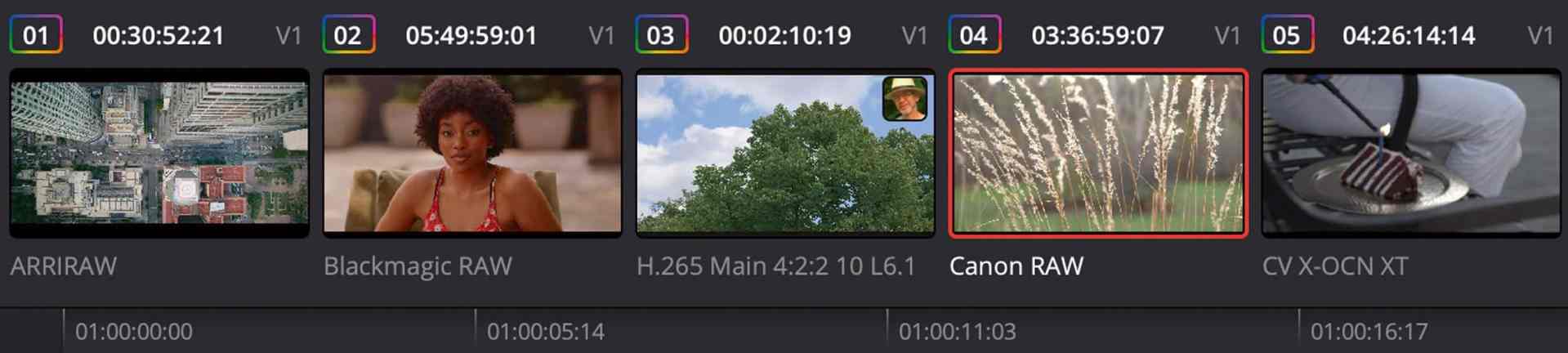
For now, there is nothing more than Cut and Colour. The material is imported via “Media” in the cut page. All common variants of H.264 and H.265 up to 8K are supported here, as well as BRAW and most photos. Other RAW formats, from Arri to Venice, do not work. Not even the DNG image sequences from BM’s older cameras can be imported; they only appear as stills. ProRes is of course supported, with M2 even via dedicated hardware. ProRes RAW is still not, although it appears with an image in the file selection – but the operating system takes care of the thumbnails. Cineform, on the other hand, works, in addition to MOV even as AVI, but DNxHR does not. This means that material can be transferred in high quality from PCs.

Output is via “Export”, as with “Quick Export” in the previous Cut Page, the Deliver Page is still missing. There you will only find H.264, H.265, ProRes 422 HQ and settings for direct output to YouTube, Vimeo, Twitter and Dropbox. H.265 is in 10-bit when “Master” is selected, but unfortunately with 4:2:0 subsampling. Stills from the Gallery can only be exported as DPX. Unfortunately, no proxy generator is offered yet, so you have to do this on another computer or one of the cloud devices. On the other hand, thanks to hardware support, you can work with all variants of H.264 or H.265 in the original, as well as in ProRes and even in BRAW. We were able to easily use 25p material in 12K BRAW in a timeline with UHD.
The connection to the BM Cloud works well, we had no problems transferring a four-hour documentary (but the Cloud is still beta). Only the somewhat rudimentary chat function is difficult to replace with better programmes on the small screen. If you want to find out more about collaboration in the cloud, you should definitely read the detailed article by Bernd Klimm in DP 23:02, further information can be found in my article on teamwork in DP 22:05. What is annoying here is the exclusive support of Dropbox (under “Share”), while Google Drive is already available on the cloud devices as an alternative. In the future, Dropbox can only be used on Apple’s internal SSD, which will be full sooner rather than later with video.

One more thing about the hack circulating on the net, for which you need a keyboard. Practically any keyboard with Bluetooth works on the iPad, just like the mice if required. In fact, almost the whole program has already been ported to the iPad, but is not yet available to users. Until now, the usual Option Command K keyboard shortcut can be used to access the settings and unlock the other pages. You might be disappointed, though, because in our tests trying out other pages led to a crash after some time. But you can assume that more is in the works.
Operation
A keyboard is less important than the pen, because BM has adapted the operation quite cleverly to the smaller screen. The software even works on the smaller 11-inch iPad. The side function areas now deactivate each other so that only one is accessible at a time. This works very well via touch or pen, but it is irritating that the viewer is moved back and forth. Nevertheless, I could imagine that this would also be an elegant solution for laptops such as the MacBook Air, where the screen is hardly any bigger. Zooming in the viewer with two fingers is only possible in the colour page, with Cut a full screen is always shown (as was previously the case in the full version).

The Media Pool and Lightbox are missing from the Colour Page, which is understandable on such a small device. Some people will also miss the RGB Mixer, 3D, Colour Match and the additional clip info. This should be bearable for work on the move, but one area is problematic: the motion effects are also missing. DR Studio does have both Noise Reduction (NR for short) and Motion Blur among the filters, but as in the version for Mac or PC, this is much slower for some unknown reason. Of course, we also compared the speed of other complex functions.
A manual for the iPad version is not yet in sight, and despite Hover Scrub there are no tool tips to be found. If you are familiar with the previous version, you can find advice on switching back to Darren: is.gd/darren_tour. A more detailed video for absolute beginners is available from Casey Faris at is.gd/casey_crashcourse. As the iPad version is not drastically different, the free tutorials from BM are also helpful: www.blackmagicdesign.com/products/davinciresolve/training. These finally include books in PDF format for version 18.


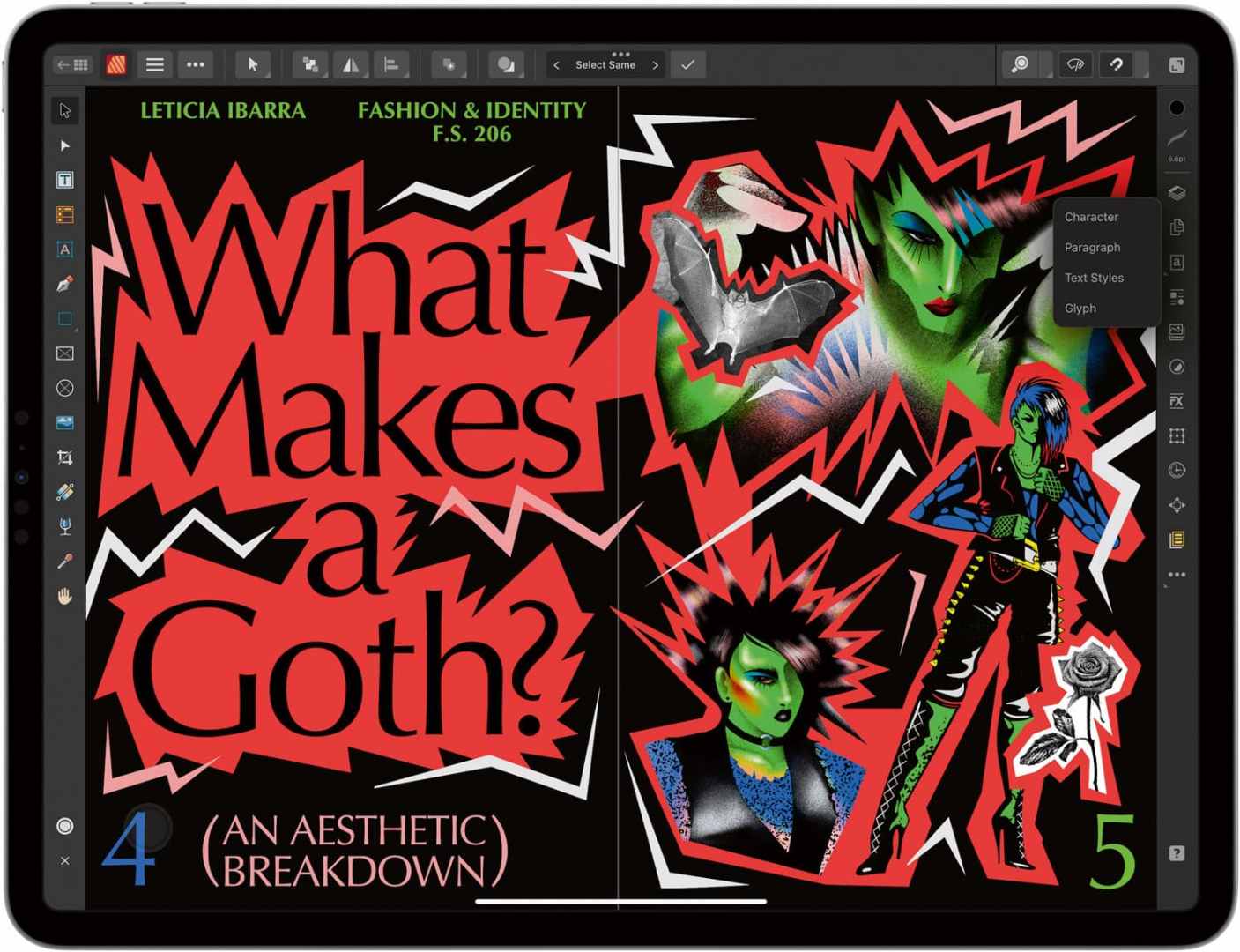
Despite the “Stage Manager”, a second screen is not very helpful with DR. If you have a mouse or touchpad, you can move the programme there. However, it cannot be scaled freely and only offers two fixed sizes, obviously for 11 and 12.9 inches. The text size can be set in the system, but this only leads to overlaps in the GUI. Other programmes make better use of such a configuration, e.g. you can work in Affinity Photo on the iPad and see the image large on the external screen at the same time without a GUI. DR, on the other hand, does not offer Clean Feed, nor can you outsource the media pool, scopes or the lightbox (the latter is not yet available anyway).
Performance
As the iPad already showed good performance with demanding codecs, we used an M1 Pro laptop to compare performance. In each case, we transferred via the cloud with identical settings and tested Motion Blur, Speed Warp, Magic Mask, Aperture Diffraction, Dirt Removal, Film Grain and Depth Map in addition to NR. The laptop was between 0.5 per cent (for Motion Blur) and 95 per cent (Aperture Diffraction) faster than the iPad. On average, it was a good 50 per cent. This corresponds pretty much exactly to the GPU cores: 10 on the iPad and 16 on the laptop.


In a few cases, the iPad was even faster, as in the analysis for Face Refinement. An iPad with M1 was not available for comparison, but Darren compared this at is.gd/darren_m1_m2. He came up with 30 to 100 per cent more performance with M2. The latter with ProRes, which is certainly due to hardware de- and encoding.
In most cases, our initial estimate was shockingly high and then normalised. With one exception: NR took almost four times as long on the iPad as with the same settings on the laptop with the function in the colour page for Motion Effects. That’s very annoying! After all, it can happen that you have to test a shot under poor lighting conditions on the move to see whether it can be used with NR or whether it should be reshot. Unfortunately, like many useful plug-ins, NeatVideo is not yet available for the iPad. Only MotionVFX has managed to port its plug-ins (with the exception of those that rely heavily on Fusion).

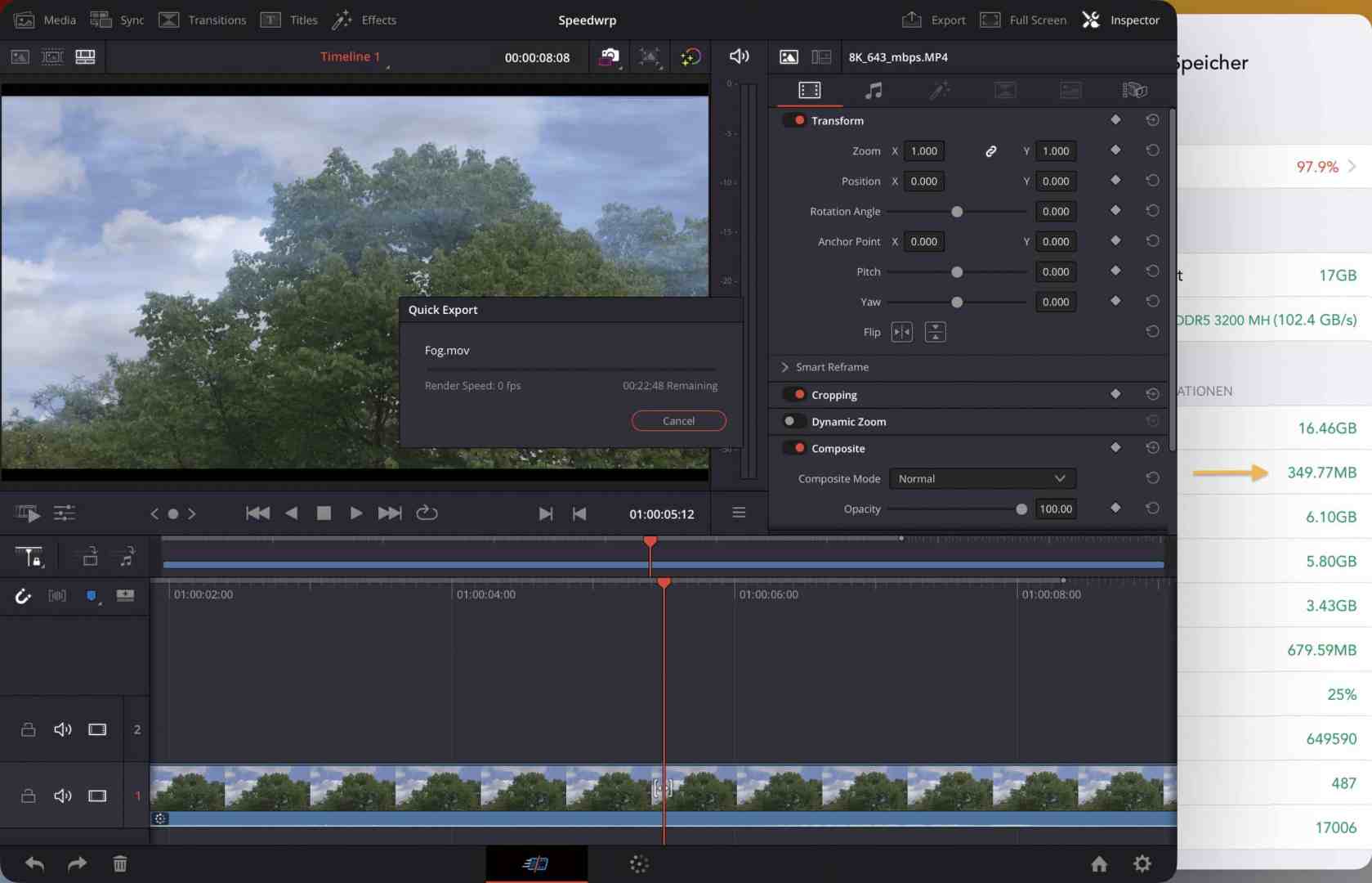
In this context, the question arises as to whether the iPad is throttled under continuous load. After all, there is no active cooling, whereas our M1-series laptop never got too warm in any test. The iPad exported one hour of film in HD in just under 25 minutes. At a room temperature of 28 degrees, it clocked down quite quickly from 3.5 to 3 GHz, sometimes even to 2.8 GHz. When it is really challenged, the iPad also goes down to 1.7 GHz, i.e. around half. It didn’t help much to remove the cover, but it never switched off. The laptop was almost twice as fast during long rendering sessions.
We rarely had crashes. In one case, it was a non-compatible plug-in for a project from the cloud, which was therefore not licensed on the iPad. It showed its watermark very briefly, then DR went away. So you have to be careful when transferring projects. The other case was due to insufficient memory: The attempt to add simulated fog to a clip using Depth Map plus Fast Noise led to a crash in UHD. We used the CPU-x app to monitor the memory load, and it did indeed approach 100 per cent shortly before the crash. The same effect was calculated in HD without any problems and used about 30 per cent of the memory.
The iPadOS itself never froze or crashed. Another test, because depending on the application, you may need quite a few Bluetooth connections. We tested it with the Speed Editor, pen, keyboard, mouse and high-quality headphones. There were no delays or sound interference, Apple obviously has this well under control. The use of an external screen, on the other hand, is less reliable and less useful for DR than with a laptop. The iPad cannot be deactivated despite the keyboard and mouse.

Comment
Yes, you can realise and publish a complete production for social media on an iPad with DaVinci Resolve alone – if you don’t need overly sophisticated effects in UHD, a calibrated screen, foreign RAW formats or special plug-ins. Does this make sense compared to a similarly equipped MacBook Air, which is also comparable in price?
In addition to the power supply, the laptop would have two USB-C ports available, support an additional screen and professional monitoring via I/O devices. It weighs almost twice as much, but comes with its own backlit keyboard.
However, the built-in screen is hardly any bigger on the move, the iPad version utilises the surface area more skilfully and offers much more brightness for HDR. The cameras in the iPad are better, even if filming or taking photos with them looks a bit strange. The greatest strength is the operation via touch or stylus. Graphic designers who create illustrations as well as videos outside the home are usually delighted with this.