



Now that your I/O-Hardware should be up and running, let’s get into equipment for profiling the screen (aka calibration). Why do we need that? Well, until now, you were in a situation like making toast in your kitchen at home. You know that for your favourite brand of toast, you need a specific setting on your electric toaster to make it perfect. And what is the connection to colour grading? Well, if you visit friends and volunteer to care for toast, they may have another brand of toast and another toaster – two variables. Setting it to the same value as at home may easily burn your slice or leave it as pale as a ghost. “Profiling” your toaster with the right kind of bread may help…
Choosing an Instrument
Of course, you don’t use a thermometer to measure your screen’s colour, the typical instrument needed is called a colorimeter. A new one doesn’t come cheap, but if the screen you want to profile is not based on recent technologies like OLED or MiniLED, an older device bought second-hand or borrowed from a friend can be good enough. The popular brands for prices accessible to the average person have been Datacolor and X-Rite. The latter has by now re-branded their instruments for consumer level screen profiling to Calibrite.
The colorimeters by Datacolor are named “Spyder”, and the older ones were not really famous for their consistency among samples, as shown by our own experiences. And then, they used filters with organic colours until recently. Unfortunately, such filters degrade relatively fast over time. The better solution are dichroic filters, which last much longer, and are supposed to be used in the current Spyder X2 series. These are also supporting recent screen technologies, to which we’ll get back later. For further detail, see Jeremy Daalder’s Image Science.

The instruments by X-Rite came in two lines, the i1Studio/ColorMunki Photo, a spectrophotometer, and the i1Display colorimeters, and they have been using dichroic filters much longer. While spectrophotometers are generally more expensive and needed for printer calibration, they are not necessarily better for the purpose at hand. Their low-light sensitivity is less, so they can be slower for the darker patches. Since we are looking at you, cheapskates, we’ll focus on used X-Rite instruments, which can be found for decent prices.
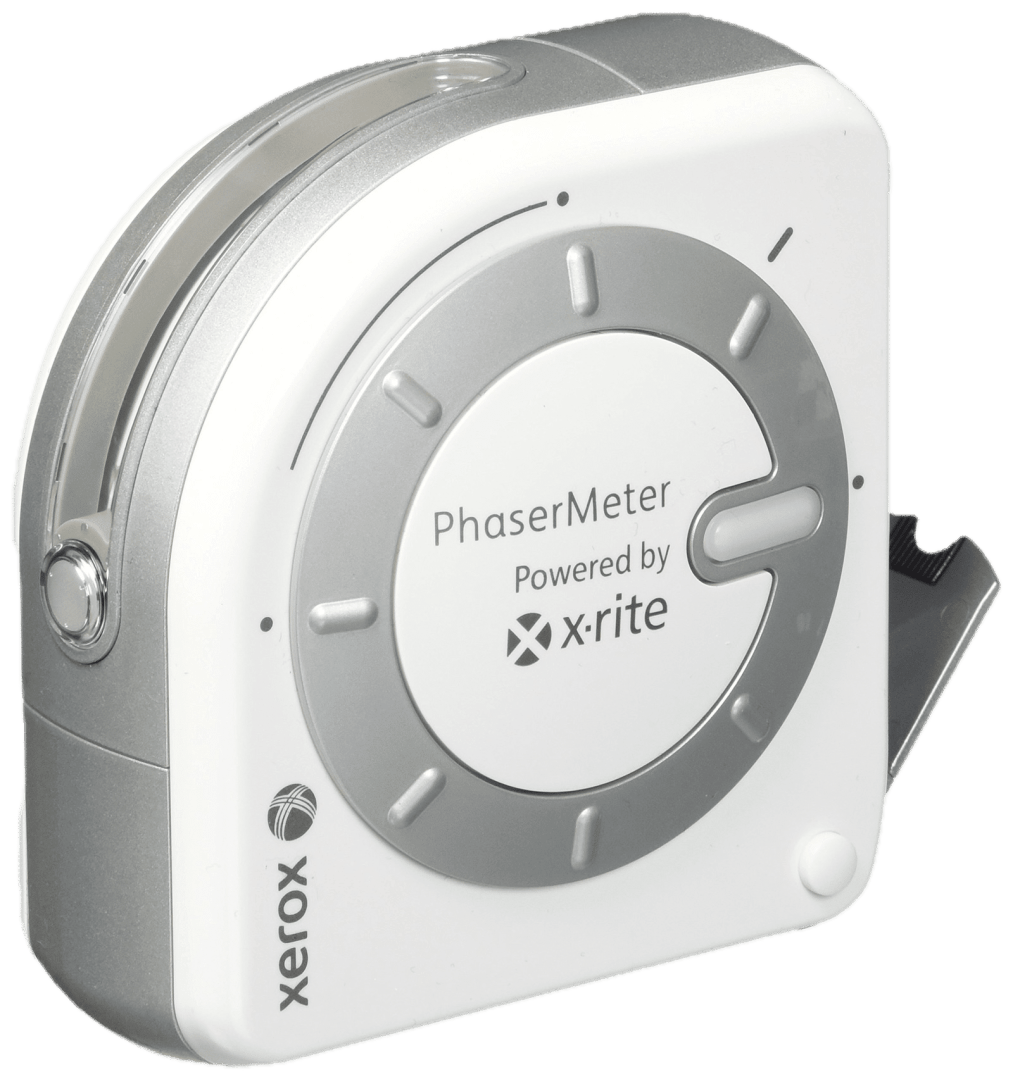
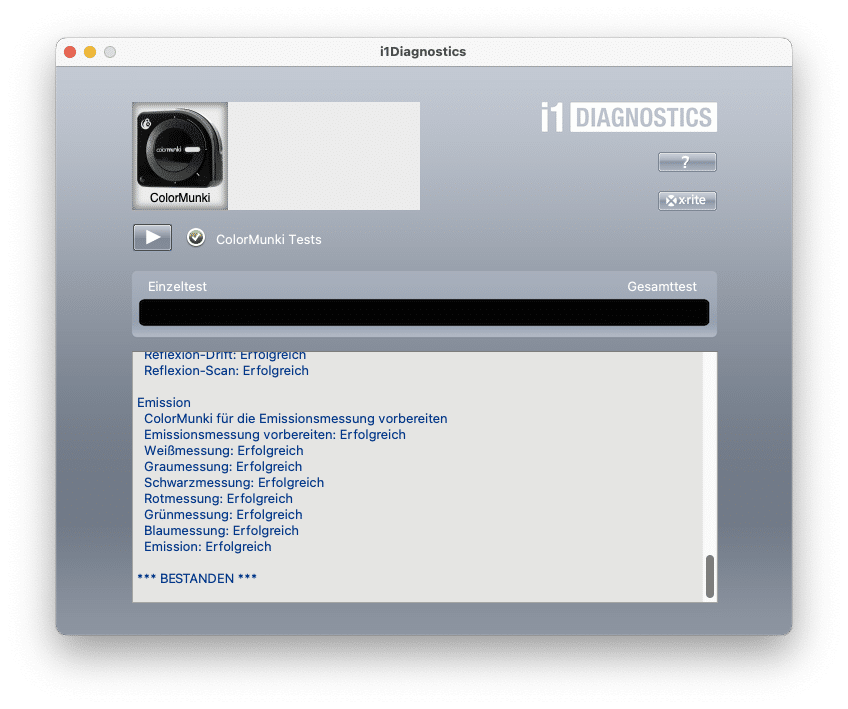
This includes some re-branded ones, like the PhaserMeter from Xerox, which just looks like a ColorMunki Photo. What makes things a bit confusing: there’s also a ColorMunki Display, which looks like the i1 series and is actually a colorimeter. We have used one of each for this article, and both are a few years old. If you find one that suits your purse, you can even test it with a free software called i1Diagnostics. Something that can deteriorate in the ColorMunki are the reflectors to detect the position of the rotating part. It can be repaired by cleaning or replacement with aluminium foil if needed. As usual, you can find the advice for repair at iFixit.
Software and Installation
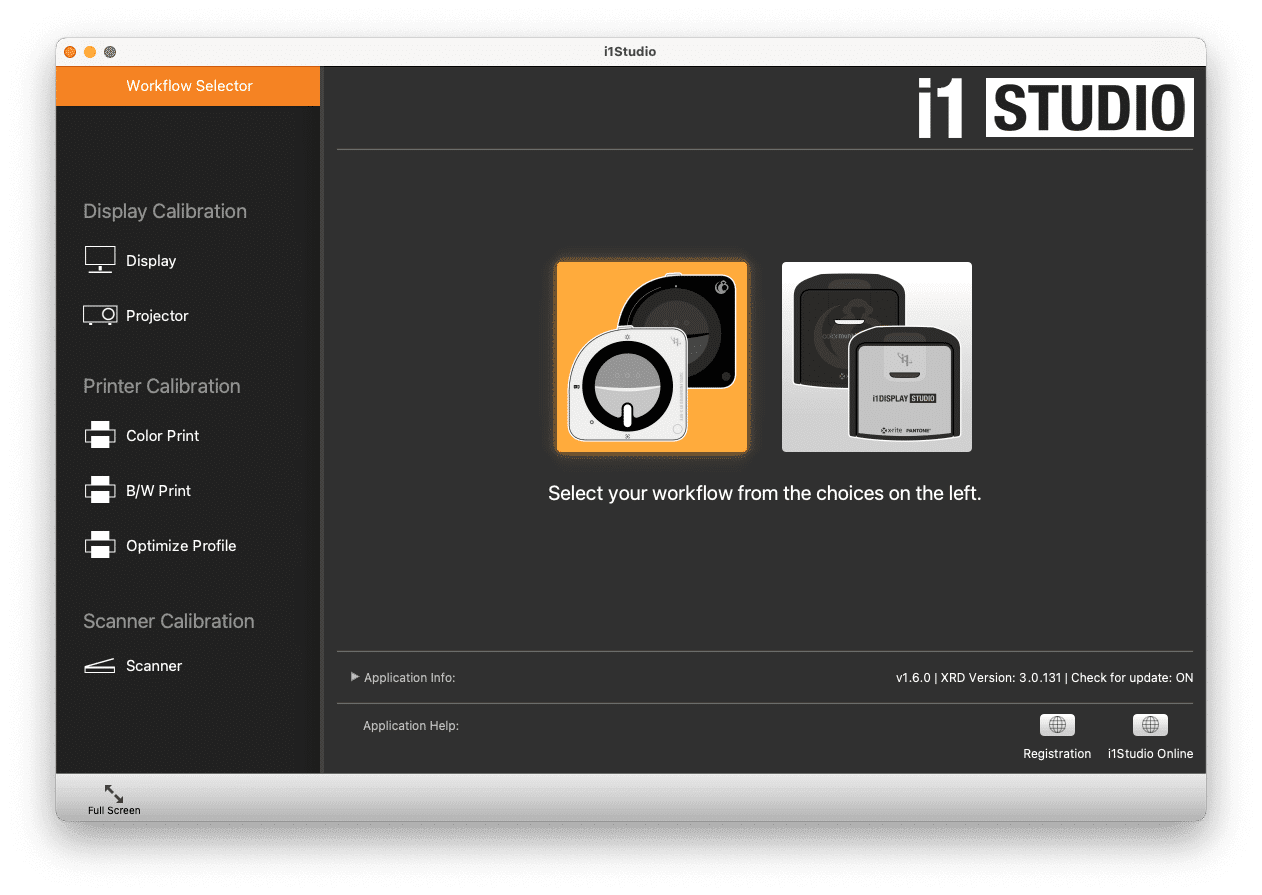
While you can freely download software for the X-Rite devices, which works even under recent operating systems and Apple Silicon, the devices themselves are the ‘dongle’ for this. So, the Xerox PhaserMeter, for example, will not work with the high-level i1Profiler, but is accepted by i1Studio. That’s a pretty easy to operate software with step-by-step instructions. But it’s not really the most precise kind of profiling, neither is it fast, and it will only generate ICC profiles.
What you really want for the use with DaVinci Resolve (DR for short) is a LUT for the monitoring path, which is not supported by i1Studio. Such a LUT can also be loaded into external devices, like LUT boxes, some monitors or TVs, and also madVR (for use as a player). There is an excellent open source software for this, called DisplayCal (based on Argyll). It had been a bit neglected by the original author Florian Höch – who can blame him, when so few donate? But thankfully, it has been resurrected as the “DisplayCAL Python 3 Project” by Erkan Özgür Yılmaz and Patrick Zwerschke.

We have used Version 3.9.14 under MacOS 15 Sequoia on Apple Silicon and it works fine for calibration, even if there are still some errors in the additional functions for analysis. It supports both instruments (and Spyders too). You’ll need to install Argyll (we used 3.3.0) and Python (here 3.13.2) too. Watch out: older versions of Python can crash DR. Scroll down to the installation instructions, the version for MacOS comes as a mountable DMG package you’ll only need to drag it into the applications folder. Apart from having Argyll and Python installed, you’ll also need to allow its use in MacOS with the command xattr -dr com.apple.quarantine /Applications/DisplayCAL.app.
Once you got everything arranged, we are going to tell you how to profile your screen with DisplayCal, together with test results from a cheap, but surprisingly good monitor.
Update on September 18th, 2025
Please make sure that you use the latest version of DisplayCal, which is 3.9.17 as of this day. There was a bug in earlier ones where the black point correction was applied even if switched off, which would make your blacks muddy.
