



Adobe After Effects has been proving its strengths in the areas of compositing and animation for many years. The software supports 3D layers, cameras, and lights. After Effects has had an integration for scenes from Maxon Cinema 4D since 2013. This allowed projects to be inserted directly into an AE project and subsequently edited. It was also possible to load 3D models into After Effects via plug-ins.
In the third quarter of 2024, Adobe released a beta that allowed the direct import of 3D data. With After Effects 2025.1.0, the functions are available as an official release. The models are treated as a 3D layer and the models can be placed in space. The supported formats include:
- OBJ (Wavefront Object)
- GLTF/GLB (Graphics Library Transmission Format/GL Binary)
- FBX (Filmbox) – only available in the beta version
A dedicated graphics card with at least 4 GB of VRAM is required for display in the After Effects viewer and for rendering the scene. Only then is it possible to use After Effects Advanced 3D. The rule of thumb here is: Computers with RTX graphics cards from Nvidia are recommended. The documentation for the Advanced 3D Composition Renderer provides extensive information on the necessary hardware for PCs with Windows and Apple Mac.
Importing 3D objects into After Effects
You can quickly find material for a test at Adobe Stock or Sketchfab. The files are dragged into the project panel like film clips or graphics or loaded via the import function in the file menu. From there they are placed on the timeline. GLTF/GLB models rarely cause problems during this step and the material is displayed correctly. This is not the case with the OBJ format: the material is often not assigned correctly. The issues can be corrected with a diversion via Blender. The objects are then written as GLTF/GLB for work in After Effects. Opening FBX is still in the beta stage and is already very stable.
Adjustments in the timeline
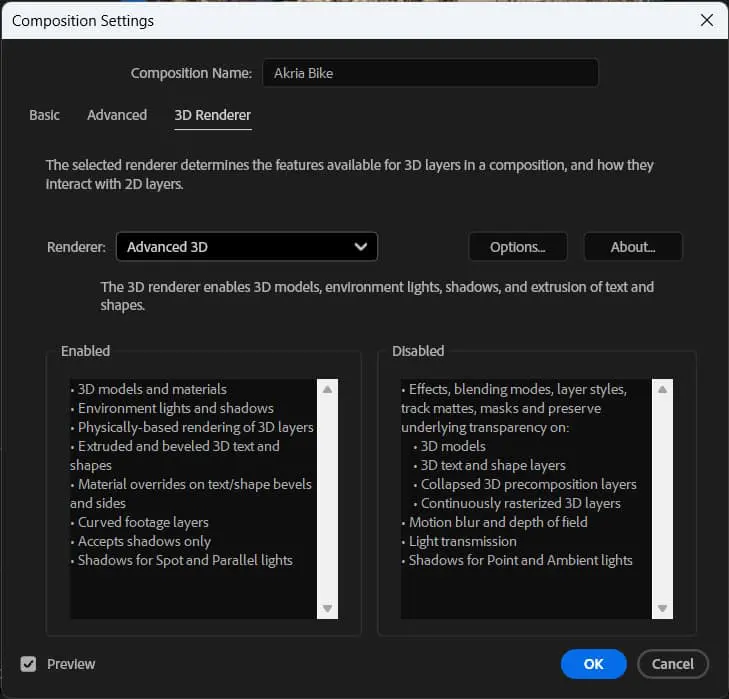
When inserting on the timeline, a dialogue for the model settings opens. Here you can adjust the size of the object to the composition and determine the length on the timeline. In the Advanced tab, the user will find options for axis alignments and the units of measurement used. Like other elements, the 3D objects on the timeline can be freely scaled, positioned and rotated in the scene via the options or the gizmo in the viewport. Animation via key frames is also no problem. The realistic display of the models in the viewport works. This requires a change to the 3D engine for the composition. The optimum result is achieved with Advanced 3D in the 3D Renderer tab.
For better interaction with the environment, we recommend using an ambient light. With the EXR option activated in the light source, the 3D objects interact with the environment. Reflections can be seen and surfaces appear more natural. Suitable EXR panoramas can be searched for on websites such as Polyhaven and downloaded for the project.
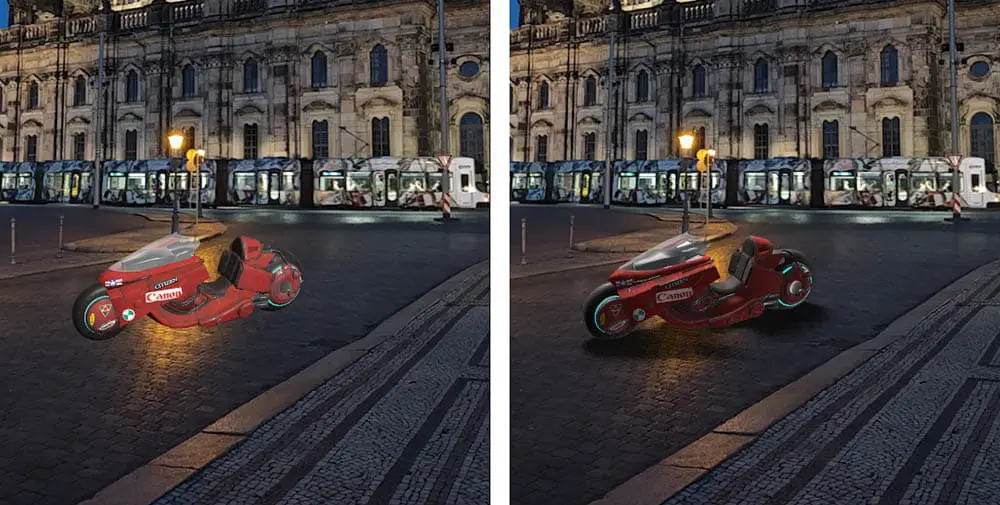
For realistic shadows on the background, position a 3D solid below the object. In the options for the element, the value “Only” is activated under Accept Shadow in Material Options. The solid disappears and only the shadows are visible. There are no problems with this workflow for videos without camera movement. The light alignment is then adjusted via the settings. For clips with a non-static camera, simply use the 3D Camera Tracker and create a new solid plus the corresponding camera from the data obtained. After aligning the 3D model to the surface, it moves parallel to the camera movement. The solid generated by the tracker can then be used immediately for the shadow options. It is not possible to apply filters or effects directly to 3D layers with a 3D object. As a workaround, a pre-comp is created after the animation has been completed. The effects can be applied to this.
Animations with the 3D objects
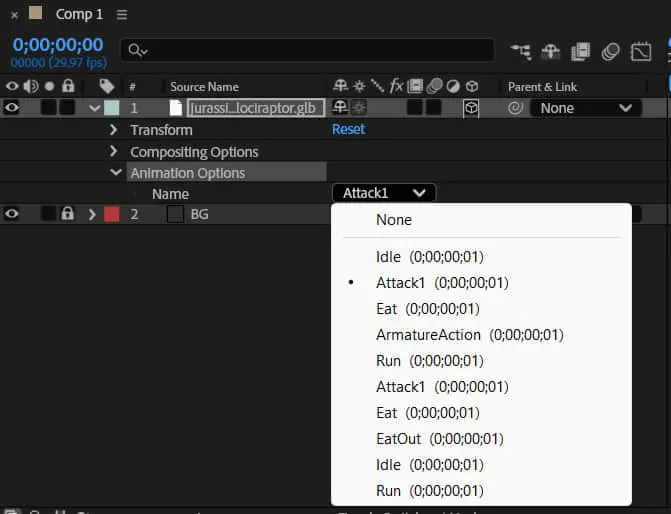
3D elements can be easily moved in the scene using keyframes. This works with vehicles without any difficulties. Flying objects glide along an animation path and can be moved realistically in curves with the help of rotations. In addition, with the GLTF/GLB and FBX formats, the creator can call up animations saved in the file. For this purpose, the Animation Options entry exists in the timeline for the 3D object. The predefined movements can be selected here.
Conclusion
Working with 3D objects in After Effects is successful and practical. The new functions expand the possibilities when designing scenes and make the design more flexible in many areas. Operation is simple and does not require the artist to have any special prior knowledge of 3D.
