



Blackmagic has released a new version, now 20.2, of its increasingly popular software for video editing, colour correction, visual effects, animation and audio editing. Originally developed as pure colour correction software, more and more functions were added over time and the software has since found a large following—particularly because of its outstanding price-performance ratio—and because beginners are enticed to take their first steps with a free version. So far, the software can be purchased without subscription obligations. The software seems more like a supplementary “side business” for Blackmagic, alongside its many high-end hardware products for film and television production.
Anima-what?
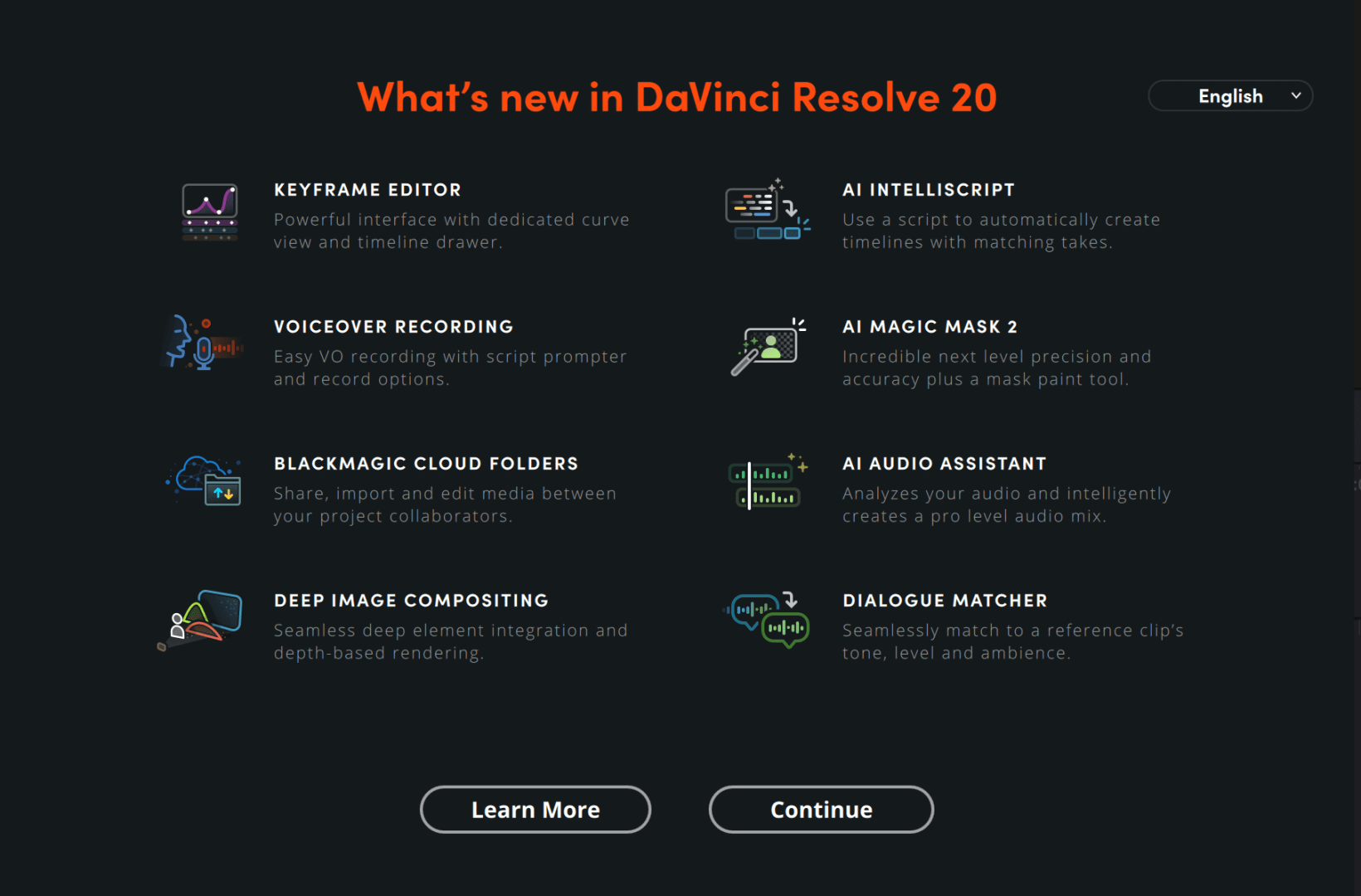
Countless tests and tutorials by enthusiasts of the programme are circulating on the internet. We have also published articles on DaVinci and indicated that we wanted to take a closer look at the software’s animation capabilities. Blackmagic proudly announces on its website that DaVinci Resolve is Hollywood’s number one choice for post-production. The list of features is correspondingly long and may well overwhelm beginners. The latest version is said to contain over 100 new features for all areas of video editing and post-production, including new AI functions for audio editing.
As already explained in other articles, DaVinci Resolve uses 7 workspaces, which are arranged to structure work in DaVinci (an explanation of this system was already provided by Alexander Richter in his article Goodbye Adobe Premiere): “Media for ingest, Cut for the first rough cut, Edit for the actual editing, Fusion for compositing and motion graphics, Color for, you can guess, colour correction, Fairlight for audio and Deliver for final rendering of files.” Even if this all sounds rather complex, most 2D animation and video editing programmes work in a similar way, with “individual differences,” as our colleague already mentioned.
Since DaVinci Resolve is essentially a huge collection of different tools, we have, as promised, focused “only” on the one aspect of animation for now. Of course, you should understand the principle of the 7 Pages in DaVinci, even if you “only” want to animate.

Everything Moves
In principle, all motion effects, in fact, all animation of parameters of imported objects in DaVinci, are based on the program’s sophisticated keyframe technique. Edit is not only responsible for the correct cut; it also allows you to quickly drag transitions, titles, and filters directly into the timeline and manipulate numerous parameters via the Inspector. By setting keyframes at different points on the timeline (click the small diamond-shaped symbols on the far right), animations can be created quickly and relatively easily.
Recently, the Edit Page also offers access to a convenient view of the keyframe editor (also as a floating window), where keyframes can be copied and moved, and animation curves can be edited using Bezier handles (for example, Ease-In, Ease-Out, Ease-In/Out, and Linear) easily accessible easing functions… a feature welcomed by many users. This method of animating in DaVinci is also suitable for programme newcomers and promises quickly acceptable results.

Pathfinder
Another animation method promoted by Blackmagic is path animation, something competitor programmes also offer. Animations along a path are highly requested by many users. DaVinci offers complex possibilities here.
One of the simplest methods, for example, aligning and animating text along a path, requires only a few clicks, if you know where to look. A “stripped-down” example: in the Fusion Page, you create a text node with one click. DaVinci automatically connects this to the obligatory MediaOut node. Afterwards, the Inspector offers various options to enter and edit text. Almost all settings can be animated using the already mentioned keyframes.
Pathplayer
To bring a path into play, in the Layout tab (next to the text symbol) the type should be changed from Point to Path. Then a curve can be drawn directly in the view window. The text immediately adapts to this curve. The curve can be edited, and the points and Bezier handles can also be animated. At the bottom of the menu there is an item “Right-click here for shape animation.” Oddly enough in testing, this worked flawlessly, but not on every computer (curves seemed to be generated, but were “invisible”). Maybe we should ask the people at Blackmagic about this. Paths can also first be created (or imported) as Polygon or B-Spline nodes and then assigned.

The Fusion Page overall offers, thanks to its node-based approach and additional complex effects for texts, blurs, masks, 3D animations and particles, even more possibilities for visual design than are found in the Edit Page. In the Fusion Page, unlike the Edit Page, only a single clip is ever worked on.
To use Fusion effectively, you should embrace the node-based approach (there are quite a lot of nodes, not all of them reveal their purpose by name, but if you already know the desired name, you can help yourself with the Shift and Space keys while searching). The display of nodes can be enlarged via right-click and “Show/Show Tile Picture,” so that helpful thumbnails assist with orientation in the Node Editor. Still, you should expect a learning curve that is not too shallow.

3D Effects
In Fusion, DaVinci Resolve can create or import simple 3D objects, e.g. in Alembic, FBX, or USDZ format. 2D graphics can be converted into 3D objects and assembled into a scene with the 3D renderer and lighting nodes. The options of the 3D tools are extensive and complex. Building a 3D scene appears more laborious than in “usual” 3D tools, though perhaps it is only a matter of practice?
Conclusion
Simple animations can quickly lead to acceptable results even for beginners. The ability to control almost every scene parameter with keyframes in the timeline makes such animations easy. The Fusion Page, however, already introduces a corresponding learning curve. Node systems take some getting used to for some, although for professionals they are effective once accepted and understood. The range of functions with filters and effects is huge. The names of the nodes are not always self-explanatory. Many of the possibilities for effects and animations can already be created by experienced users with some of DaVinci’s basic tools (even with the free version).
The 3D tools appear relatively cumbersome, as is also evident from some of the many video tutorials circulating on the internet and they are obviously to be regarded more as a supplement to the “all-round programme.” Overall, DaVinci Resolve is not only suitable as a highly effective film editing and effects software, but also for many areas of motion graphics animation.
