



This article originally appeared in DP 05 : 2018.
Elaborate feature shows are adorned with impressive visual effects to skilfully showcase the digital set or the skills of individual actors. One example is a scene from the X-Men universe in which a young girl named Raven Darkholme – later known as Mystique – changes her appearance. Her natural appearance consists of bright red hair, yellow eyes similar to a reptile and a skin surface in dark blue tones, which is partially decorated with patterns. If you are a 3ds Max 2O19 user, you can use the Max Creation Graph and the Data Channel to create and customise effects for the shape transformation.
The fictional character named Mystique, played by Rebecca Romijn and Jenni fer Lawrence in “X-Men: Apocalypse”, – – can adapt her natural form. In the feature, the mutant Mystique takes on the form of different people. During this shape-shifting process, the original reptilian-like blue skin, more specifically individual scales, are partially deformed. It is almost as if the scales, together with an impressive animation, were to turn inside out and take on a different shape. And this deformation takes place on the entire body, but not at the same time, but partially. In order to recreate this effect in the latest version of 3ds Max, the entire effect must be broken down into individual components and built up one after the other. The modular structure of the effect enables step-by-step refinement at a later stage and allows the effect to be built up on different levels.

First replica of the scales
Before we even think about the effect itself, we need to build the foundation in the form of scales. For the sake of simplicity, we will first use a cylinder consisting of polygons whose top and bottom have been removed. It is important for the first test that the resolution of the polygons results in a pattern of square polygons. It is important that each individual polygon now exists as an independent element. Whereby independent does not mean being managed as a separate object in the hierarchy, but rather intersecting the individual polygons so that they have no connection to the others.
However, the standard functions and modifiers do not fulfil the desired purpose and digital artists want to create their own solution. In this case, the Max Script Creation Graph – MCG for short – is ideal. This is a kind of visual Max Scripting for creating your own modifiers or objects for the Create Panel. An MCG can be created via the scripting menu and a click on the “New Max Creation Graph” button.
A new window opens with a graph in the centre, the available nodes on the left, their properties on the right and a log output area below. The first step is to define the base. In this case, a new modifier is to be developed that can be applied to all objects and cuts the individual surfaces into separate chunks.
The X button can be pressed to make it easier to find nodes. In the search window, keywords can be used to search for specific nodes. To start the development of a modifier, two nodes must be inserted into the graph: a modifier mesh, a node that reads the input of the geometry in the stack, and a modifier output node. The logic is then built up between these two nodes. It is advisable to save the tool in the early phase and give it a suitable name so that it can be found and used in the modifier list. The node tree is evaluated and checked for errors using the shortcut Ctrl E.
It is exciting for the expansion of the graph that Autodesk has already prepared frequently required functions in nodes. This means that the node called “Split Mesh into Polygons” can now be created directly and linked to the Mesh Input Node. If you now want to link the newly created node to the output node, this will not work as a mesh is expected as the output and not an array with objects. Therefore, an Attach all Meshes node would have to be created and inserted in between. All individual surfaces thus become one object (mesh). The inputs and outputs of the nodes are also colour-coded and equipped with different symbols to make the different functions and data types easier to identify. In principle, the system would now work. It is important that it is saved and evaluated after every change.
Data Channels for President!
The Data Channel Modifier is a real blessing for many 3dsMax users – a tool that makes the automation of complex modelling possible. But what does this mean? Objects consist of a variety of different sub-categories of data such as different geometry layers (vertex, edge, face), vertex colours, world coordinates, certain selections (volume selection), texture mapping information and many more. The Data Channel Modifier provides an operator stack that allows the data to be accessed individually, assigned functions and output. In this example, the skin transformation is realised by using the Data Channel Modifier.
However, the first step is to assign the modifier that was previously created to the underlying cylinder – the separation of individual surfaces. The data channel modifier is then added. The “Parameters” field contains the previously mentioned operator stack. Before the operator stack is filled, a small setup must first be created in the scene. The surface of the cylinder represents the skin. However, this should not be transformed all at once, but rather partially as in the “X-Men” feature show. So first a spiral is created around the cylinder by using a helix in the Create Shapes panel. The spiral must be lower than the bottom of the cylinder and end higher than the top of the cylinder. The initiator of the effect is also required. A point or null object, which can be found in the helper objects, is used for this purpose. The null object is assigned a motion Using visual programming, you can create your own modifiers. This can be found in the motion panel via the plus symbol as soon as the position line has been selected. Click on the “Path Constraint” option in the motion controller selection options. The spiral must now be defined as a path. The helper automatically follows the path from start to finish based on the underlying frames in the timeline. As you move the timeline slider, the position of the helper is changed. At this point, you can exit the Motion Panel and open the Modifier Panel. The cylinder’s data channel modifier must now be brought into focus again.
Transformation set in motion
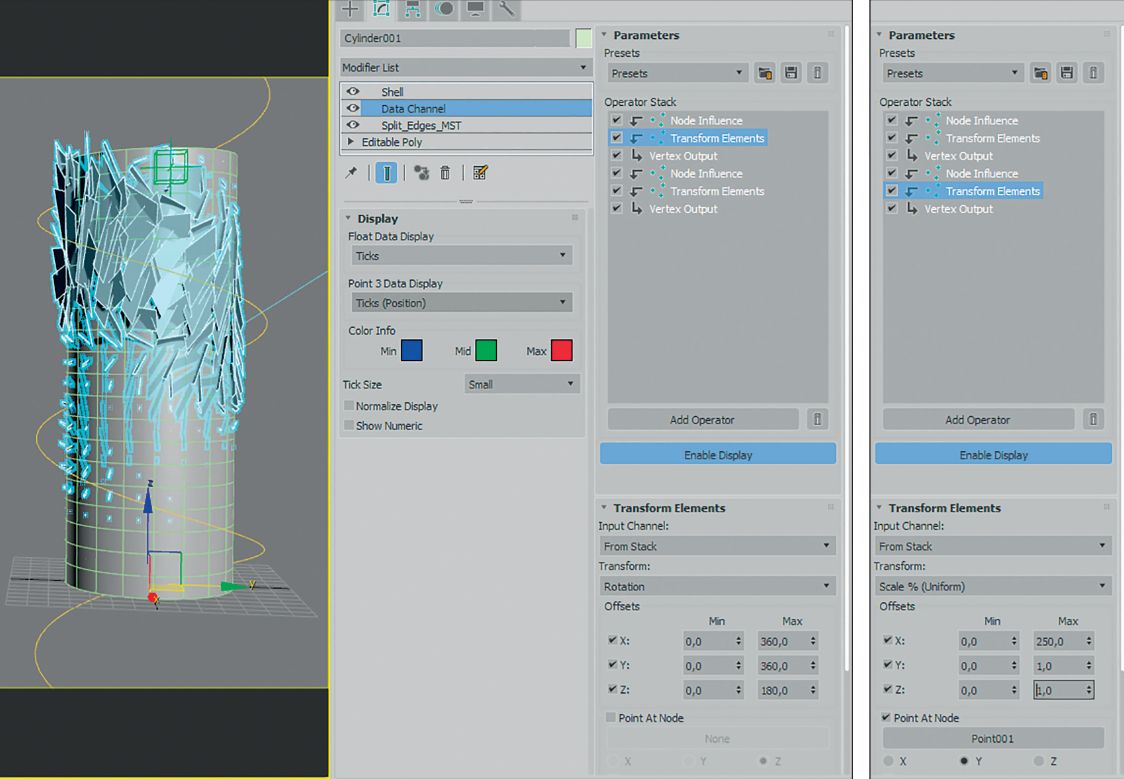
The data flow in the operator stack is defined by an input operator, followed by the process operator, and then an output operator must be integrated. What do I want to define as input? How should the input be processed? What should be output after processing? Three questions that describe the flow in a simplified way. The “Add Operator” function below the operator stack opens the list with all available operators. The first operator required is called “Node Influence” and is moved to the operator stack using drag-and-drop. The setting options for the operators are displayed directly below the operator stack after selection. Firstly, the helper must be stored as the driving node for the influence operator, followed by the setting that the influence should affect the elements. The hold time can be set to a value of 70 in advance. A parameter that specifies how long the effect should continue to act on the preceding elements until it returns to its initial state. The maximum radius of the Influence Operator must be adjusted as required. This depends on the system units and how large the cylinder is as well as how far the spiral (helix) is from the cylinder. A value of 40 is used in the example.
A Transform Elements operator is now added as a second operator. The operator itself is self-explanatory, but not how it has to be set. Autodesk recommends always setting the operator mode to Replace. This is done by right-clicking on the operator and selecting “Replace”. The change becomes visible when the operator symbol is changed to an input symbol. The next step is to select “Rotation” as the transformation method for the elements of the underlying objects. It is important to activate the offsets for X, Y and Z and to set the values X and Y to 360, while Z is changed to 180. The behaviour of the cylinder is used as an example to illustrate that the scales transform to different degrees by generating significantly more visual energy for the eye in the transformation areas.
To make the effect visible in the viewport and for rendering, a vertex output operator must next be inserted into the operator stack. You can now see the visual result up to this step. The colour coding in the viewport can be adjusted within the display field of the data channel modifier.
Adjust scaling
The prototype of the effect is then equipped with a function to increase the scaling of the surfaces the closer the helper gets to the geometry of the cylinder. For this purpose, another data flow is built into the operator stack, directly below the existing flow. In other words, a flow must be created that is virtually identical to the first one. Three operators are therefore required: firstly, a Node Influence Operator. This is joined by a Transform Elements Operator in Replace Mode and a Vertex Output Node to complete the data flow. It is important that, in addition to the identical settings for the Node Influence Operator, adjustments are made in the Transform Elements area. Instead of the rotation, this time only the scaling (uniform) should be influenced. The minimum value can remain at zero, but the maximum value should be raised to at least 150, preferably 200. To give the effect far more visual energy for the viewer’s eye, the “Point at Node” function is activated and the helper is added as a node along with the active “Individual Elements” function.
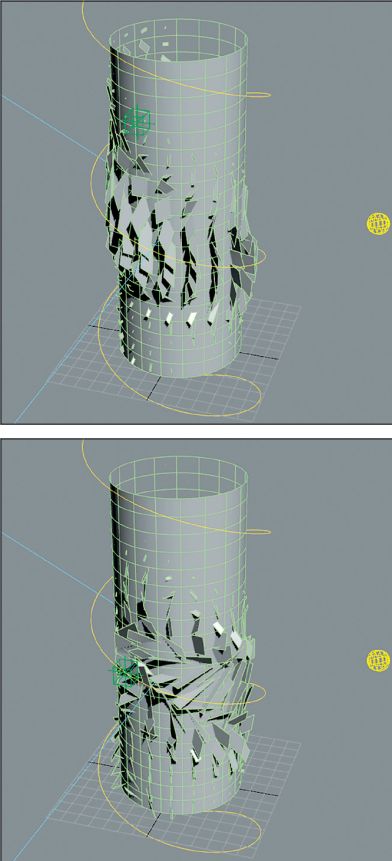
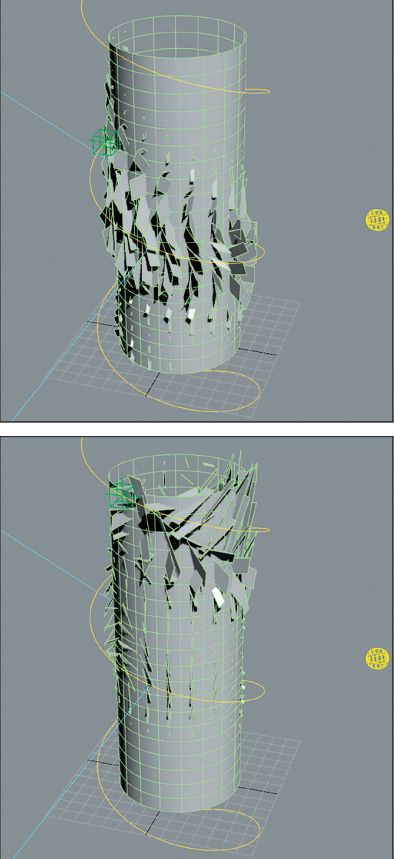
The settings described so far cause the helper object to circle around the cylinder in a spiral. The closer the object gets to the cylinder, the larger the symbolic scales are scaled, rotated in three dimensions and orientated according to the position of the helper. Up to this point, the effect should create a plausible visual energy. The effect can be staged by duplicating the basic object of the cylinder and scaling it 0.1% inwards in X and Y. This simplifies the adjustment of the prototype effect.
Further thoughts
We are still actively developing a prototype for the desired transformation effect as with Mystique. Developers can now consider realising the scaling and an additional offset of the scales. For the sake of flexibility, the ideas are incorporated into the MCG. The starting point is the existing graph, which accepts geometry and cuts it into individual surfaces.
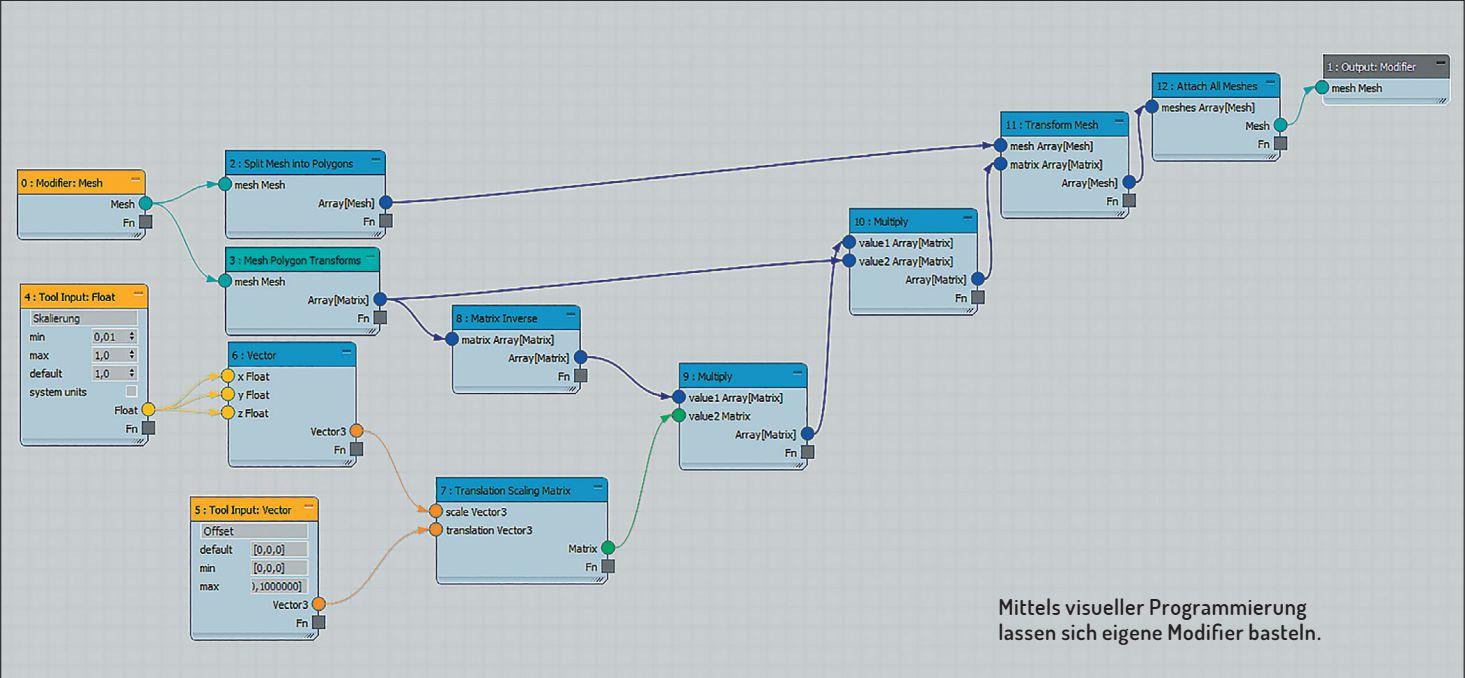
Firstly, two parameters are required that can be set externally. Two tool input nodes are created for this purpose: a float and a vector variant. The float input is labelled “Scaling”, the vector is labelled “Offset”. For the scaling, the value range 0 to 1 is defined with a default value of 1. For the offset, on the other hand, the minimum is set to 0, while the maximum can be left at the default. The default value for the offset is 0 for X, Y and Z. As the scaling is to be uniform in all dimensions, a vector node must be created whose three inputs are connected to the output of the scaling input. A scaling and a position change are now available. A translation scaling matrix is therefore required to connect both parameters. The vector node of the scaling is connected to the scale input of the matrix node. The still open translation input comes from the offset vector. Before continuing at this point, the transformations of the respective polygons of the underlying object must be provided. This is done via the node called “Mesh Polygon Transforms”, whose input is connected to the output of the modifier mesh input node.
Before scaling and offsetting can take place, a certain principle must be realised. Namely, the individual polygons must be aligned to the local centre point (origin). Figuratively, you can imagine that the individual polygons lie on the origin with a centred pivot element. Scaling and offset are then applied, after which the polygons are brought back to their original position.
To realise the first step, the placement of the polygons at the local origin, a matrix inverse node is created and linked to the input of the mesh polygon transform node. The offset and scaling are applied by multiplying the matrix inverse node and the translation scaling matrix. It is important to know that the first input of the Multiply Node defines the output format and must be worked with caution. The first input of the multiply node is therefore an array with polygons and the second input is the matrices (offset and scaling).
To return the polygons to their original position after the offset and scaling have been applied, a new multiply node must be created. The first input of the new multiply node is connected to the output of the previous multiply node, i.e. the result when the polygons are transformed based on their local centre point. The second input is linked to the output of the mesh polygon transform node. The multiplication now returns the transformed polygons to their original position.
The results of the second multiplication must now be transferred to the different polygons. This is done in two stages. For the first stage, a node with the name “Transform Mesh” must be created. The node receives an array of elements and transforms the elements according to the underlying array of matrices. In order to obtain the required output for the modifier, namely a mesh, the Attach All Meshes node was created beforehand. The output of the Transform Mesh Node must now be attached to the Attach All Meshes Node. At this point, the entire code must be evaluated and saved. If you then check the modifier, the new parameters become visible.
Close connections
The two new parameters have a positive influence on the effect. If further auxiliary objects are inserted at this point, individual parameters can also be linked to other parameters. The new connection allows you to control animations and simulations automatically. For the sake of simplicity, we recommend using the Alt 5 key combination. Alternatively, you can also select an object whose attributes you want to link to another object. Once an object has been selected, search for “Wire Parameters” in the “Animation” menu. The small menu allows the user to either open the aforementioned window directly or execute the “Wire Parameters” function. The latter allows the user to select a target object and select a parameter directly on the object. This is a kind of guided application instead of a window in which settings have to be made manually. In short: there is no need for a long search. Once the pair of parameters has been selected, a connection only needs to be established using the “Connect” command. If you now consider the possibilities of prototyping in the development of effects as described in this publication, an almost inexhaustible potential is unleashed. In one fell swoop, you are no longer dependent on existing tools with sometimes rudimentary functionality and can write your own. If the mesher object in the compound objects is not sufficient because the position of the particle system from which you want to generate an object is not taken into account by the mesher because it uses its own, then you can use MCG to develop your own object in no time at all, which provides far more functionality than the mesher. For example, the manual addition of points in an artistic context in order to place other objects in the scene in a targeted manner.
Even if the graphs are very complex in some applications, Autodesk has left the option of working with compounds open in the MCG, in contrast to the Slate Material Editor. Sub-networks, so to speak, of an existing complex graph, a series of MCG nodes, which are provided with compound inputs and outputs in order to then store them as independent operators in the node list. The newly created nodes can be exchanged like self-created MCG modifiers and MCG objects within a production team.
