



Table of Contents Show
In addition to the previous capabilities in upscaling and de-interlacing, changes to the frame rate up to slow motion, stabilisation (still in beta) and noise reduction are now offered. There is a command line control and the programme should have no problems with variable frame rates, as is often the case with smartphones and computer recordings.
GUI
Despite all the technical performance, the user interface still seemed a little clumsy, but Topaz Labs has thoroughly tidied things up here. Batch processing in particular, including processes running in parallel, has become much clearer. It can now be organised according to previews and export tasks and their status as well as well-estimated remaining times are visible at first glance. If several variants are to be created from one original, this is also unproblematic. Unfortunately, it is not yet possible to change the order in which the tasks are to be processed, which would be useful for the lengthy calculations.
The selected processes and their parameters are displayed on the right, with useful presets and brief explanations of the properties of the respective AI models. To do this, you must leave the cursor on the headline or the respective icon, not on the word itself. For the output, you can choose from all containers and codecs that ffmpeg can handle, as this is what TVAI is based on. Accordingly, hardware encoding of H.264/265 is also offered if the computer supports this.
In addition, very high-quality video formats with a large bit depth are also available, for which you previously had to output image sequences from Video Enhancer AI. However, this also means that a codec such as ProRes is not the original version, but the version from the free programme that is not authorised by Apple. Technically, this is not usually a problem, but some customers may find it annoying.
A number of models and filters can be combined. But you can’t stack every combination, e.g. you should perform high-quality de-interlacing with “Dione” and only then apply optimum upscaling to the result with “Proteus”. The imported material can be trimmed to a desired area using “Trim”, but unfortunately the timecode of the original is not displayed, which would of course be very helpful in the workflow. This could probably be easily changed, because if TC is present in the source, it is passed through to the final product.
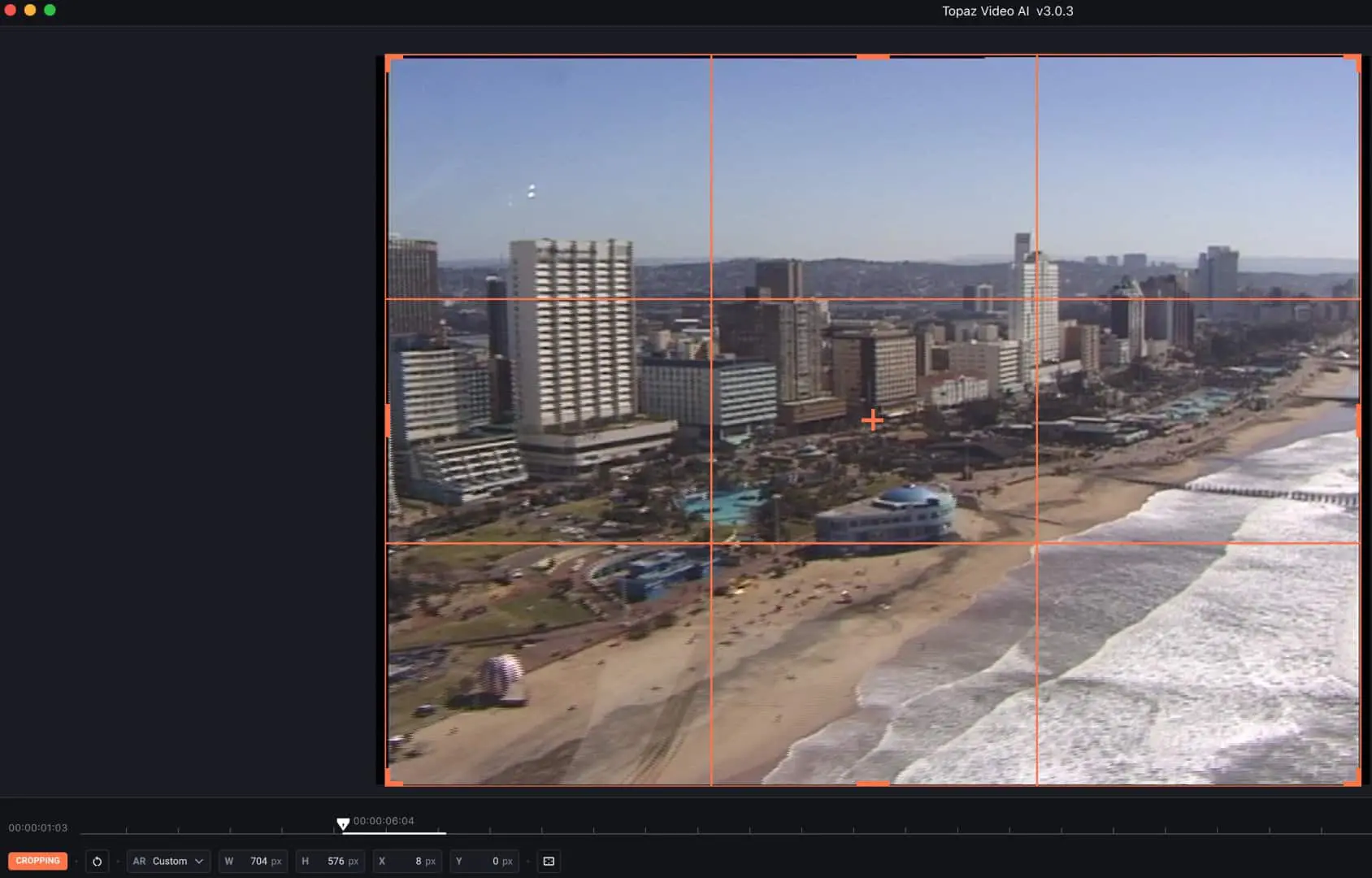
You can also crop the source, as is necessary for the thin lateral bars of DV or the blanking interval of analogue sources. The pixel values are displayed precisely. TVAI also recognises the format of non-square pixels if the corresponding flag in the source is correct. The programme cannot handle inverse telecine (i.e. the removal of redundant fields in NTSC film copies), but any good editing system today can do this in a flash.
The selection of the appropriate AI model is simplified by optimised suggestions, with some you can no longer intervene at all, but you don’t have to. So far, TVAI does not save any projects and their settings, which is why you are only asked whether you mean this first when you exit the programme. As long as the programme is rendering in the background, there is unfortunately no progress bar under its icon. If you need the computing power for something else, you should simply stop running processes and leave the programme open in the background.
Any malfunctions are only displayed with a red X next to the process at first glance, but clicking on it leads to a more detailed explanation. The calculations ran reliably during testing with version 3.0.3, there were only two minor issues. During output (here always in ProRes 422 HQ), the first image was black and was displayed as offline in DaVinci Resolve. When de-interlacing, the first few frames were black. In addition, the entire GUI sometimes flickered during the calculation.
De-interlacing and scaling
The programme naturally continues to perform the original main task of upscaling. The AI models recommended for this are comprehensive and quite varied. “Gaia”, for example, has only two fixed presets for high-quality sources or for computer graphics, while “Artemis” has five for material of varying quality. When an AI model is used for the first time, TVAI first has to download it, which can take a while depending on the internet connection. Later, the saved models are used and the internet connection is no longer necessary.
This can add up to quite a lot; by the end of the test, we needed a good 2.7 GB of space. The models “Theia” and “Proteus” (incidentally, these are all figures from Greek mythology) can be adjusted in
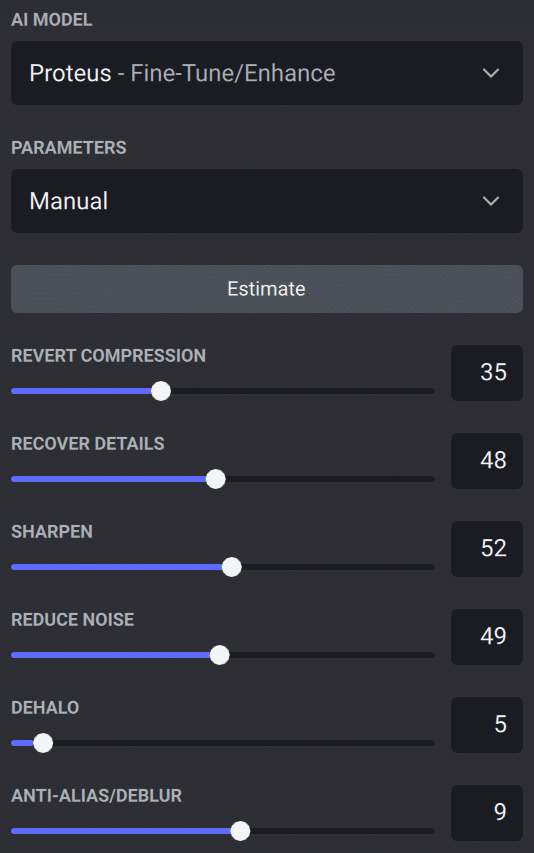
The models “Theia” and “Proteus” (incidentally, these are all figures from Greek mythology) can be adjusted in detail, e.g. to reduce compression artefacts, moiré or noise, to sharpen the images or to add some structure as noise or ‘grain’ to overly smooth images. Proteus even offers the option of analysing the material and suggesting suitable slider settings.
Of course, we were not able to test all models for all types of sources, and certainly not with all adjustment options. We tested two types of typical sources from the early digital era, both with interlace. One source was in DVCAM in PAL format of 720 x 576 from a semi-professional camera with an aspect ratio of 4:3. The other was HDV in 1080i with 1440 x 1080, i.e. a pixel format that also has to be ‘stretched’ for 16:9. In both cases, the digitally copied original was read by TVAI without any problems.

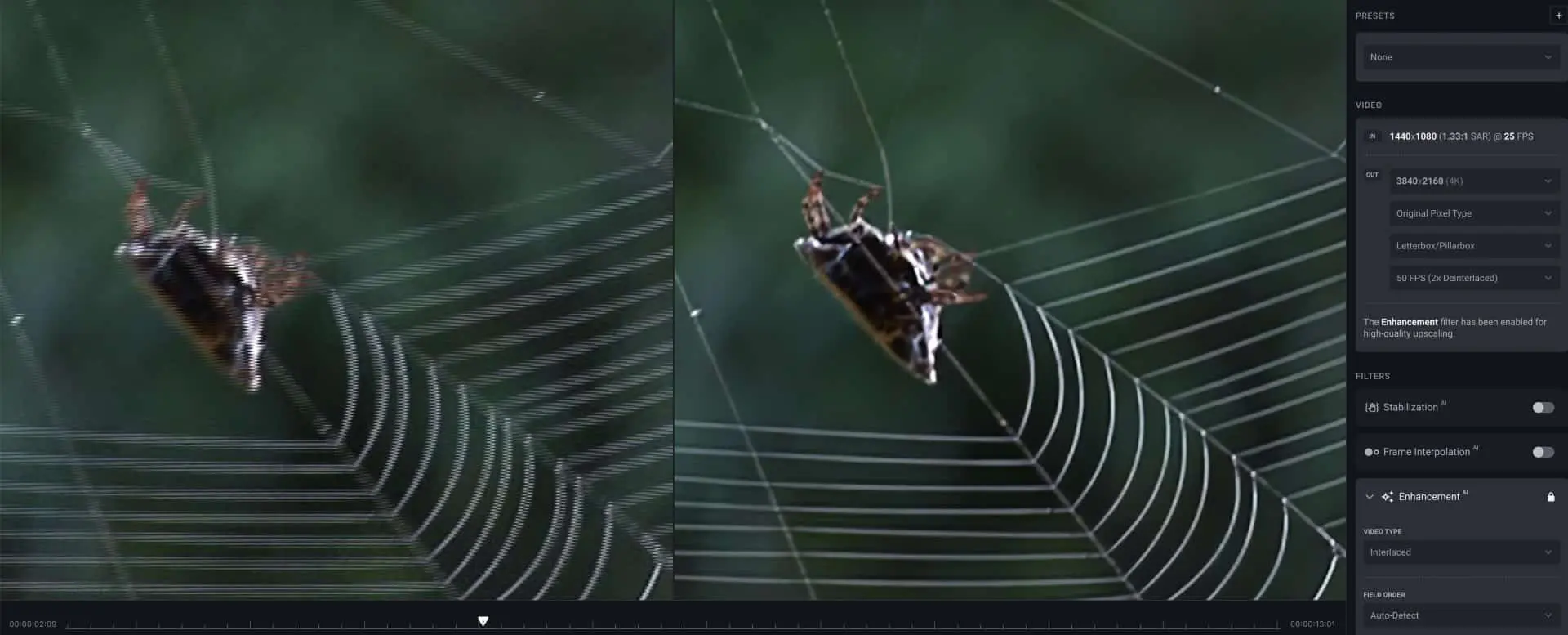
In our early test of Video Enhancer AI, we still had to work with tricks, but now the programme is capable of de-interlacing. However, this function is not offered automatically based on the flags. We first had to switch to “Interlaced” under “Video Type”, but then TVAI does an amazing job. It automatically converts the PAL recordings to 50 fps so that the temporal resolution is retained and always uses a variant of the “Dione” model for this.

What came out of our DVCAM source in HD is quite impressive. It was not a drone shot (which did not exist for civilian purposes at the time), but a handheld camera in a helicopter. No other de-interlacer was able to handle the particularly critical parallel line structures on the buildings like TVAI. Only in the case of short, fast vibrations did the motion blur prevent an optimal reconstruction of the contour lines. However, a trial with scaling to UHD led to results with a manga look.

As a cross-check, we also scaled down a clip in UHD from a high-quality camera to SD (to 1024 x 576) with minimal compression and ‘blown up’ it again with TVAI. It looked quite decent in HD, but no longer in UHD. In parts of the image, the AI then invented structures that did not even exist in the source. The rest was not pixelated, but blurred. Even if the software offers much more extreme scaling, we would consider this to be of little use. Especially as modern TVs scale so well from HD to UHD that it hardly bothers you at a normal viewing distance.
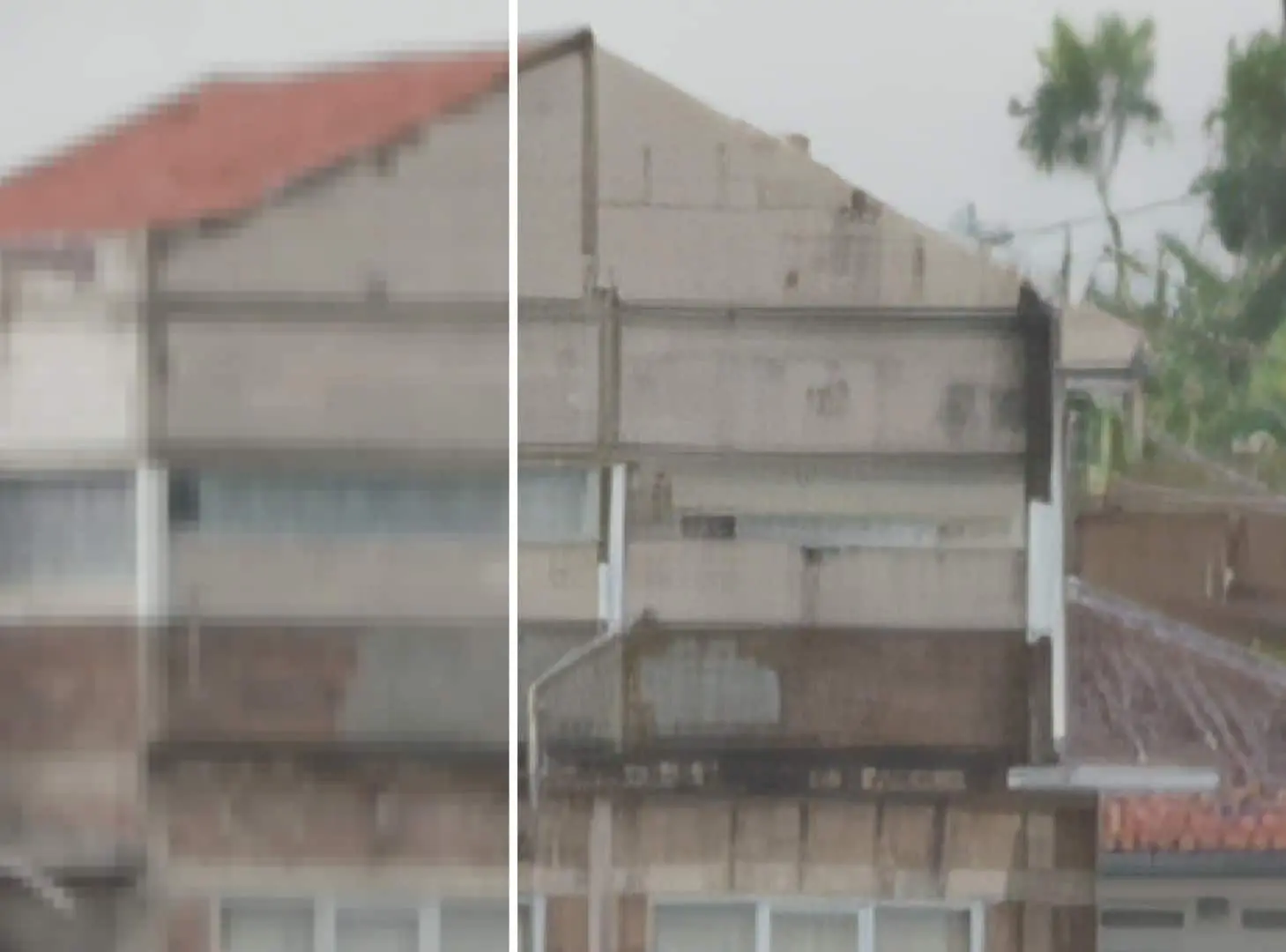

For comparison, we ran the material through the ‘neural’ de-interlacer in DaVinci Resolve Studio (DR for short) and upscaled it with its SuperScale. While differences in the scaling
were only recognisable on very close inspection, the de-interlacing was significantly weaker. Only the freeware QTGMC, which we had already tested at the time, comes close to the results from TVAI, but is somewhat cumbersome in professional practice. The results from HDV, especially with natural textures, are also impressive in UHD. The de-interlacing was just as flawless here.
Intermediate images
Since, according to Topaz Labs, TVAI also obtains the reconstruction of details from the neighbouring images, the generation of additional images for slow motion or format conversions (e.g. 24 to 50 fps) was obvious. The programme suggests “Chronos” as the AI model for an extension up to four times, and “Apollo” for even higher values. However, you can also choose freely between these models. Chronos Fast” does not calculate faster, but is supposed to recognise fast movements better; Apollo actually calculates a good 20 percent faster.

Which is better in terms of results seems to depend more on the subject. To compare the quality, we again used the studio version of DR and set the “Speed Warp” algorithm under “Optical Flow”. You won’t find this in the project, but only in the “Inspector” for the individual clip. Although it also works slowly, in our experience it is usually the best option for slow motion. The results are difficult to distinguish from each other if the DV material has previously been freed from interlacing with TVAI.
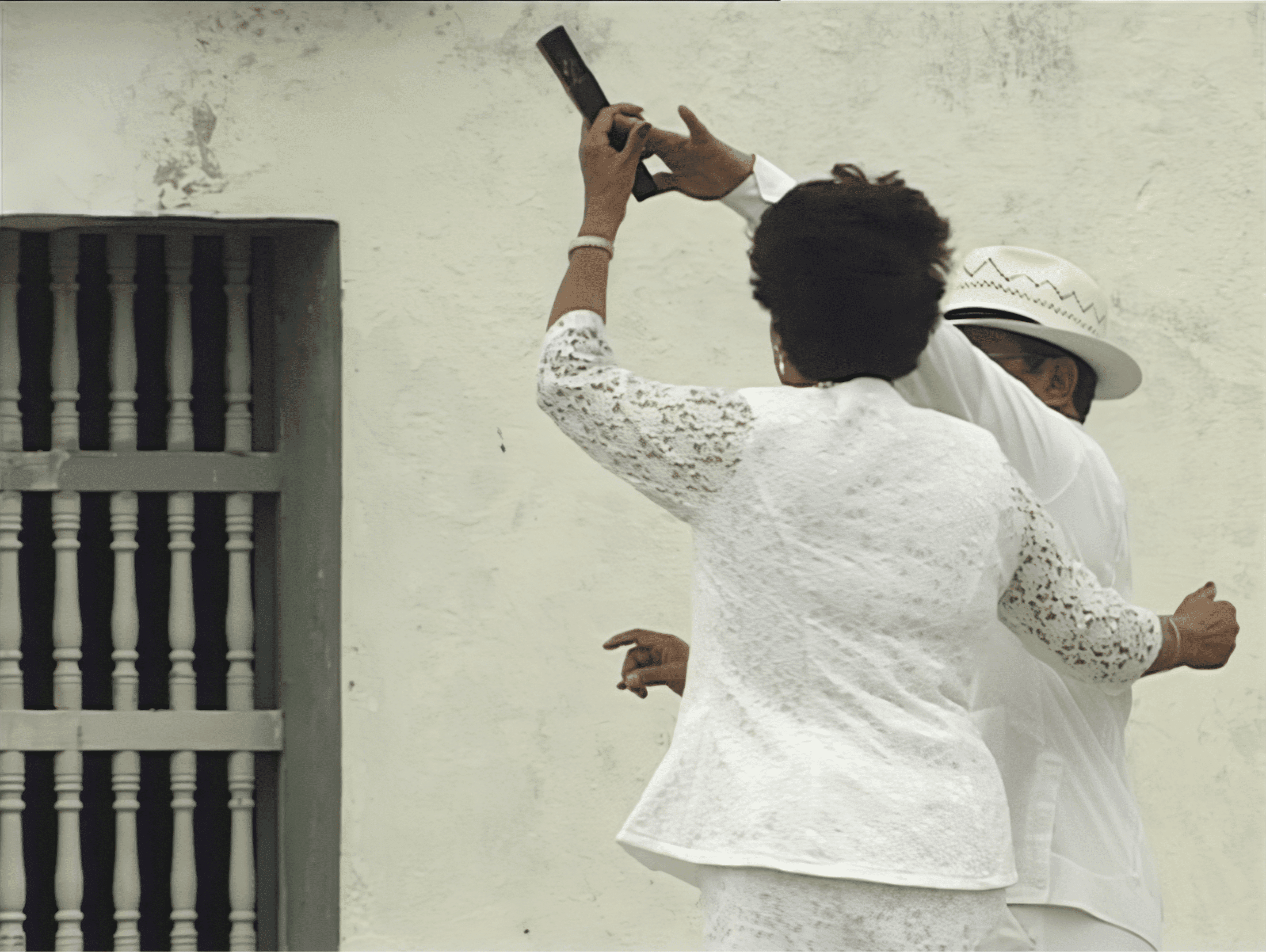
On closer inspection, both methods have similar problems with overlapping movements or the dragging of parts of the background, and yet both are clearly superior to the common optical flow methods. These errors will hardly be noticeable to an untrained observer for many motifs. The calculation times do not differ drastically here, Apollo is around 6 per cent slower than Speed Warp.
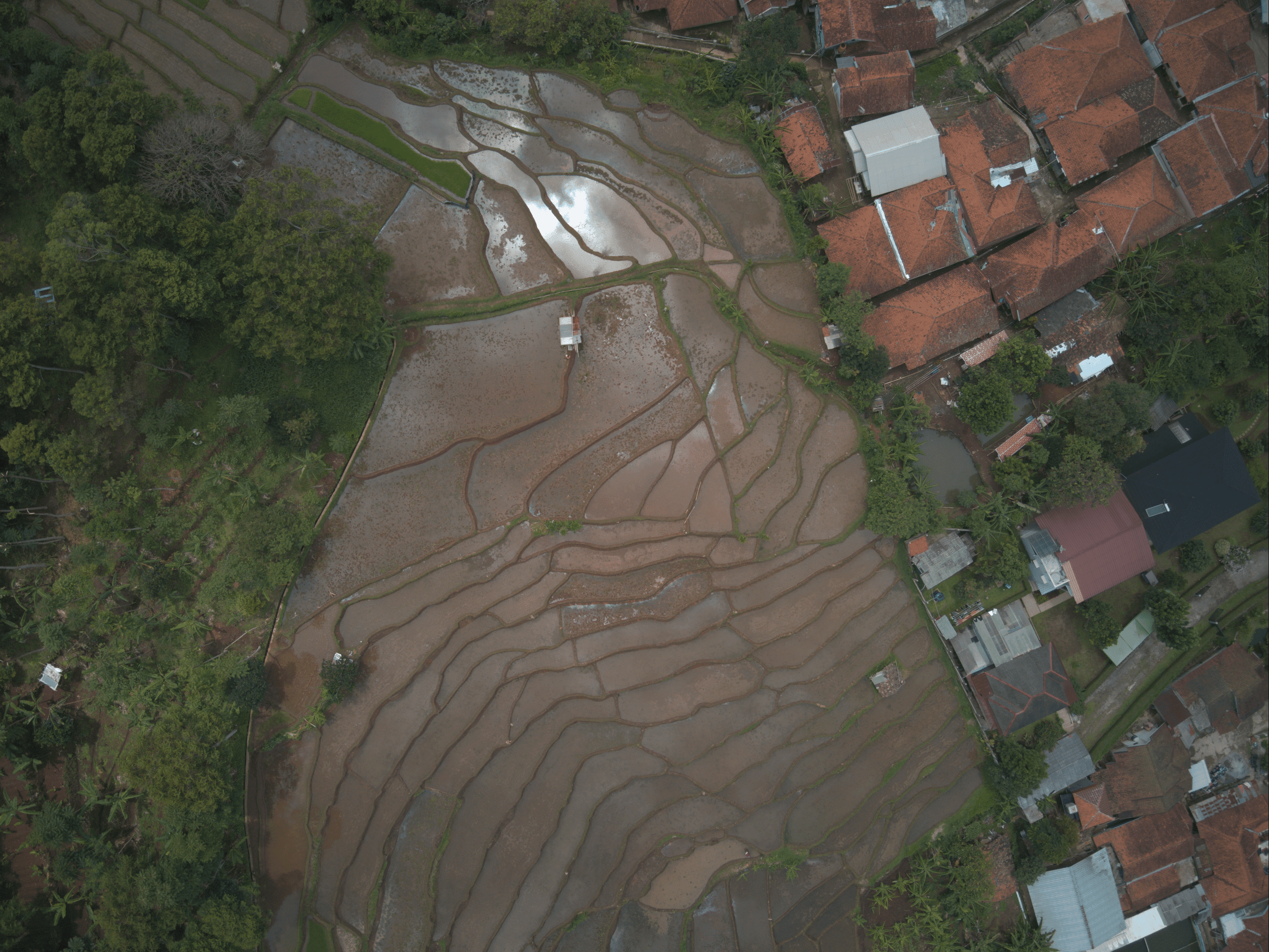
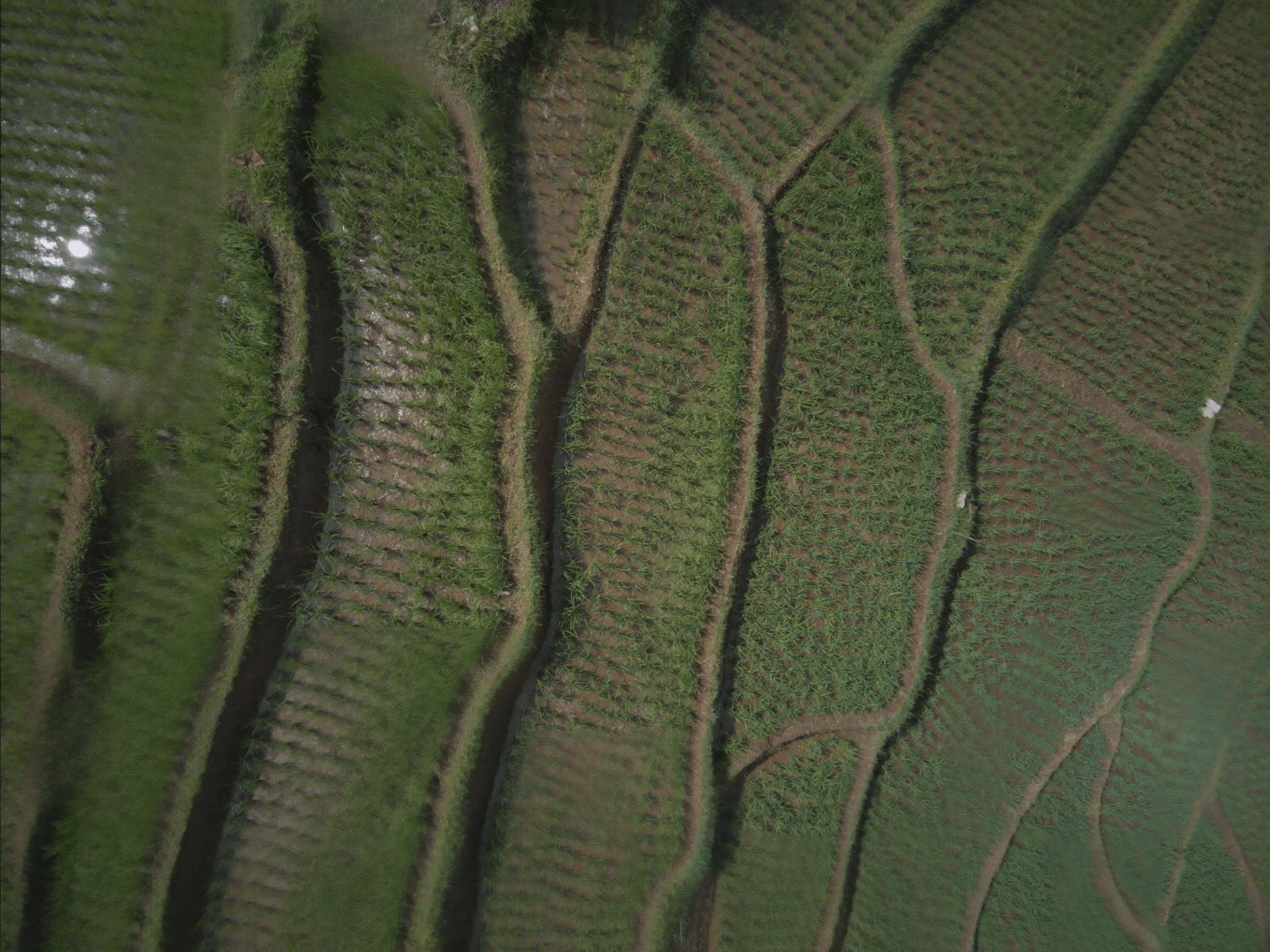
The slowing down of a drone shot over a rice field was very interesting. It was actually a series of individual images that were to be stretched as a sequence. Both programmes produced excellent results with a vertical movement. However, with a transverse movement, in which the motif was characterised by many repetitive structures in the plants, both failed and produced almost identical artefacts. There’s nothing like real slow motion from the camera; in all other cases, success is heavily dependent on the subject.
Image enhancement
Yes, they still exist, the small improvements through “enhancement”, primarily with Proteus. It is designed to reduce compression artefacts and noise and bring out real details. We tried it with deliberately over-compressed and not entirely noise-free material that had previously been run through an H.264 encoder in UHD at too low a data rate. But the results require a lot of “pixel peeping” to see the progress, and one wonders whether this justifies computing times by a factor of 10 to 20 on hardware that isn’t quite weak.
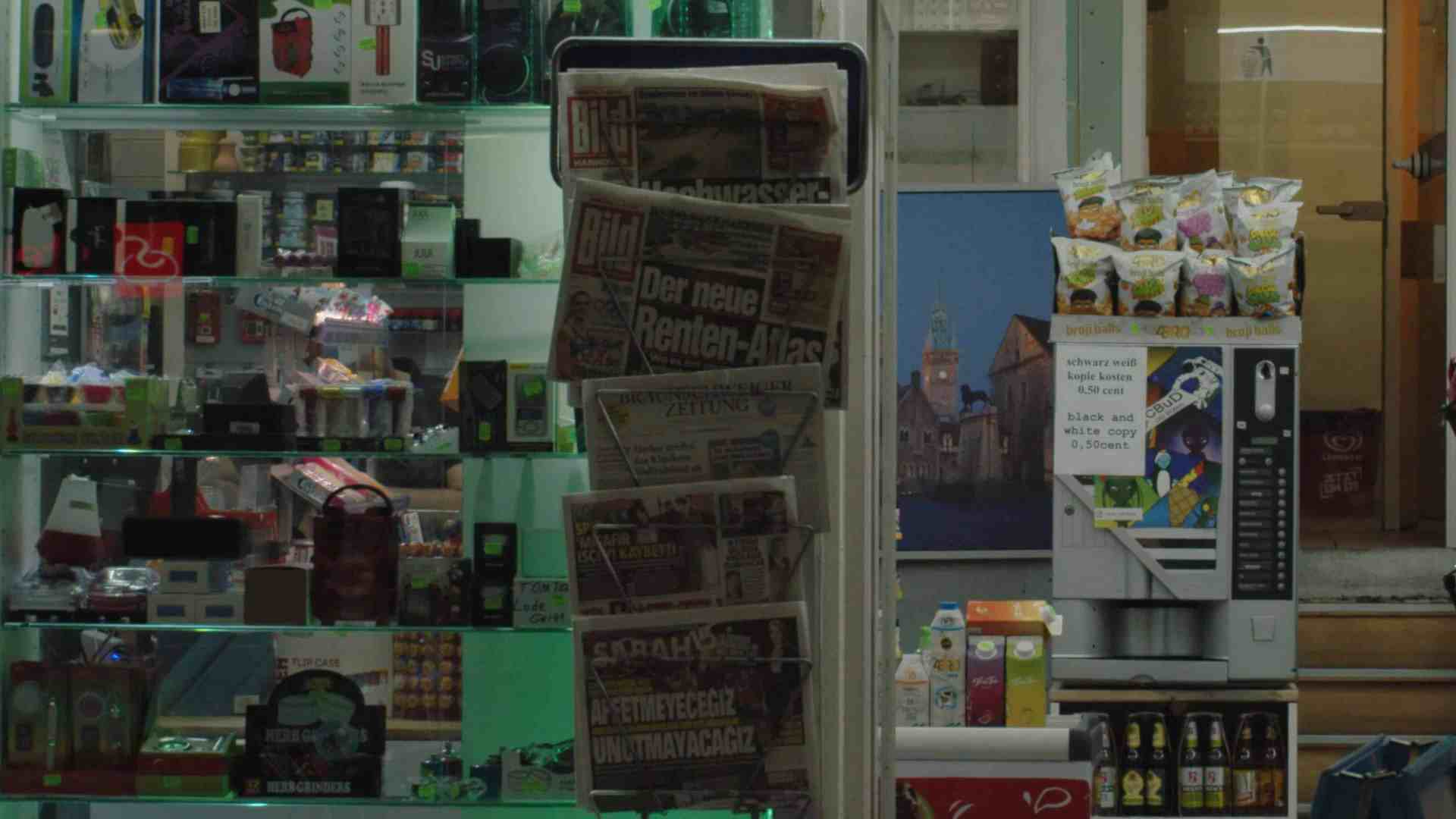
Another test for noise reduction alone was carried out with Artemis, this time with high-quality footage from a Blackmagic 12K, but in very low light. For comparison, we used Neatvideo as the current ‘gold standard’ in the lower price range. Both programmes were quite good at bringing out real detail and significantly reducing noise. But Neatvideo was once again able to do it better, in particular Artemis left a slightly coloured and cloudy unsteadiness over the entire image. This phenomenon was hardly present in Neatvideo, which is probably due to the differentiated processing of individual frequency ranges with the help of specific samples.

In addition, Artemis only has three settings for low, medium and high noise (plus halo removal if required). In none of them were we able to remove enough noise without the surface clutter appearing. Neatvideo, on the other hand, was already better in the standard setting, without us having to resort to the highly differentiated adjustment. It is almost seven times faster.
Stabilisation
The new version also offers stabilisation of nervous camera movements, and even the correction of artefacts through rolling shutter or the reduction of jitter can be optionally activated. No special AI model is responsible for this, but the function simply appears under “Filters” (still in beta). The results with “Auto-Crop” are already very decent, even if some ‘jelly’ from the rolling shutter occasionally remains. However, our test material came from a camera with a rather slow readout of 30 milliseconds.
The alternative is called “full-frame”, where the missing image content in peripheral areas is filled in with offset material from neighbouring images. This works surprisingly well at times, but occasionally very poorly with short bursts. A slight artefact of this kind can even be seen in the Topaz tutorial. As such interference in peripheral areas distracts a lot from the film, the crop version plus upscaling should generally look better.
We compared the stabilisation results with the function from DR, with the “Perspective” setting. This is quite similar in terms of quality, with slight image distortions remaining here too. The processing times are acceptable in both cases if you do not activate Full Frame or Reduce Jitter in TVAI
Again. However, neither method can achieve the level of stabilisation based on gyro data that some cameras from Blackmagic or Sony provide (see DP 06:22).
Hardware requirements
Our tests were carried out on an Apple M1 computer, which is not exactly optimally equipped for this, even if TVAI is already running natively. Although the computer is well used, neither the CPU nor the GPU are fully utilised. We compared the times on an Intel computer with 580 GPUs (AMD) as a test, which cannot keep up with the M1 laptop under DR despite the second GPU. With TVAI, however, the older iMac was significantly faster. The eGPU didn’t play such a big role here; with the internal GPU alone, the times were only around 20 per cent longer.
In most cases, however, the computing times are miserably long, apart from
pure de-interlacing, which should achieve real time on more powerful hardware than ours. Even though TVAI can now use all GPU families, it is primarily at home on Nvidia. For comparison on our computer: Creating a quadruple slow motion from the clip of the Mexican carnival took an hour and 45 minutes with TVAI. SpeedWarp and SuperScale took 6 minutes and 23 seconds. The visual result was by no means so drastically superior.
Commentary
You shouldn’t expect miracles: A recording from 1998 from a very respectable DVCAM from Sony at the time doesn’t look really good in UHD, even with Topaz Video AI. The highest of feelings is reasonably usable HD, whereby the astonishingly good de-interlacing contributes even more to the result than the actual upscaling. The software can also turn HDV with non-square pixels and interlacing into reasonably presentable UHD.
That’s it, and anyone who needs this more often to save their audiovisual cultural heritage should buy a PC with the most powerful Nvidia card, with which you can also heat your study until the next blackout. Faster software such as DaVinci Resolve can do slow motion or stabilisation almost as well, the latter with gyro data even better. For noise filtering, Neatvideo remains
remains unbeaten.
