



This article originally appeared in DP 03 : 2019.
Houdini 17 “Codename Banshee” has been equipped with new tools that should make the creation of predetermined breaking points and the simulation of breaking objects much easier and visually more convincing than previous versions. Olaf Finkbeiner has already published an initial overview in DP issue 01:19, which will be discussed in more detail below in the RBD section. The focus is on three major innovations in the areas of destruction and RBD simulations: the material-based destruction principle, soft body relationship constraints and a process called convex decomposition for generating optimal proxy geometry. The functions behind these powerful expressions and what users need to be prepared for are explained below using an example project.
Houdini is sometimes known for the creation of impressive destruction of all kinds of objects, from a small statue that falls to the ground and shatters due to an earthquake to entire cities that are pulverised by a comet shower. The structure of such destruction is subdivided into different areas. The first area is pre-fracturing. This is the idea of equipping the objects to be destroyed with predetermined breaking points before the actual simulation. This is usually done at SOP level within a geo node and allows users to artistically prepare the type and shape of the fragments instead of determining fragments using purist user interfaces and scientific parameters. This allows directors and supervisors to adapt specifications and ideas on the fly.
Simpler predetermined breaking points
The creation of predetermined breaking points – called fragments in the following – is based on a relatively simple concept. Take a geometry at SOP level and distribute points on the surface or within the geometry by using a scatter node, for example. If points are to be distributed in the geometry, the geometry must first be converted into a volume, as the scatter node can also distribute points in the volume. The points serve as the basis for predetermined breaking points, which are created using a Voronoi Fracture Node. The first major update in version 17 already took place at this point.
The Voronoi Fracture Node is advertised as the Voronoi 2.0 Node. According to the changelog, the node has been completely overhauled under the bonnet and equipped with an optimised user interface. For users, this means that the node’s inputs are still the same. The geometry to be broken must be connected on the left and the points based on the previously mentioned scatter node must be connected on the right. However, in order to be able to assign different colour nuances to the individual fragments for visualisation, the pin symbol next to the name of the fragments must be activated. The fragments are then assigned different shades of colour based on their name – the “Name” attribute. The “Colorize Individual Fragments” function with its flag has disappeared.
In order to retain the colour nuances for further processing according to the generally overhauled and optimised Voronoi Fracture Node, you have to use your own means. The simplest solution would be a colour node that reads the name attribute of the primitives and executes Random from Attribute as the colour type. In this way, the random colours can be transferred to the DOP level as a Cd attribute. However, this was not the last trick the Houdini developers played on the Voronoi Fracture Node – an entire field seems to have disappeared.
We are talking about the Interior Detail to add geometric detail to the fragments at the inner fracture edges. If users want to add additional detail to the inner surfaces, the path leads to the RBD selection menu within the tool list – the tool menu. This contains the RBD Interior Detail node. The settings have been excluded, packed into a separate node and allow users to create different levels of detail.
By default, the Interior Detail node accepts the name of the interior surfaces. In short: the Inside attribute. The Voronoi Fracture Node outputs attributes for the outer and inner surfaces, while RBD Interior Detail looks specifically for the inner sides. Users can also enter their own attribute. Several detail levels can therefore be mixed together. An additional level for interior details is introduced in the pre-facturing node tree.
The fragments can now be prepared for transport to the Dynamics Operator Network – or DOP network for short – using a pack node. If constraints such as glue constraints are to be used, an attribute must first be created.
The fragments are simulated in the DOP network. As a rule, the fragments do not fall freely to the ground according to the set gravity – onto the static ground plane. Instead, the path leads through a glue constraint network based on a glue constraint relationship node, which serves as the second input of a constraint network node. For the sake of simplicity, the ground plane can be integrated into the scene via the collision shelf tool of the same name. A static solver and plane object are generated automatically. To glue the individual fragments together, there is the option of creating an object with the RBD Glued Objects Tool in the Rigid Bodies Shelf or setting up the individual nodes manually. Regardless of which method is chosen, a node tree with a glue constraint relationship node is required for the constraints in the DOP network. For a quick test, the glue node can be replaced by a bullet soft constraint relationship node, which is a new addition in Houdini 17. With an existing glue network, it is important to adjust the name attribute of the fragments. As a rule, the name “Glue” is stored in the glue network. This must be entered in the soft constraint in order to access the fragments – or an additional attribute can be integrated at SOP level for the soft constraints. The glue constraint is no longer effective after the change, the soft constraint is active and behaves like a kind of metal spring in the simulation.
Instead of the fragments flying in all directions according to the centre of the impact and the energy transferred, the soft constraint network acts like a rubber mesh that snaps back into its original shape with a jelly-like effect – depending on how high the stiffness parameter is set. A similar effect is known from the spring relationship, which can also be found in the constraint nodes, although the soft body constraint worked much more stably in the tests. The true potential of the soft body constraint in a simulation unfolds in conjunction with the glue constraint and the use of a glue adjacent node. The Glue Constraint Network holds the individual fragments together up to a certain point in the simulation, at which point the constraints break because the force of the impact is too great. At this point, the Glue Adjacent Node can be integrated in order to assign a selected number of fragments to specific objects. For example, imagine a tower made of concrete with recesses for doors and windows, where the outer fragments of the window and door frames are glued to the adjacent fragments of the concrete in the recesses. This allows anchors to be created or fragments to be simulated more plausibly, especially if the glass and wooden struts shatter when the window is hit, but the wooden frame is still partially stuck in the inlet.
Building on this, the bullet soft constraint relationship can now be integrated. As a rule, the different fragments of constraint nodes are equipped with several attributes – constraint name and constraint type. Previously, we talked about a primitive attribute of the type String (Constraint Name), which was created at SOP level with a string called Glue. For the Bullet Soft Body Constraint Relationship, a separate primitive string attribute (Followup Constraint Name) must be created with the string named Soft. The idea behind this is that if the glue constraint should break within the simulation, then the attribute named Constraint name should be changed to the new attribute followup constraint name so that the bullet soft constraint can take effect.
Another effect that still needs to be created is the breaking of the bullet soft constraints so that the snap-back is cancelled out. Imagine a concrete wall breaking apart like polystyrene or a waffle. An effect far removed from reality, so an adapted break apart is desirable, which is now on the way to preliminary completion – except for the finishing touches, which are not covered in detail. If an automatic constraint network has been created by using the RBD-Glued-PiecesShelf tool, for example, then another node can already be found in the constraint network within the DOPs, which is called remove_broken – an SOP solver. Basically a node that brings further attributes from the SOP level into the DOP level.
The added attributes now include Torque, Force, Impact and Strength. One attribute that is ideally suited to fractures is torque, the torque of the fragments. Fragments that are subject to torque must be grouped in the first step. In the second step, the fragments must be checked for a specific torque and deleted from the constraint network once the limit value has been reached. They are then completely subject to the RBD simulation without stopping at other parts. The work steps can be carried out in Houdini-style by inserting additional nodes or using Vex code.
In this way, far more plausible-looking simulations can be generated by using the first innovations. The soft body constraint can also be used for deformations and is not only used for objects that are broken down into their individual parts. In the official video for Houdini 17, SideFX shows a car crashing into a street lamp and being severely deformed. However, no matter what kind of effect you want to create, it requires considerable effort and expertise – especially for newcomers to Houdini.


Wood at the touch of a button
The newly prepared Voronoi Node in conjunction with the Bullet Soft Constraint Relationship allows users to equip their own simulations with a variety of detail levels to create complex effects. It is obvious that the node networks required for this grow in size very quickly and the complexity increases at lightning speed.
It seems that SideFX wants to address this fact and make the work easier. The result is the RBD Material Fracture Node, which was advertised in the demonstration videos as part of material-based fracturing. This is the principle of material-based destruction. The word material does not explicitly refer to the shader or the material, where users can control the structure of the fragments with textures.
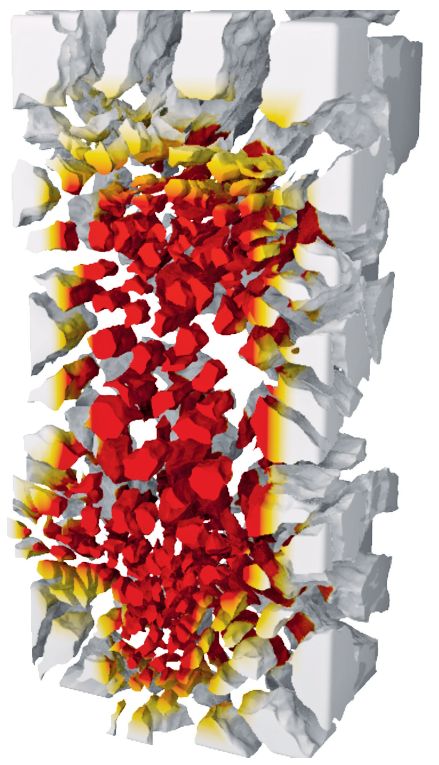
Rather, the node is intended to allow users to select a material type from a list of types and for the fragments of the desired material to be created directly. If the user wants to simulate a wooden bridge in which the individual steps are damp and break through when they occur, the required material properties and predetermined breaking points are created and can be customised using a carefully considered menu.
There is one small fly in the ointment. As the node is one of the new features in Houdini 17, the materials are briefly marked out.
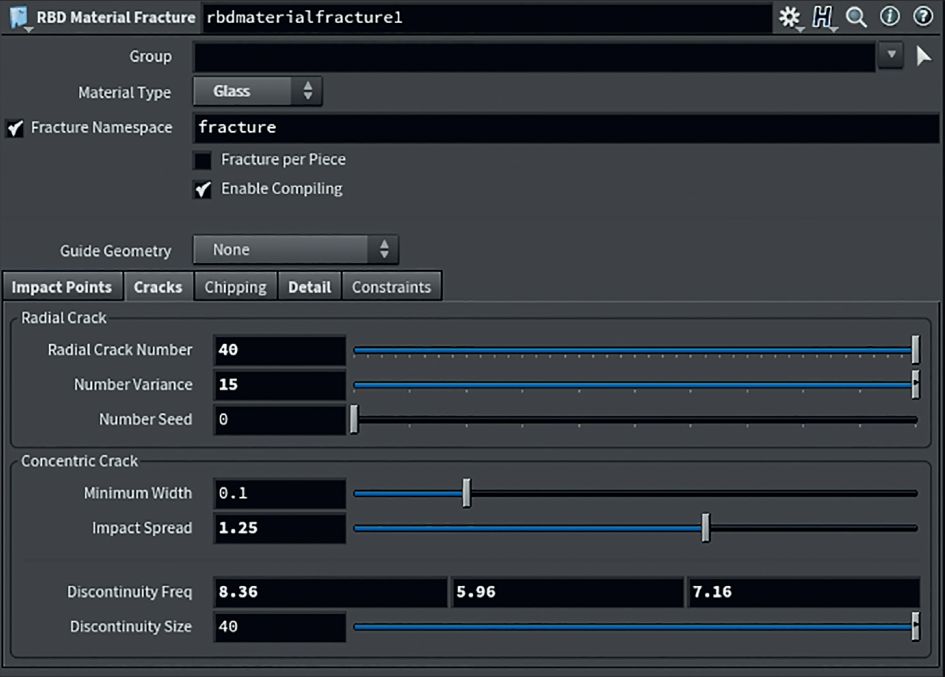
There are three different material types that users can choose from during the test period. These include concrete, glass and wood. Three materials that couldn’t be more different and can be partially adjusted so that users can also imitate other materials that are not available in the selection – at least not yet.
The positive thing about the RBD Material Fracture Node is that the numerous work steps mentioned above, which are part of a functioning destruction simulation, do not have to be repeated over and over again by the user. The RBD Material Fracture Node creates the glue constraint itself and takes care of the pre-fracturing. For the sake of simplicity, the node can be regarded as a high-level destruction node. The basic and time-consuming work steps are summarised in a node. But what if you want to go a little further and require more detailed work?

Under the bonnet
There is a whole series of nodes that are located within the RBD Material Fracture Node. Houdini connoisseurs know that black boxes are a foreign word for Houdini and that users have insight into every node. The Material Fracture Node contains the optimised Voronoi Fracture Node mentioned at the beginning. It also contains the Boolean Fracture Node and Exploded View, another very powerful node for creating realistic-looking fragments. Voronoi fracturing is ideal for rock fragments, and yet the Voronoi cells have their very own visual character that seasoned TDs will recognise immediately. Just like the use of a procedural generator for noise, which is often used for displacement and creates characteristic patterns if there is too little mixing of different generators.
As the name of the Boolean Fracture Node suggests, different objects can be used to generate fragments using a Boolean operation, which have significantly coarser edges than Voronoi cells and allow for more realism. In addition to the three mid-level nodes, there are also low-level nodes within the RBD Material Fracture Nodes: for example Voronoi Split, Voronoi Fracture Points, Assemble and Connect Adjacent Pieces. These are all tools for creating complex fragments, summarised in a node. As complex as the node is structured, SideFX has managed to conceal complexity with a well thought-out user interface.
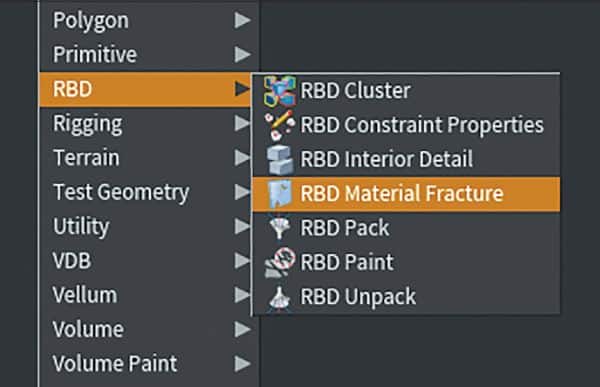
If the RBD Material Fracture Node takes care of the individual, sometimes time-consuming work steps, this leaves more time free for creative work. Even if the new wonder node creates material-specific fragments in the pre-fracturing area, SideFX has also taken care of the simplified precision work. The place where the RBD material node is located within the tool menu is home to a whole series of other RBD nodes. The nodes contained in it alongside the Interior Detail Node enable support for the Material Fracture Node. One indication of this is the largely identical input and output connectors – apart from the occasional specific connector.
In the standard workflow without RBD material fracturing, the object must be filled with black using a colour node before the scatter node. A paint node – ideally with white – must then be used to paint areas where the density of the dots should increase significantly. The Cd attribute must be read into the scatter node for the placement of the dots. To prevent the creation of numerous additional nodes, SideFX has stored an RBD paint node in the RBD menu.
The new Paint Node is the merger of the Colour and Standard Paint Nodes and allows you to enter your own attribute name for the areas to be created, which in turn can be read out in the Material Fracture Node – provided that the Attribute selection and the correct attribute name are entered in the Cell field under Scatter from. In this way, users can relatively quickly mark out areas for impacts or porous surfaces and add further detail in the RBD Material Node.
However, the RBD Paint Node is not the only way in which material fracturing can be supported. Of course, the Interior Detail Node can also be used to visually refine the inner surfaces of the fragments. Another exciting feature is the RBD Cluster Node, which accepts the existing fragments and creates clusters from them. In other words, a group of fragments that forms a larger fragment. Clusters can also be formed using a noise function along with customisation options. If clusters already exist before the cluster node is used, the clusters can be retained if desired. The work with constraints has also been made much easier. A constraint network including glue and bullet soft constraint was previously listed with the integration of further attributes for a customised simulation.
Firstly, it should be mentioned that the RBD material fracture node has its own field for the constraints in each material selection and users can choose at the touch of a button whether only a glue constraint should be used or whether the glue constraint should be converted into a bullet soft body constraint without having to set up long node networks and create numerous attributes manually.
However, there is also a further aid for more sophisticated effects within the constraints. There is an RBD Constraint Properties Node within the RBD menu. This node can be used to adjust the properties of the glue or soft constraints separately and independently of the material fracture node. Here you can see a similarity to the SOP solver from the example given at the beginning. Additional attributes are applied to the constraints, so to speak, which benefit the respective constraint type and significantly simplify customisation.
There is also an RBD Pack and Unpack Node, the purpose of which is to combine the geometry (high and proxy) of a simulation together with constraints into one object in order to make the structure of larger simulations clearer. If an intervention is necessary, the individual objects can be accessed using RBD Unpack.
Even if the simulation is now set up more quickly and can be customised more easily, as the most important components are stored in one place, the question still remains as to how the objects involved in the simulation collide? And how can a workflow be set up that generates the optimum collision geometry, which can also be used as a proxy in the RBD SOP workflow?
The answer to this question can be found at SOP level, through the use of the Convex Decomposition SOP Node. The node receives the input geometry and generates convex geometry as accurately as possible around distinctive details on the main geometry. Numerous settings allow the accuracy to be adjusted during the generation of the convex objects.
Not too much promised
The aforementioned innovations in the area of RBD simulations could be described as a blessing. The large VFX box of wonders has been equipped with more high-level nodes in order to divide complex meshes of nodes into easy-to-understand building blocks. Redundant steps are reduced, time is saved and order is kept in view. Seasoned Houdini users will breathe a sigh of relief, and newcomers will have an easier start. And who knows, maybe in the future users will be able to choose what exactly they want to create after the start, and the nodes will be combined into high-level nodes accordingly, or the existing high-level nodes will be visible on their own to significantly shorten the search for tools.
