



Table of Contents Show
The factor time is becoming increasingly critical in the production of videos in a wide variety of areas. Clips with news or interviews in the internet age put many producers under pressure. Daily work is therefore constantly accompanied by the optimisation of workflows. For users of Premiere or After Effects, the “Automation Blocks” plugin from Mamoworld (mamoworld.com) is available in this case.
The scripts take over many tasks in the preparation and production of videos. The “Automation Blocks” library included in the package covers a wide range of topics and the functions can be used in a variety of ways. After opening the panel for Mamoworld scripts in the host application, the tool displays the various blocks. The library is sorted into different categories. A keyword search helps you to quickly find the right script. Each entry can be assigned a keyboard shortcut to quickly call up frequently used functions. If the mouse pointer is moved over an active entry, the plugin displays a brief description of how the block works.


Users can find more useful blocks in the community area of Automation Blocks on the Internet. The scripts are provided free of charge by other users of the package and curated by the manufacturer. They can simply be downloaded to the computer. Then unpack the archive and copy it to the script library. After restarting the host application, the new tools are immediately available immediately. The existing entries in Automation Blocks can be easily modified and customised to your own production environment. It is also possible to programme your own solutions from scratch for special tasks using a block editor.
Automation Blocks in After Effects
Automation Blocks helps right from the start of a production with AE. Current projects can be set up more quickly for recurring productions such as series or shows. With the help of a template, new project files including the desired file structures are generated automatically. “New Project from Template Folder” analyses a directory with existing files and folders. It then creates a copy and renames all relevant data accordingly. This includes directories on the hard disc, the project files and the footage. At the end
the tool also takes care of the internal names in the After Effects project.
Existing elements such as created compositions or loaded clips are given the appropriate names. This is quicker than manual changes and the actual work can begin in a few moments Start in just a few moments. Elements in existing compositions can be easily manipulated afterwards with “Motion Blocks”. Renaming certain layers or changing their position in the stack or on the timeline are just two examples.
You can also leave the creation of a new composition to “Automation Blocks”. The size, duration and frame rate are determined via dialogue. The plug-in entries also use optional guides and other guides in this step. The entries in the “Comps/Guide” area allow the subsequent definition of grids and guides with many options. Copying or moving these elements to other compositions is another feature.
There are separate entries for setting up new compositions specifically for Instagram stories or mobile devices. Here Automation Blocks” again offers numerous options. These include resolutions and duration of the project. The target format for the production of clips for different Apple devices (iPhone, Watch, etc.) can also be specified. Changing resolutions for compositions at a later date also works. Use the options to select whether the individual layers should fit into the new format or fill it.
A new composition can be automatically filled with footage using “Motion Blocks”. The function imports file series and places them in the active composition. At this point, the module optionally creates a bin folder to collect the imported data. As a bonus, there is the option of automatically setting the blend mode and applying a selected preset.
The functions for changing the display quality of a composition are useful. The quick change for editing in low quality and the demonstration for the best display is done with a single mouse click. Anyone using expressions during production will receive help from Automation Blocks. The assignment of expression instructions to several levels is provided for. Activating or deactivating an expression is part of Automation Blocks.
The functions are extensive for the editing of After Effects layers. These include the simple selection of objects by name or properties. Other tools can then be applied to the selection or the selected layers can be evenly distributed on the timeline. These functions can be combined with Effects and create transitions. Automation Blocks has various entries in the library for this purpose.

Working with Automation Blocks in Premiere Pro
Similar to AE, Premiere offers help with setting up new projects using templates. Renaming footage or sorting it into specific bin directories also works here Directories also works here. The package recognises superfluous data and marks it in colour. The automatic deletion of unused data or bins helps to tidy up a project.
Another application is the assignment of metadata. Automation Blocks inserts the copyright information and the author into a series of projects in one go. The user proceeds in a similar way when working with keywords in a collection of video clips or audio files. This speeds up the cataloguing process and makes the subsequent search for corresponding footage child’s play.
Manually inserting effects and adjusting keyframes can be time-consuming. The Mamoworld tools help the editor in such situations. The animation of several text layers, such as scaling or fading in and out, is carried out in automation blocks at the touch of a button. The tools offer various options for customising the effects. The use of graphic elements works in a similar way. They then float into the scene or are directly animated on the spot with expressions. Changes to the behaviour of these operations are adjusted via the options. If something goes wrong when working with keyframes, you do not have to undo the individual steps with Undo. The automation blocks for deleting effects or keyframes remove all or selected positions or values in the timeline in one go.
The Automation Blocks entry for remote interviews is impressive and easy to use. The inserts with the interviewees are enlarged and brought to the foreground depending on the person currently speaking. All you have to do is jump to the desired position on the timeline and call up the Automation Blocks script. The tool takes care of all transitions and settings for scaling the elements automatically. At the same time, Automation Blocks sets keyframes with effects.
Markers are an important tool for production in Premiere. The plugin helps with the creation and editing of such information. The range of functions includes tools for setting or copying markers. You can also make changes to content or colour markers. If desired, the user can export the information contained in the markers as a CSV document for editing in other applications Document for editing in other applications. Automation Blocks imports the spreadsheets and inserts selected data records into the Premiere timeline as subtitles, for example. There is also a module for compiling chapter information on YouTube. It
generates the information in the correct format. When uploading to the video platform, the text for the chapters is inserted into the description using “copy and paste”.
Develop your own blocks
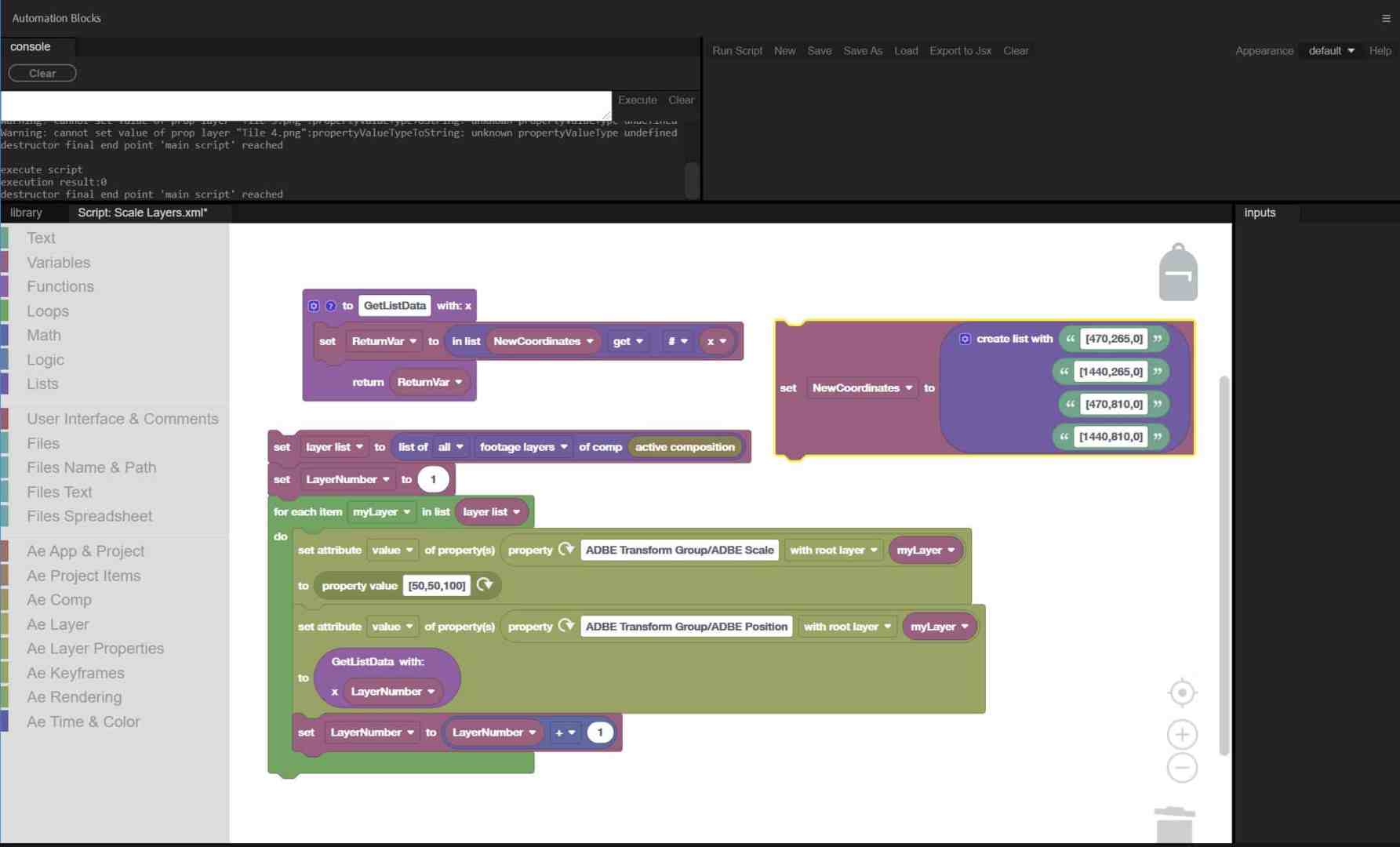
If the Automation Blocks offered in the library are not sufficient or you have special requirements for an existing script, you can modify the existing solutions. To do this, open an existing tool in the Editor and make modifications. These modules are visually linked together in the editor, whereby no programme code is required.
Mamoworld’s no-code solution has parallels to the block programming language “Scratch” or is reminiscent of the Lego Mindstorms editor. The visual method is intended to make it easier to get started with programming for Adobe products. The programme functions of Automation Blocks are suitable for more extensive development. These can be, for example, impressive slide shows with 3D effects and transitions. Necessary compositions can be created directly with Automation Blocks and filled with footage using the import function. Variable adjustments to length or position and the setting of the necessary keyframes are handled by the custom script all by itself.
All the artist has to do in everyday life is call up the block, load the current data and have the desired effect in the timeline. No more hassle when handling layers in 2D or 3D space, no more time-consuming manual editing of transitions or searching for possible errors in expressions.
In the plug-in’s editor, the user will find a wide range of blocks from various areas the most diverse areas. These include operators for maths, variables, functions, control structures, logic or access to external files. There are also blocks for working with a project, a composition or for manipulating individual layers Manipulation of the individual layers. In the blocks, the user will find options for selection by type. The code then ignores certain layers during execution, which can speed up the process.
The code blocks are clicked together like a jigsaw puzzle. Necessary parameters can be defined as separate elements and are embedded in the executable blocks. Texts, variables and lists are available here. They are generated statically or Automation Blocks reads the parameters from the host application. In practice, these include the runtime, size of the layers or their position in the composition. This is where the get block comes into play. It determines the data of specific elements. There is a counterpart in the form of the set block. The programmer uses this to assign the selected parameters to the objects. In the case of layers, these include position, scaling or transparency.
In combination with the tools for the keyframes, this allows animations to be created quickly and easily. This eliminates the need to manually set individual keyframes, which can save the artist a lot of time when editing. Users can apply the mechanisms in this area directly to a specific layer. Alternatively, a loop instruction can be used, which searches through the composition step by step and applies the changes to all existing layers. There are many mathematical operators for calculations in a script. These include basic arithmetic operations, trigonometry, random numbers and rounding.
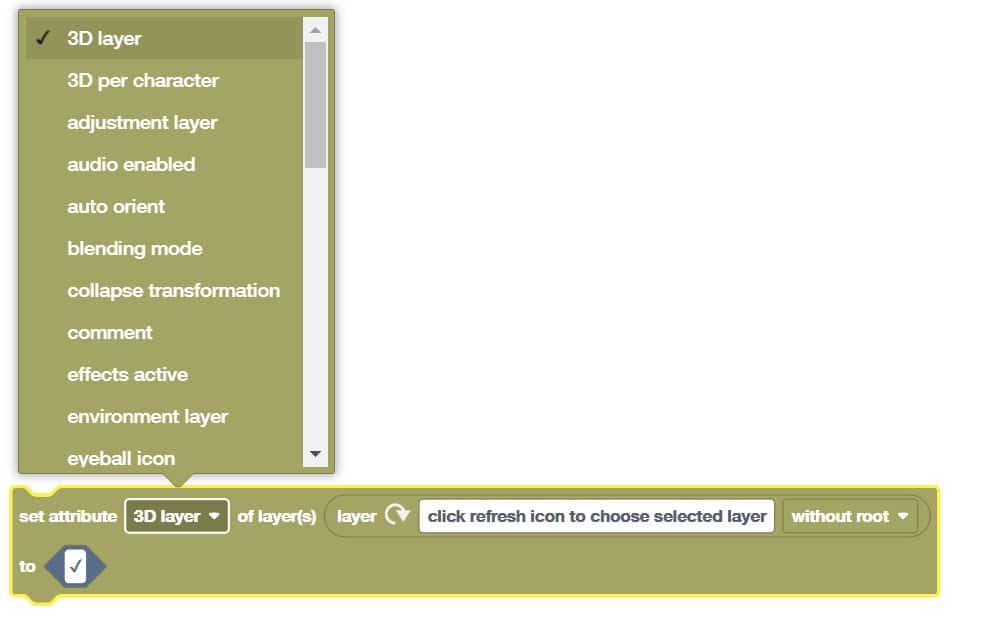
For interaction with users, there are special blocks for designing graphical user interfaces. Prefabricated queries, confirmations or inputs are included in the range of functions. However, users can create their own individual dialogues.
Automation Blocks reads large amounts of data such as tables from external files in CSV format and processes them in the programme run. One conceivable application is the use of tracking data for animations from an external programme. Also possible: the visualisation of animated diagrams. Also possible: the automatic insertion of headlines in combination with time stamps from a CSV table.
To maintain an overview, extensive programme structures can be outsourced to functions. This is where the concept of modern programming languages comes into play. This helps to develop readable components that can also be used multiple times. This applies, for example, to queries using graphical user interfaces. These can then easily be used multiple times via the function block. Parameters help with the flexible calling of functions. Maintenance or changes to the code are then only carried out in one place.
To transfer programme snippets between projects, you will find the backpack feature in the editor. To do this, simply move the relevant programme blocks to this clipboard. After switching to your own script, you can retrieve the saved data from the backpack and use it there again.
Basic knowledge of programming is an advantage when developing your own blocks. An understanding of control structures such as loops or queries, working with variables and the use of functions helps at this point. Additional information can be found in the detailed documentation of Automation Blocks. However, studying other blocks can also help.
Unfortunately, it is not possible to open two programme blocks at the same time. A direct comparison of the code blocks is therefore not possible. The only option here is to switch to the editor and transfer snippets using the backpack feature. An additional panel with a preview would be desirable here in the future. This would then become a virtual cheat sheet that can be used as a template when building. Understanding the object-orientated model of the two host applications is important during development. This allows data, compositions and their components to be specifically addressed and manipulated.
Simple practical example of Automation Blocks
In the Automation Blocks editor, the sections with the function blocks are located on the left. Once opened, the desired entry is placed in the editor with a mouse click. In the example, the length of a composition is determined and a layer is positioned exactly at the centre of the timeline. The programme is started with Run Script at the top of the panel. The Console area displays the output of the block. These are determined values or possible error messages.

The first block at the top of the example determines the length of the composition. It is located in the “AE Project Items” category. There is a drop-down selection in the left-hand area. The “Duration” entry determines the duration of the composition. Then switch to the “After Effects” project overview and select the desired composition. In the editor, click on the arrow next to “Project Item” and assign the relevant composition to the block.
A block from “Math” halves the determined length of the composition. To do this, set the option for the division in the centre of the menu and enter the value 2 in the right-hand field. The previously created block for determining the duration is moved to the field on the left.
A “set attribute” module from the “AE Layer” area is used to assign the calculated position. The “start time” option is activated in the drop-down in the left-hand area. Then select the relevant layer in the composition. In the editor, click on the arrow symbol to the right of the “layer” field. This tells Automation Block the target layer for the operation. The previously created mathematical module with the get block is placed in the “to” field. After starting the script, the embedded calculation is executed and the layer is moved to the centre of the timeline. This simple code example can be a starting point for further projects. It can be extended and applied to several layers in the composition with the help of loops. The “AE Layer Properties” category gives you access to the layer properties such as position, rotation or size.
Conclusion
Mamoworld’s solution is a flexible aid when working with Premiere Pro or “fter Effects. Tasks in many production areas can be solved quickly at the click of a mouse and the result is on the screen faster. You need to plan a little time to explore the many functions in the comprehensive library. The extensive documentation and tutorial videos on YouTube (bit.ly/automationblocks_youtube) will help you do this. After that, you can utilise the potential of the tools, which provides a speed boost in many stages of production. If you browse through the community library, you will find further interesting options for working with the plugin.
Things get really interesting with the Automation Blocks editor. This allows you to modify the existing components for your own work. You can achieve your goal in just a few steps. Of course, every user can develop customised solutions from scratch with Automation Blocks.
The easy-to-understand editor with the blocks allows tools to be programmed without writing a single line of code. The development of large projects should not be an obstacle for Automation Blocks. With the help of the GUI elements, comprehensible tools are created that are easy for the user to use. Such complete packages replace manual work, save time and help to avoid possible errors in daily production through automation.
The add-on from Mamoworld is an ideal choice for expanding the functionality of Adobe products in a variety of ways. Interested parties have the opportunity to test Automation Blocks. Further information on the trail version with a ten-day runtime can be found on the manufacturer’s website – and if you want to try it out right now, you can find code, documentation, downloads and other resources right here:
www.mamoworld.com
