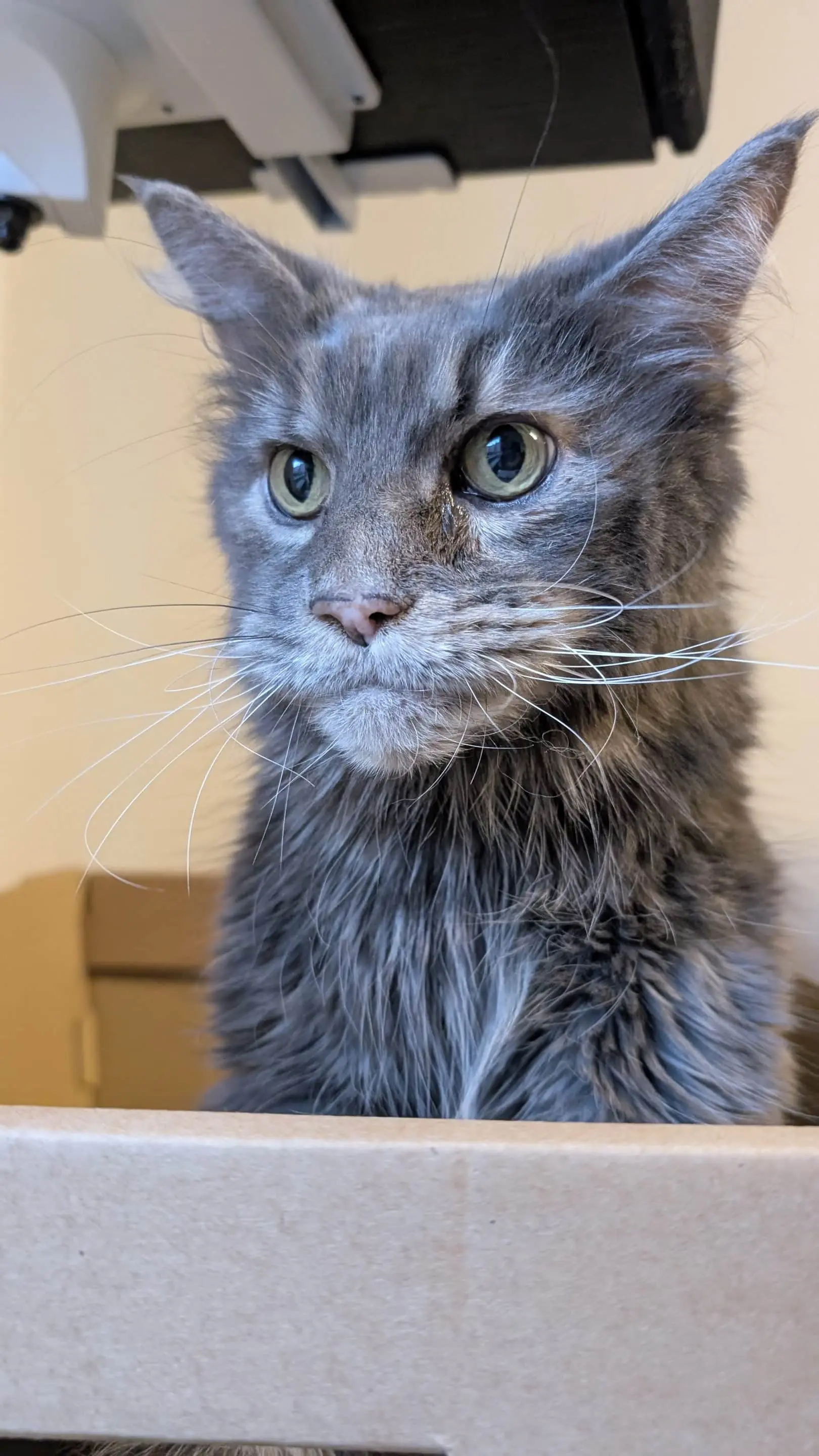
Who has no hands and cares about our health? Our pets, of course. Yes, really. Our intestinal health is the biggest concern of our loved ones (furry flatmates). Following this idea from Serviceplan Health and Life, the TVC was created for the Burda Foundation’s current bowel cancer prevention campaign. The task “in a nutshell”: How can a dog and a cat engage in a loving dialogue, form words without the appropriate biological prerequisites, express human emotions and still remain animals?
After initially examining possible implementation routes and styles and collecting references (from strange things from the depths of the internet to Disney remakes), the path of real-looking animals, which are likeable thanks to their respective character-driven acting, crystallised: a somewhat grumpy older man’s dog lives together with a charming cat, masterfully spoken by Jürgen Prochnow and Katja Burkard, rounded off by Sky Du Mont as the voice-over artist.

Before moving into 3D, the scripted storyboard was created as shots in Resolve. The rough mix previously created by the sound studio served as a timing reference. This was then used to create an animation layout in Solaris to define the camera angles and staging of the animals, which was gradually replaced by renderings later on in the process. But first a few steps back and to the fur.


From hedgehog to dog or: the grooming process
The grooming tools in Houdini – like everything else – offer different approaches to realising complex hair and fur structures and so the fluffy dog was created in a different way to the cat. This may be due to the fact that the rather short-haired dog was much easier to comb than the cat (take a look at a cat without fur, the ter has a completely different head shape), but it was also about maximising the learning effect and comparing different strategies. Right at the beginning, the path forks – all grooming SOPs in a separate node or the “official” path with the separation of guides, sim and hairgen with object level nodes?
The hair pipeline is basically the same: Manually drawn or procedurally generated guides are placed on a base mesh, deformed on an animated mesh, simulated if necessary (whiskers in the wind…) and finally serve as a source for the detailed (procedural) hair generation. This result can be cached wonderfully as USD/Alembic in a truckload of external hard drives. Alternatively, the last step can be skipped and the guides then serve as a source for the @Rendertime Hair-generating Hairprocedural LOP in Solaris.


So the dog follows the classic route: GuideGroom-Guidedeform/Sim-Hairgen. Select the mesh, click on GuideGroom and a hedgehog is ready. So that we can all still get to the dog, it is advisable to plan in advance: What hair types does the animal have? What is the flow/growth like? What kind of over-regions can the coat be roughly divided into?
Accordingly, various masks or attributes are painted onto the base mesh (or generated by the usual means), which are first relevant for guide generation and then later for all kinds of hairstyling manoeuvres, especially the density attribute. This means that the Guidegroom and Hairgen nodes not only know where hair should grow – the attribute can also be used in multiple ways, for example as the basis for the thickness of the hair. This means that the hair at the edges of the density map becomes gently thinner. The Guideadvect Node is a very quick way of defining the basic flow of the hair with the help of curves drawn on the mesh.

In the next step, the powerful but no longer procedural Guidegroom SOP node takes care of the fine adjustment. Hair lengths, special swirls and growth direction exceptions are sculpted interactively in the viewport. A more intuitive alternative to this is the fee-based Groombear plug-in, which allows much more fluid and complex work – be it faster creation and editing of hair masks or sculpting of HairClumps.
The “animation view” is also a dream to be able to paint guides in different poses/states of the base mesh. Once the guides have been moulded, they are fed into the Hairgen object. The main task of this node system is to give the individual zones their final look using various nodes such as Clump, Bend and various operations such as Length and Fuzz. Layering the effects is important here – the body fur, for example, is first divided into large but discreet clumps, which are then given several sub-clumps depending on the region. Later on in the nodetree, lively details such as flyaways are added – hair that goes against the general direction of growth and sticks out a little chaotically.

A great design aid here is the Guidemask Node, which generates a random selection of hairs or creates a gradient mask on the guides, for example, allowing clumping effects to be realised only in the direction of the hair tips. The masks can be created directly, painted or adapted and combined on the basis of existing masks. The process roughly follows the pattern of creating masks for specific body regions one after the other and then using these to control the operational nodes such as Clump, Fuzz or Bend.
The guide deform node comes into play to transfer the grooming created on the static mesh to the animation later on. At the right time, it is switched between the Guidegroom and Hairgen objects and sets the dog’s 1.2 million hairs and the cat’s 850,000 fur balls in motion. An accompanying node is the GuideSim, which performs a vellum (soft body) simulation at its core – gravity and wind effects send their regards.
The finished fur splendour, in the case of the dog, divided into three separate grooms for the body, head and whiskers, was imported directly into Solaris via SOP import for test purposes before caching. “Why Solaris”, some people will ask themselves – sometimes including me. Because Solaris can be an incredible toolset – until you run into bugs or strange processes.


The Solaris workflow
In Solaris you work with LOP nodes. By decoding this abbreviation in Lighting Operators, the true benefit of the system quickly becomes clear – built around USD, however, the true strength lies in iterative work with light, material and camera.designed as a separate context or workspace, the first step is to import the assets. Either from the OBJ context conveniently via scene or SOP import or – assuming asset planning and pipeline – via sublayer or asset reference as USD files. The latter requires more work initially, but rewards you with much better performing scenes. Conveniently, you can export geometry as USD from almost anywhere in Houdini or create more complex USD files with material and, if necessary, variants in a separate Solaris Nodetree using a Component Builder preset.


In-depth knowledge of USD is not necessary if you “only” want to put your scene in a nice light – it is sufficient to understand the hierarchical structure and the assignment of attributes and shaders to primitives (USD slang for all kinds of object types, not to be confused with faces in regular SOP. Can be defined in the OBJ context via group nodes, among other things).
USD and layers
You can do this – it’s really practical to load a central, finished asset of a dog with materials, but sitting statically in the rest pose, into each shot and only import the respective animation from the obj context and layer over it… But you don’t necessarily have to – if you don’t want to deal with USD, simply import everything from the OBJ context, add lights and shaders and use Solaris only as an advanced render area. For more complex set-ups, however, the question arises – if you have to cache in the OBJ area (hair!), why not do it in USD instead of Alembic?
After loading in the assets, the real fun begins – the continuous branching off of the nodetree in order to experiment non-destructively, incredibly quickly and flexibly with new light set-ups, camera settings or shaders. The approach is always camera-centric, i.e. the focal plane can be precisely set from the active camera view by clicking on the geometry.


Lights no longer have to be moved back and forth in the traditional way using Gizmo, but can be placed interactively using three modes: A click in “Diffuse” mode sets the light so that the desired area is illuminated by the diffuse reflection, “Specular” sets the specular highlight at the desired location and with “Shadow” the pivot is selected first and then the location where the shadow should fall. In addition, the light size, intensity and distance can be adjusted using shortcuts. The system is quick, intuitive and fun to use. Moving over an object while holding down the mouse button and studying the changing lighting effect live is an experience you won’t want to miss. At this point, the system is still independent of Render-Delegate, and many of the extended lighting functions (Spotlight, Focus) are also largely supported by most renderers or, like V-ray, these bring their own parameters with them.
Another highlight is the light mixer node. From intensity and colour temperature to solo mode, all set lights can be edited conveniently and centrally. Here, too, the Nodetree system invites you to experiment effortlessly with the use of parallel light mixers – simply switch off one node, restore the origin or duplicate and change it. With the Light Linker LOP, the effect of lights can be limited to individual objects, useful for an extra eye light, for example. So before we set the scene for the dog and cat with Solaris and V-ray, we quickly bring them to life with KineFX. And then cache the animated hair.
Rigging and animation with KineFX
First of all: although the new APEX system was already available at the start of the project and offers promising concepts, it is still in a noticeable beta phase and was therefore not used. The rigging and animation system KineFX, which was introduced in Houdini 18.5, was used, and its procedural workflow did not even scare away my old rigging enemy. The special thing about KineFX is that the system handles the geometry, the skeleton and the animation separately. The ingenious thing about it is that it sees the rig as (connected) points that can be manipulated with the entire arsenal of tools available in Houdini, from simple soft transforms to noises to all kinds of fun with VEX.


The workflow “in a nutshell”: A skeleton node is used to draw half a skeleton over the beagle in its remaining pose with the help of anatomical drawings or to set the joints. In addition to the bones and joints, the joints for the facial muscles and the eyetarget are already taken into account here. Orient Joints are used to rotate the joints to the correct angles. Skeleton Mirror mirrors the skeleton and renames the joints accordingly. BonecaptureLines and Tetembed provide a finely subdivided mesh with the necessary attributes to transfer the joint weightings to the original mesh using BoneCapturebiharmonic. This works very well right from the start, creative or technical weighting adjustments can then be made interactively using Capture Layer Paint.

This part of the geometry is now ready for animation. On the other side, the skeleton in the nodetree is split in two and provided with the rig pose node in which the actual animation takes place. To do this, the three streams, geometry, skeleton and rig pose animation are merged into a bone deform node, which analyses the movements and deforms the mesh accordingly. This very simple rig serves as the starting point for advanced functionalities such as Inverse Kinematics (IK), i.e. the backward-orientated movement of the joints. Put simply, instead of moving the paw from the shoulder joint by joint (FK), the paw is positioned directly and the remaining joints follow automatically. The tail can be switched back and forth between IK and FK and is kept in gentle motion procedurally with a simple sine function at the various joints (which are really just points with certain attributes!). This effect can in turn be varied in strength or completely deactivated using skeletonblend.
A wonderful and very time-saving function are the secondary motion nodes, which record a basic movement and apply bounce or overshoot to this joint. If the head moves, the ear automatically wobbles with a slight time delay. The secondary motion nodes can be chained, so that the tip of the ear wiggles a little later and more strongly than the rest of the ear.


Blendshapes are added on the geometry side. These can be created in all kinds of ways, the simplest of which is the EDIT node in conjunction with the sculpting tool of the Modeller plug-in. Instead of the classic blendshape nodes or the newer character blendshapes, an attribute wrangle with two VEX mini lines (see image) is recommended for performance reasons, but is not necessary – as is typical for Houdini, there are many roads to Rome. Animation then takes place one network level higher with previously set control shapes and sliders for the blend shapes. After caching the animation and loading the hair into USD files, these are loaded into Solaris in the last step and set up as described at the beginning and placed in the scene with simple transform nodes.

As there is nothing complicated about this setup apart from the hair and the rig itself, the shot setup also follows the credo “keep it simple”: after the geometry, only the lights, a camera and the render settings follow without more in-depth USD configurations. And since all assets are already available as USD, nothing needs to be cached (Solaris caches non-USD assets with every RenderToDisk process, which can be very detrimental to your nerves at some point). The actual file output then takes place via the USD Render Rop. The most important setting here is Render All Frames With a Single Process!
This eliminates the need to restart the render process after each frame, which is one of the biggest pitfalls when rendering from Solaris. Set the render delegate to V-ray and optionally, but highly recommended, activate the Mplay monitor. Otherwise there is only a progress bar and no visual control of the current frame.
Having finally arrived in Lo-Lo-LOPS land, you are spoilt for choice of renderer. Almost all engines now provide a Hydra delegate that can be used to render in Solaris. The following criteria have been defined for the casting of this project (what works well in the previous OBJ rendering does not necessarily have to work just as well in Solaris. The delegates are sometimes drastically modified for this).
Hairshader
How well can the hair shader be adjusted, what is the look of the hair? General visual quality: How much user tweaking does the engine need to produce a good image? Feature set & efficiency: Does the engine provide everything for the required production? Do you need to build your own tools or use hacks? Are relevant nodes missing? How complete is the existing feature set in Solaris? Are relevant AOVs easily output from Solaris? Is the engine in Solaris easy to set up? How well are the Lightning features (e.g. Lightfilter) supported? Does OCIO work without problems? How quickly can the support team help?
Speed and stability: When it comes to hair, rendering speed is of course a major issue, but not the most important one. Does the engine render the project within the set timeframe of 5-6 days? How easy is it to integrate the existing small render farm? How often does the renderer crash (when will we finally ask ourselves whether it crashes at all…)? A fast first-time-to-pixel would also be nice… The question of GPU rendering, which is a favourite for small teams or, in this case, CGI lone warriors, was clearly subordinate to the above parameters for me. After a few days of intensive study, the choice fell on VRay version 6.1 (a few of the new 6.2 features were already being made available via nightlies prior to release).
V-ray, Houdini and Solaris
The results briefly summarised, starting with what is probably the most important topic for cats and dogs – hair. And here Vray can come up with an excellent hair shader that not only provides a beautiful look OutOfTheBox, but can also be easily customised in a variety of ways.


Basically, the shader is based on the behaviour of real hair – the more melanin pigments are set using the slider, the darker the hair. Pheomelanin makes the hair reddish/orange, the tiger thanks. The dye colour serves as a port for texture maps, which together with the two melanin sliders define the basic coat colours. As a hair does not have a uniform colour, the practical hair sampler node can be used to define gradient masks along the individual hair curves, which can be used to combine texture maps, colour values or even to blend the opacity.

Custom attributes can of course also be used, although the view of attribute values is somewhat hidden in Solaris. Diffuse is best used for fabrics, as hair does not normally have a diffuse component. The remaining sliders deal with the shine and reflection behaviour of the hair, whereby softness has a major influence on the look in terms of the contrast of the hair. Finally, the random settings should be emphasised as extremely practical, as they do exactly that: create credibility through random imperfection – and in our case, enable the advanced age of the protagonists with Gray Hair Density (which can also be controlled by attribute or hair sampler).

The general visual quality is of course subjective, as all engines (well, most of them) ultimately achieve a decent look. What is relevant for me here is how believable an image looks out of the box, what cinematographic and colour design possibilities the engine offers and how easy or quick it is to achieve all this. Of course, a lot can be added in Nuke, but for reasons of efficiency I try to take the image as far as possible in the rendering and use the compositing more for the final touches or for elements of maximum control (DoF). V-ray comes with a physical camera that extends the standard Houdini camera with parameters familiar from the world of photography and filmmaking. This means that shutter speeds, ISO and aperture can be adjusted with real values to rotated elements or generally more plausibly than just with a generic slider. Motionblur in particular can be levelled out more easily. The Sun&Sky system, which works with global light intensities, also benefits from real exposure. In addition, the camera offers other settings borrowed from the real world, such as lens distortion (freely adjustable via slider or distortion map, e.g. from Nuke), OSL support for all kinds of individual effects and a highly customisable depth of field with optional anamorphic bokeh, which can also be controlled via the Aperture Texture Map. Another nice feature for all fans of photographic image composition is that the bokeh shape can be automatically moved towards the cat’s eye with increasing distance from the centre of the image using optical vignetting.


Fortunately, the physical camera works 1:1 in Solaris’ viewport and of course in Vray’s own render viewer VFB (Vray Frame Buffer), which – great cinema – is the only 3rd party render viewer to date that works in Solaris at all. This is accompanied by access to (almost) all the functions that the VFB brings with it. It starts with its own snapshot history including a before/after view, followed by the possibility of displaying image composition overlays such as the golden ratio (otherwise in vanilla Solaris only loadable as an existing image via camera foreground image). Extensive colour management options including simple OCIO setup are just as integrated as complex lens (post) FX.


Although Vray comes with all the necessary OCIO configurations to work out-of-the-box, for convenience and consistency I recommend setting the parameters permanently via system environment variables, also to be on-pair with Houdini/Solaris’ own OCIO settings. Detailed instructions can be found here: is.gd/aces_setup. The only difference: Do not download your own OCIO-Config, but use the one from Houdini in the installation directory/packages.


The Lens FX go beyond the usual bloom/glare and not only allow dedicated adjustment of star flares, but also all kinds of real-world phenomena such as lens scratches and dust, which can have a major influence on the look of the image. CAs are also possible as a post-effect since 6.2. Many of the options here can save time in the comp or at least serve as a quick preview for the customer. Thankfully, the PostFXs are not baked into the image, but can be output as an AOV – Husk takes the settings of the VFB into account when rendering. AOVs can be set in Solaris with Vray’s own node VrayStandartRenderVars and then added to the render product.

This is stored as the last step in the render settings node. A little awkward, as Solaris sometimes is, but can be done independently of the 3rd party render engine. The denoisers (Optix, Intel Open Image Denoise, Vray-Eigen) are also created in this way and automatically activate all the required AOVs. The result can either be rendered directly or used for later denoising with the standalone denoiser (temporal blending!). Cryptomattes can be found in the VrayStandartRenderVar and can even be used directly in the VFB for masking colour corrections.


The best (virtual) camera is useless without the right light (or as the photographers say: the beginner takes care of the technology, the professional takes care of the light). V-ray makes full use of the great lighting tools in Solaris and adds the option of creating your own light filters. To do this, V-ray’s softbox node, for example, is combined with everything your heart desires in a light filter library and fed into a V-ray TextureLightFilter LOP. This is assigned to the respective lights. In this way, gobos, light blockers or soft softboxes can be quickly realised.
In addition to all kinds of compositing and utility nodes such as texture layers, noises, round edges and easy-to-control ramps, the complete toolset also includes a dedicated SSS shader node that delivers beautiful results, especially for the cat’s ears and nose. MaterialX has been supported since 6.2. Even though the Sky/Sun and the newer procedural clouds from V-ray were not used in this project, the artist is pleased that these tools work in Solaris and can be controlled via Distant or Domelight.
A rejected idea at the beginning of the project envisaged more haptic spatiality instead of the undefined endless cave. Thanks to the integration of Chaos Cosmos into Houdini, various seating options for the animals were quickly tested. Chaos Cosmos is Vray’s own extensive asset and material library. Objects including V-ray shaders can be imported directly from a browser into Houdini with a single click. Only the translation to Solaris does not yet work smoothly here, but can still be managed with a little customisation. Solaris imports the .vrmesh as an instance, which breaks the material assignment. A current solution is to convert – to real geometry via the Sopmodify LOP and activated Unpack USD to Polygons.


Over the course of the year, Cosmos will also receive a machine learning-based prompt-to-material function that is directly integrated into the DCCs. The decent rendering times of an average of 20 minutes per frame could be well cushioned with the easy-to-set-up network rendering via distributed rendering.

With DR, all computers on the farm think about one image at the same time (it’s always a pleasure to see over 100 colourful buckets…) – simply activate this in the render settings and add the IP of the workers (these require their own Vray Render Node licence). Of course, the occasional crash cannot be avoided, although the cause was more often Solaris than V-ray itself. V-ray support reacts quickly to bug reports and publishes bug fixes almost every night in the nightlies (activation by e-mail required) and occasionally new functions or UI adjustments.
All in all, Vray not only offers a lot of features and a nice look, but also a really good integration into Solaris. The few functions not yet supported include decals, Aerial Perspective and Enmesh (instantiation of geometry patterns on a mesh for fine details, a bit like Zbrush Micropoly, only @Rendertime). This is very straightforward, even exotics such as the V-ray Clipper (Cut Geo@Rendertime) are supported. My personal highlight: Chaos has managed to get an external render view running in Solaris.
Minimal compositing in Nuke & finishing in Davinci Resolve
The philosophy of achieving as much as possible of the final look in Engine is achieved in Nuke by adjusting the Depth of Fields, fine-tuning and painting out distracting elements that would have been more time-consuming to correct in 3D. Thanks to the OCIO set-up using system environment variables, colours are handled consistently.


Although Vray renders outstanding camera blur, this task was handled (for maximum control) by the wonderful Bokeh Node in Nuke. Fed with DeepPixels, this tool creates the best and cleanest post FX bokeh, which is especially important for fur structures. In addition to real values, unphysical multipliers for the respective blur strength in front of and behind the focal plane can be freely set here. For maximum consistency, a 3D camera exported from Houdini, preferably via USD of course, can serve as the source of all values. Fine details are primarily provided by the Virtual Lens Node (Nukepedia), which can be used to realise wonderful optical phenomena. A favourite is the subtle halation effect, a red-orange halo around high-contrast, bright image elements. Chromatic aberrations such as haze and glare can also be simulated. Last but not least, the layout renderings are replaced by the comps from Nuke in the Resolve edit, refined with film grain and finally played out with beautiful sounds from the sound studio.

Conclusion
Houdini with V-ray & Solaris: A beastly good choice. This article was written with the help and presence of a cat. Many thanks to the team!