



This upcoming mini-series will focus on proper color monitoring with minimal cost. It will mainly be demonstrated in DaVinci Resolve (in short: DR) on MacOS, but most of the steps for calibration are just the same under Windows or Linux. The first part, though, deals with the difficulties some user are experiencing with driver software for Blackmagic’s I/O devices and their compatibility with M-series Macs.
Hardware
An important part of the business model run by Blackmagic Design (in short: BM) from Australia is giving away very capable software for free, or for a really decent price in the Studio version, and making money with hardware. While they are now also manufacturing a whole ecosphere of cameras and live recording gear, one mainstay always were I/O devices that circumvent the potential issues from the operating system interfering with color management. These devices are made to connect directly to the editing and grading software and should show the image as it is, without any unknown alterations.
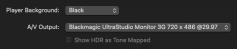
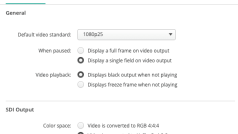



While some users rely on direct output from the GPU (at least on a Mac), using a proper interface is still the sure approach. Unfortunately, not all older devices by BM are compatible with those quite capable machines with Apple’s own silicon, the M-series. It’s not really easy to find out which ones are not compatible by consulting their website, since the current “Read more” link is only listing all devices that work with Intel-based Macs and Apple Silicon alike. But if you are trying to save money by looking for something second-hand, they don’t list the older devices that will work only with Intel Macs.

Among the DeckLink series, which would need a Mac Pro or an external enclosure anyway, these are the Mini Monitor, the HD Extreme 3 and 3D, and also the DeckLink SDI, Duo, Quad and Studio models. The older Intensity Pro is also limited to Intel Macs, as are all the external Thunderbolt 2 devices: the UltraStudio Express, Intensity Shuttle Thunderbolt, Mini Monitor (the Recorder too). If you own an Intel Mac, these can still be a solution for small money, even if they are limited to HD. You will need older drivers, though, since the current Desktop Video version 14.5 needs Sonoma (macOS 14) or Sequoia (15).

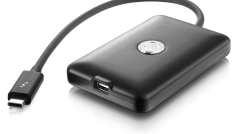
BM is offering all older software on their support site. So you can still use e.g. an Intel iMac 2017 (non-Pro), which is limited to Ventura, with version 12.9. After all, DR 19 is still officially supported under Ventura. They should all work under Windows 10 or 11, but for the Thunderbolt (in short: TB) devices you’ll need the right port, of course. On a Mac, those machines we would still consider usable for DR 19 usually have a TB 3 port, but those older devices have TB 2. Don’t get the wrong adapter: those very cheap ones that may look right are just connecting to Mini DisplayPort. You’ll need the expensive original by Apple, if you don’t find the cheaper AKiTiO T3T second-hand.
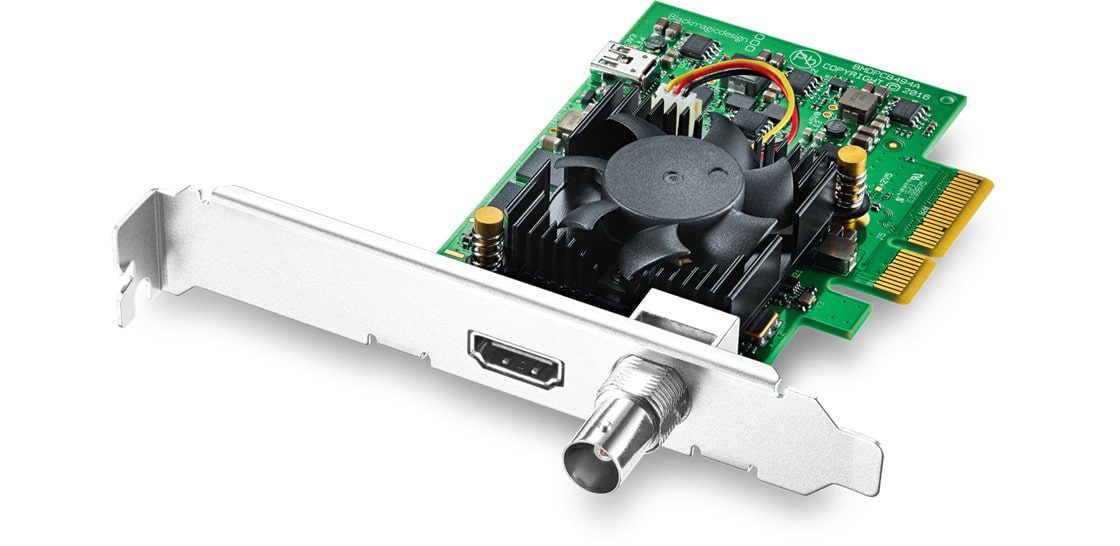
Of course, you may say that it’s easier to buy one of the new, compatible UltraStudio devices, if you don’t have one of the older interfaces and some cables lying around. But there’s no 4K/UHD version of those small, less expensive interfaces in a self-contained form. The UltraStudio 4K Mini (see header) carries a hefty price tag, if all you need is output to a screen. We don’t expect many users to buy the expensive Mac Pro just for its card slots, when the equally capable Mac Studio is not much more than half the price. But for all those with a recent Mac, there’s an alternative: while you can’t use an eGPU with Apple silicon, PCIe cards for I/O, like the DeckLink Mini Monitor 4K, will work in a ThunderBolt enclosure.
Software
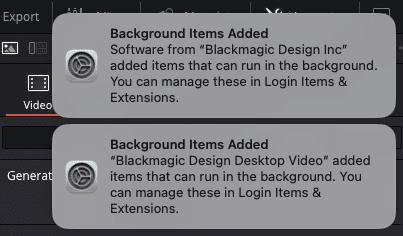
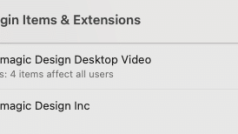
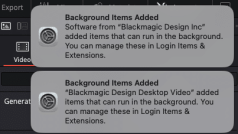
On a PC you’ll need to install Desktop Video as an admin, and you should uninstall any older versions first. The latter is also advisable on a Mac, but the tight security measures by Apple can make things a bit more tricky. Watch carefully any message that is popping up while installing, even if you usually tend to click all that boring stuff away. Check if none of them is hidden by other windows or a second screen. With any version of 14 before 14.5, you should see two messages, as below. Make sure to follow the advice!
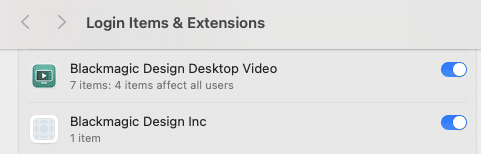

With these settings under Sequoia (aka MacOS 15.3.1), we had no problems seeing the video output from DR (19.1.3), Premiere Pro (25.1), After Effects (25 beta), Final Cut Pro X (11.0.1) and even Sony Catalyst Browse (2024.1.1), but we didn’t try Avid yet. Of course, you will still be looking at a screen that is unknown to the whole system, so that screen has to be calibrated. See our next post!
