



Out of the Box
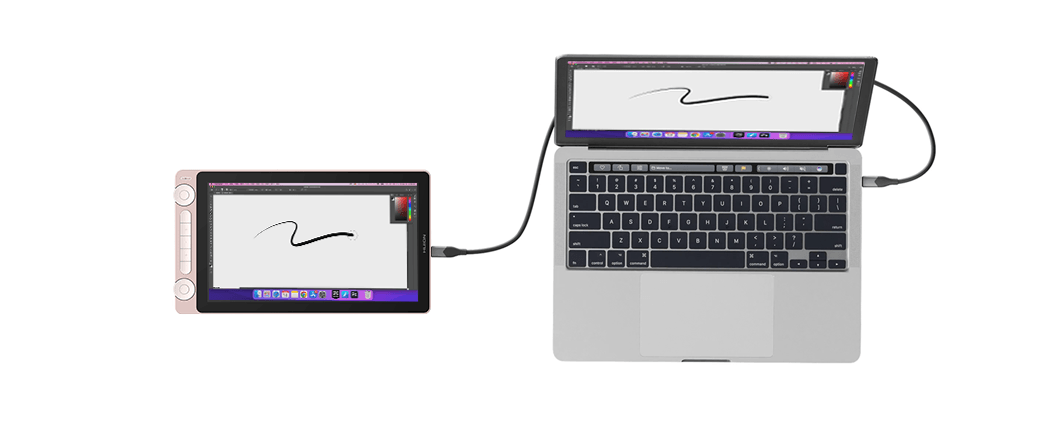
The box contents are, refreshingly, complete. The Kamvas 13 (Gen 3) arrives with everything you’d expect — and a few nice surprises: the display itself, a foldable ST300 stand, the PW600L pen, ten replacement nibs, a 3-in-1 cable. No accessory hunting required, except for a Thunderbolt capable US-C-toUSB-C. Build quality leaves a good impression. The casing feels sturdy, doesn’t creak, and at 865 grams it’s light enough to throw into a backpack. It feels more “tool” than “toy,” which is a good start.

The Kamwas 13 Display
Huion advertises the Kamvas 13 (Gen 3) as factory-calibrated to ΔE < 1.5 … our unit, however, came in at ΔE 2.5 (Adobe RGB, Measured with our Datacolor Spyder Pro). Not bad, but not “color-critical.” You’ll want to calibrate it yourself if you work on anything that depends on color accuracy, and big grading jobs or Onset-Livegrading are not recommended. Why we are saying that? For that price, you’d think you could just put it onto your DIT-Cart. You can, but you wil lhave to check the colors more often.
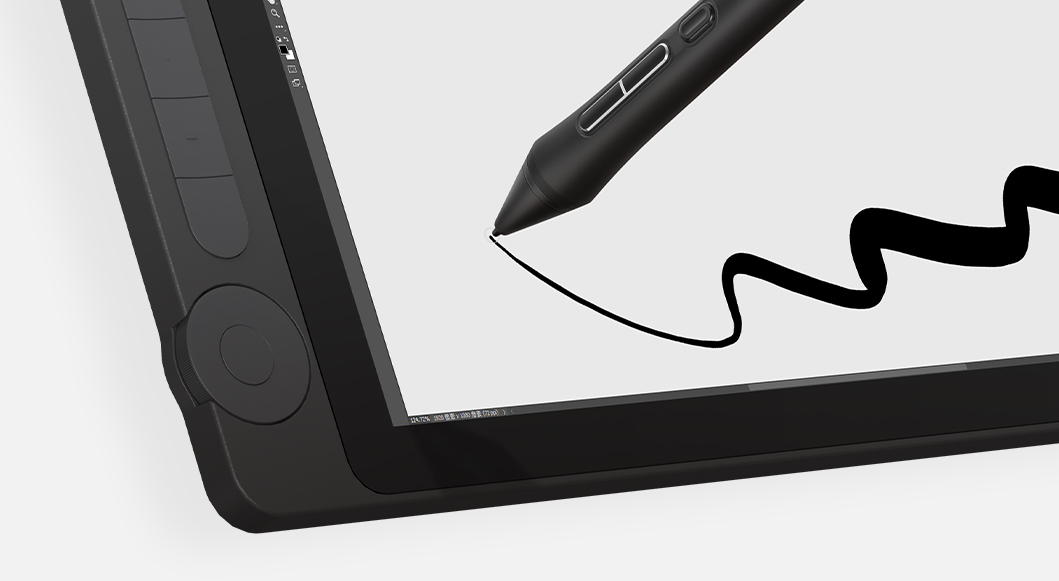
That said, the anti-glare surface deserves genuine praise. It’s the nicest we’ve seen so far: it kills reflections without dulling the image or killing contrast, and it feels wonderfully smooth, like a high-quality matte paper, not sandpaper. The screen itself is Full HD (1920 × 1080), which is perfectly fine for a 13-inch panel. It’s not a retina display, but at typical viewing distances it looks crisp enough for painting, layout work, or even quick note-taking.
Pen & Performance
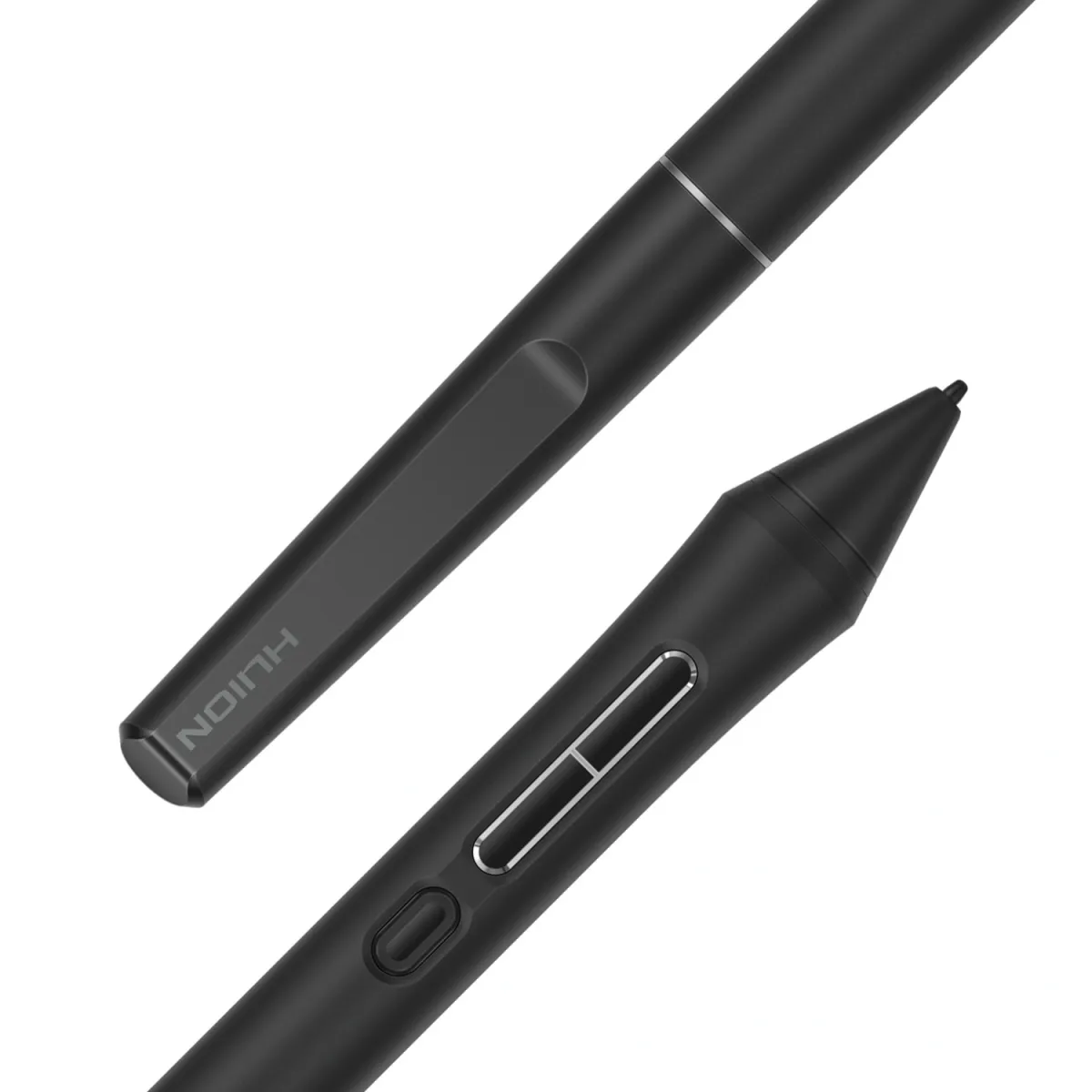
The PW600L pen uses Huion’s PenTech 4.0 system, and it’s battery-free, a small victory in an age of rechargeable everything. During testing across Rebelle 8, Photoshop and Microsoft Ink, the pen behaved as expected: accurate tracking, no real lag, and pressure sensitivity that feels natural once you fine-tune it.
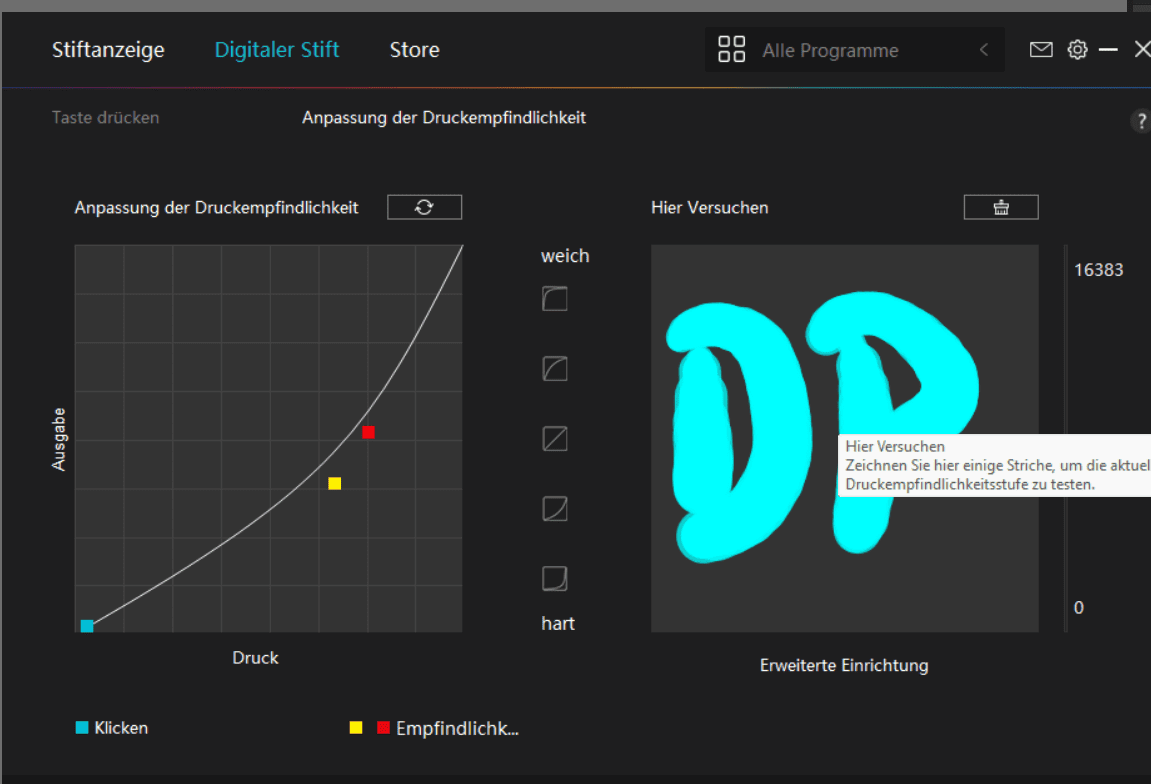
That “once” matters. Out of the box, the settings we made were too hard, and we initially thought the pressure curve was off. Turns out the issue was “idiot user”, not “hardware”. The Huion driver lets you adjust the curve quite precisely, well worth the five minutes of tinkering before judging it. After six weeks of daily sketching and note-taking, the original nib still showed no wear. The replacement nibs included should last a good long while unless you’re carving marble in Krita.
From the Left
As some of you know, one of our key ergonomics features is that we can actually use the device. And yes, I’m a Southpaw. A leftie. If you’ve ever wondered why some hardware never makes it into Digital Production, that’s the reason (Well, one of the reasons). If it’s not usable for us and the other 10% of humanity, it doesn’t get tested. Simple rule.
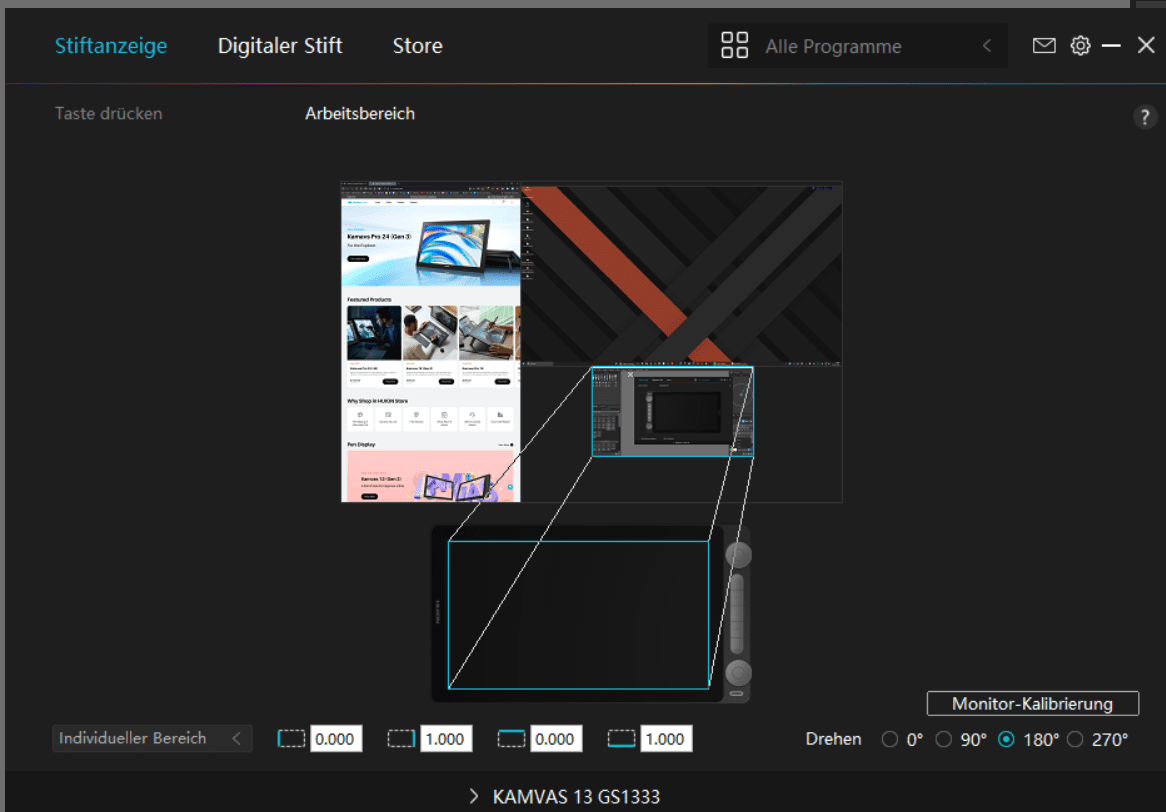
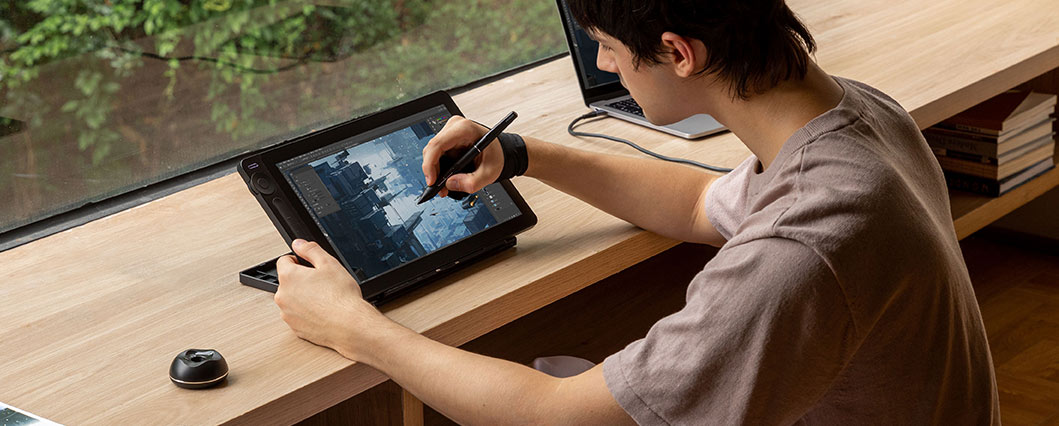
The Huion Kamvas 13 (Gen 3) passes this test with flying colors. In the driver software, flipping the orientation is literally one click, rotate, mirror, turn it upside down if you feel like it. There’s no directionality to the chassis and the ports, no fixed edge, angle or cable trap that dictates how you have to work. So if you’re one of us, this tablet won’t force you to contort your wrist or flip your brain to right-handed mode. And for the others: Did you recognize that the featured image above this article is a leftie drawing? No? I thought so.
Ergonomics & Workflow
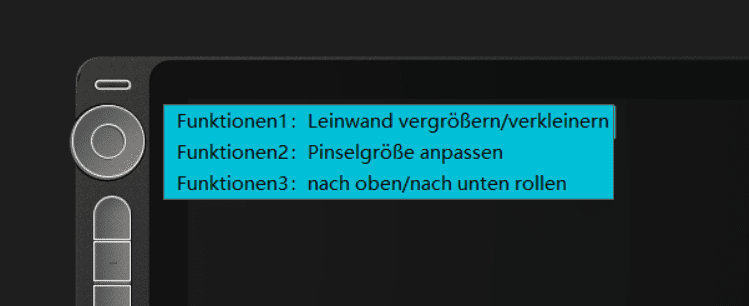
The left edge holds two mechanical dials and five customizable buttons. They’re easy to reach and satisfyingly quiet. Macro assignment is limited, you can’t yet chain multiple actions (like “new layer + color switch”) but the basics are there.
Switching between monitors took a few days to get used to. In our dual-screen setup, toggling the pen focus from the Kamvas to the main monitor isn’t instant muscle memory. After a while, though, it becomes second nature. Mirroring the main display didn’t quite work in our configuration, but that’s likely a Windows quirk or a driver limitation. For most use cases, drawing, annotation, or light compositing, extending the desktop is the better option anyway.
As for Thunderbolt, a word of warning: not all cards are equal. We discovered that Thunderbolt expansion cards vary wildly between workstation manufacturers. Mixing an (Random example) Asus add-in card with a Lenovo board, for instance, another random example, is an exercise in frustration (see XKCD’s “Standards” comic). Not Huion’s fault, but worth noting if you’re planning a clean single-cable setup. Make sure your USB-C ports are Thunderbolt-capable!

Everyday Use
Once configured, the Kamvas 13 (Gen 3) simply behaves. It works as a secondary screen, a sketchpad, or a small presentation monitor. For productivity use, it’s perfectly fine: crisp enough for text, light enough for travel. The anti-glare glass remains a highlight: even after hours of drawing, the surface stays clean and non-sticky, with minimal fingerprint buildup. And because the tablet has no fan, it’s completely silent and stays cool.
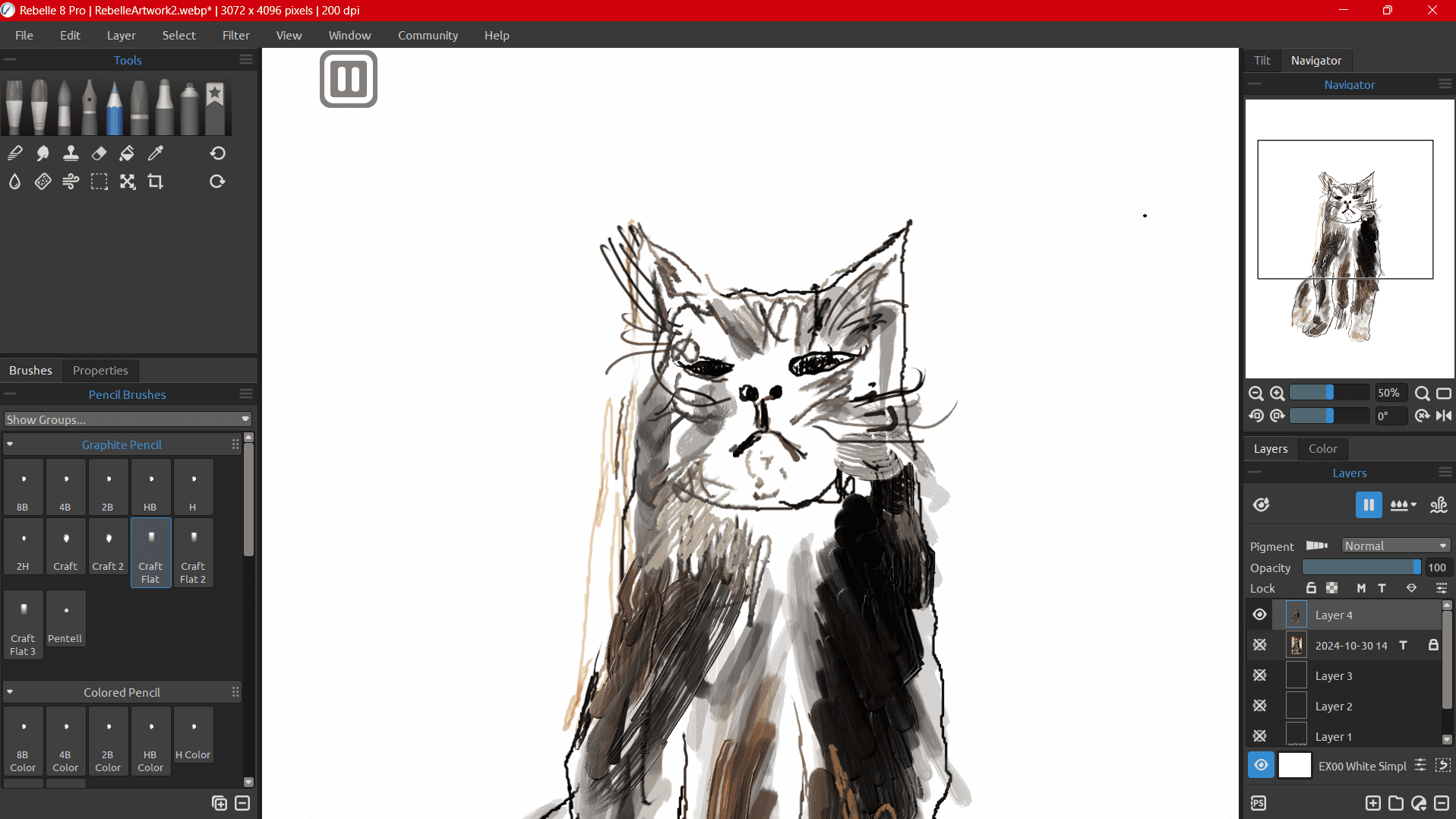
One disclaimer, though: as with every tablet, it will not make you a good artist. You’ll still have to bring the talent yourself. If you’re wondering why we didn’t warn you earlier: we thought it was obvious, until we tried proving otherwise. For evidence, please refer to our attempt at a one-line house drawing. Don’t laugh — we’re mouse users by habit, idiots on top of that and it took eight failed tries to get that one semi-straight roof. There’s a reason this magazine focuses on tech, not concept art.



Verdict of the Kamwas 13
After a solid six weeks with the Kamvas 13 (Gen 3), we can confidently say this: it’s a sensible tablet. The display might not be colorist-grade, but it’s bright, balanced, and consistent. The pen feels natural, the build is solid, and the included accessories make it a ready-to-go package straight from the box. If you’re looking for a mobile, lightweight pen display that doesn’t break the bank, the Kamvas 13 (Gen 3) is easy to recommend.
Software quirks aside, it’s an ideal entry point for new artists, or a travel companion for experienced ones who don’t want to risk their main display in a backpack. We were genuinely surprised by how much performance you can get for €239 on Huion’s official store. And since our test went so well: should we ask Huion for one of their Android tablets next? Let us know, we’re curious ourselves.
