



With some plug-ins, scripts and extensions, you wish you had known about them long before the start of the last project, in our case, a 100-minute archive documentary with over 1,000 individual media files. The “Project Sorter” script saves a lot of time when editing and post-processing larger projects, especially when it comes to sorting and cataloguing different media types.. Project Sorter is a bit like the post office clerk who sorts letters by city, district and street – only for media, not for direct mail items.

How Project Sorter works
But first things first… Who hasn’t been there: you find (or receive) one (or more) media files, drag them into Adobe Premiere (or After Effects) for processing, and leave them at the highest project level until you completely lose track of them and grudgingly (or the intern) start putting all the elements away individually and neatly in the bins provided for them. Only to be faced with the same problem of a completely overloaded project level a week later.
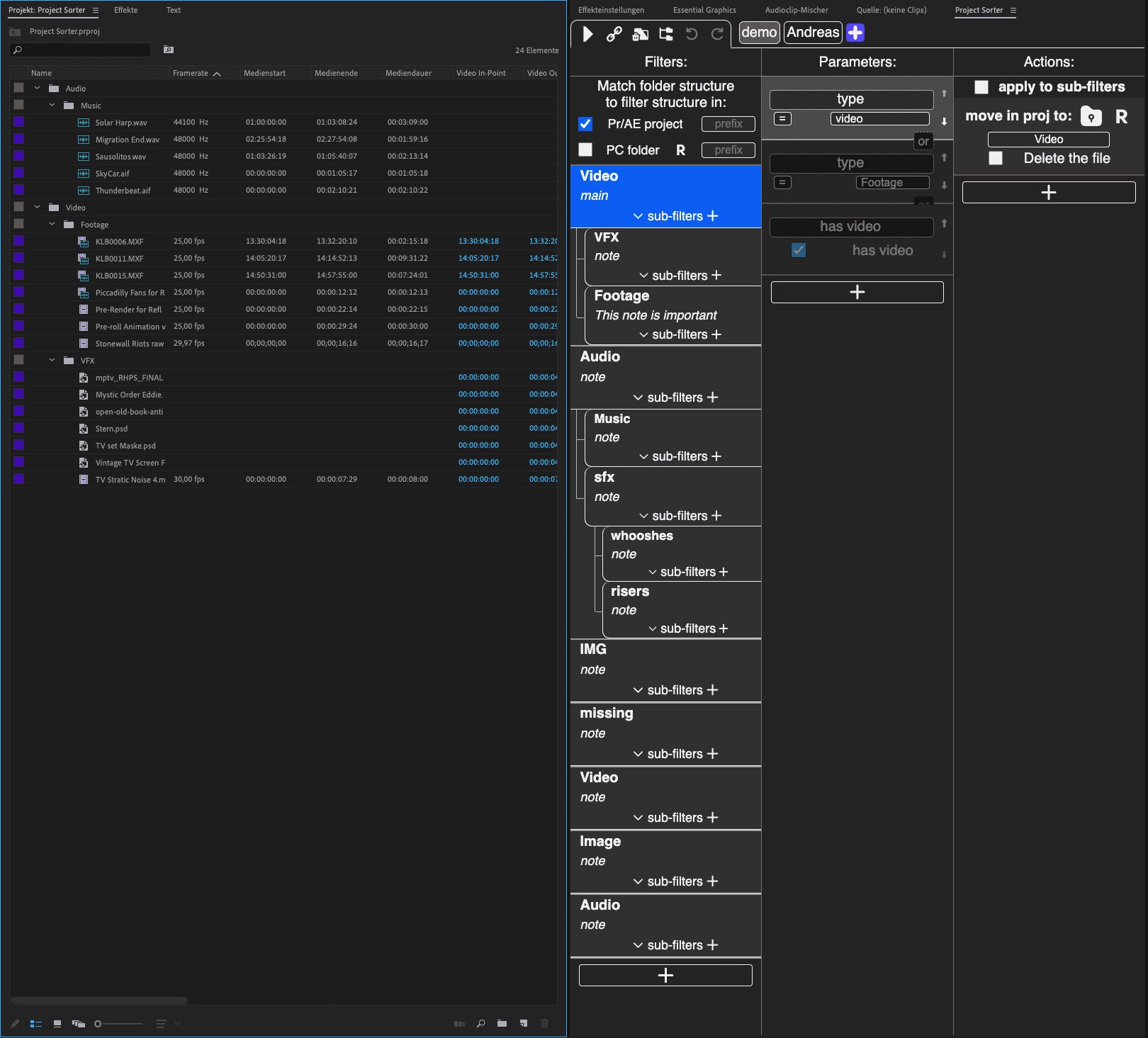
Project Sorter provides a fully automatic remedy here by sorting the elements into the correspondingly defined bins during import (including drag-and-drop directly into the timeline). Sounds simple? It should be, provided you make the effort and define a reasonably well thought-out order at the start of the project – which is actually common practice for larger productions. If even this first step is too time-consuming, you can simply rely on the “demo” settings supplied with the script to ensure at least basic sorting into audio and video bins.
Setup
The actual script can be found under Window -> Extensions and opens a three-column mask where the corresponding sorting parameters are defined. The user is not only limited to the type of file, for example video, sound or images, but can also search through metadata and file paths via a second column in order to carry out a precise sub-sorting.
An example: If you organise your raw material on the hard drive according to days and recorded cards, you can specify in the Project Sorter that all media from shooting day XY of card 1 (with the corresponding path on the hard drive) are also stored in the project bin with the same name. The secret lies in so-called sub-filters that can be defined within the “Video” filter column.
Project Sorter even goes so far as to change not only the names of the bins but also the names of the elements within Premiere (or After Effects). Instead of an element in Premiere being generically named “KLB0011.MXF”, it can be automatically renamed to “[creation-date] [creation time] cam 01″, which makes it much easier to find the clip again (if the editor knows the shooting date and time).
To perform a sort, the small chain symbol above the Project Sorter window must be activated. If you click on the “Play” button after an import, the bins are created, renamed and sorted automatically. If the link button remains pressed, the sorting function is also permanently activated, but this is not necessarily to the user’s advantage, as a file that is imported immediately disappears in the corresponding bin and must first be found there again. To avoid immediate sorting, deactivate the linking, import the element, process it in the timeline or comp, and reactivate the linking later, for example at the end of the working day (or if you lose track after a few hours), to restart the automatic sorting.
Subtleties
The Project Sorter includes lots of individual options and parameters, most of which you will never need in your entire professional life. What proves to be very useful, however, is the fact that you can add new sorting filters for each project using the ” ” symbol. The filter collections are retained and are not saved with the project so that the user can also access old settings at a later date.
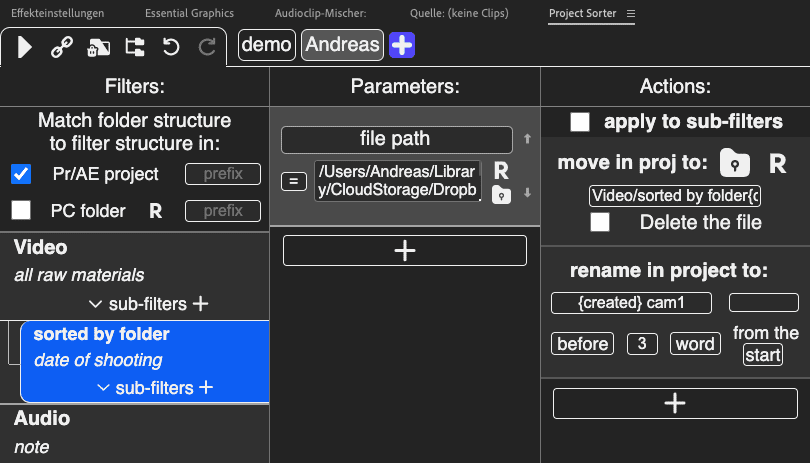
In addition to the file type and creation date, the very useful sorting parameters also include file extensions, so that PSD and PNG files, for example, are not only sorted into one image folder but into different bins, as well as image sizes and resolutions, which can be used to separate HD, 4K and 6K material in the project. You can also sort by frame rates, alpha channels and multicam clips. In addition to the aforementioned sorting and renaming of project elements, the “Actions”, i.e. the tasks that the Project Sorter performs automatically, also include adding labels and automatic scaling to the active frame size.
Conclusion
The Project Sorter is not very easy to understand at first (which even the programmer admits), but once you have got behind the logic of the script, the sorter makes a lot of work steps easier that you either regularly procrastinate on, or the user may generally shy away from, for example renaming video elements according to shooting days and cards.
So if you don’t shy away from the time it takes to familiarise yourself with the software and invest 50 US dollars, you will save yourself many, many hours of work in the long run. Work hard, sort fast, retire young.
Info box
Leyero – Project Sorter v1.75: Script for automatic sorting and naming of media files.
Price for Project Sorter 1.75: USD 50
Host application: from After Effects / Premiere 2022
Further information: https://aescripts.com/project-sorter
