



Serious video work has been possible on an iPad for quite a while now, with apps like DaVinci Resolve, Final Cut Pro, or even Luma Fusion (see here). But until now, most professionals would consider the tablet for preparation while being off-base and not for finishing in a complete workflow. With the arrival of the M4 processors, which blow away most of the competition in the Mac mini or MacBook Pro, we’d like to have another look at the iPad Pro with such a processor.
Reviewed hardware and its OS
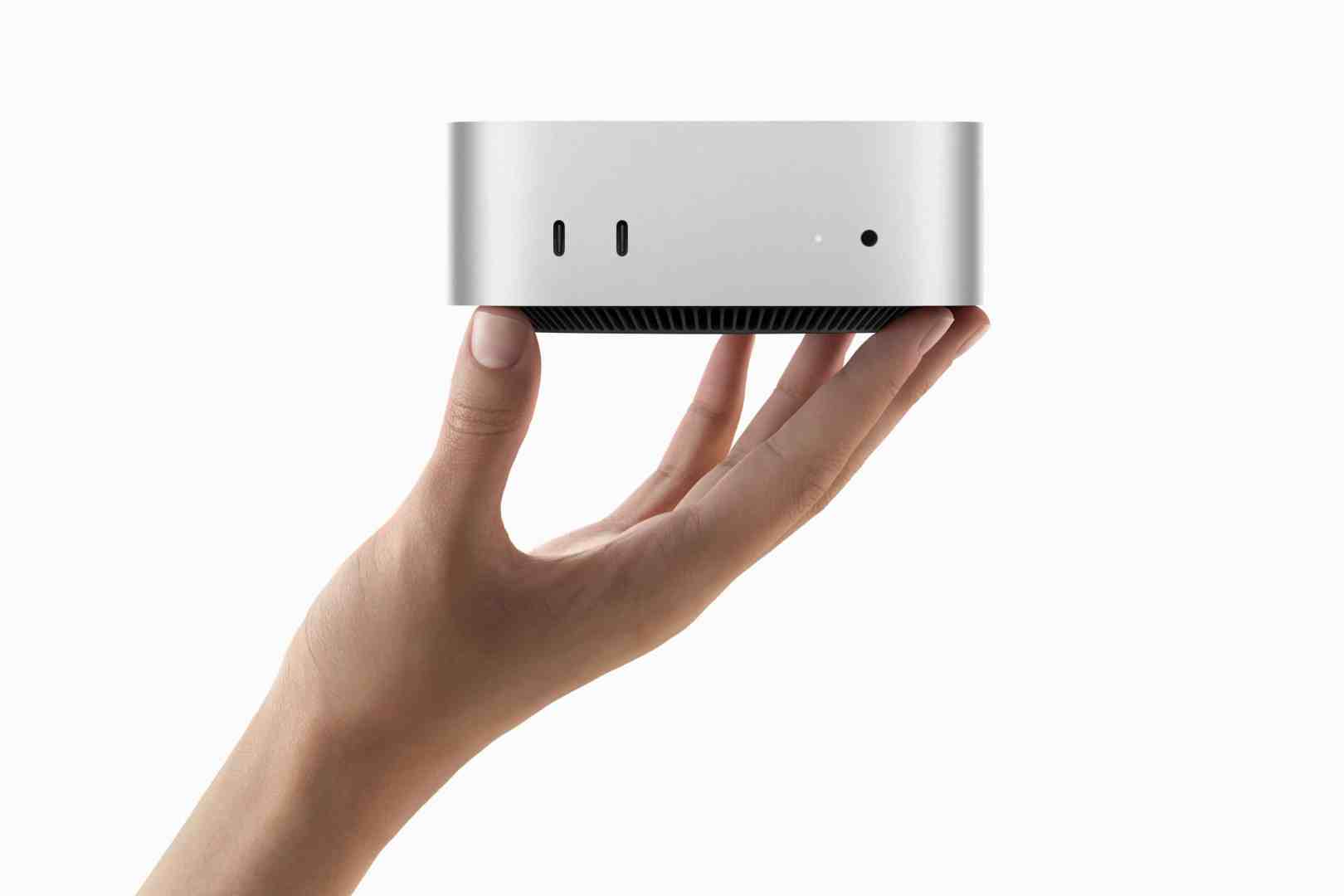
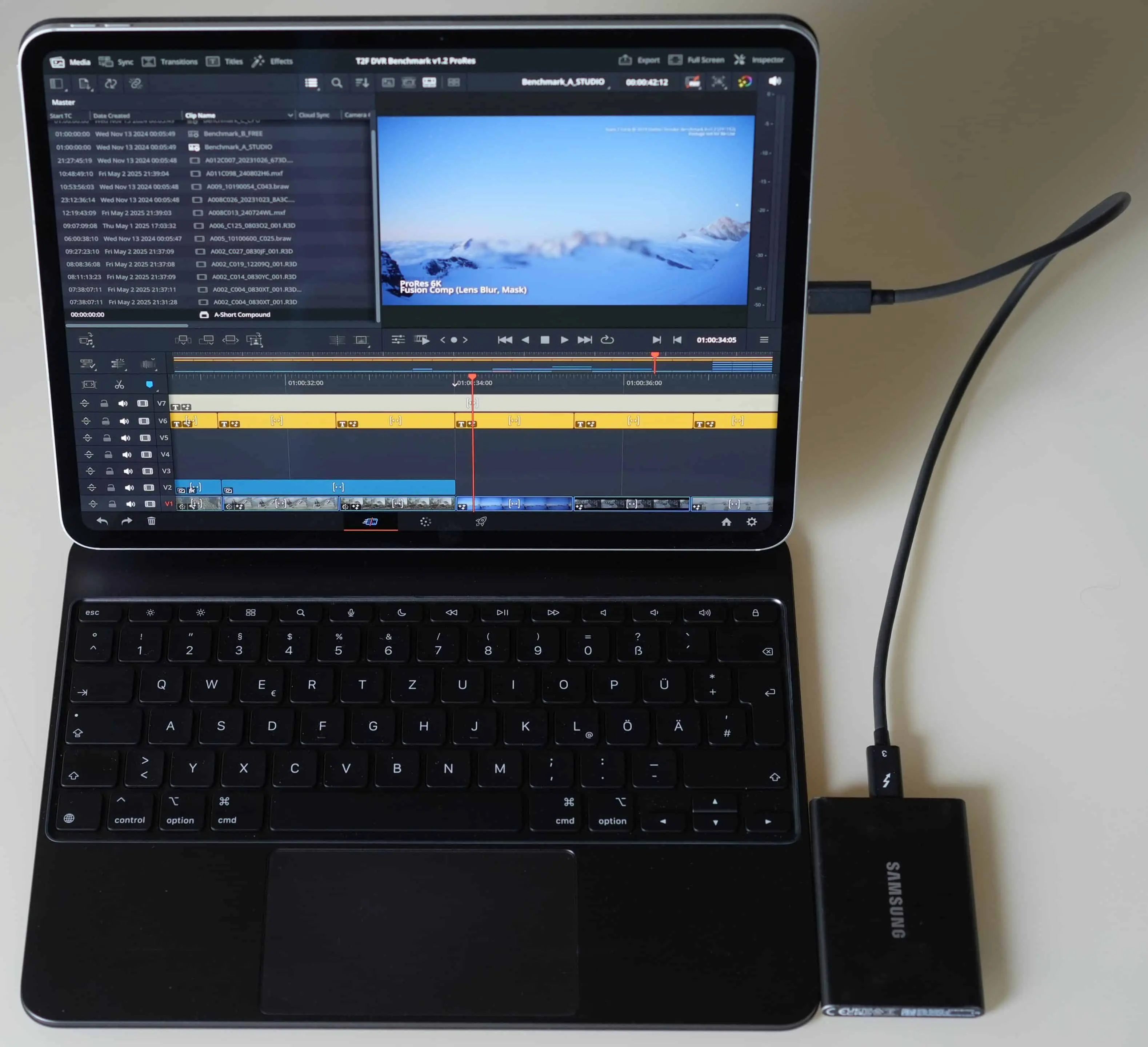
Apple kindly lent us a well-equipped iPad Pro M4 with 16 GB of RAM and 2 TB of solid state storage. We have been running it under iOS 18.4.1. For comparison, we use a Mac mini M4 Pro with 24 GB, 12‑Core CPU, and 16‑Core GPU. While we still like macOS Sonoma better, this one can only be operated under MacOS Sequoia, (currently in version 15.4.1). Our first part will be focused on their use for DaVinci Resolve.
DaVinci Resolve
Blackmagic Design (BM for short) already has a public beta for version 20 of DaVinci Resolve (DR), but not on the tablet. While beta testing under iOS is possible with Apple’s TestFlight, they obviously didn’t care to go through the hassle of registration. So, version 20 will probably only show up on the tablet once it’s final. Accordingly, our comparison will take place primarily on version 19, 19.1.4 Studio to be precise. BM mentions that projects (.drp files) or archives (.dra) are fully compatible, but now there’s one caveat: those out of version 20 are not backward compatible.
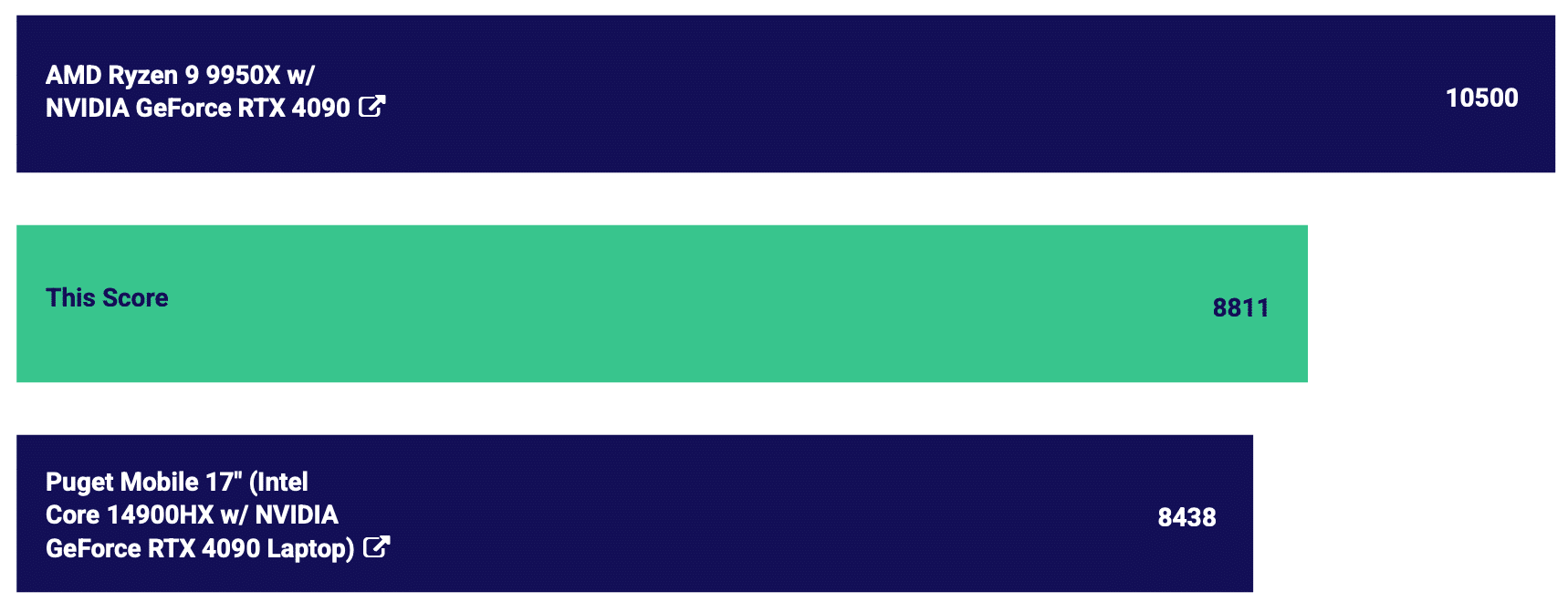
There are other limitations when trying to get serious: no RAW formats other than BM’s own BRAW are read by DR on the iPad. Since we wanted to try a widely available benchmark on either hardware, we used the one by Team 2 Films, which you can download here. To seriously challenge the hardware (and DR), it’s using several other RAW formats in resolutions up to 8K. Puget Systems now has a version of their popular PugetBench for Creators under MacOS too, but not for the tablet. A basic score of 8811 for the Mac mini Pro in that test is remarkable, in particular in relation to its low power consumption.

Benchmarking M4 against M1 Pro
Nevertheless, we also wanted to know how much faster a Mac mini M4 Pro would be compared to a trusty old MacBook Pro M1. The Puget benchmark yielded a score of 4962 in a tad under 16 minutes on the M1 Pro, but the new Mac mini gave us a score of 8811 in less than 4 minutes. This is better than a Windows laptop with the mobile version of the RTX 4090, but less than an Apple M3 Max or a desktop PC with a 4090 (according to Puget Systems’ ranking). Not bad for such a tiny computer! Under full load the fan became audible, but it was not an aggressive sound and could be held well under control with TG Pro.
PugetBench is running DR under external control, while the one by Team 2 Films is just a DR project with demanding source files and complex operations. Rendering it in its original format on the MBP M1 Pro took just short of 12 minutes, and the 32 GB RAM in that machine were enough to avoid swapping to the SSD. We also took the times under Sequoia and for DR 20 beta 2, but they were identical within a reasonable margin of error. The Mac mini M4 Pro needed 10:35, but was faster at 9:46 with DR 20b2, which seems to have some optimisations for M4.
Our machine has only 24 GB, the standard for this model, and it went into occasional swapping with R3D in 8K, but not with 6K. The decoder is grabbing quite a chunk of RAM too. So, if you regularly need to work in 8K and are eying this little machine, you may want to go higher. It’s not offered in 32, though, you’ll need to go for 48 GB to be on the safe side. OTOH, a bit of swapping won’t kill your SSD right away, just make rendering a bit slower. And then, there are even ways to replace the SSD in the Mac mini now.

Benchmarking the iPad Pro
Our first step to make it run on the iPad was converting and relinking all incompatible clips to ProRes 422HQ in their original resolution. CineForm would be accepted too, but now that DR can export ProRes under Windows as well, this point doesn’t really matter. For reference, we tested this version of the project on the Mac mini M4 too. It got rendered just a tad faster than the original version at 9 minutes and 26 seconds. After all, those Macs have hardware for ProRes too, while most RAW formats are quite CPU-heavy and needed a little bit longer.
Trying to run that version on the iPad was a disappointment. Rendering stalled in various places, after which we got false offline messages for some clips. This is a typical problem in DR 19, where you can’t always take such messages literally, if the sources are still connected and should be compatible. Even if complex processes at high resolution with that benchmark occasionally provoked some swapping to SSD, MacOS never showed any such errors. Trying to render in shorter chunks, after opening up the hidden Deliver page to see where it failed, didn’t really solve the issue on the tablet.

The iPad is not available with more than 16 GB of RAM, and even that only in the expensive 1 TB or 2 TB version. So we downscaled all the 8K clips to half their resolution, but 6K and below were kept at their size. Now, finally, the iPad got through with the rendering and needed 10:19. Not bad for a machine with passive cooling only, but even a MacBook M1 Pro finished the downscaled and converted project in 8:02, the Mac mini M4 needed 6:34. The iPad consumed 8% of a full charge during that render, so it should run up to two hours without needing external power. SSD speed is more balanced than in older models, with over 2.8 gbps read speed and close to 2.8 write according to Jazz Disk Pro.
Preliminary conclusion
All of this points to a memory issue with higher resolutions, even if the iPad Pro supports playing 8K over HDMI. There is no app for iOS directly comparable to the Activity Monitor under MacOS, but using Device Monitor² we could see that the iPad was getting close to 99% of memory in use when rendering stalled. Obviously, we have a memory management issue here for production in DR, even if the iPad Pro supports playing 8K over HDMI.
Our MacBook M1 Pro with 32 GB RAM didn’t even start swapping, the Mac mini with only 24 GB got into occasional swapping to the SSD, for example with 8K REDcode footage. But it was still perfectly stable when doing this, there were no stalls or any other render issues. So, either the memory management of iOS for the iPad Pro is not as good, or the issue is on Blackmagic’s side. Next we’ll test the tablet with Apple’s Final Cut Pro X.

1 comment
Comments are closed.