



Table of Contents Show
Even if you really want to, you have your workflow and rarely have the time to really get to know the new software. In the end, I was tired of getting slowed down by a constantly crashing software and not being able to render without artefacts. I thought the time spent on these issues with Premiere would have been better spent switching, especially since I was already colour grading in Davinci Resolve. To make the transition easier, here are some tips for switching from Premiere Pro to Davinci Resolve so you can get started as quickly and efficiently as possible:
Project Manager: Wait, where did I save my project?
One big difference between Davinci Resolve and Premiere Pro is how projects are managed. For this, the first thing you will see when opening the software is the Project Manager. This is the place to create and manage your projects. I’m honest: when switching, that was something that needed some time to adapt to, but it’s worth it.
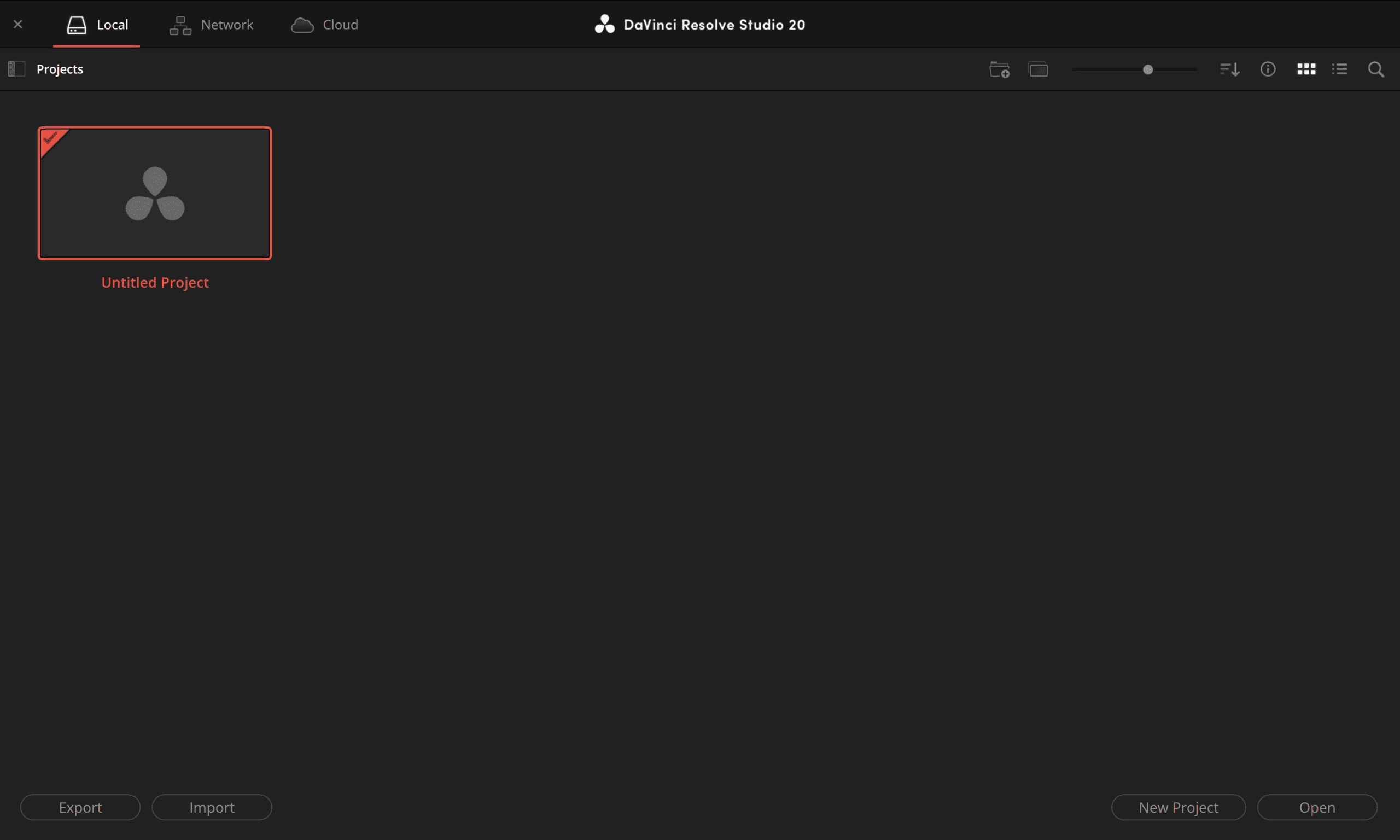
While Premiere Pro projects are saved as files where you decide where, Davinci Resolve works with managed Libraries. These are structured containers that serve as a central repository for all project data. Libraries are managed via the Project Manager and can be hosted on your computer, on a networked server or in the Blackmagic Cloud. To switch between the three options, simply click on the one you choose in the top left corner of the Project Manager.
If you tend to make copies of your project on your computer to keep backups, this will change your workflow. But we’ll take a look at that later. For now, it’s important to know that projects saved in your active project library can easily be exported to your hard drive as a .drp file for a manual backup or transfer to another system. To export your project, right-click it and choose export.

Libraries come with some advantages. My favourite one: multiuser collaboration. I can’t describe how useful this is! Editors, colourists, VFX artists and sound engineers – everybody can work with the same project file on different workstations. Even at the same time, in the same timeline. Brilliant and timesaving.
Also speeding me up: powerbins. These are useful when working with media I use in multiple projects. They make media easily accessible across different projects, as long as it is in the same Project Library.
Pages: Where do I start?
When switching from Premiere Pro, you’ll probably be used to using Dynamic Linking to get your edit into Audition, After Effects and Media Encoder to complete your postproduction process. In Resolve, this is what the Pages are for.
These follow the typical postproduction process from ingest to delivery, which provides a great advantage: you can have your whole postproduction in just one software. No exporting timelines for audio postproduction, visual effects or colour and no translation issues between software. There’s no need to manage multiple project files or export assets to get them from one project into another. Changes made in one page are instantly accessible in others, and you can quickly go back and forth as needed to change things.
I think to start, it’s important to say: Most things can be achieved in the Edit Page. Don’t get scared away by the masses of pages and functions! There are different ways to achieve your goal when editing, and you will get around very well, mostly by starting in Edit Page. Lots of functions from other pages are also available there. If you like, you can even turn off pages you don’t want to use in the preferences. To still give you a bit of orientation, here’s a quick overview of what the different pages are for:

The Media Page is for ingesting and organising. Right next to it we find the Cut page, which is an editing interface designed for speed. In the Edit Page, we have the traditional editing interface, which should be very familiar to you, coming from Premiere Pro. Quite different from After Effects is Fusion, the node-based workspace for compositing and VFX. The Colorpage – quite self-explanatory – is made for colour grading. Fairlight is the page where you can mix and master your audio after editing to then, finally, render your video out in the Deliver Page.
Interface basics: Where to find what you need
It will probably need some time for you to adapt to what’s different. One of the things that took me a while to get used to was the fixed panel places. While we’re used to being able to move everything around freely in Premiere Pro, Davinci Resolve allows only view windows to pop out and be moved freely throughout all pages. But once I adapted, it made total sense where everything is.

In the Edit Page, one big part of the window is the timeline in the lower part of the screen. Above that, we’ve got the source viewer and timeline viewer. Note: When your screen is too small or your screen resolution is too low, you might only see one viewer. Don’t worry, you can easily switch between those pressing Q.
In the Edit Page there are nine panels you can open and close by clicking their buttons located in the upper part of the screen. The ones on the upper left side will then open on the left and vice versa. The Media Pool on the upper left will give you fast access to your footage. It’s the same Media Pool as in the Media Page which we’ll look at later. The Effects panel, the index, and the mixer should be intuitive when switching from Premiere, though the feature I love most in the panels is the Inspector on the upper left side.

It could be compared to the effects controls in Premiere but has basic effects like crop already integrated, as well as more advanced effects like stabilisation, speed change, retime, and scaling.
Even though most panels are fixed, you can give yourself some more space by closing the panels you don’t need. Depending on whether you have opened multiple panels from both sides or not, they can be full-screen height or half-screen height. Accidentally messed up your UI? Don’t worry. You can quickly reset your UI layout in the menu Workspace > Reset UI Layout.
You’ll find dual-screen mode, full-screen Timeline, and, using Resolve Studio, permanent full-screen video out in the same menu.
Live Save and Project Backups
When working in Premiere Pro I often feared software crashes. I tried to save after every single thing I did because autosaving just didn’t cut it. Davinci Resolves Auto Save, which is called Live Save, is on a completely different level. I never fear that something is gone! I’ve got way fewer issues with the software crashing, but if it does, I know that what I did last will be there.

To restore the backups, right-click the project in the Project Manager. This won’t overwrite the current project version you’re working in. If you’re used to copying your Premiere Pro Sequence to revert to an earlier version of your edit, you may like to check out the Timeline backup function. It works just like Project Backups and can be activated and customised in the same spot. To restore a Timeline Backup, right-click on the timeline in either the media panel or Media Page. Just note: Timeline Backups will be stored locally, even when working on Network or Cloud Libraries, so they will only be accessible on the system where they were created.
Media Page: Import and Media Organisation
The one time I’d highly recommend switching pages is when importing media into your project. Even though it is possible to import media on all pages except Deliver, the Media Page offers many options for importing and managing your media.

The Media Page is split into Media Storage and Media Pool. The upper-left is Media Storage, which might be familiar to you if you used the Media Browser in Premiere Pro. It’s effectively a file browser for finding or exploring files on drives mounted on your computer. What I find very useful about this: you can quickly review or check footage in the viewer in the top-right corner of your screen, even without importing. A little extra: hovering over the footage lets you scrub through and preview without loading a clip into the viewer.
The lower part of the screen is your Media Pool – the project-specific repository for all the assets you’re importing or creating in Resolve, like footage, audio files, timelines, etc. On the left side, you’ll find the current projects bin list with the master bin. It’s the top level of your projects’ folder structure where all the other bins containing your project’s footage are listed. The right side shows the inside of the currently opened bin.

To get your footage into Resolve, simply drag and drop it from Media Storage, Finder, or Explorer into the Media Pool. If doing so on the Media Storage Bin list, the folder structure will be translated into the bin structure of your project. When adding to the right side, all the footage will be unpacked into the current bin
But there are other import options that let you stay in Resolve, leading to the same results: when you navigate to your folder in the Media Storage and right-click it, you’ll see the option to import your footage folder and all its subfolders into the current bin. This I find useful when working e.g., with Sony in camera folder structures, where you don’t want all the extra bins. Alternatively, you can choose “add folder and Sub folders into Media Pool (creating bins)” to get your complete folder structure as sub bins in the current bin. This is helpful if you already have your folders sorted out on your hard drive and want to copy the structure into Resolve.
Ways to create and work with proxies
Depending on the footage you’re working on, you might want to render some proxies. This is one particularly strong thing in Resolve and speeds me up quite a bit. You’ve got two options: if you’ve already set up your project and imported your footage, it’s super easy to create proxies by right-clicking on some highlighted footage and choosing proxie media > generate proxy media from the project settings.

In this case, it will automatically create proxies for the highlighted clips and save them in the location that is set in the project settings > master setting when scrolling down to working folders.

The Quality of the proxies can be defined in the same menu at optimised media and render cash. The proxy resolution is defined in relation to the original resolution. Possibilities are, for example: original, half of the original, a quarter of the original, etc. By default, it’s set to “choose automatically”, which will generate at the current set timeline resolution. When working with proxies, you can switch fast between disabling All proxies, preferring proxies and preferring camera originals, in the Timeline viewer.
You can also see whether proxies are attached by the white (for high-resolution) or purple (for proxies) icon on your clip, which will be visible in the thumbnail of your clip in the media pool.
If you really want to speed up your preparation process in advance, you should look into the Blackmagic Proxy Generator, an external tool which will automatically be installed with Davinci Resolve. It gives you the opportunity to render proxies in advance, without even having to get your project set up before. The proxies will then automatically be attached when importing the footage into a project.

This process will ensure you can go straight into editing when setting up your project. The strongest part of this tool is the watch folder function, which continues to scan your chosen folders for additional footage even after generating proxies. Very useful when you keep adding footage to folders you’re already working with.
Organising footage with scene metadata and smart bins
After you’ve added everything to your bins, it’s time to organise your footage. With Premiere Pro, I used to either restructure footage directly in bins, which made everything messy quite quickly, or sort my footage into sequences. In Resolve, I recommend using the scene metadata and smart bins. I know that Premiere Pro also lets you create smart bins using metadata, but it wasn’t intuitive enough for me to use back then. Resolve on the other side makes it super easy:

On the Media Page, click one clip or highlight multiple, then navigate to the top-right to close the audio panel. This will give your open Metadata panel more space. Choose “shot and scene” from the three-dotted menu. There, you’ve got lots of options to set metadata. One thing I like to use in this context is Clip colour, since it gives me an easy way to differentiate between different footage, for example, interviews with different people. Other than that, you can set metadata and let Davinci Resolve create smart bins based on it. For a start, I’d recommend you use Keywords. To do so, enter a Keyword you want to sort your footage by into the Keyword cell.
Then navigate to the bottom-left of your screen to find the Smart Bin List. By default, there should be a bin for Keywords. Davinci Resolve automatically generates one smart bin for every keyword you set before. By clicking on ‘Keywords’, a menu with all the smart bins will open.
Personally, I love this feature because it lets me keep my original folder structure while allowing me to sort my footage more intuitively. It also allows me to have the same clip in different bins, e.g., for location and person, which speeds up my process. With all this said, you should have everything you need to make your first steps in the software. Next up: how to get your Project Settings and Timeline right to start your first edit in Davini Resolve.
