



If your modeling flow depends on lining up a mesh to photos, you already know the usual pain points inside Autodesk Maya. You set up a camera, attach a reference image, tweak focal length and framing, then bounce across panels and settings while your brain tries not to forget what the likeness looked like two clicks ago. Handy RefTool aims straight at that friction by collecting the controls for reference matching into a single interface. The practical target is portrait modelling, but the same camera to image alignment problem shows up everywhere you match a 3D model to reference images. That includes creature design and hard surface work when you want the model to sit cleanly against a specific plate or photo set.
Classic mode, fewer context switches
RefTool includes a Classic mode that sets up reference cameras by automatically creating a camera in a scene and assigning a reference image to it. From there, the workflow focuses on fast iteration. You can adjust camera settings via slider controls, rotate around the model, zoom in for alignment checks, and scrub the opacity of the reference image to see how closely the sculpt lines up.
That opacity scrubbing matters more than it sounds. It turns the usual on-off flipping of an image plane into a continuous check, so you can keep your eye on silhouette, landmarks, and proportions without turning the viewport into a strobe light.
Once you have a camera setup you like, RefTool can export it as a JSON file, allowing you to reuse it in future projects. That reuse angle fits neatly with production reality, where you do not want to rebuild the same camera matching scaffolding every time a new head variant or costume pass drops into the scene.
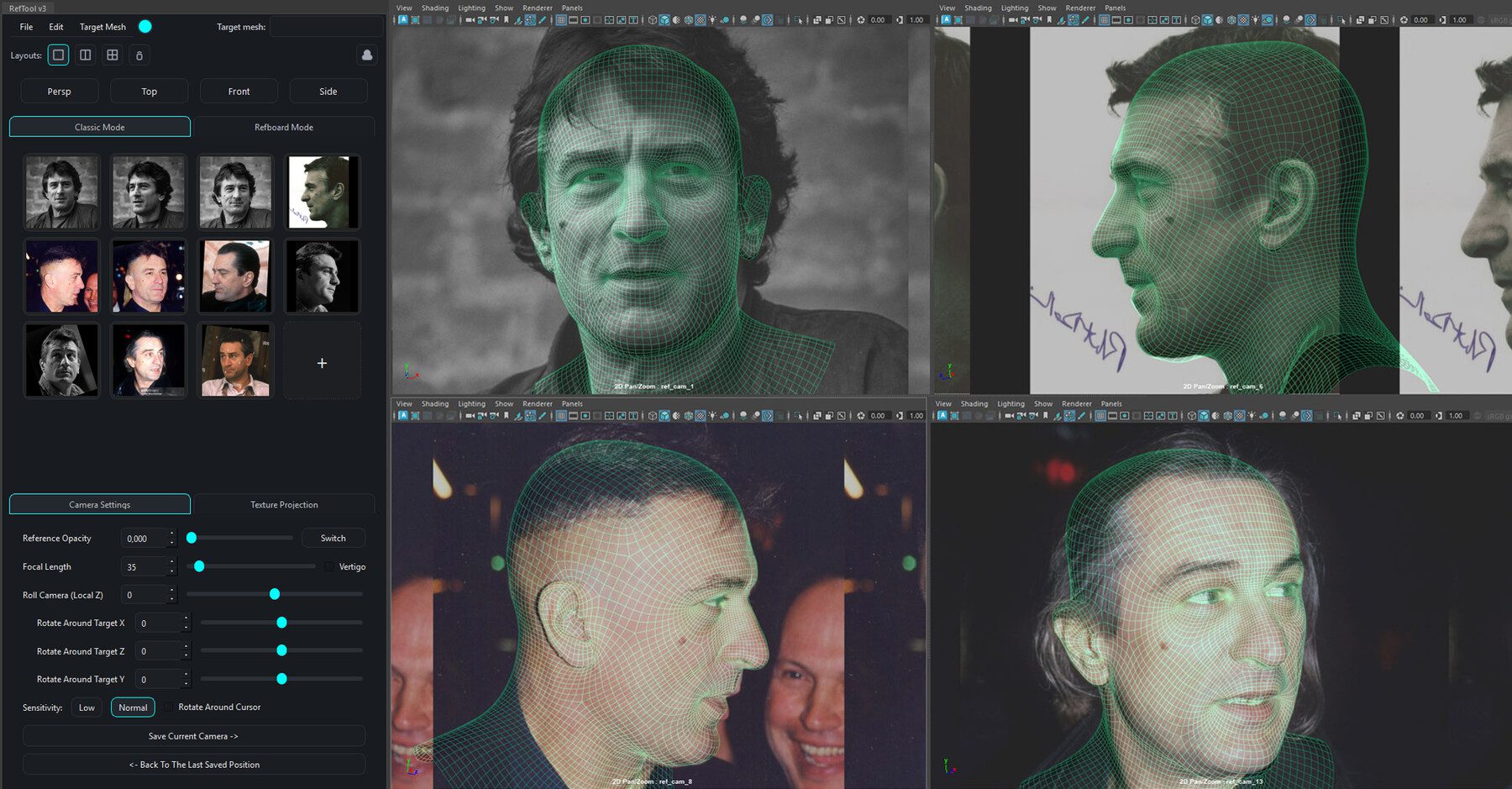
RefBoard mode turns cameras into a wall of thumbnails
When you have multiple reference views, the real time sink is not creating them. It is switching between them in a way that keeps you oriented. RefTool includes a RefBoard mode that lets you arrange camera views like an image board and switch between them by clicking on thumbnails. That thumbnail switching also plays nicely with the way artists actually work on likeness. You rarely stay married to one image. You bounce between angles, you cross-check, you sanity test, and you keep moving. A board of camera views makes that bounce less disruptive than hunting through the outliner or viewport menus for the right camrea at the wrong moment.
Install notes, plus a very specific graphics requirement
There are two tracks here, and the install experience differs. For the free RefTool v2.1, installation runs through the Script Editor inside Autodesk Maya. You open the Script Editor, load the RefTool_v2.0.py script, then either execute it immediately or save it to a shelf for a one-click launch later. The same listing also includes free scripts labeled RefTool v2.1.1, including RefTool v2.1.1.py and RefTool_V2.1.py.
For the full RefTool v3.0, the install path starts with unpacking an archive. You then open Autodesk Maya, switch the Script Editor to the Python tab, drag and drop a maya_installer.py file into the editor, and click Save. A file dialog prompts you to select the RefToolV_X.X folder that contains the source files. After that, the tool icon appears on the currently active shelf.
One operational detail comes with a big warning label. Each time the tool launches, it runs directly from the folder selected during installation. If you move, rename, or delete that RefToolV_X.X folder after installation, the tool stops working. Both the free and full installs include the same requirement: Viewport 2.0 inside Autodesk Maya needs to be set to DirectX 11.
Versions and pricing
The version split is straightforward on paper. RefTool v2.1 is free and is described as having the core functionality. RefTool v3.0 redesigns the interface and adds extra functionality. The published price for version 3.0 is USD $14.48.
Where this fits in real work
The strongest signal here is not a single feature, it is the focus on keeping the artist in the flow. Reference matching is foundational for portrait work, but it is also a repeated micro-task across creature blockouts, prop modeling, and any job where a specific camera-to-image relationship matters. RefTool targets those repeated touches by putting the camera adjustments and reference image controls in one place.
The JSON export for camera setups adds a pipeline-friendly hook. Reusable setups can reduce churn when a project revisits the same asset type across multiple shots or deliverables, or when a team wants consistent camera matching conventions for a specific modeling task. As always, new tools and workflow tweaks should be tested before you let them anywhere near a production deadline, especially when the tool depends on specific viewport and graphics settings.
