



Table of Contents Show
A proper hardware device by Blackmagic Design (BM for short) and a calibrated screen has been the iron law for any professional user of DaVinci Resolve (DR for short). But for all those working under MacOS, this may have been valid for the longest time. We are looking at recent changes in DR for those without one. Spoiler: calibration still matters!
How to check
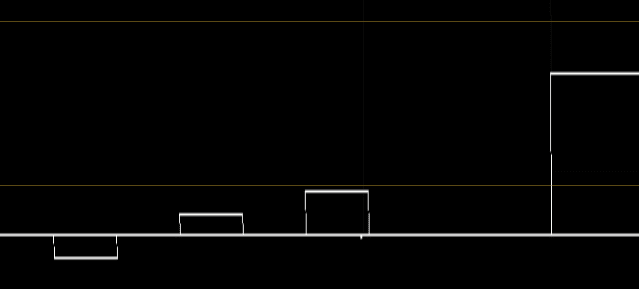
To see what’s going on when playing your movie on other devices and players you can compare your own footage, for sure. At least, if you were the colorist, you should know how it should look like. But if you are unsure (and our memory for colors can be tricked easily), there is the classic SMPTE chart in DR, which has the so-called PLUGE pulse (short for picture line-up generation equipment) in the lower right. In the wider black bar there are two narrow zones with a value just above black, the left one being the darker one (check your waveform).

If your blacks are not crushed by a false gamma interpretation, you should be able to see the right bar just faintly inside the black stripe. The middle one may only become visible if the shadows are lifted too much. Of course, it all depends on your screen too. If it’s not capable of showing black or at least near black, the rest of that whole area will not be pitch black, making it harder to judge the subtle differences. Actually, there is a third bar to the left of the two, but that is reaching down into the sub-black area and only visible if you have exported the file with “Retain sub-black and super-white data” activated. Normally it is just cut off.
Calibration options
DisplayCal is plugging into DR and sending its test patches through the grading software over any compatible I/O device to the screen you need to calibrate. The resulting LUT can be copied into DR and used as a monitoring LUT to correct deviations of the connected screen. This approach works absolutely correctly with the right settings in DisplayCal, being able to avoid any interference of the operating system, be it MacOS, Windows or Linux. Final precision is limited only by shortcomings of your monitor, like weak shadow areas, as visible below. BTW, those small spikes and minor shifts in the waveform are caused by compression in our recorder.

In our series of articles for those not able to spend a fortune on high-end solutions, we have shown how to get a proper LUT with the help of free software and second-hand hardware for Apple silicon. But now we have two solutions pretty much on par regarding calibration in the operating system by an ICC profile. So, we wanted to know if one can live without such an I/O device and that perfect calibration over the whole chain. Actually, BM has recently changed how preview windows and full screen display color and contrast. So, ICC profiles may not be insufficient any more for DR on a Mac with a screen adhering to standard!
Direct monitoring
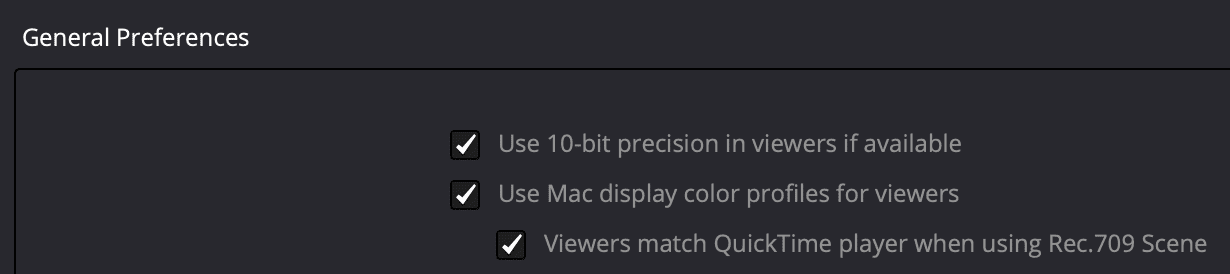
BM has supported the use of Mac display profiles in DR’s viewers under MacOS for quite some time, even in 10-bit. But due to peculiarities carried over from older systems, they needed to use a non-standard version of Rec. 709, called 709-A. That was nothing but a crutch, and it was not only Apple’s fault that contrast and brightness were inconsistent between many players and other devices. If you are seriously bored, you can read this thread, with over 20 pages, the longest one ever in the DR user forum. You can follow some true experts and many wannabes there, discussing a ‘final’ solution. So, what’s our take on it?
The main problem is lack of timely standardization when everything went from tubes to digital cameras and screens. The Rec. 709 standard for HDTV was defined based on analog technology, which behaved differently from modern cameras and screens. The newer addition to that standard is called BT. 1886, but it was only published by the ITU in 2011.
At that time there were already too many digital technologies in use, and most manufacturers didn’t really care much about adherence to a standard coming so late. BT.1886 defines a gamma (a contrast curve) of 2.4, which is fine for viewing TV in a rather dimly lit living room. Adjusting that curve is not really adhering to the standard, but on this model of a TV, for example, a value of +2 will get it to 2.2.

This slightly older Samsung TV, as a typical example, is offering modes like Movie, Natural, Standard, and Dynamic. Nothing says “Rec. 709” or “BT. 1886” right away, but „Natural“ is actually adhering to BT.1886, even fixed to it. „Standard“ is BT. 1886 too by default, but allows you to override that gamma in the expert settings – go figure. “Movie” is also adhering to BT.1886, but with a very warm tint – which again can be overridden, just like gamma. Recent ones have the “Filmmaker” setting, which is supposed not to change anything, and “Dynamic” is for bright rooms. Have fun with all the creative names and options of other manufacturers!
A lighter and less contrasty gamma of 2.2 might be better in a brighter environment. Mobile devices in particular are watched wherever you go. Even if some can reach very high brightness values these days, details in darker areas of the image can get lost if the content was graded as 2.4. Encoding clips for social media instead of movies for cinema buffs may profit from a gamma of 2.2, which is correctly flagged as 1-4-1 by DR. It even adheres to a standard, called BT.470 System M, as shown by MediaInfo (free). But this was a standard for analog television in some parts of the world only, and is now considered historical.


But do TVs and other devices really check such flags, which contain the information about encoding in your digital video files? They should tell the playback device which colour primaries, which colour matrix, and which gamma (called transfer characteristics here) were used. If you check with the info function for a video file on a Mac, the ones for Rec. 709 BT. 1886 are code points 1-1-1 or flags (I’ll use flag from here). They will be listed by cross-platform software such as MediaInfo as Rec. 709 for all three parameters.
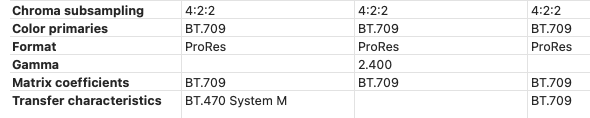
In a perfect world, all playback devices and software players should respect such flags and show your video accordingly. Well, at least most of them assume your sources are 1-1-1, but often don’t care if it’s flagged as anything else, like 1-4-1 or 1-2-1. Some even force 1-1-1 on your clips, whatever they are. As we all know, YouTube is recompressing your sources, which is acceptable if the quality is good enough. But what’s absolutely unacceptable: whatever your original flagging was, YouTube will set it to 1-1-1 without even asking you! Just try to send one of your clips to YT and read it back. The free video patcher AMCDX by Alex Mogurenko will help you to correct wrong flags, but you need to remember the original encoding.

What to do?
In consequence, your results, which you encoded as gamma 2.2 for viewing in brighter environments, will actually be displayed darker and loose detail in the shadows. And if you encode from DR as Rec.709 gamma 2.4, which is offered as another option, it may too bright and lack contrast and saturation on players or a browser not respecting the flags. So, always encode as Rec. 709 (Scene) and hope for the best. It should look right on a TV with the correct settings. These can normally be found on most modern TVs or monitors if you dig deep enough into the menus, either as Rec. 709 or BT. 1886. Out of the box, many TVs are set to a very contrasty and saturated look, shouting out “Buy Me!” to the visitors of a mall for electronics.

The very popular VLC player is another example of ignoring flags, while we can recommend mpv player or its descendants for observance of flags. Of course, this says nothing yet about the quality of the screen attached to it. If that one is not calibrated, or at least set correctly in its menus, the image may still be far off. And then, there are all those image ‘enhancements’ imposed by digital TVs for viewing conditions, like bright environments or late hours. Or think of a projector meant to be visible in a not so dimly lit boardroom and optimized for (visual!) clarity of business charts.
Recommendations
Recent MacBooks and iPad Pro models have excellent blacks and offer reference modes for several standards, including HDTV (BT.709-BT. 1886). These are factory-calibrated and deactivate any image adjustments, assuming an environment properly lit for grading. Now, there is some sample variation and according to our own measurements, the nit value for white can be a tad low, like around 90 instead of 100 (some experts even suggest 120). Nevertheless, such screens come pretty close to a properly calibrated screen in the lower price range and offer much better blacks than conventional IPS panels.

If you are working for TV, we would still advise a professional, calibrated monitor via an I/O device. But, at least with the settings explained above, your viewers in DR will not look completely off when a client is looking over your shoulder. For all those working for social media, where your audience will have devices that you can’t control anyway, we suggest sticking to the only widespread norm: Rec. 709 with a gamma of 2.4. If you are concerned about visibility in bright environments, change the lighting in your room and check with an average smartphone, but avoid the setting for gamma 2.2 when rendering.
If you work for clients who want your results for social media, but are picky about how their movies look, you may need to supply them with an iPad Pro for presentations. Set it to a reference mode, block that, and try to explain to them why their average boardroom projector may look different. You may even want to take a photograph of TVs in an electronics market showing the same content next to each other.
Let’s do it on a Mac
So you’ve got a MacBook Pro (MBP for short) with Apple silicon and you’ve got a calibration probe, be it by Datacolor or Calibrite. But working just for the internet, you didn’t invest in an I/O device. We don’t care which generation of that laptop, as long as it has the nice XDR screen and reference modes. But who likes to work with DaVinci Resolve on such a small screen (even the menu bar is too short for all the little extras)? Let’s say you have a larger screen with decent color quality attached when you start grading at your home base. After all, not only Apple says that you should be grading to standards in a controlled environment – something hard to find in a hotel room or on the road. Now calibrate that external screen with your probe, and you’ll be generating just an ICC profile for the Mac in this case. More than one profile can be prepared for the correction of different monitors, which will be managed by the system.
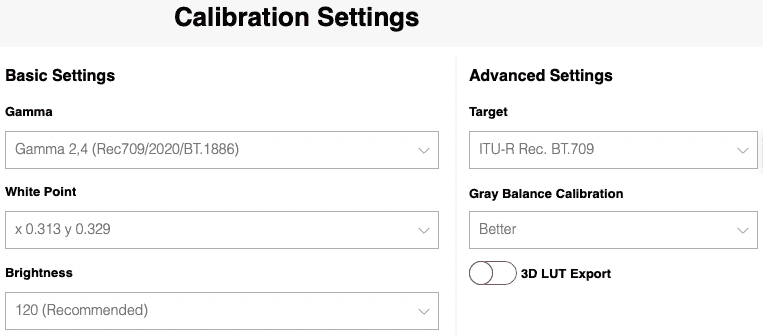
Brightness according to BT. 1886 would be 100 nit, but 120 fits modern screens better. The steps needed for calibration are fully self-explanatory with the Spyder Pro software, and the result on a decent screen is very close to what we see on the MBP when set to reference mode. OK, DisplayCal may be a tad more precise. But it’s more complicated and taking many more measurements, resulting in excessively long lunch breaks.
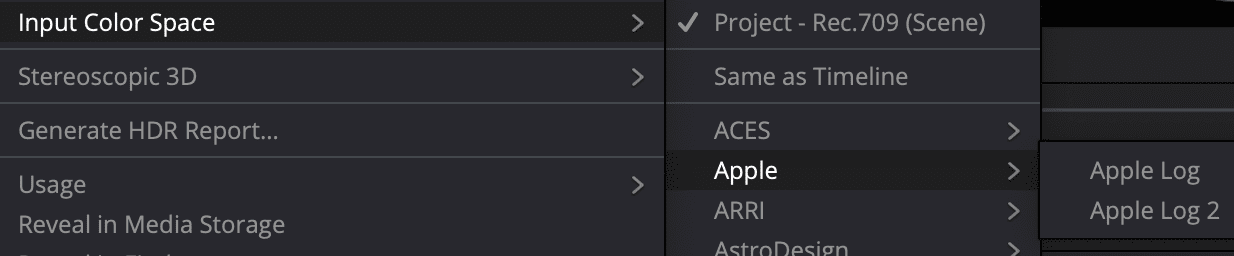
You need to set the system preferences of DR to use the Mac profiles, as already shown above, and now you have to stick to Rec. 709 (Scene) on the Deliver page to get your output and its flags right. Do not use Rec. 709 Gamma 2.4, even if theoretically it should be the same!

Your timeline can be whatever you prefer: Rec. 709, ACES, or DaVinci Wide Gamut Intermediate (DWG). Of course, with manual settings your first node should get a CST (Color Space Transform) to adapt the incoming camera sources to DWG. Resolve’s automatic setting, called DaVinci YRGB Color Managed (aka RCM) set to SDR would also deliver the flags as 1-1-1, by the way. But you may need to check if the incoming footage’s color and gamma is identified correctly or needs to be set manually. That’s often the case if some difficult source has been transcoded into an intermediate codec, like ProRes, DNxHR, or Cineform.
Conclusion
In the end, you need to understand that rendering into a specific colour space and gamma is actually changing the visual content of your results.
Tags are just metadata, which should trigger the right interpretation in players. That’s the point where chaos breaks loose, because manufacturers often don’t care for the tags and display your video based on assumptions. The only reliable approach is encoding to Rec. 709 with a gamma of 2.4 and having the tags set to 1-1-1, which is automatically done if you render into Rec.709 (scene).
