



Table of Contents Show
That‘s what we want to change that a bit with this overview and in this part two we will take a look at what we can do with tags and Colors and how to get to the nodes . . . Here we go!
Colors & Tagging

We already know this from Nuke‘s Node Tree: The colors of nodes always have a meaning, they assign nodes to a certain category and generally serve for better orientation. But it can also be very helpful to color nodes individually, just to facilitate this orientation. It is no different in the Timeline Environment of Nuke Studio. If we take a look at the Project Bin, we can already see that the different items have different colors. By default, the Project itself is Purple, Bins are Olive, and Timelines have an orange tint. If we look to the right to the proxies, they are all colored pale blue. If you want to have different default colors for your projects, you can change this in the Project Settings (like in Nuke by hitting „Shift-S“) under Panels – Project Items. Here you can also assign different colors to different file types. But also individually you can assign a color to an item – for example to be able to distinguish the different timelines in a project with several edits. To do this, you can right-click on any item and change the color using the „Color“ option.
What is interesting here – if an item is used in one or more timelines, whether single or multiple, this color will also be updated in the timeline. So coloring it accordingly can really help you find a particular clip again. To make this even easier, you can sort by color within the thumbnail view. In our conforming workspace, to the right of the „Project Bin“ tab, we find the „Tags“ tab. The tagging system is really powerful, especially since it works closely with all kinds of asset managers like Shotgrid, FTrack, NIM, Cerebro and so on. But even within Nuke Studio, tags can really help us out, especially when the status of different comps, versions, etc. changes.
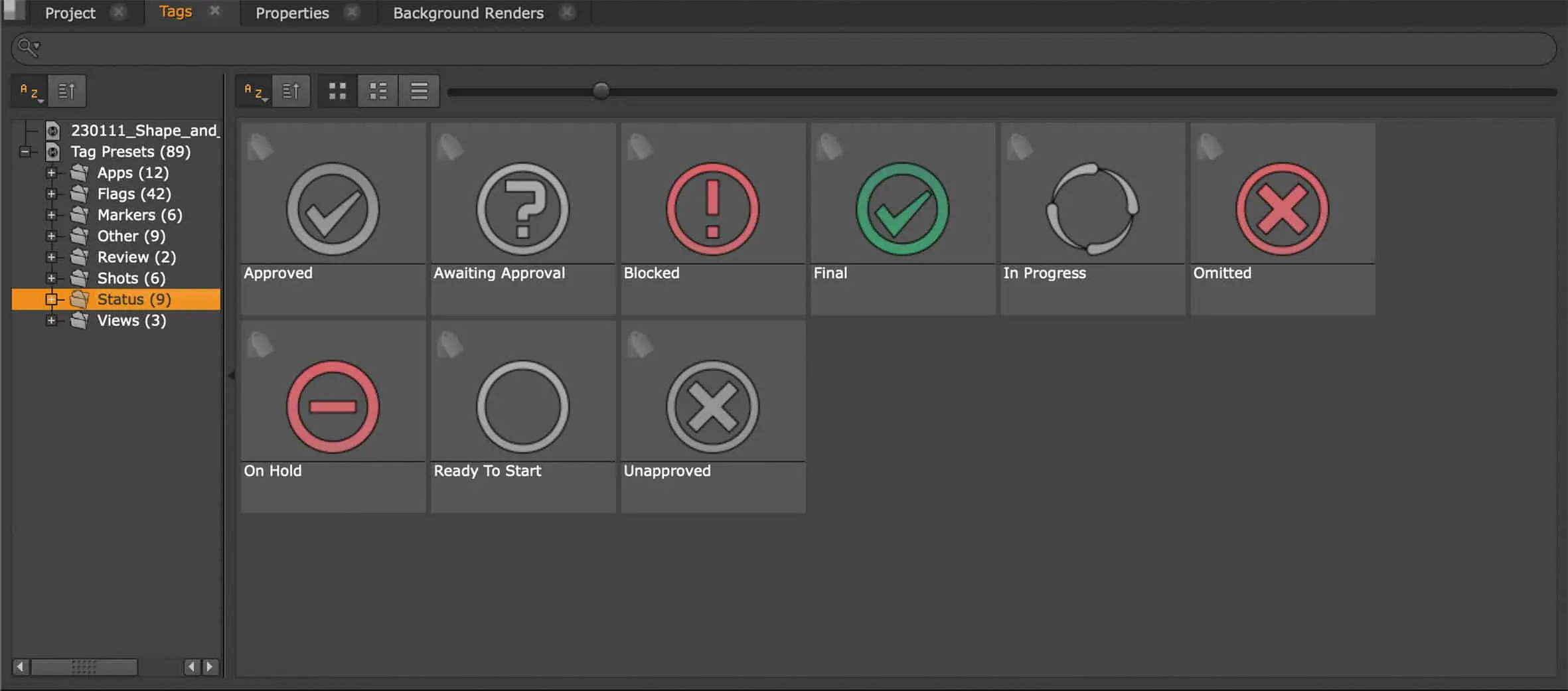
If we take a closer look at the tagging window, we will find quite a selection of tags, which Foundry already provides. We can drag and drop the appropriate tags from the tags panel onto the timeline. This also works with multi-selections and of course each clip can have multiple tags. So we can distribute descriptive tags, like whether an element is for foreground or background, or whether it‘s a green screen shot.
Even the Color tagging is dynamically linked between Project Bin and Timeline.
However, we can then also assign a status tag such as „Ready to Start“ or „Omitted“ to the same shot. If you want, you can also distribute the tags in the spread sheet by right-clicking, but then things quickly become confusing, because we don‘t find the pre-division into folders here, but a gigantic pull-down with all existing tags. By the way, not only clips, but also tracks and entire sequences can be tagged. It is also possible to create your own tags. Via the Presets tag we see our Project Bin displayed. By right-clicking on „New“ we can generate tags as well as bins for sorting the tags. PNGs are supported as thumbnails for the tags. To add your own PNG, click on the „Icon“ pulldown and scroll all the way down. There is the „Custom“ option and we can give our tag its very own flair.
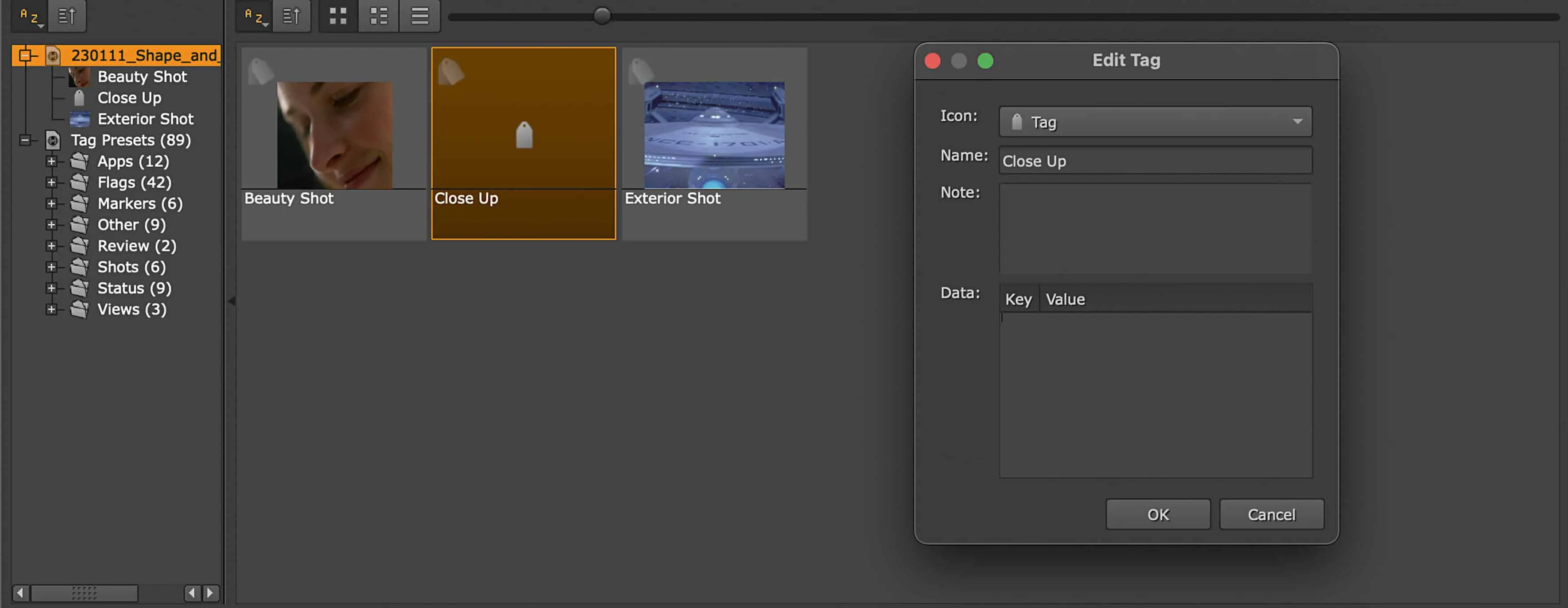
Another very nice way to distribute tags is to simply drag them into the viewer. A HUD appears on the viewer and we now have the option to either assign a tag to the sequence, tag an individual frame, tag the clip within the timeline („Tag Track Item“) or tag the source clip („Tag Clip“). And depending on where we drop our tags, they will appear above the Viewer (For Individual Frames), In the Project Bin (For Clips and Sequences) or in the Timeline itself (For Track Items). With a double click on the tag we can open an Info Window, where we can assign Notes or Metadata to the tags. These are individual, meaning they are not shared with other tags of the same name in the project, and can help share additional info. However, only if the Notes are written after dropping the tag: Notes that are written during creation or within the tag panel are then also consequently distributed. Especially with longer timelines it makes sense to be able to search and filter for tags.
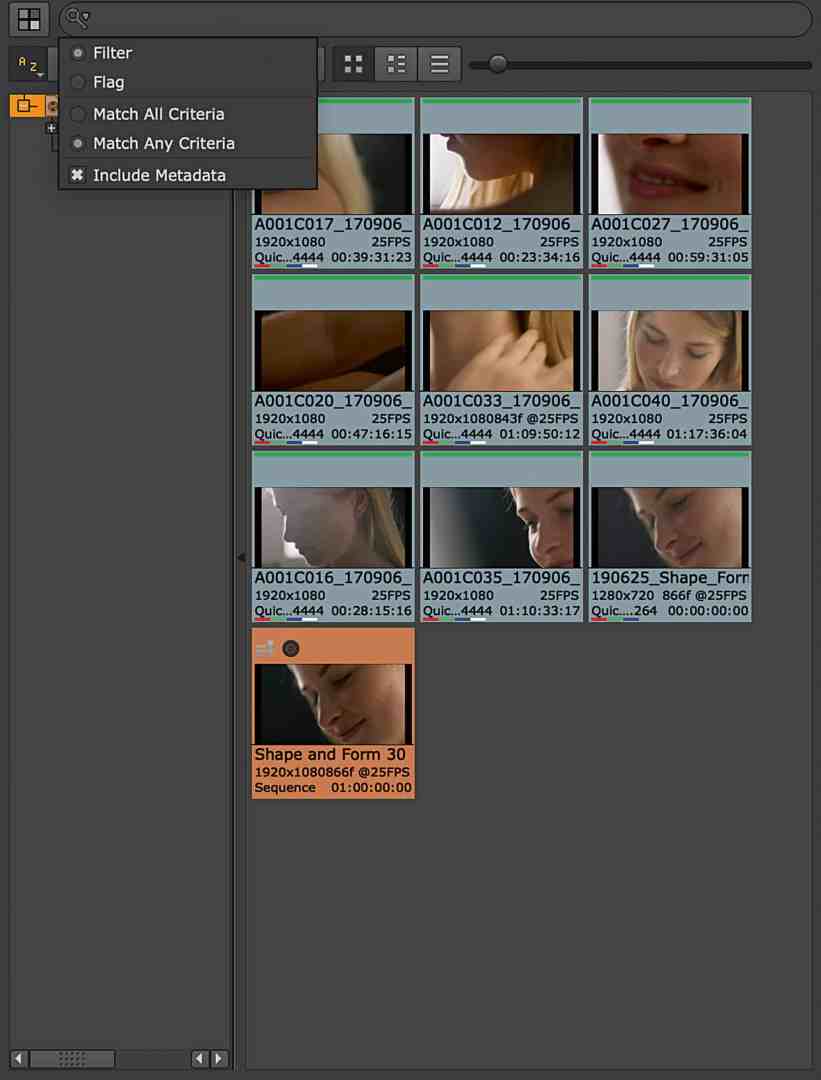
And this can be done quite easily by drag and drop.The tag you are searching for can be dragged from the tag window into the search bar of the spreadsheet in our conforming workspace. The Search Bar of the Spread Sheet has the same options under the magnifying glass as the search in the Project Bin. That means and-or- search, flagging, etc. are available, but unfortunately you cannot combine the tags search with a text search. But of course you can search for tags directly in the Project Bin.

