Table of Contents Show
Editing
As mentioned before, Nuke Studio is not a dedicated NLE, but rather a finishing system, so the features are rather limited in regards to editing. Nevertheless, we should now switch from the conforming workspace to the editing workspace. For this we can either use the workspace tab in the menu bar or the shortcut Shift-F2. What we get already looks a lot more like editing. Now we have a Source Player in the middle of our interface and every clip we double-click in the Project Bin will open inside of that Source Player. If you know the Nuke player, you‘ll feel right at home here, even putting ins and outs works as you‘re used to. But if Nuke Studio is not the measure of all things when it comes to editing, then let‘s take an example that fits more into the finishing environment for which Nuke Studio is intended. We import an animated graphic with an alpha channel and want to apply it to our timeline.
To get our graphic into Nuke Studio, we can either drag and drop it into our Project Bin, we can right-click in the Project Bin and choose „Import Files“ or „Import Folders“, or we can choose one of these two options from the „File“ tab in the Menu Bar. And as mentioned above, we can now bring this graphic into our Source Player with a double click. From here on we have several options: Drag and drop onto the timeline would be one option. Another would be to set an In point with „I“ and an Out point with „O“ in the Source Player and then execute an Overwrite Edit with the shortcut „M“. But beware: We have to make sure that the right track is selected in the timeline beforehand, otherwise we can mess up our nice conform pretty quickly. So, either select an empty track (by default, we have four tracks to choose from) or add a new one by right-clicking below the timecode window on the timeline.
The selected track is now marked blue and gets our graphic with the „M“. If we move over it with the playhead, our graphic is not yet displayed with the correct alpha blending. For this we have to switch on the blending for the track. To do this, we press the icon that looks like a stack and is located right next to the eye for the visibility of the track. By the way, if we click and hold here, we get various blend modes displayed, all of which should look familiar to us from Nuke. However, the situation of our graphics has not yet improved much, the alpha channel still seems to be nonexistent for Nuke Studio. The remedy for this is the icon right next to the one for track blending, and that is the „Mask Blend by Alpha“. And there you go, our graphic is sitting right atop the image as it should.
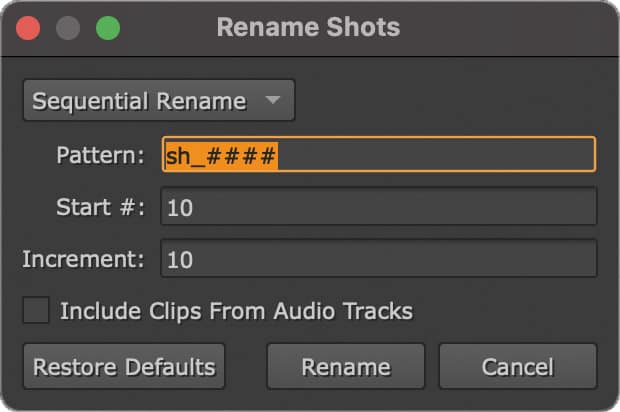
As is so often the case, many roads lead to Rome and there are certainly a few more scenarios we could go through here, but anyone who has ever sat in font of a program with a timeline will quickly find their way around here. So you can start with the „arrow up“ and „arrow down“ keys to jump between different edits, for an insert edit you take the „N“ instead of the „M“ for overwrite, and with „J“, „K“ and „L“ plays the clip backwards, stops it or plays it forwards – while repeatedly pressing „J“ or „L“ doubles the playback speed again and again, up to a maximum of 32 times. And then, of course, there are the Editing Tools, which we find in the Timeline panel between the Sequence/Properties panel and the actual Timeline. The five icons up to the small dash belong to the Editing Tools, with several tools under each icon. At the top is the „Multi“ tool, which we‘ve actually used all the time so far and which – depending on the workflow – is also sufficient for the vast majority of tasks. If we click on the arrow at the bottom right of the „Multi“ tool, three more options appear. Below that is the Select Tool, and under the arrow are options for quickly selecting multiple edits in a specific area of the timeline.
Next up is the „slip“ tool and under the arrow his best friend, the „Slide.“ Below that you will „Roll“, „Ripple“ and „Retime“ and last but not least the universally loved razor blade with a separate option to cut all tracks at once and, how conciliatory, also a „Join“ function to join clips back together. If the arrow-clicking is too fiddly for you, you‘ll be glad to know that there are shortcuts. The entire „QWERT“ block at the top left of thekeyboard is dedicated to editing tools: „Q“ for the „Multi“ tool, „W“ for Select, „ E“ for Slip and Slide, „R“ for Ripple and Roll, and „T“ for the Razor.
And, you guessed it, with a consecutive press on the hotkey we toggle through the respective tool. If you prefer to work with a mouse or pen and still don‘t like to click through all the drop-downs, you should spend a little time with the „Multi“ tool. Depending on whether the cursor is at the bottom of the clip (Slip) or at the top (Slide), left or right (Roll) or on an edit (Ripple), you can execute other functions – without any shortcuts or menu clicks.
Timeline Effects
For our next part, it is best to switch to the „Finishing“ workspace. This will make room for a larger viewer, since we no longer need the source player. Below our Timeline Tools are two more tools: Add Soft Effects and Create Nuke Comp. Let‘s deal with the Soft Effects first. These are considerably less than we have nodes in Nuke or Nuke X, but they should all be familiar to us in some way: Transform, Crop, Grade, ColorCorrect – we all know them. And when we apply a grade to a clip in our timeline, for example, we get exactly the same parameters in the Properties panel as with the classic grade node in Nuke. So we won‘t dwell on the function of the individual tools here. But why is the selection of timeline Effects, or Soft Effects as they are called in Nuke Studio, are so much smaller than in the compositing app. Well, for one thing, the type of effects you can apply on a timeline is already limited by the architecture, because after all, on the timeline we don‘t have the ability to pipe matte inputs or geometry or anything else into an effect.
On the other hand, all the effects that we can apply on the Timeline are GPU accelerated and thus real-time. A Defocus, for example, would not be able to do that. But that is not a concern, as the Timeline is not the place to build advanced effects in Nuke Studio, for that we will move to Nuke Studio‘s integrated Nuke X later. The Timeline effects are meant for everything that belongs to finishing, i.e. transforms, resizes, last-minute color corrections or burn-ins. Speaking of realtime: Nuke Studio does not have a dedicated frame store, just like Nuke, but just links to the files’ actual location. If this is on a server, the resolution is high and the connection is slow, this can be tough.
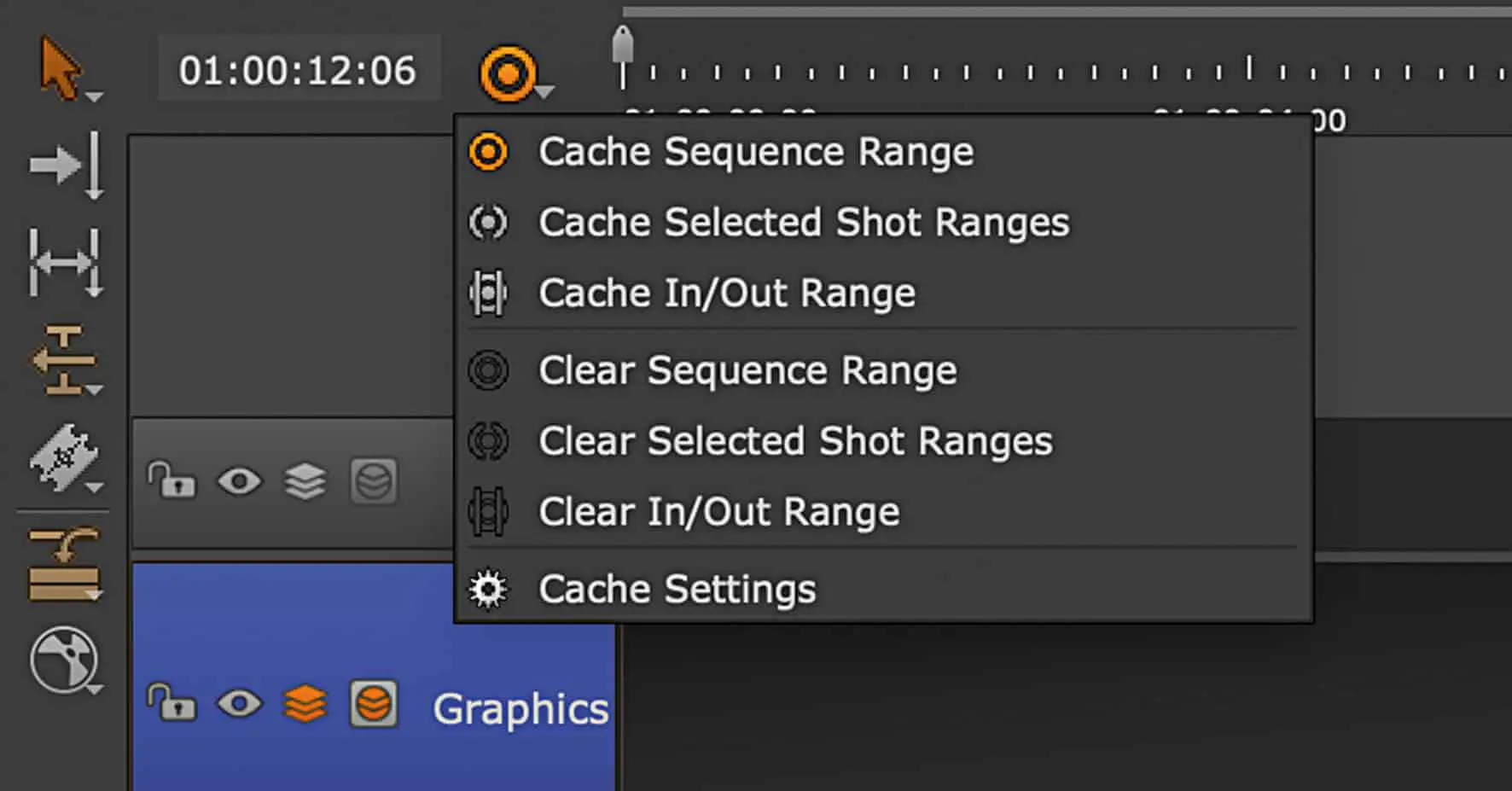
By default, Nuke will try to cache the timeline into RAM, but even that fills up pretty quickly. That‘s why it‘s worth having a fast SSD as a cache drive for Nuke Studio – it behaves quite similar to Nuke. But beware: The place where Nuke Studio stores the time-line caches is different from the place where Nuke locates its files. So better check the Project Settings under Performance – Caching that the cache files go to the right place – and do not fill up the system disk. If all this is set correctly, we have the possibility to cache our timeline in parts or in its entirety with the small bullseye, which is hidden on the timeline to the right of the timecode display – including any soft effects.
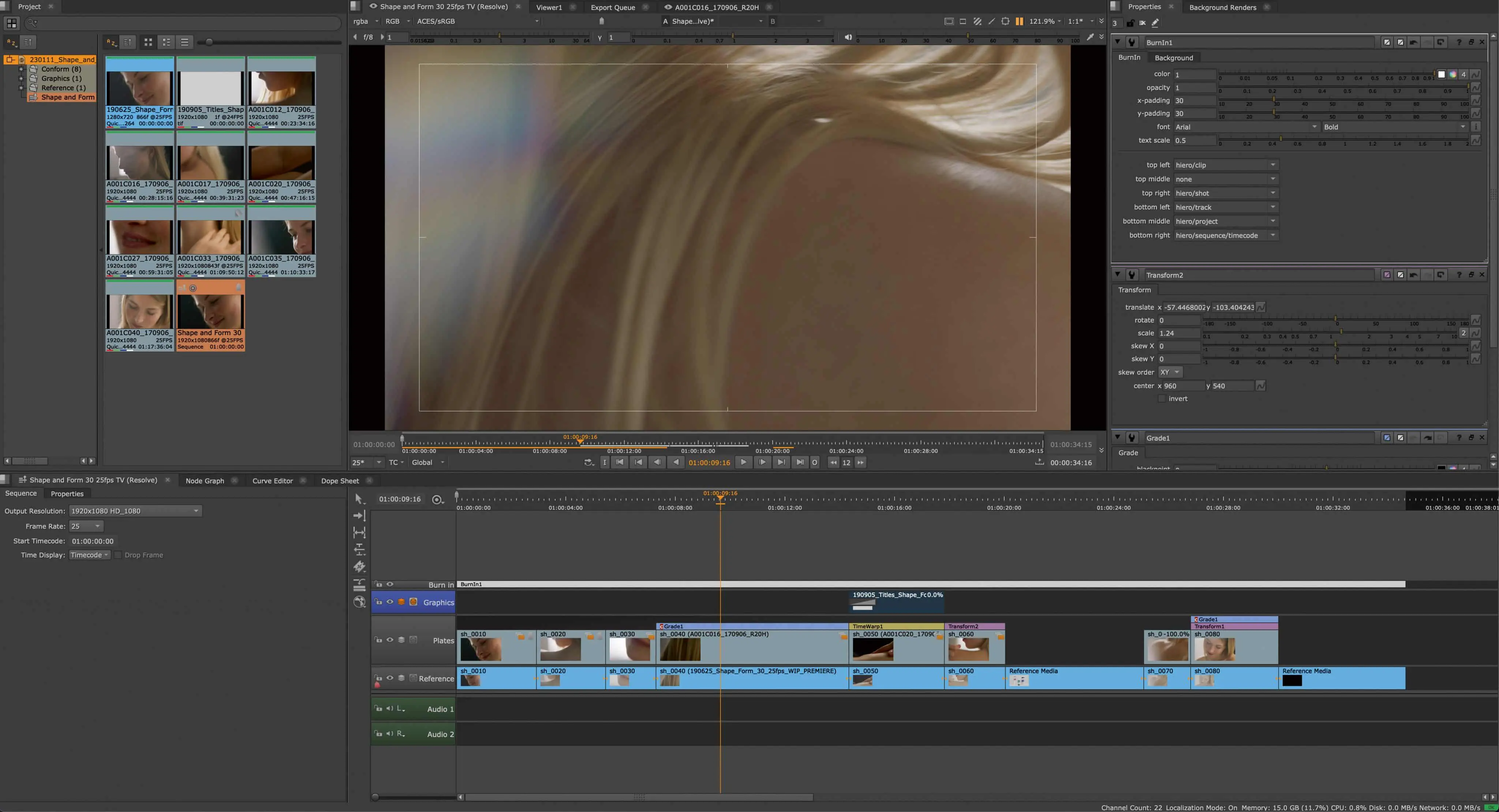
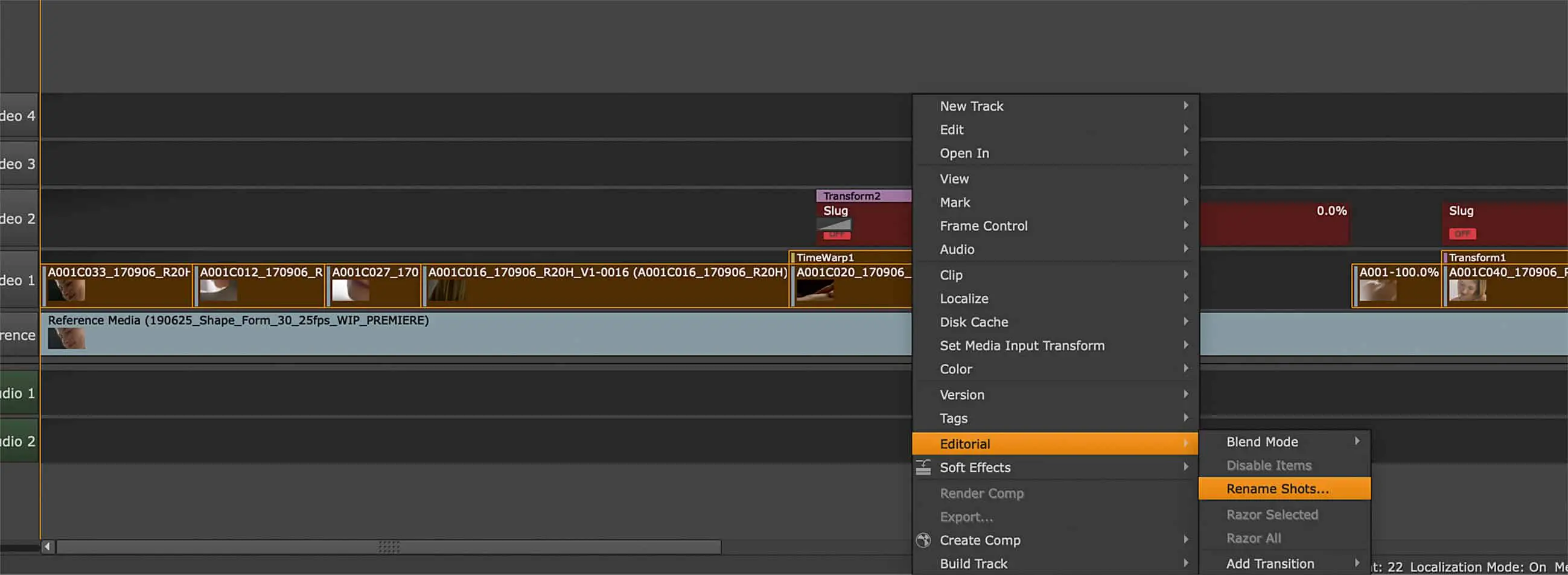
But back to our Soft Effects. Of course, they can be copied with the familiar shortcuts Ctrl+C and Ctrl+V (Cmd+C and Cmd+V on the Mac) or by right-clicking. But a nice example o f how features come from the node tree into the timeline and really make sense there is the possibility to clone Soft Effects. This works wonderfully via the right-click menu or via the shortcut Ctrl+K/Cmd+K known from Nuke.
Now we not only have two identical color corrections, but both are also dynamically linked to each other, which means that if we change the value in a soft effect, this change is applied to all clones. If we now also realize that we can apply such a clone to all clips with a certain tag, for example via the search in the spread sheet, then it becomes clear how much this feature, together with good prep work, can make finishing easier for us.
Likewise, just as with the nodes in Nuke, we can save presets via the small wrench in the upper right-hand corner – and then distribute them across our timelines. Presets can be saved globally or on a project basis. And, unlike in many other apps, the same type of soft effect can be stacked multiple times. Speaking of stacking: The order in which soft effects are stacked is crucial for the order in which they are calculated. The order is exactly the other way around than we are used to from Nuke: First, the bottom effect in the stack is rendered, then it goes to the top.
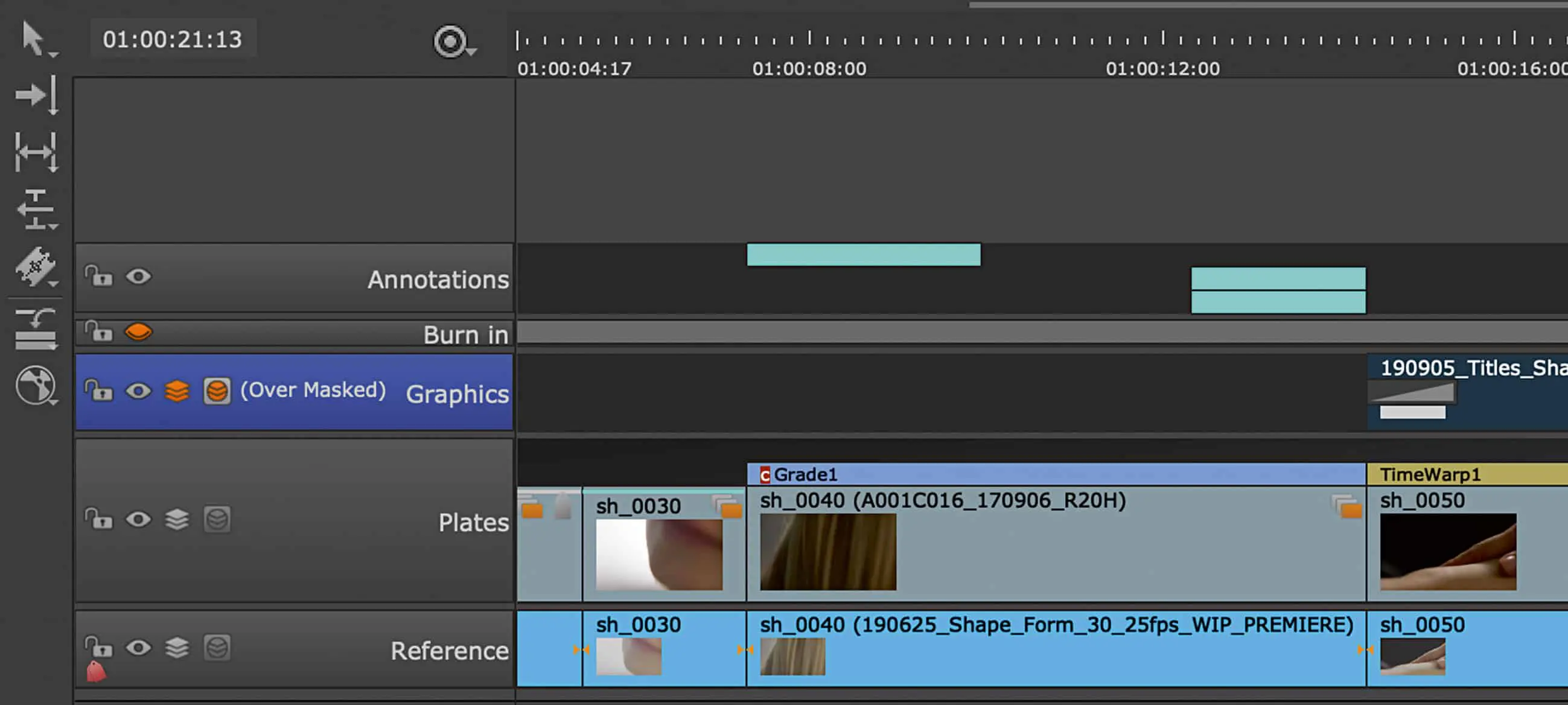
Since we don‘t want to build complex comps in the timeline anyway, it will rarely be relevant, but it‘s good to keep this behavior of Nuke Studio in mind. But Soft Effects can not only sit on top of a single clip, but also like an Adjustment Layer on top of our entire timeline. To do this, we need an empty track, which we then select. Right-click or click on our Soft Effect icon and we can place any Soft Effect we want here. But the one that will be really important, especially if we want to share a work-in-progress version, is the Burn-in Effect: In six areas of the image we can distribute important metadata info, ranging from clip and shot names to our project and timeline names to track and timeline info. You should definitely play around with this.
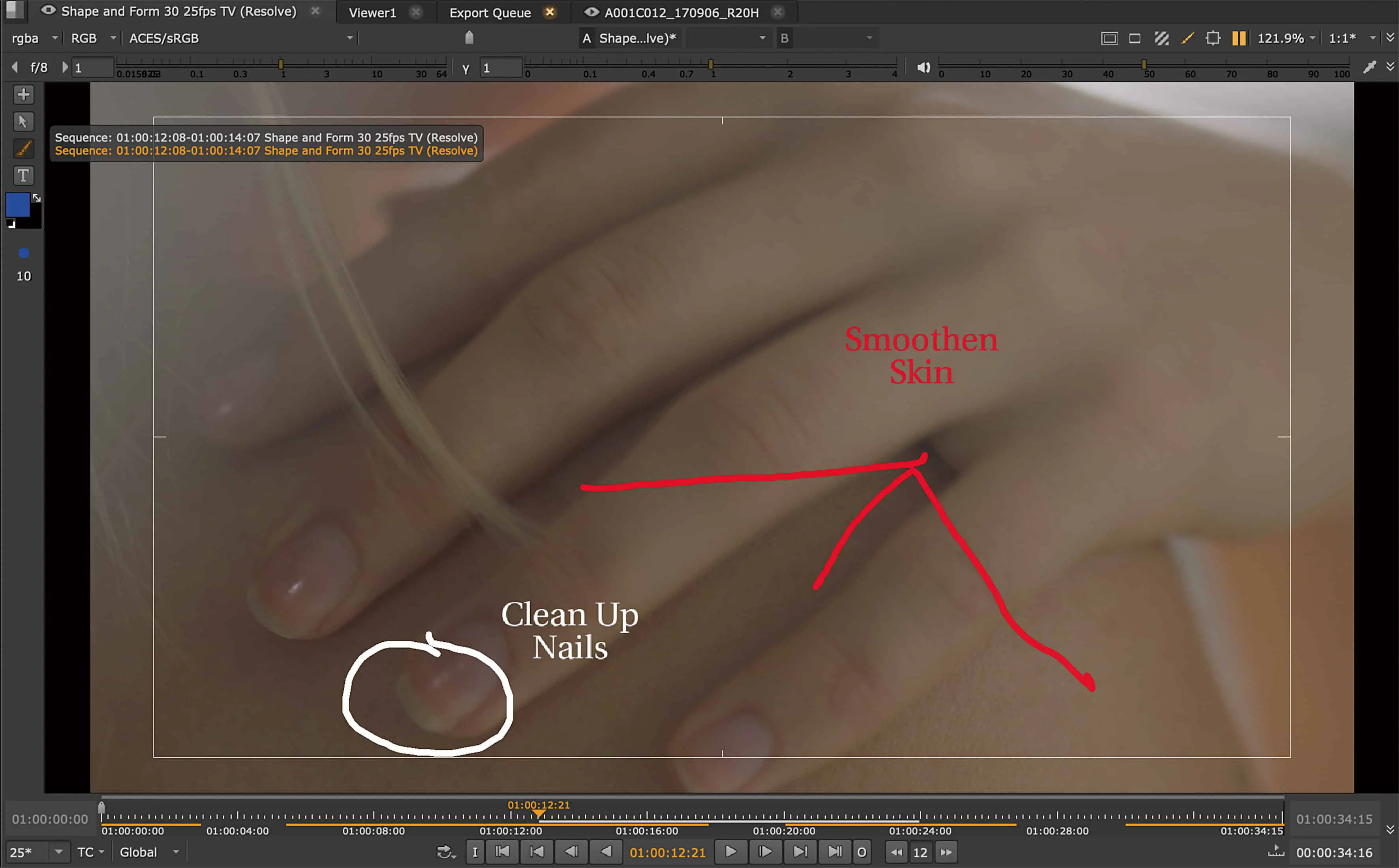
There is one more layer on which we can apply Soft Effects: on the version of a clip. To do this, we need to get a little ahead of ourselves: Later, when our renderings from Nuke or another application come back to our timeline, we can treat them as a new version of a clip in the timeline, which makes updating really easy. We can then assign Soft Effects to these individual versions. What can this be useful for? Well, for example, let‘s assume that our comp artist or we ourselves are doing the rendering in the wrong Colorspace.
No problem, he or she has already adapted the script for the next version, but the rendering capacities are limited and the client is already getting itchy because he finally wants to see the current state of things. So a soft effect on a version is a pretty useful thing. To accomplish this, we right-click on the corresponding clip and select „Open in – Timeline View“. A new tab opens with a timeline containing only our one clip. To make sure that the soft effect is not passed on to other versions, we create a new video track and put the desired soft effect on top of it. In our scenario it is best to use an OCIO transform. Now we can close the tab with the Single Clip Timeline again. And we will deal with everything concerning versions of clips and managing them a little later.