Table of Contents Show
Annotations
The clumsy drawing of work instructions and comments by other departments not only satisfies the desire for childish scribbling, but also helps massively with forwarding feedback, recording briefings and keeping to briefings. In order to put annotations onto our timeline, we click on the small pencil icon above our viewer, directly between the clipping warning and the region of interest. A small toolbar appears to the left of the viewer, where we can setour first annotation using the „+“.
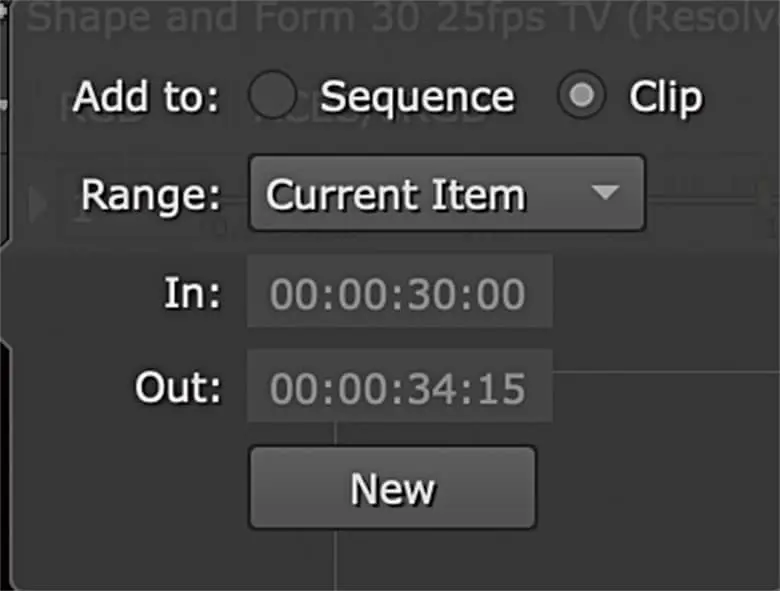
Like Timeline Effects, Annotations can be set at three different levels: within the sequence, within a clip, or on a specific version. All three levels have their own characteristics: If you place annotations within the sequence, they are placed on their own annotation track, where they can be edited independently of the underlying clips. If you drop it on a clip, it will be copied along with the clip within the sequence. And on the individual version, you make sure that the feedback applies only to the specific version.
Usually, however, the first two variants are used more frequently, which is why these are the two that are offered to us in a pop-up window when we add our first annotation with the „+“ in the toolbar. If we have chosen „Sequence“ or „Clip“, we can select several ranges in a pulldown, from the whole length of the clip or sequence over the „Current Item“ (i.e. the clip on which the cursor is currently positioned) and individual ranges up to „Current Frame“ are all possible. We can then confirm this selection with „New“ and we have already created our new annotation on which we can now paint and write.
The tools are really self-explanatory, a brush and a text tool, plus a color picker and a radius for the brush. But that‘s all there is. After all, the whole thing is intended as a container for feedback, not as a retouching tool. And the simplicity ensures that the annotations can be used via a Python Hook, which of course makes the pipeline t.d. a happy camper. And if you don‘t want to see the annotations anymore, just click again on the pencil in the upper right corner above the viewer. But even without a big pipeline, these annotations really make sense, because their really big benefit, also for Nuke Indie users for example, is the fact that they can be exported as annotations nodes into Nuke scripts. So you can then see the annotations directly in the comp and they can also be updated from Nuke Studio at any time.
Export
Probably no other tool offers such a complex export manager as Nuke Studio. In addition to the quick work-in-progress Quicktime, we can do everything from creating a complete backend folder structure or integrating our exports into an existing one, to transcodes and XML or AAF roundtrips, to automatically creating Nuke scripts for every single shot in our project. We‘ll try to go as deep as possible here, but in the end this is the part to test extensively before throwing yourself into a real production with Nuke Studio.
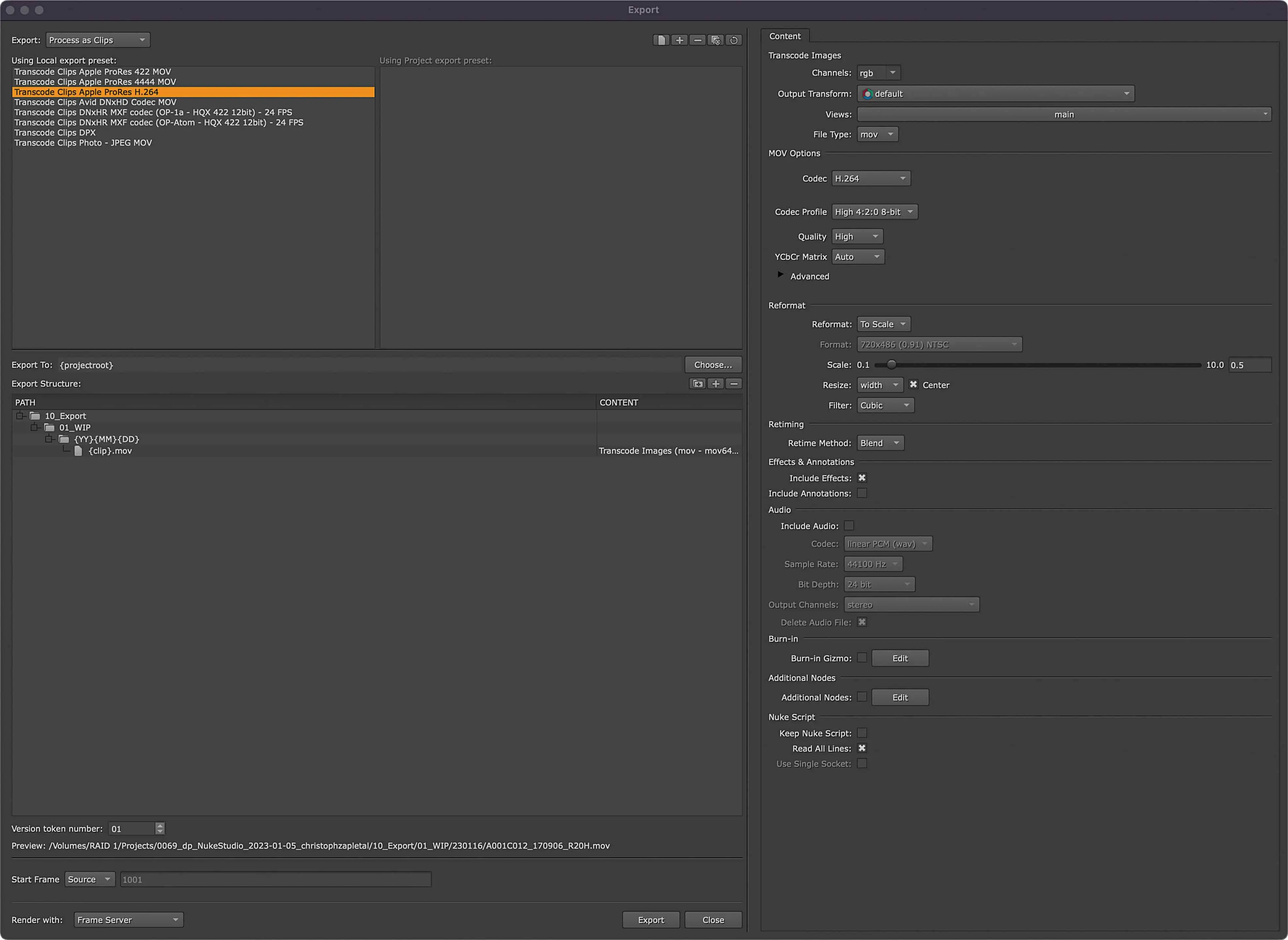
Of course, any item that we have in our bin can be exported. Let‘s just start and say that we want to export a single full length clip from our conform. We want the whole thing to be sent to the director as a small file so he can go back and look for another take. So we want to export an H.264 in half size. With a right click on the corresponding clip in our bin we can select „Export“ and the Export Manager appears.
The first choice we have to make in the Export Manager is the type of export. Since we want to export a single clip, the options „Process as Shots“ and „Export as Shots“ are grayed out. If this is our first time in a freshly installed Nuke Studio, we should see seven presets here in the „Using Local Export Presets“ column. Unfortunately, what we need is not here as a ready-to-use preset. But before we build a new preset from scratch, let‘s use the „Transcode Clips Apple ProRes 422 MOV“ preset as a base and copy this preset using the „Duplicate“ button – the one right next to the „Delete“ button with the minus sign.
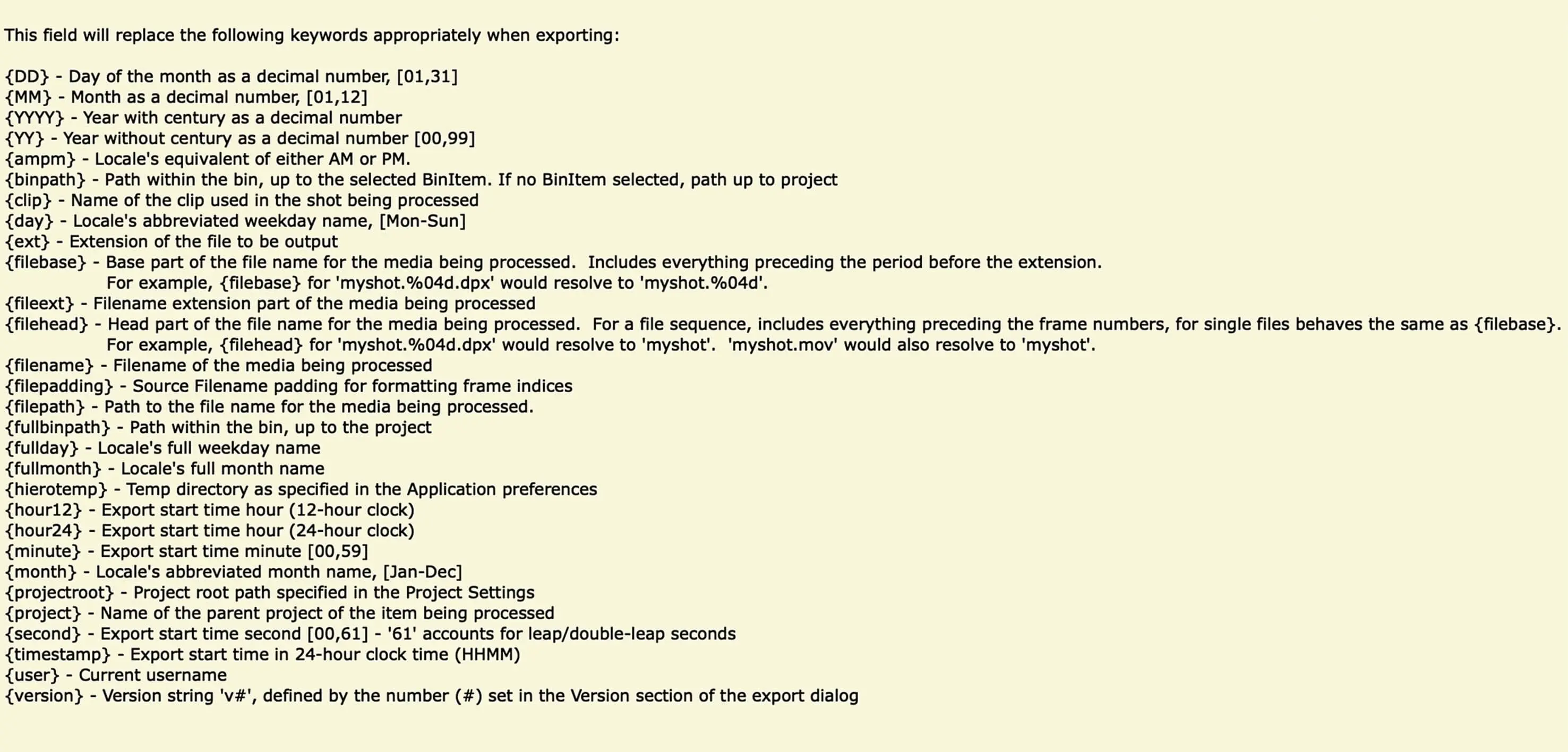
Below we see the „Export to“ path with a variable or, to stay in Nuke Studio-Lingo, a token. We could now simply specify a path via the „Choose“ button, but there is a more elegant way. This token – the term between the two curved brackets – points to the project root folder, which we did
define at the very beginning of this workshop. If you haven’t done this yet, just press „Cancel“, save the changes you made so far and set the folder under „Project – Project Settings“. The way it is set up now, the export would end up in the right in root folders of our project. We can do better than that.
Surely everyone has a dedicated place for exports, maybe even for intermediate exports, and has this place in his or hers project file structure. We can now add this exact folder to our export path. But instead of putting the path directly behind our Project Root Token, we create the folder in the Export Structure view directly below it. This is not only more visible, it also makes customization and debugging easier in case of doubt. For this we use the „Add a new Directory to your Export Structure“ button, directly below the „Choose“ button. Since we know our customers and know that we will be exporting things for them time and over again, we can of course create a date folder. Again, we could just do this manually, but if we are smart about our preset, Nuke Studio can do it for us in the future.
Three simple tokens help us here. Namely, written directly one after the other, {YY}{MM}{DD}. Almost self-explanatory, the three of them will export the date in a format suitable for our folder structure. While we are on the topic: At the bottom of the Export Manager we always get a preview of how the path will look like. If we have the actual file (in our example the entry with the name {clip}. {ext} is selected, we can still set everything possible for our transcode on the right. So we set the codec to H.264 and set a „To Scale“ under Reformat and give it a value of 0.5 We then have several options, such as whether to render on Nuke‘s own frame server, in a foreground process or with the help of an external render manager such as Deadline – but of course this must also be installed accordingly.
In the next case things get a bit more complex – and hopefully show why these presets are so powerful. Let‘s take a very common task: Another department would like to have the current status of our project as XML with the corresponding reference file as H.264 – with all annotations. Unlike the single shot, we‘re going to build this preset from the ground up to also get a better understanding of what tools are actually all available to us in the Export Manager. So we select our sequence in the Project Bin and right-click again on „Export“. This time, however, we select „Process as Sequence“.
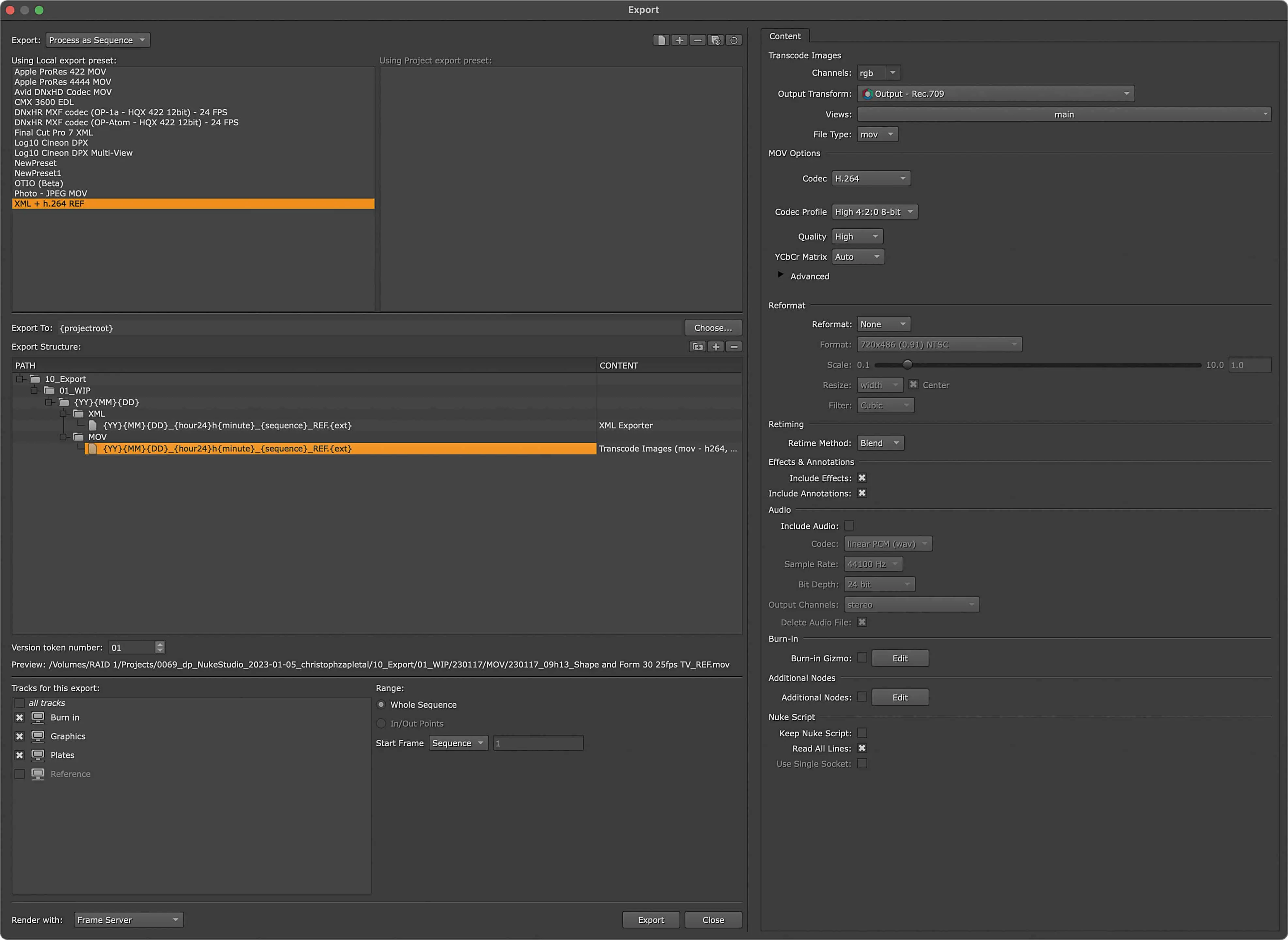
The layout is almost identical to the last time, however, we now have the option at the bottom right to select the individual tracks to be exported.The presets above are also a little different, but they don‘t bother us at all this time, since we‘re working „from scratch“ anyhow. With the „+“ icon at the top center we create a new preset, which we name accordingly, for example „XML + H.264 REF“. Since we have set our project root in the project settings, we can leave the token {projectroot} under „Export To“. However, the „Export Structure“ underneath is still completely empty. Now we can fill it as we like. And if you use tokens, you can adapt the whole thing to your needs. So let‘s start creating our export structure. In the screenshot we see the first two as folders with a fixed value, i.e. folders that will be called the same in every project and are always there.
This is followed by the already known date folder from the first case. Then we create again a folder with a fixed name, namely „XML“, because we want to create separate subfolders for the XML and the MOV. And now we create with the „+“ icon, which is not accompanied by a folder icon, a new content, i.e. a file for this folder, which Nuke Studio should generate. But before we select the XML format, we enter the file name. In our example:
{YY}{MM}{DD}{hour24}h{minute}{sequence}.{ext}
The tokens used should by now be known to all of us, but apart from that there is really no limit to our own requirements and wishes. Now we have to tell Nuke Studio what the file we named should contain. A click into the empty „Content“ column brings us to a pop-up where we select „XML Exporter“. The options we have on the right under „Content“ are very manageable. If you like markers, you can add them, but you don‘t have to.
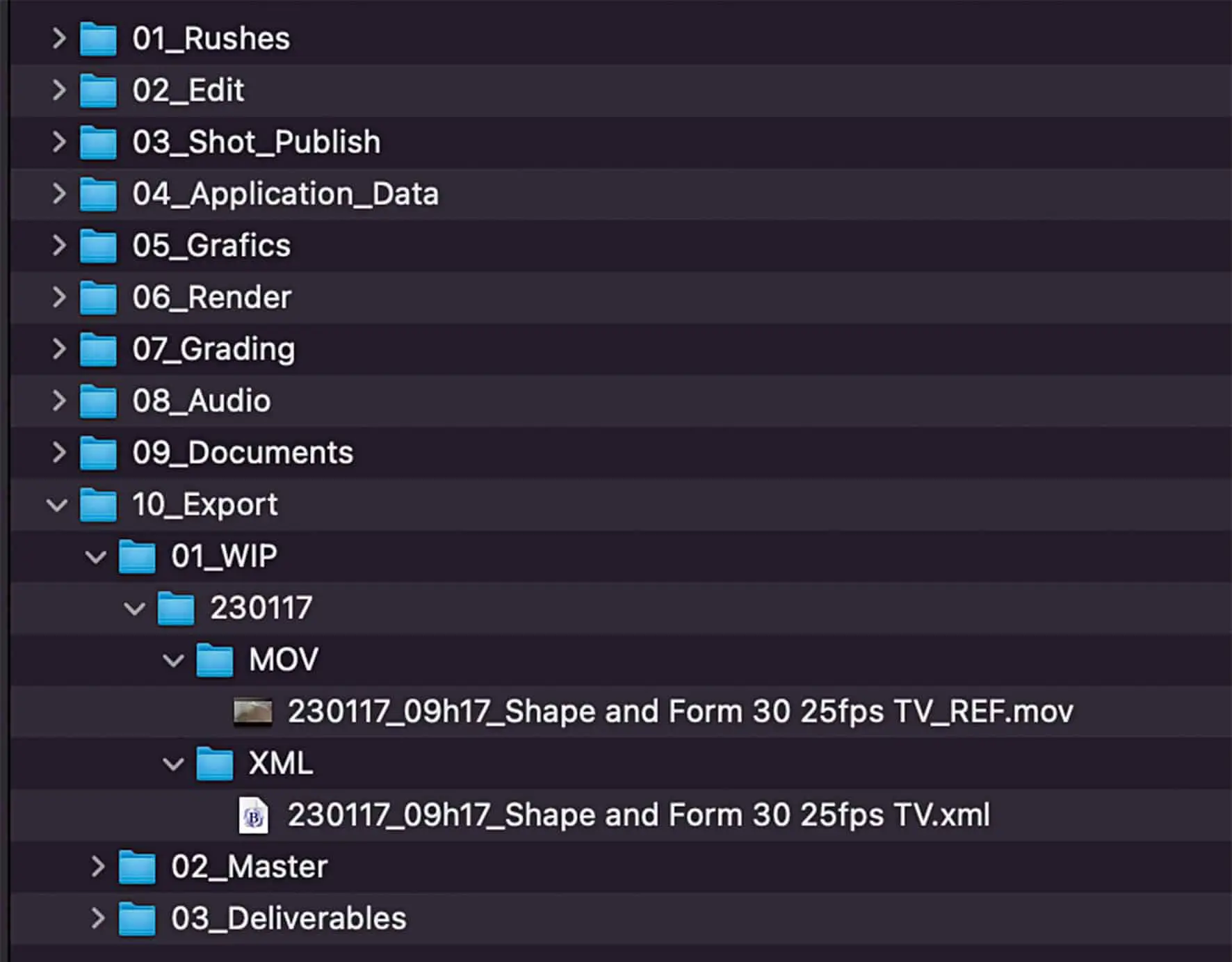
Let‘s jump with the cursor back to our date folder (the one with the token string {YY}{MM}{DD}) and create a subfolder with the name „MOV“. Inside this folder we create again a new content, but this time we select „Transcode Images“. We can set the Parameters like with the first case, but make sure that „Include Annotations“ is checked. And that‘s it!
Let‘s move on to the third case: Let‘s move away from small exports of individual Quicktimes, we now want to transcode our shots properly and maintain them in our existing file structure. Let‘s say: Everyone has a different folder structure and a different workflow, some are task-based, others are shot-based. The Export Manager is remarkably solid and flexible. However, as mentioned before, you should always test-run any export preset before using it on an actual production.
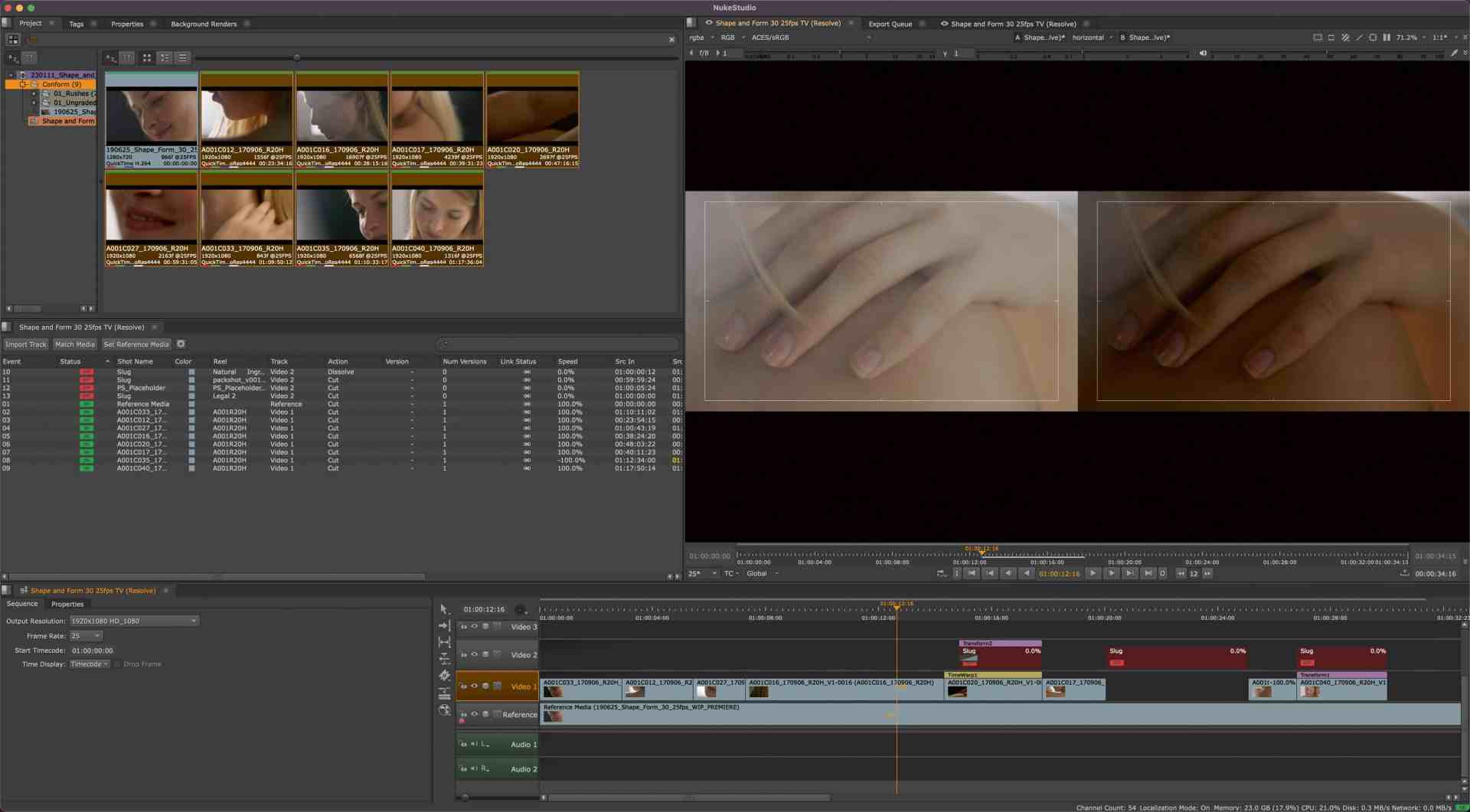
In our example we want to export all shots in single folders as OpenEXR with 10 frames heads and tails. Any additional tracks (e.g. for screen inserts, splitscreens, greenscreens, etc.) should be taken into account. Timewarps should not be applied here yet, so that they can be applied later, either on the transcoded material in the Nuke Studio Timeline or in Nuke Comp. The procedure is very similar to the second example. Right-click on the sequence in the Project Bin to open the Export Manager and select „Pro- cess as Shots“ in the upper left corner. Next we create a new preset with the name „EXR Export“. Then, starting from the root folder of the project, we set the path to the folder where we want the transcode to take place in each shot folder.
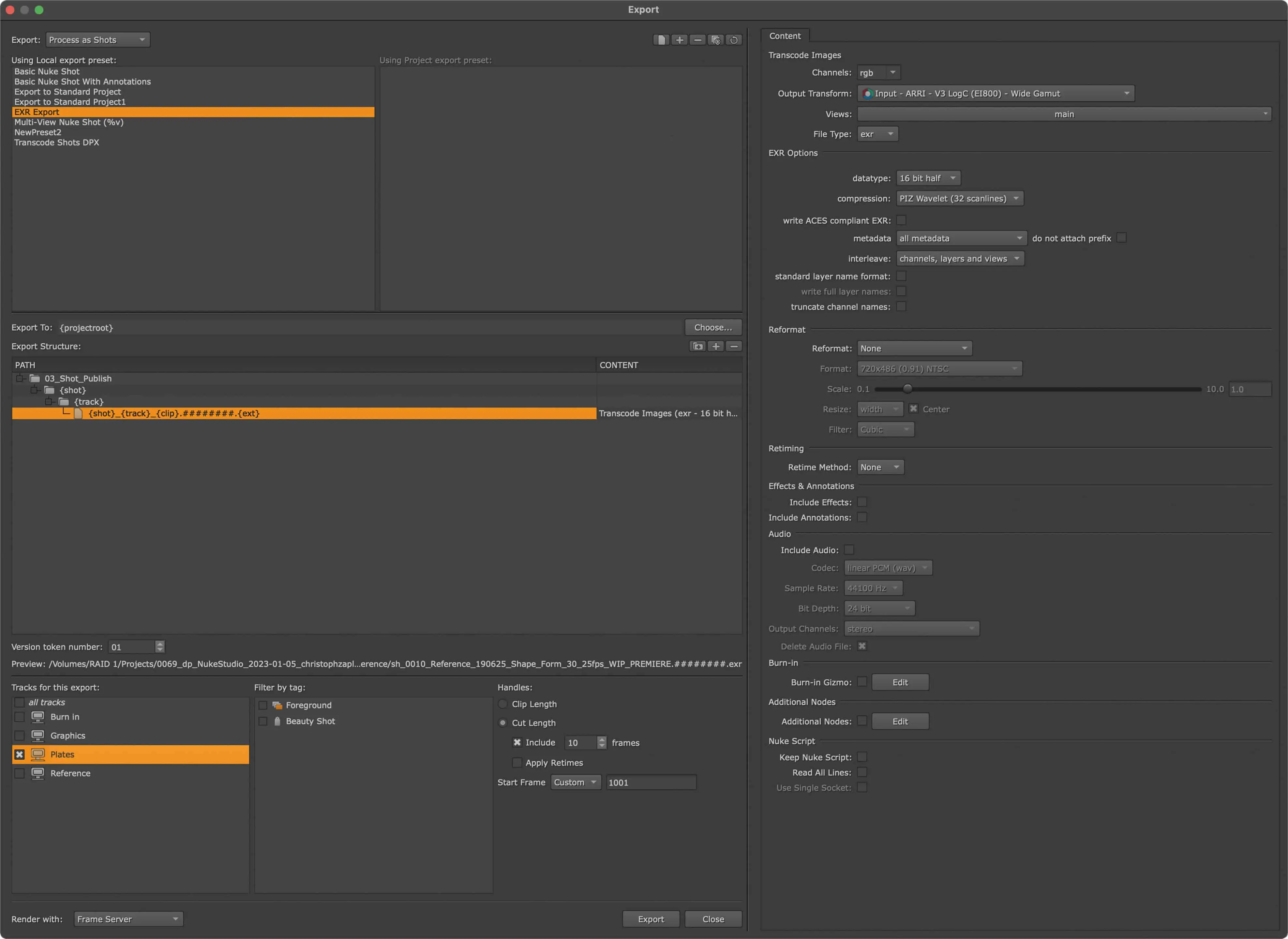
With the tokens {shot} and {track} we can retrieve the shot name with index and the track name we assigned at the beginning of the workshop and use it as the folder name. For the actual filename we use here the structure {shot}{track}{clip}.########.{ext}.By the way, {clip} provides the original clip name and it makes sense to include it here, so that an artist who then takes over the shot in the comp is always in the know where this shot comes from. Once again, we select „Transcode Images“ as the content. In the lower third of the export manager, we can now set various filters and settings, starting from left to right. On the far left, we select the tracks that are relevant to us – after all, a comp artist who is doing retouches does not necessarily have to be provided with graphics such as lower thirds.
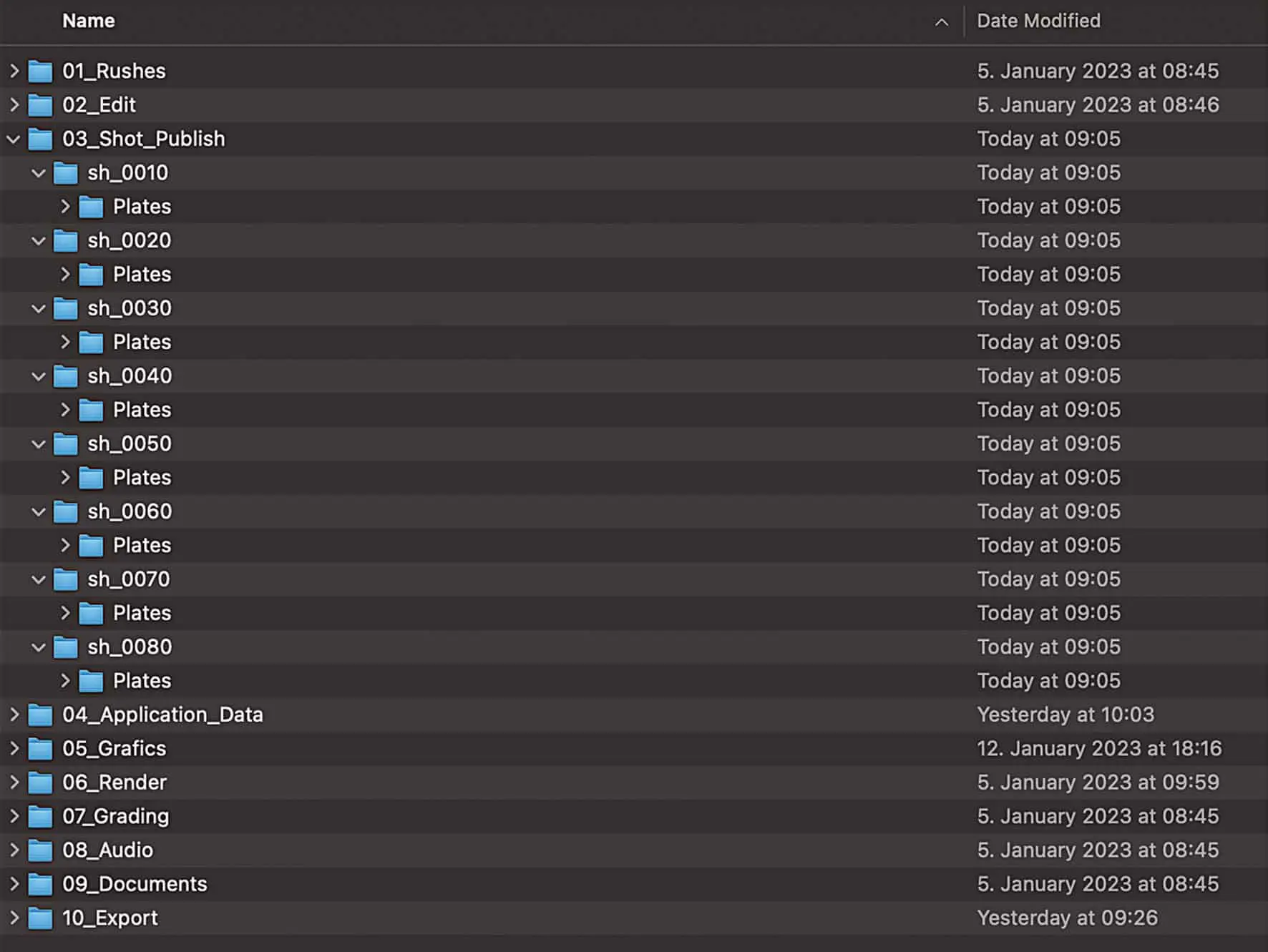
If our sequence has been tagged properly, we can filter our export accordingly and, for example, export only shots that have been tagged with the tag „VFX“ or „Retouch“ or „Matchmove“. The concept of tags can definitely help to export only what you really need. Last but not least, we can specify handles, set a custom start frame (very handy to avoid untidy comps) and of course apply any retimes – which we don‘t want. On the right side is again our „Content“ column. Of course, everyone should set this up according to their individual needs, but here are a few tips: We should definitely consider the Output Transform so that it matches our material or our Color Pipeline. If you work in classic Nuke Color Management, for example, you can transcode to „scene linear“, if you work in ACES, you might prefer to preserve the color space of the source material. By default, all channels are selected for EXR transcodes, which can be set to „rgb“ for actual footage. The rest is pretty self-explanatory or will be either later on or become only relevant in other, specific workflows. With that in mind, we can now press „Export“ and hopefully see our folder structure filling up.