



Table of Contents Show
Building Tracks
We‘ve got all the footage exported now, but since we want to see what ends up in the comp, our first step is to integrate the transcodes back into our timeline. Now in other apps this could be a tedious detour via a reconform, but in Nuke there is a very powerful option called „Build Track“. The whole operation can be thought of as an „invert“ for the Export Manager. In other words: Nuke Studio looks at an export preset from the Export Manager, searches the path specified there for files and places the shots in the timeline accordingly. Of course, it helps that the names of our transcodes match those in our timeline. So, right-click again on our timeline, select „Build Track – From Export Structure“ and there is a new pop-up: First of all, we can give our new track a name – Transcodes, for example. In the „Export Preset“ list we find all created export presets – unfortunately not sorted as clearly as in the Export Manager. We select our „EXR Export“ preset (We really don‘t need to have the Ref twice in the timeline.) and get the corresponding token string displayed. With „Build“ we confirm this process and our timeline is gaining one new track.
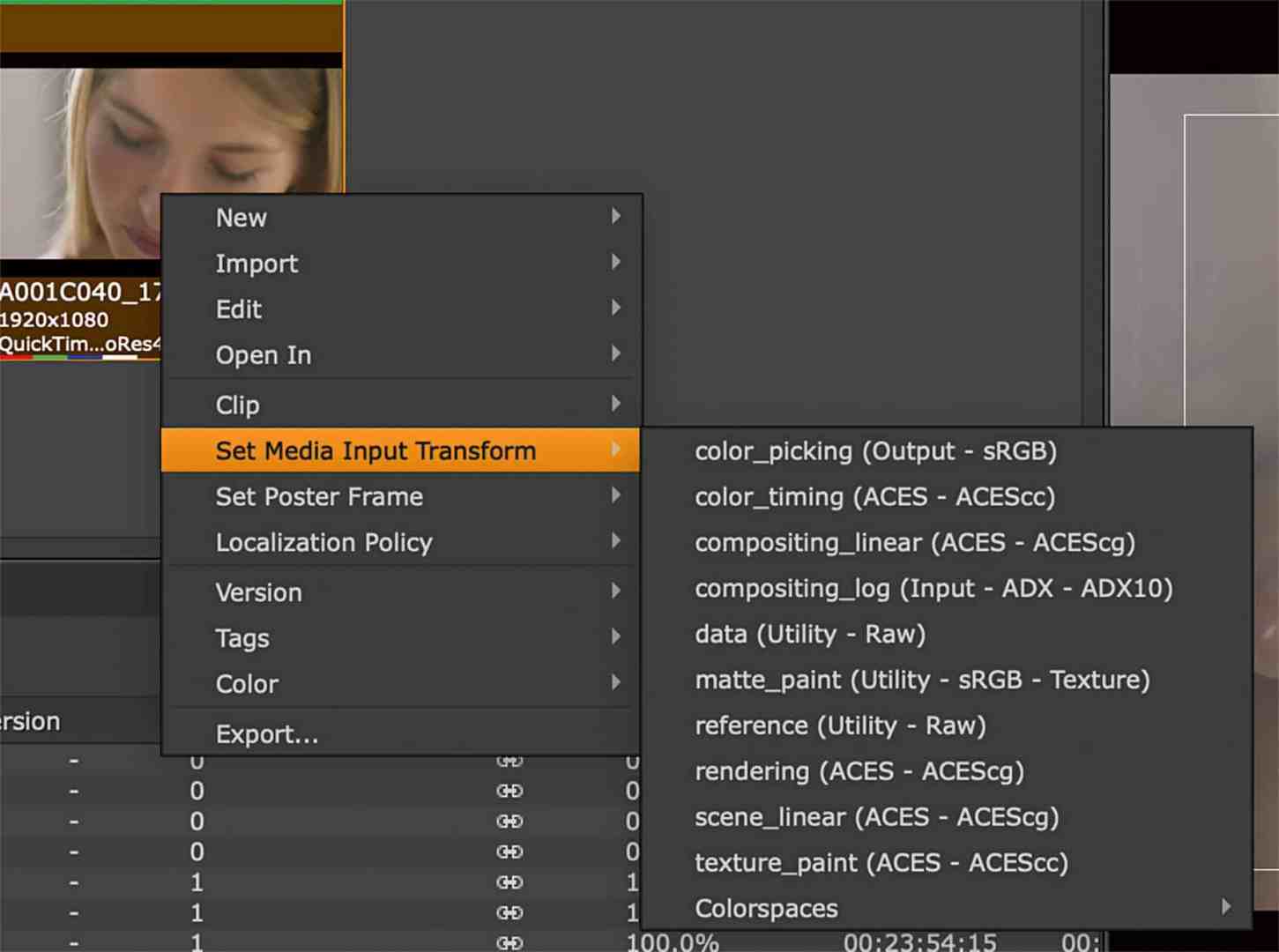
Not only that, but a new bin named „Transcode“ is created in the Project Bin and filled with the appropriate clips. Only the Color Transform might be a bit off, it‘s a pity that Nuke Studio can‘t read this from its own Export Preset. But that‘s no problem, we just select all the clips in our Transcodes bin and right-click Set Media Input Transform and select the corresponding Color Transform, i.e. the one we selected when creating the Export Preset.
By the way, the „Build Track“ is also very, very helpful for something else: bringing assets from other departments or applications into Nuke Studio: No matter if CGI Rendering, Motion Graphics or Previs – as long as they are in a consistent folder structure, it is possible to import these files automatically. To do this, simply select „External Render“ as the content when creating the export preset. And even if it sounds a bit absurd: You can also create „Export Presets“ solely for importing things.

Building Comps
Everything we‘ve gone through in this workshop so far can also be done in Hiero without a problem. But the concept of Nuke Studio – and Nuke Indie – is that you can do not only finishing but also compositing within the same application. For this, we need to discuss two basic workflows: „Create Comp“ and „Create Comp Special“. With „Create Comp“, the basic idea is to mimic the behavior of apps like Flame or Resolve, meaning Nuke takes care of the media management in the background and leaves the creative part to the artist. „Create Comp Special“, on the other hand, is more about putting as much control as possible over the location of comp, annotation and rendering in the hands of the artist to accommodate the needs of larger projects and timelines.
Create Comp
Before we start just creating comps haphazardly, we should take a look in the Menu Bar under „Project – Edit Settings“ to see what the settings under the „Export“ tab look like. Here, too, we are asked for a track name, specifically the one where the renderings of our comps should go in the timeline. Let‘s stick with „VFX“. Then there is the Export Directory – here we can choose the Project Directory or specify our own custom location. This is where Nuke Studio will then create folders – based on one of the export presets – for the Nuke scripts and the renderings that will end up back in our timeline. So we should be aware of that, depending on the size of the project, quite a lot of data ends up here.
We can select these presets under „Shot Preset“ and for starters we choose „Basic Nuke Shot with Notations“. If we now select a single shot in our timeline and send it to a „Create Comp“ by rightclicking, something very similar to our „Build Track“ function happens: A new bin is created in the Project Bin with the name of the track, i.e. „VFX“. A new track with the same name appears in our Timeline and there is also a rather lonely clip – but it is displayed in black. This is because there is no rendering of this newly created scene yet.
If you want to see it immediately, rightclick and select Render Comp. This happens in the background and should be relatively quick, since we haven‘t done anything in the comp. If you are curious, double-click on the red clip (the red indicates the status as „Not rendered“) and you are in familiar territory: Finally back in the Node Tree. But we see that all our work has paid off. With backdrops and metadata nodes, Nuke Studio has prepared our entire comp, we even find the annotations we may have created for the shot and of course a write node that is then set up according to the „Basic Nuke Shot with Annotations“ preset and the path we set in the Project Settings. And should the clip have had soft effects, these have of course also been moved over to the node graph. Whether we want to go crazy in our freshly created comp or are just happy that our setup is up and running, at some point we‘ll go back to the timeline. The best way to do this is to switch back to the finishing workspace.
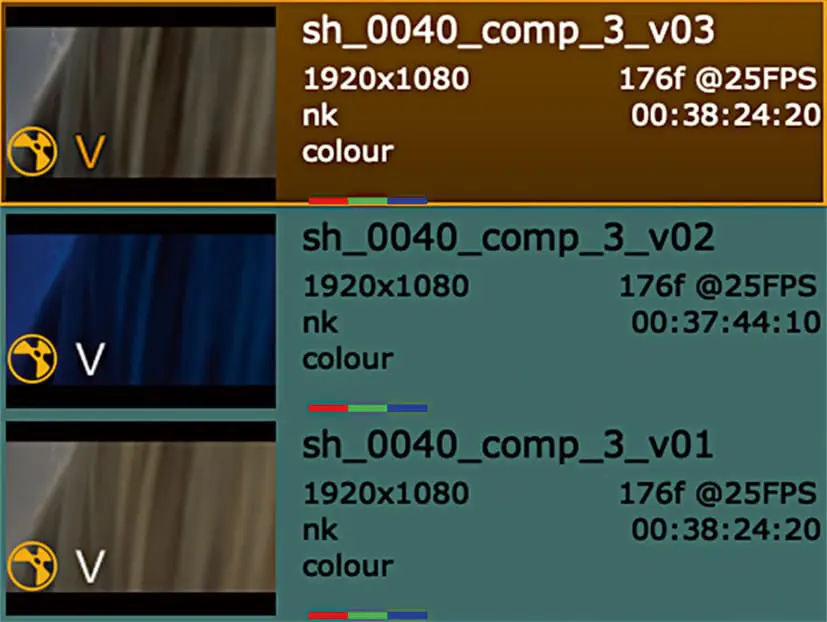
If we have already rendered the comp in the node tree, our clip is now green, if not, we can render it now as described above. But who is already satisfied with a V1? We just doubleclick on our green comp again, get back to the node tree, select „File – Save New Comp Version“ from the menu bar and make a few changes. Don‘t worry, the Write Node will be adjusted in the same way as the filename, Nuke Studio will take care of that. When we return now, just like in Nuke, we can save the clip with „Alt-Up Arrow“ up or „Alt-Down Ar- row“ down. And if you lose track, you can use the shortcut „V“ on the clip to view all versions of this clip and select one.
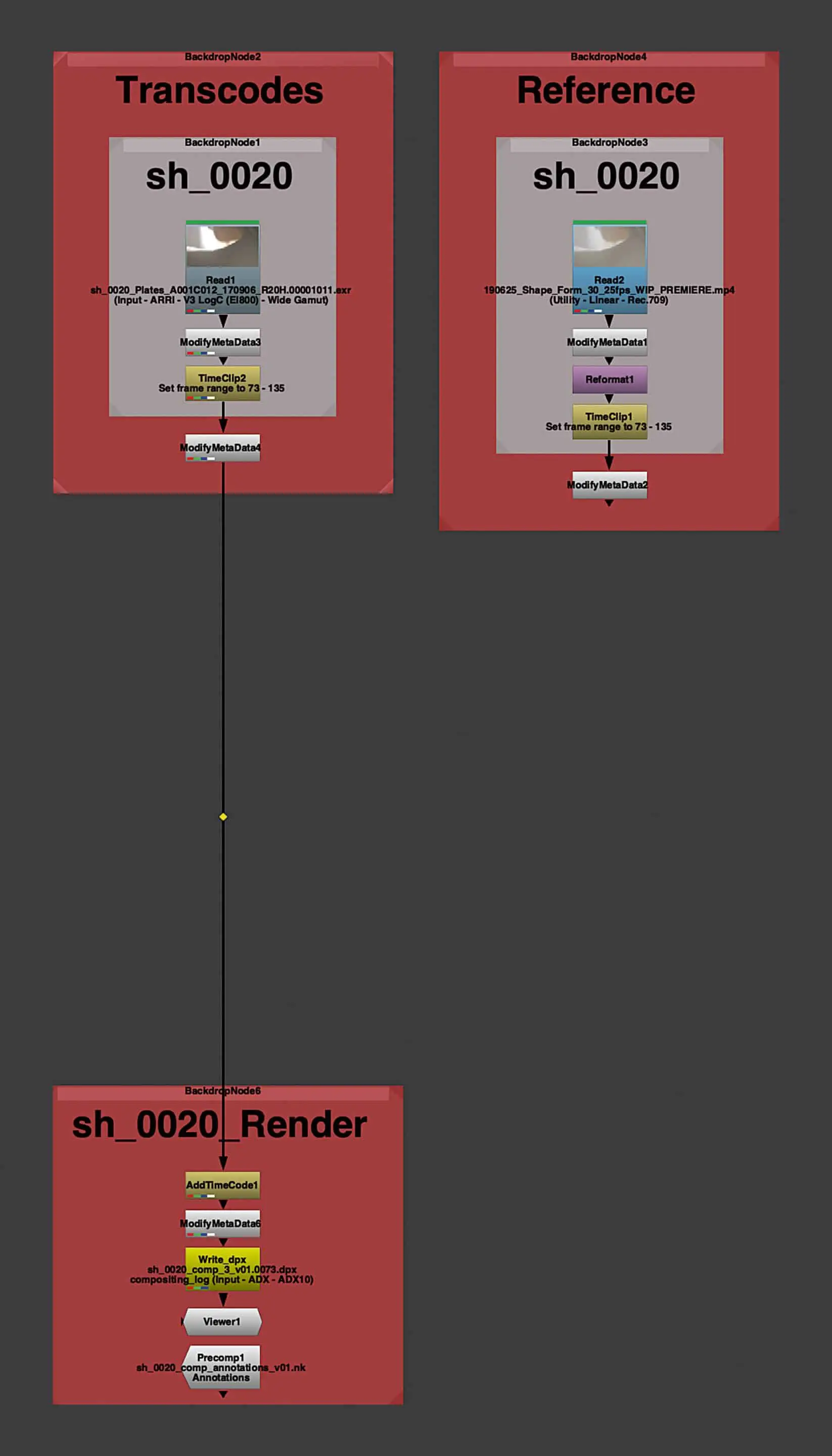
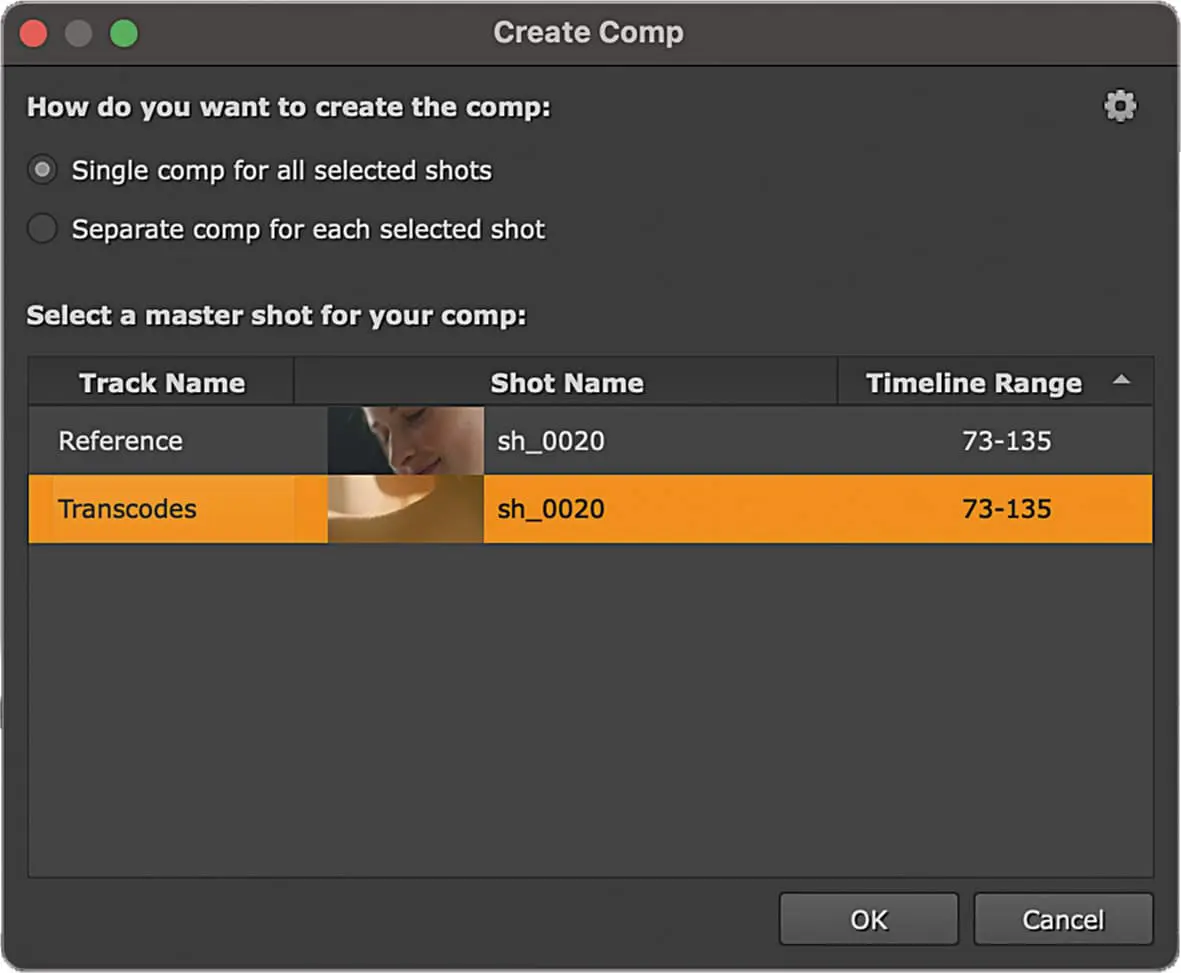
And what about shots that consist of multiple tracks? Well, if our timeline is reasonably well organized, that shouldn‘t be a problem. Just select the overlapping elements and press „Create Comp“. A popup will appear asking us if we want to create a seperate comp for each track or a common one. Of course we want a common one, but before we confirm the selection, one thing is important. The track we select, that is marked orange, is the basis for our node graph, that is, it determines the length and resolution of the comp. And here you go, when we double-click on our script, we see our selected clip as the base layer for our comp and to the right of it backdrops with the corresponding additional clips.
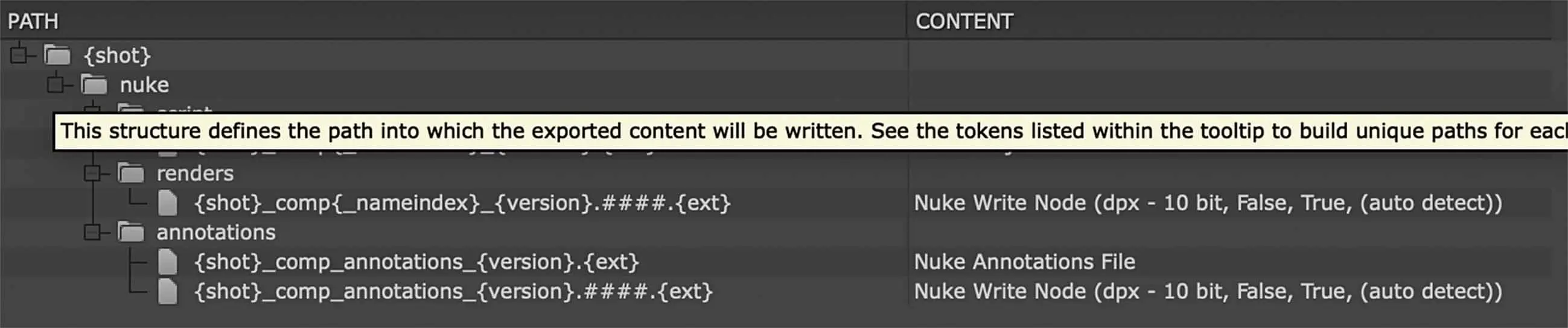
This is of course already convenient, meaning you don‘t have to take care of all the read and write nodes manually anymore. But what is actually happening under the hood now? Well, let‘s take a look at the export preset we used here, „Basic Nuke Shot with Annotations“. We can see the whole thing when we open our Export Manager by simply pretending that we want to export our timeline again. Let‘s take a closer look at the path: A {shot} folder is generated directly in the root folder of the project. Three folders are created in this folder, namely „script“, where a Nuke Project file is also stored. Then „renders“, where the content „Nuke Write Node“ is used to define this node as render destination. Last but not least, Nuke Studio creates an „Annotations“ older, because Nuke needs a place where it can make the annotations available to artists who don‘t use Nuke Studio. The „Nuke Annotations File“ is basically a Nuke script in which the paint strokes and keyframes are stored, which are then clearly displayed in the actual comp in the annotations node. This sounds a bit redundant, but it is actually a bit tidier and better for performance. But Nuke also needs at least the possibility to store a rendered sequence of the annotations. In the preset, these are 10-bit Dpx files and since they are just the annotations, there is little reason to change them.
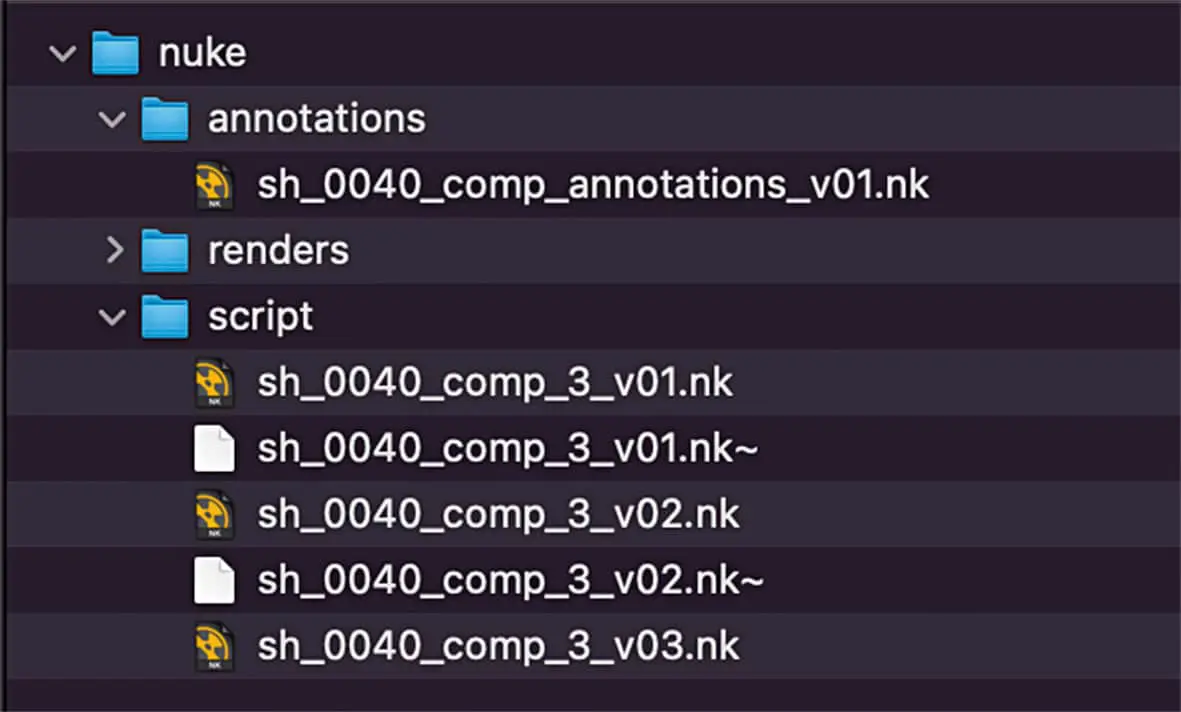
If you want to use Nuke Studio like Flame or Resolve and don‘t want to deal with folder structures, then this workflow is an easy way to get started. The preset works, and Nuke Studio naturally finds the things it stores on its own. And of course, as we saw at the beginning, you can use another preset, even your own or a modified one, for this workflow. This makes sense if you have build setups „on-the-fly“, for example if you want to quickly edit or supply a shot that wasn‘t intended for VFX initially. But let‘s think a bit bigger. This doesn‘t mean Hollywood, huge pipeline, fifty comp artists, but rather: We have a project where we have multiple VFX shots that need to be laid out neatly and work within our existing file structure on our server. That‘s where the next workflow comes into play…
