



Table of Contents Show
Getting started in a new Software can be tough. I usually just want to get started with my edit without having to look for the right buttons to achieve what I have in mind. In the previous article, we looked at setting up your project, importing and organising media and generating proxies to get you ready for your first edit really fast. If you’re already set, the following will give you input on where you’ll find everything in Resolve to get your first cut done.
Get your Project settings right.
After you’ve imported and organised all your footage, you probably want to start editing right away. Still, there’s one more thing we need to do beforehand: set up the project’s framerate and resolution. Unlike Premiere Pro, DaVinci Resolve uses a single frame rate for the whole project. This will be the framerate all your Timelines will automatically be created with. When importing footage, this will be automatically played at the Timeline’s speed. If you, e.g., insert 50fps in a 25fps timeline, Resolve will drop frames to make it play in real-time. It’s important to know that after creating your first Timeline in a project, the current set project framerate will be locked. But don’t worry: although the project uses a single frame rate, it’s still possible to create timelines with different frame rates in that project. To set the project frames to the project settings, click the gearwheel icon in the bottom-right corner of the project, and the master settings will open.

A cool feature to mention is the ‘Use vertical resolution’ checkbox, which lets you switch to vertical resolution quickly without even thinking about the right numbers. This is also possible for a single Timeline instead of a project. If you tend to work with the settings a lot, click the three-dot menu in the top-left corner of projects to set your current settings as a default preset.

Now that you’ve set your project settings, you can create a Timeline by right-clicking in the media pool and selecting Create New Timeline, or pressing Ctrl / Cmd + n. If you want to have a different framerate or Resolution than what is set in the project settings before, untick the ” Use project settings checkbox to get into the small menu.

A small gearwheel icon in the Timeline’s thumbnail indicates it’s a custom timeline. It will automatically open and become visible through the playhead, turning red. If you’d like to give your Timelines different colours, you can do that by right-clicking them in the Media Pool and choosing clip colour.
Media Pool navigation on the Edit page
When working on a different page, your Media Pool is accessible via the Media Pool Panel, which you can activate in the top-left corner. It can be accessed on every page except the Deliver Page. Like in Premiere Pro, you have different view options. The three available are list, thumbnail, and metadata view. To switch between them, use the drop-down menu in the top bar.

List view gives you the most information about your clip. Using thumbnail view, it’s easy to identify the clip by a picture. A powerful feature in the thumbnail view is the live preview: when you hover over a thumbnail, you will see a preview of your clip in the source viewer. It can be deactivated in the three-dotted menu of the source viewer by deselecting live media preview.

To deactivate the sound when Live previewing, press Shift + s. If you want to adjust the thumbnail size, use the zoom function in the top bar. If you’d like a thumbnail as well as some metadata, the metadata view is for you.
When you’re looking for a particular clip, there’s a search bar in the top menu that allows you to find clips by any metadata available, including the one you set yourself when organising your clips. After you’ve found your clip, seeing the waveform can be quite helpful. By double-clicking, your clip will be loaded into the source viewer.

J, l, and K can be used like in Premiere Pro. By pressing the left or right arrow key, the clip will scrub single frames backwards or forwards.
Get through lots of footage. Fast.
By default, Resolves’ source viewer is set to Source Clip mode, in which it lets you preview and work with one clip at a time. I also like to work with Source Tape. This can be opened by clicking on the drop-down menu in the top left of the source viewer or pressing Shift + Q to switch between Source Clip and Tape.


The clips in the current bin are then available in the source viewer as if they were one clip. This makes it super-fast to go through a lot of footage and find the needed B-Roll, e.g., to add into a Source Timeline. Which leads me to one feature I find very useful: using a Timeline in the Source Viewer. If you’re the person who likes to preselect clips in a timeline, this is the tool for you! Simply drag and drop your preselection Timeline into your Source Viewer, or right-click on it in the Media Pool and select Open in Timeline with source viewer.

You can then use the Timeline like a clip and insert from it into your main edit without the need to switch between timelines all the time. Using a Timeline as Source Timeline will be indicated by the playhead turning blue.

Getting shots into the Timeline
To only insert the needed clip part into the Timeline, I set my in point with I and my out point with O. Alternatively, you can use the in and out mark buttons in the lower left corner of the source viewer. Accidentally set points and want to get rid of them again? Press alt / opt + I or O to delete the in or out point. For Resolve, it’s important to know that shortcuts do different things, depending on what is currently active. E.g., if you press X in the source viewer, it will delete both in and out points. If you press X while the Timeline is active, it’ll mark the clip at the playhead’s position.

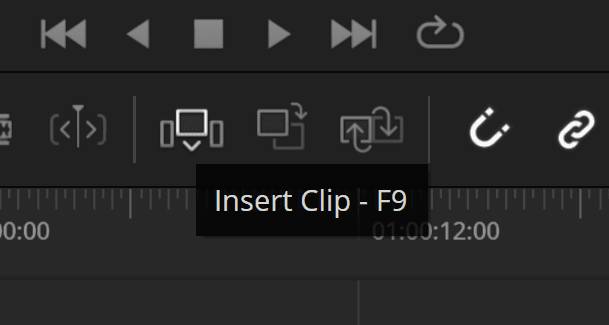
A tip that helped me a lot: lots of buttons show a small overlay when you hover that gives you information about the functionality and shortcuts. There are seven insert options for adding footage to the Timeline.

Important to know: The behaviour when inserting a clip depends on the number of tracks and whether Auto Select is active. In addition to the most frequently used, the insert options are: fit to fill, place on top, append at end, and ripple overwrite. Their shortcuts are assigned to the F-buttons F9-F12 and Shift+F10-F12. They can also be found in the edit menu at the top of your screen. Beware Mac users: You might need to switch the fn keys from volume and brightness to the standard fn key on your Mac to use this.
You like to drag and drop? Check out the possibility to drag and drop from the source viewer into the Timeline Viewers Insert Option Menu. This will open when moving footage above the source viewer and gives you the option to drop onto an insert option.
Mismatched Resolution: Wait, is this already scaled?
When editing, handling different framerates and resolutions is an everyday task. Thankfully, when working with DaVinci Resolve, that’s no problem at all, since mixed frame rates are possible in a single Timeline.
When switching, I liked how Resolve sped up my workflow by handling scaling for mismatched resolutions. I think Premiere Pro handles this quite poorly, since I’ve always had to scale clips manually in the Timeline. Resolve offers four distinct options: Crop, Fill, Fit, and Stretch.
The option to scale the entire image to fit is the default setting and ensures the entire image is visible without blanking. When Crop is activated, Resolve will centre Crop without resizing. Larger clips will be cropped, smaller ones will have black borders. Using a full-frame scale with Crop will scale the clip to fill the frame, zooming in until the shortest dimension fits. The last option is to use a stretch frame on all corners. In this case, Resolve will distort the image to fit the frame.
By default, higher-resolution media will always be scaled down to the Timeline resolution. If you want to change that, go to Project Settings > Image Scaling > Input Scaling. If you want to change the scaling mode for individual clips, you can do so easily in the inspector’s retime and scaling window. Since Resolves Timeline resolution can always be changed, it’s good to know that correct scaling will be maintained. This gives you a lot of flexibility when working with different distribution aspect ratios.
Timeline navigation
When looking at the Timeline, Resolve should look familiar to you from Premiere Pro. The height of the audio and video Timeline can be adapted by clicking and dragging the Timeline divider. The height of the tracks can be adjusted by pressing Shift and scrolling, or by dragging the track divider to adjust only one track. To scroll through the Timeline, you can use strg / cmd + scrolling. Zooming in and out is possible with opt/alt + scrolling.
But there’s one advantage with zooming in Resolve: The Timeline toolbar offers three buttons for predefined zoom settings and one slider for individual adjustments. The left button will zoom to the full extent, the right to full detail zoom. The middle one will zoom to the current slider setting. You can therefore quickly jump to different settings without a lot of clicking or scrolling.

What I found quite annoying was the different navigation in the Timeline between Resolve and Premiere. When using Premiere, I liked to zoom around the mouse pointer. By default, resolve zooms around the playhead. If you don’t want that, simply change it in the menu view > zoom around mouse pointer. Honestly, when I finally realised I could change that, I had already gotten used to the Resolve default, and my Premiere way suddenly felt like chaos.

What still irritated me was only being able to see one open Timeline at a time. But this can be fixed by going into the Timeline View options. These open when you click the left icon on the Timeline toolbar and give you options to modify how your Timeline looks. The Display Stacked Timelines setting at the top lets you see all your open Timelines as tabs, like in Premiere Pro.
To open another Timeline, simply double-click on it in the Media Pool. Alternatively, you can open and switch between Timelines by using the drop-down menu at the top of the Timeline Viewer.
If you want to work from one Timeline into another, you can view multiple timelines simultaneously. To do so, click the small Symbol on the right, above the Timeline, while Display Stacked Timeline is activated. This will open a second Timeline Space below the first one. To open a Timeline in this space, double-click the wanted Timeline while the new space is selected. This is indicated by its Timeline Name being red.

Editing modes: Different workflows for different editors
As one major difference, editing tools in Resolve are consolidated into three editing modes: Selection Mode, Trim Edit Mode, and Blade Mode. The Key Advantage: Fewer tools mean fewer hotkeys to remember. Different editing operations are therefore intuitively performed by clicking on different parts of the clip. For example, if you’re in Trim Edit Mode, you can ripple by positioning the mouse pointer near an edit point, roll by positioning the mouse pointer over the edit point, slip with the mouse over the upper part of it, or slide by positioning the mouse on the lower part of the clip in the Timeline.

If you want to move a clip freely or delete something, Selection Mode is the one you want to go for, since this isn’t possible in any other Mode. You can still ripple and roll in Selection Mode, but Slip and Slide aren’t available. If you want to use the Blade, well, Blade Edit Mode would be the one. To switch between modes, you can either use the icons in the Timeline toolbar or their shortcuts. Like I said before, knowing which button does what and having a routine in that makes you fast, which is why the Edit Mode shortcuts irritated me the most when switching: instead of the shortcut v for Selection, it’s a, and instead of c it’s b for Blade.
It might take some time to get used to the new shortcuts, but all the functions you know from Premiere are there, too. E.g., cutting at the playhead can be done with Cmd/Ctrl+B. What I wish I had known earlier: alt/option + y lets you mark everything from the playhead forward, as you would in Premiere Pro. Playhead can be moved backwards with strg/cmd + y. If you want to turn snapping or linked Selection on or off, you can use the magnet and chain buttons in the Timeline toolbar. Alternatively, linked Selection can be temporarily disabled by pressing Alt, or by snapping with N while holding the mouse button. In addition, when dragging, holding Alt will copy the clip.
Need to fix something? Inspector.
With all shots in the Timeline, there might be a need for some refinement. This is what the inspector is for. It’s the place to optimise and adjust your clips and to work on effects you’ve added. To make adjustments in the inspector, check that the clip you want to work on is selected. This will be visible through a red outline.
What I really appreciate: Basic adjustments can be found here without having to add them from the effects panel.
First, there’s reframing. You can do this with the Transform tool in the inspector, which gives you easy access to zooming, position changing, rotation, and flipping. If the Studio version of Resolve is available to you, the AI Smart Reframe function helps you quickly reframe individual clips to other aspect ratios. For fast cropping, there’s a cropping function integrated directly into the inspector, too. Looking for a way to adjust across a defined range of clips? Adjustment clips can be added from the effects panel—these work just like in Premiere Pro.
If you need some speed adjustments, Speed Change will help you. With this, the Clips speed can be changed as a percentage or in fps. Important when switching from Premiere: By default, Resolve does not ripple the Timeline when adjusting a clip’s speed. This can be changed by checking the Ripple Timeline checkbox. Speed Change also gives you direction-change and freeze-frame options.
The stabilisation is one thing that really annoyed me when using Premiere Pro, since it was slow and didn’t work too well. Thinking about Resolves: it’s fast, accessible through the inspector, and yields a good outcome. You can choose between three modes: Perspective, Similarity, and Translation. When using Blackmagic Cameras, gyroscopic stabilisation is also available. Most of the time, the Perspective does the job. You can also adjust the cropping ratio, smoothness, and strength the way you like. Good to know: Unlike Premiere Pro, Resolve stabilisation can be applied to every clip, whether or not a speed change has been applied. Clips don’t need to be nested to apply stabilisation.

By now, you’ve got everything you need to edit the visual side of your video. For input on working with your audio and music, and on sharing and delivering your final clip, stay tuned.
