



Archive notice: This article was originally published on June 11, 2019. Links and embedded videos are preserved as part of the historical record.
With the imminent 2.80 release, we are currently looking out for useful Blender extensions, such as the Photographer add-on. Interactive Tools is a new free collection of context-sensitive tools for Blender. With the help of hotkeys, the scripts are intended to reduce interaction with the menus in order to achieve a faster modeling workflow.
Tool Overview

After simple installation via the “Add-on” tab in Blender’s Preference panel, you will find “Maxivz interactive Tools” in Blender’s right-hand menu. You need the latest Blender 2.80 version (June 8) for this. The developer recommends assigning shortcuts to each of the individual tools afterward. Here is a brief overview of the scripts’ features:
Super Smart Create
The “Super Smart Creat” tool can be used in many situations. Depending on your selection of vertices, edges or faces, the script carries out different actions. Accordingly, it can, among other things…

- Connect verts that belong to a face
- Divide edges in half with a new vertex
- Fill gaps and create matching quads on a surface
- Connect selected edges or polygons
Smart Extrude
The functions of “Smart Extrude” are modeled on the 3ds Max Shift+Drag behavior. Based on the direction of mouse movement, the script attempts to anticipate the intended axis. Depending on the mode, the tool also behaves differently:
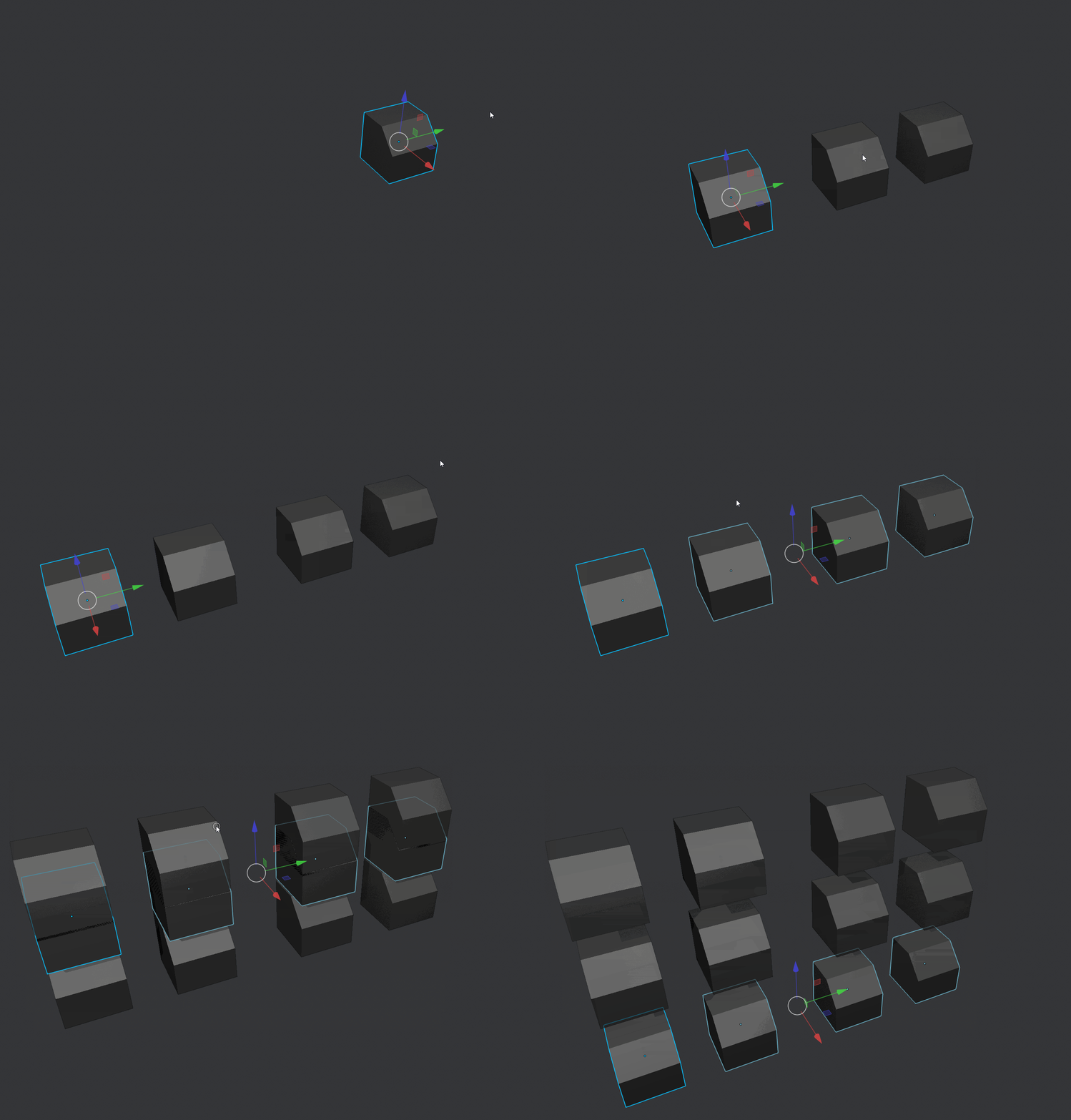
- Object, Vert or Face mode: Duplicate and move
- Edge or Curve Edit mode: Extend and move
Smart Loop & Smart Ring
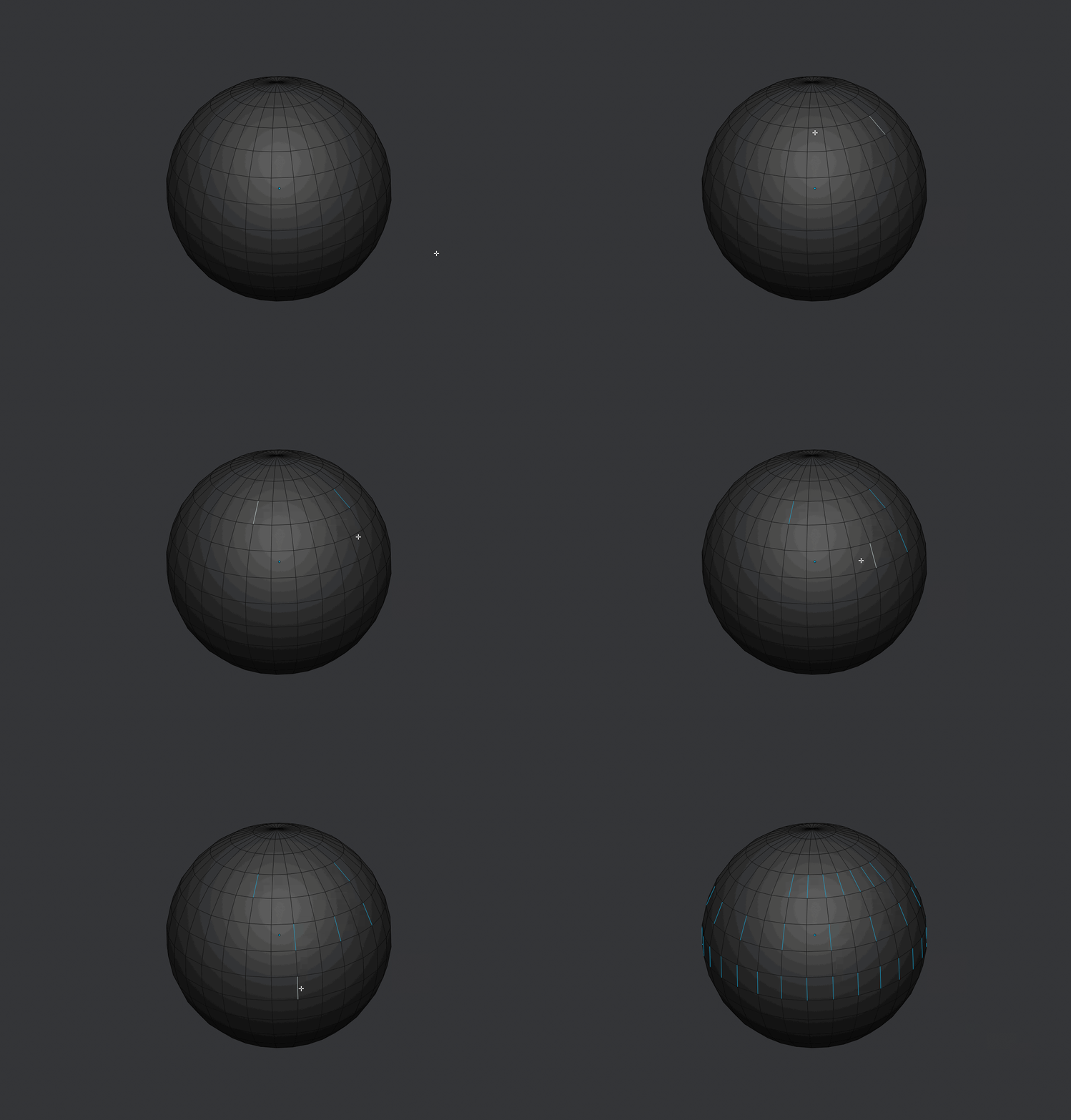
The next smart tool has a few useful aids for edge loops and edge rings. The script automatically selects lopps or rings at selected intervals, complete edge loops or the stretches between two selected edges. As can be seen in the example, these options can also be combined.
Quick Radial Symmetry
To use “Quzick Radial Symmetry,” you have to select the respective object and execute the script. The tool then creates radial symmetry based on the object’s pivot point. Move the mouse left or right to increase or decrease the number of iterations. Using Ctrl + mouse movement, you can also change the axis.

Further Tools
- Set Cylindrical Obj Sides
- Smart Translate
- Quick FFD/Lattice
- Quick Pivot
- Quick Delete
- Quick Vert, Edge and Face Mode
- CS Bevel
- Toogle
- UV Rotate
Go to the Download
You can find the free download of the collection here on Gumroad.
Further information: In the online documentation
